

Custom action
Let your agent look up or send information to your own systems, like checking the status of an order.
A custom action connects your agent to a system your business already uses, such as your online store, booking tool, or order database. With it, the agent can answer "Where's my order 48213?" with the real status instead of a general reply.
Where to find it: open your agent, go to Build → Actions, and select Custom action.
How it works
Your systems talk to other software through an API: a way for one program to ask another for information, using a web address. Most online stores, booking tools, and CRMs have one.
Think of a custom action as a phone call to your back office with a fixed script. The agent always calls the same number (the web address you set), asks one specific question (like "what's the status of order 48213?"), and reads back the answer in plain words. It can only ask the questions you set up.
- 1Customer asks"Where's my order 48213?"
- 2Agent callsHourzero sends the order number to your system.
- 3System answersYour system replies with the order's status.
- 4Agent repliesThe agent explains the result to the customer.
What you can do yourself, and what needs a developer
You can set up most of a custom action on your own. A few parts depend on how your system works, and someone who knows that system should help.
You can set up:
- The name and When should the agent use it?
- The details the agent collects from the customer, like an order number, and how to describe them
- The Response instructions that tell the agent how to explain the result
- Which channels can use the action, and testing it in the Playground
Ask a developer for:
- The Endpoint URL and Method: which address to call and what kind of request your system expects
- Any API key, which goes in Headers
- Making sure your system checks the details it receives, for example that the order number and email belong together
- The website options (Website API request and Website JavaScript handler) and the Client event
Tip
Send this page to your developer. The For developers section at the end has the technical details they need.
Example: look up an Acme order
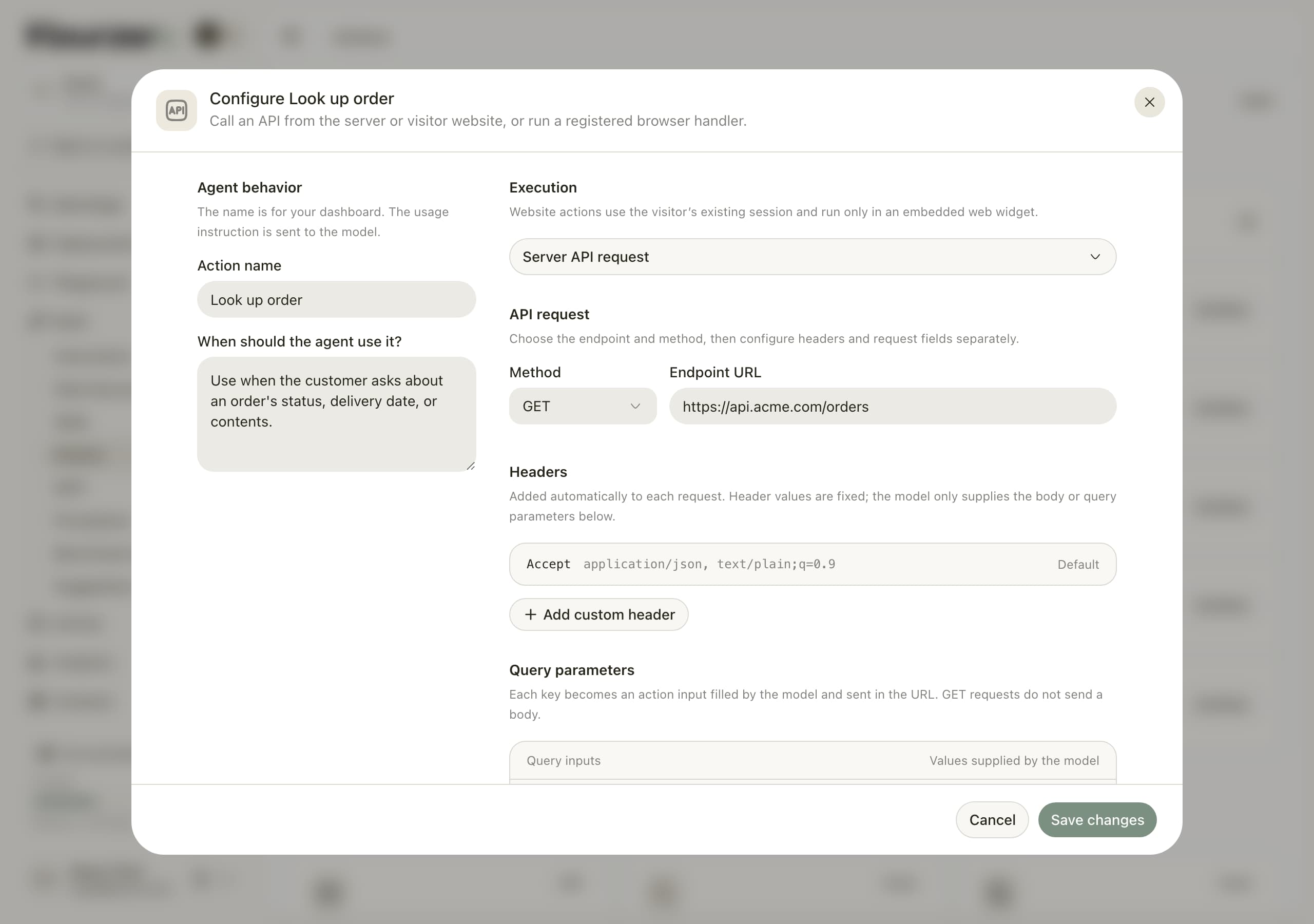
This example builds the Look up order action for Acme Support. Your developer has told you that Acme's order system answers at https://api.acme.com/orders, expects an order number and the customer's email, and needs an API key.
-
Open Build → Actions and select Custom action.
-
In Action name, enter
Look up order. -
In When should the agent use it?, enter:
Use when a customer asks where their order is, when it will arrive, or what was in it. Ask for the order number and the email used for the order if you don't have them. Only share details the lookup returns. -
Leave Execution set to Server API request.
-
Under API request, set Method to GET and Endpoint URL to
https://api.acme.com/orders. -
Under Headers, select Add custom header. Enter
Authorizationas the Header name and the key from your developer, such asBearer acme-key-123, as the Header value. -
Under Query parameters, select Add parameter. A settings panel opens below the preview.
-
Fill in the parameter:
- Parameter label:
Order number(the keyorder_numberis created for you) - Value type: Short text
- Description for the model:
The 5-digit order number from the confirmation email, for example 48213. - Requirement: Required
- Parameter label:
-
Select Add parameter again and add
Emailwith Value type Email, the descriptionThe email address the customer used to place the order., and Requirement Required. -
Under Response, in Response instructions, enter:
Tell the customer the order status and expected delivery date. If no order is found, ask them to check the order number and email. -
Select Create action.
Now, when a customer writes "Where's my order 48213?", the agent asks for their email, then calls Acme's system. Acme's system might reply with something like this:
{ "status": "shipped", "carrier": "UPS", "estimated_delivery": "2026-10-06" }
The agent turns that into a friendly answer: "Order 48213 has shipped with UPS and should arrive on October 6."
Tip
Pair this action with a Custom button that opens your tracking page, so the customer can follow the parcel themselves.
The settings, explained
Execution
This decides where the request runs.
- Server API request (the default): Hourzero calls your system directly. Use this unless your developer tells you otherwise. It works on every channel.
- Website API request and Website JavaScript handler: the request runs inside your own website, using the customer's existing login there. These need a developer and only work in the chat on your website. See Run actions on your website.
API request
- Method is the kind of request. GET usually means "look something up". POST, PUT, PATCH, and DELETE usually create, change, or remove something. Your developer will tell you which one your system expects.
- Endpoint URL is the web address of your system. It must start with
https://.
Headers
Headers are extra information sent with every request, most often an API key that proves the request comes from you. The standard headers Hourzero adds for you are listed with a Default label. Select Add custom header to add your own; you can add up to 20. Header values are fixed: the agent never sees or changes them.
Query parameters or Request body
These are the details the agent fills in each time, like the order number. With GET the section is called Query parameters. With the other methods it's called Request body.
The section shows a small preview that looks like code, for example "order_number": "{{order_number}}". The part in curly brackets is a placeholder: the agent replaces it with the real value from the conversation. Select a placeholder to open its settings:
- Parameter label: a readable name. The key in the preview is created from it.
- Value type: Short text, Long text, Email, Phone, Number, Yes / no, or Select.
- Description for the model: tells the agent which value to use and where to find it. Be specific.
- Allowed values: for Select only. A comma-separated list of the only values the agent may use, such as
standard, express. - Requirement: Required means the agent must have this value before it runs the action, so it asks the customer. Optional means it can leave it out.
- Null value: leave this on Non-nullable unless your developer asks for Nullable.
You can add up to 20 parameters. If you add none, the request is sent without any customer details.
Response
- Response instructions (optional): how the agent should explain the result. For example, which details matter and what to say if nothing is found.
- Client event: for developers. See For developers.
- Response widget: shows the information your system returned in a small card in the website chat, under the title you enter in Widget title. The card shows the data as your system sent it, so it works best when the reply is short and readable.
Test your action
- Open Playground, pick a channel such as Chat Bubble, and check that Look up order is switched on in the Capabilities tab. Select Save draft if you changed anything.
- In the preview, ask "Where's my order?" without a number. The agent should ask for the order number and email.
- Give a real test order, such as 48213, and its email. Check that the answer matches your system.
- Try an order number that doesn't exist. The agent should say it couldn't find it, not make up a status.
- Ask something unrelated, like "Do you sell gift cards?" The agent should answer without running the action.
- Open the chat in Activity → Conversations. Each action run appears as a box such as "Action · Look up order". Expand it to see exactly what was sent and what came back.
- When everything works, publish the channel.
Warning
Test actions that change things, like cancelling an order, with test data only. Every call in the Playground is a real request to your system.
Limits
- Only
https://addresses on the public internet. Addresses inside a private company network can't be reached. - Your system has 10 seconds to answer. After that, the request is cancelled.
- The reply can be up to 64 KB, which is plenty for a short summary but not for a whole catalog.
- Up to 20 headers and 20 parameters per action.
Troubleshooting
The agent says it couldn't complete the lookup
Your system answered with an error, took longer than 10 seconds, or sent back too much data. Open the chat in Activity → Conversations and expand the action to see the error, then share it with your developer.
The agent never runs the action
Make sure the action is switched on for the channel and that you saved the draft. Then make When should the agent use it? more specific, using the words your customers actually use.
I see "Enter a valid HTTPS URL."
The Endpoint URL must be a full web address that starts with https://.
Run actions on your website
Some actions should run as the customer who is logged in to your website, for example "show my recent orders". For these, a developer can pick a website option under Execution:
- Website API request calls an address on your own website, such as
/api/orders, from the customer's browser. The customer's existing website login is used. - Website JavaScript handler runs a small piece of code that your developer adds to your website. Enter its name in Handler name.
Important
Website actions only run in the Chat Bubble or Center Stage embedded on your own website. They don't run in the Playground preview or on messaging apps, so test them on your live site.
For developers
This section has the technical details for the person connecting your system.
Server API requests
- For
GET, inputs are added as query parameters. For other methods, inputs are sent as a JSON body; with no parameters, the body is{}. - Omitted optional inputs are left out. A
nullvalue on a Nullable input is sent as JSONnullin a body and left out of a query string. Values such as0andfalseare kept. - Default headers:
Accept: application/json, text/plain;q=0.9, plusContent-Type: application/jsonfor requests with a body. Custom headers can override these. Connection-level headers such asHostandContent-Lengthcan't be set. Header names must be unique, ignoring case. - The URL must be HTTPS, must not contain credentials, and must resolve to a public address. Localhost and private ranges are blocked.
- Up to three redirects are followed and each destination is checked. Custom headers are dropped if a redirect goes to a different origin.
- Responses can be JSON or text, up to 64 KB, within 10 seconds. Any non-2xx status is treated as a failure.
Design your endpoint defensively:
- Treat every input as untrusted and validate it on your server.
- Check ownership before returning private data, for example that the order number matches the email.
- Return only the fields the agent needs.
- Return a non-2xx status for failures rather than an error message inside a success response.
- Make write operations safe to repeat where you can, because a timed-out request may still have completed.
Client event
When Client event is on, a successful server request dispatches a browser CustomEvent with the name you enter in Event name (letters, numbers, periods, colons, underscores, and hyphens; for example acme:order-found). Its detail contains actionKey, input, response, and status.
The event is dispatched on the chat widget's own window. The standard website embed loads the chat in a separate frame, and the loader doesn't currently pass this event on to your page, so confirm your setup receives it before you rely on it.
Website API request
Enter a same-origin path such as /api/orders. The embed loader sends the request from your page with credentials: "same-origin", so the browser includes the visitor's cookies, including HttpOnly cookies. Cookies are never sent to Hourzero. Redirects are rejected, custom headers aren't supported, requests time out after 15 seconds, and responses must stay under 60 KB. If your endpoint needs a CSRF token or custom headers, use a JavaScript handler instead.
Website JavaScript handler
Register a handler on your page whose name matches Handler name:
window.hourzero("registerTools", {
  get_order: async (args, user) => {
    const response = await fetch(
      `/api/orders/${encodeURIComponent(args.order_number)}`,
    );
    if (!response.ok)
      return { status: "error", error: "Unable to retrieve your order." };
    return { status: "success", data: await response.json() };
  },
});
Register after the embed script loads, or queue calls before it loads:
window.hourzero =
  window.hourzero ||
  function () {
    (window.hourzero.q = window.hourzero.q || []).push(Array.from(arguments));
  };
- Handlers must return
{ status: "success", data }or{ status: "error", error }, as JSON-compatible values under 60 KB. argscontains the configured parameters.usercontainsanon_user_id, which is not a verified identity; use your own session to authorize requests.- Results must arrive within about 18 seconds. A timed-out handler may still have completed, and Hourzero doesn't retry it.
- Results are stored in the conversation history, so return only what the conversation needs.
For website-defined forms, see Custom form.