

What is Hourzero?
The big picture in five minutes. What an Hourzero agent is, how you teach it, and how it reaches your customers.
Hourzero helps you create an AI agent: an assistant that chats with your customers and answers with your own information. It works around the clock, replies in the customer's language, and can hand a conversation to your team when a person is needed.
Think of it as hiring and onboarding a new support teammate. You give them your documents, explain how you like things done, check their first answers, and then let them talk to customers. Hourzero gives you a place to do each of those steps.
What an agent can do for you
- Answer questions instantly. Shipping times, return rules, opening hours, pricing, how-to steps. It looks up the answer in the information you gave it.
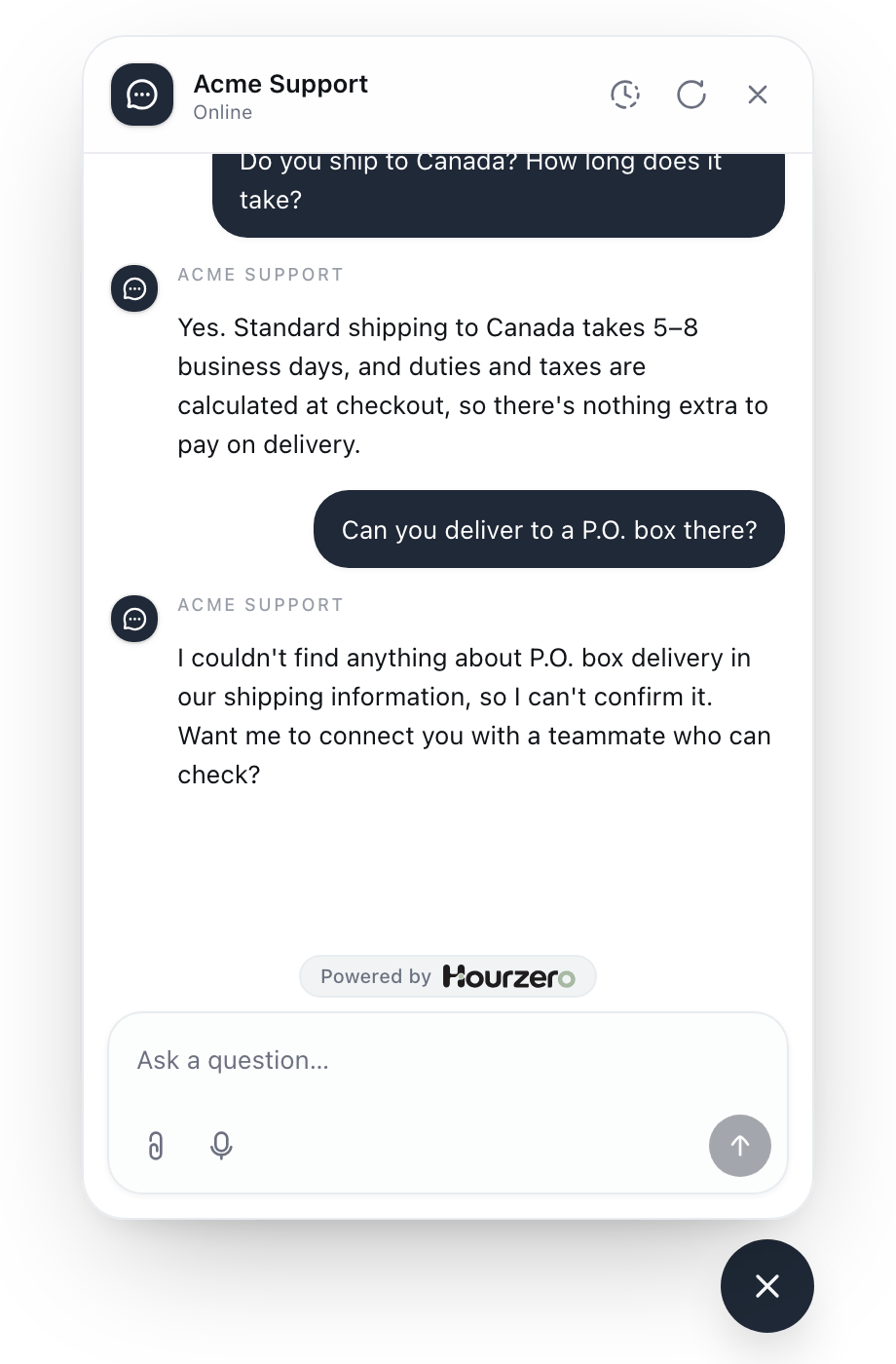
- Say when it doesn't know. If the answer isn't in your information, a well-set-up agent says so instead of guessing, and offers another way to get help.
- Collect details. It can ask for a name and email, show a short form, or capture a sales lead.
- Get things done. With actions and procedures, it can look up an order, start a return, or follow your step-by-step playbook.
- Pass the chat to a person. When something needs a human, it can hand the conversation to your team in the Helpdesk.
The four building blocks
Every agent is made of the same four parts. You'll find each one in the left sidebar of your agent's dashboard.
1. Knowledge: what the agent knows
These are your data sources: website pages, files (like a PDF of your return policy), short pieces of text, and question-and-answer pairs. The agent only knows what you put here, so it won't make up your prices or policies.
When you add or change knowledge, you train the agent. Training means Hourzero reads your sources so the agent can find the right passage when a customer asks. Find it under Build → Data Sources.
2. Instructions: how the agent behaves
Instructions are like a job description. They say who the agent works for, what it should help with, what tone to use, and when to bring in a person. Guardrails sit next to them: the rules it must never break, such as "never promise a refund". Find both under Build → Instructions.
Hourzero writes a first version for you when you create the agent, so you start by editing rather than staring at a blank page.
3. Playground: where you test
The Playground is a private practice room. You chat with the agent exactly as a customer would, and you adjust how it looks on each channel. Nothing you do here reaches customers.
4. Channels: where customers meet it
A channel is a place customers can talk to your agent:
| Type | Channels |
|---|---|
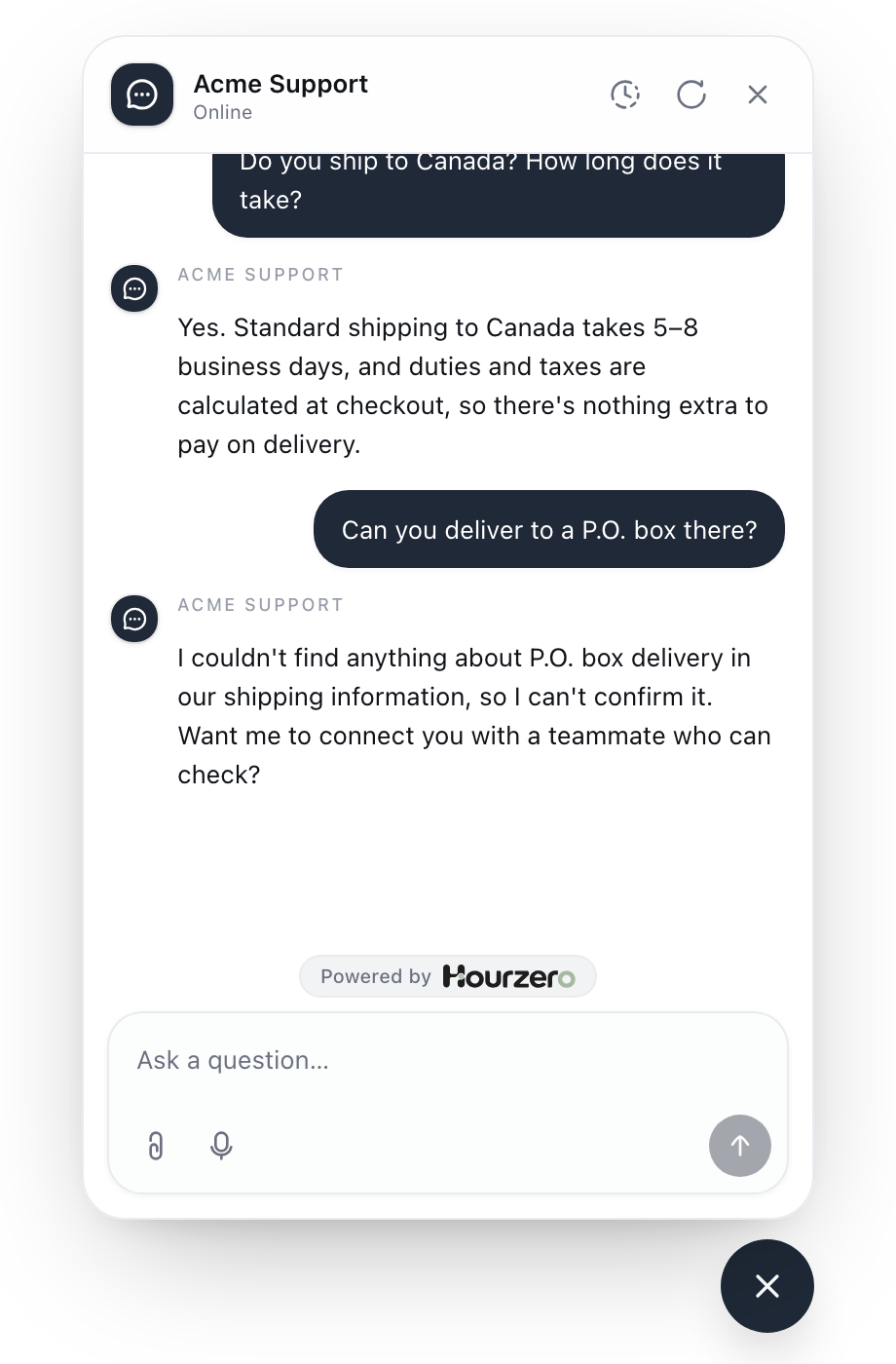
| On your website | Chat Bubble (a small chat button in the corner) and Center Stage (a chat bar at the bottom of the page that opens into a focused conversation) |
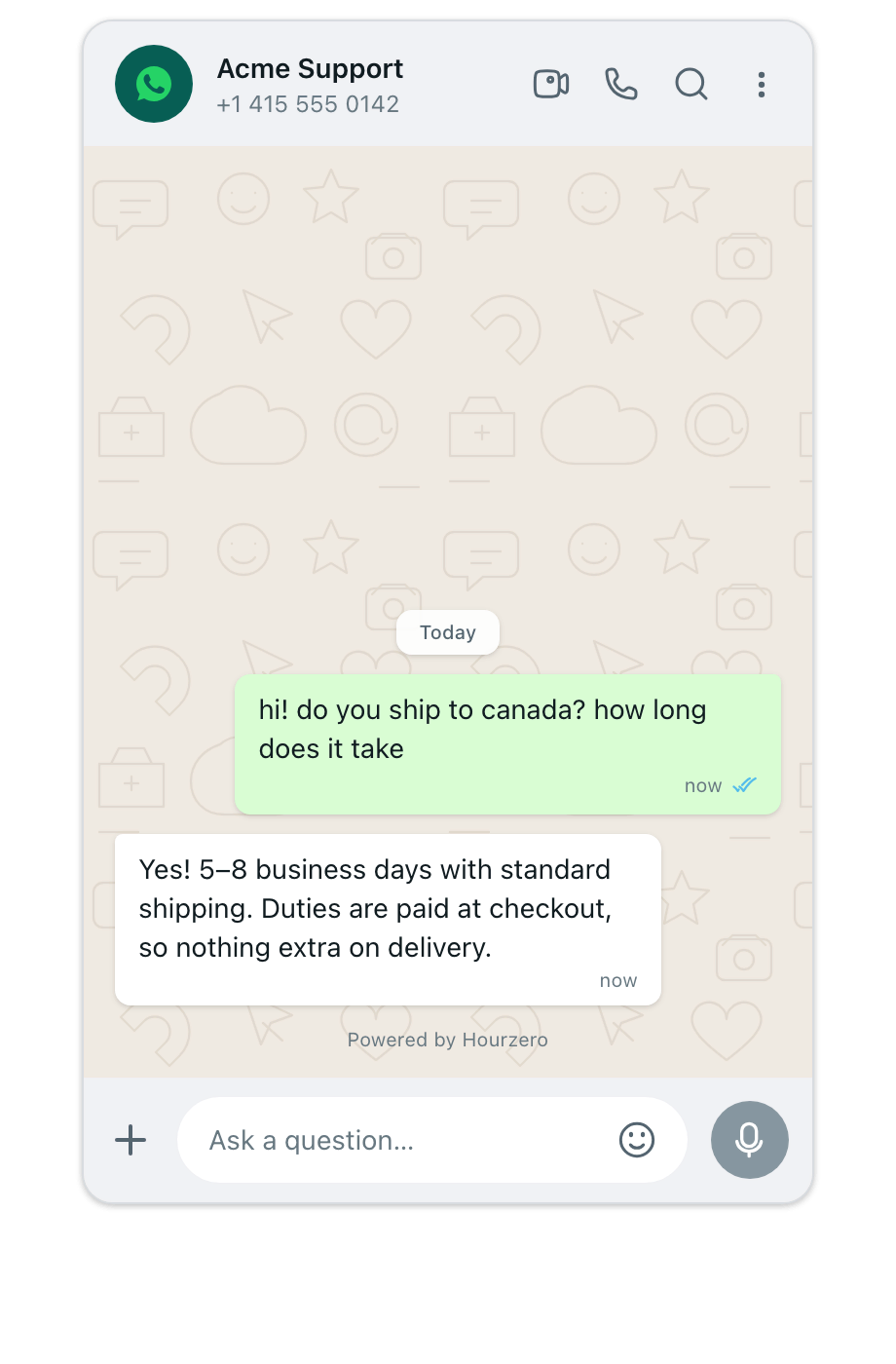
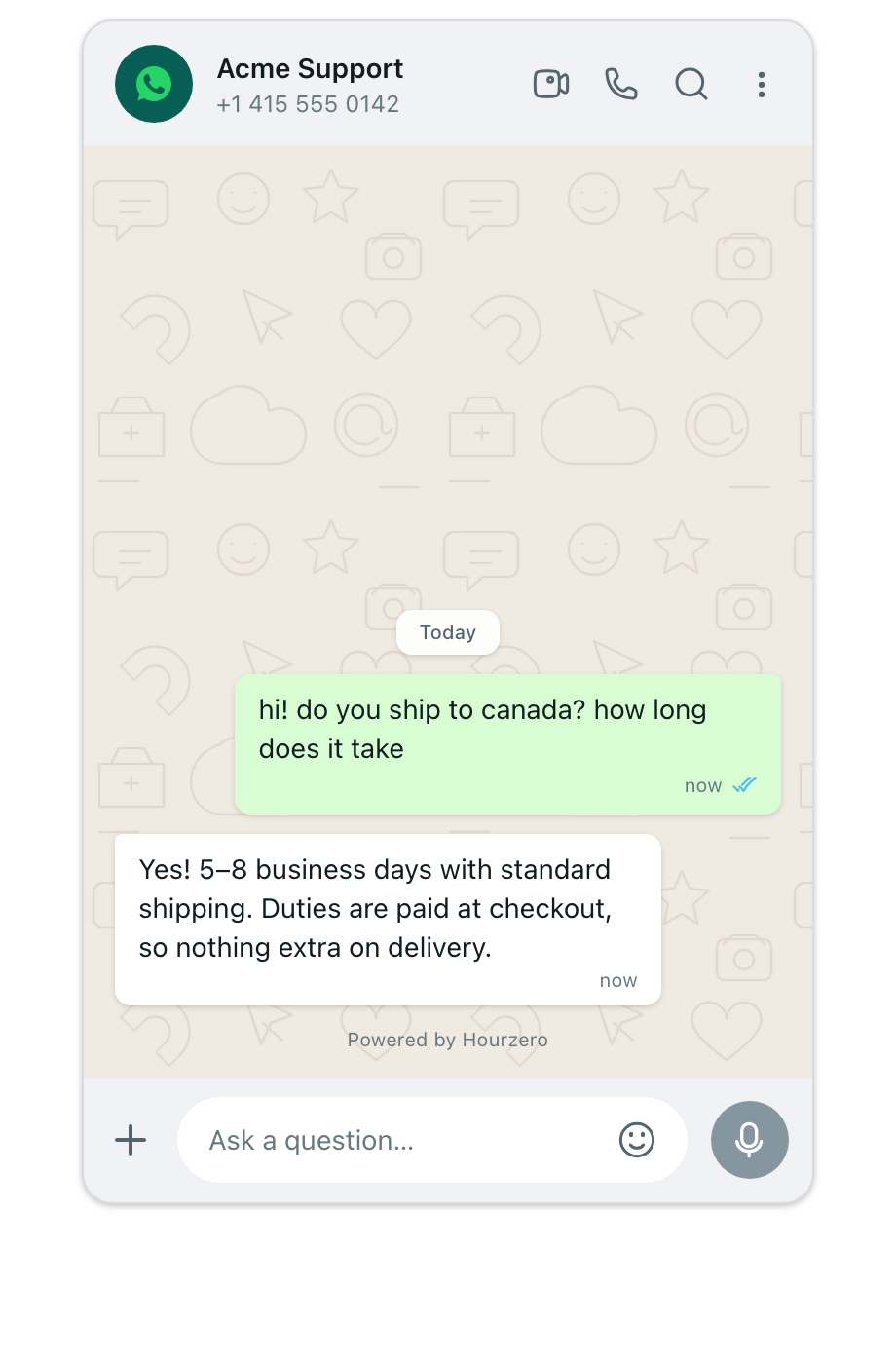
| Messaging apps | WhatsApp, Messenger, Instagram, Slack, Discord, Telegram, and SMS through Twilio |
You can use one channel or many. Each one can have its own look, its own welcome message, and even its own instructions.
Note
You'll also see a Help Page channel, a full-page chat. You can design and test it in the Playground today, but it can't be published to customers yet.
Draft and live: your safety net
Everything you change is saved to a draft. The draft is what you test in the Playground. Your customers keep talking to the live version until you decide to publish.
- 1EditChange knowledge, instructions, or channel settings.
- 2SaveYour changes go into the draft.
- 3TestChat with the draft in the Playground.
- 4PublishCopy the draft to a channel. Customers now get it.
Two things are worth knowing early:
- You publish one channel at a time. Publishing your Chat Bubble doesn't change WhatsApp. This lets you try a change on one channel first.
- Old versions are kept. Each publish is recorded, so you can see what was live and when. See Publishing and version history.
Saving doesn't make a change live
If you've updated something and customers don't see it yet, you probably haven't published that channel. This is the most common question from new users.
Words you'll see often
| Word | What it means |
|---|---|
| Workspace | Your company's home in Hourzero. It holds your agents, teammates, and plan. |
| Agent | One AI assistant. A workspace can have several, for example one for support and one for sales. |
| Data sources | The information the agent learns from. |
| Train | Make the agent read your latest data sources. |
| Draft | The version you're editing and testing. Only your team sees it. |
| Publish | Put the saved draft live on one channel. |
| Channel | A place customers chat with the agent, such as your website or WhatsApp. |
| Credits | What the agent's replies cost. Check them on the Usage page. |
Find your way around
When you open an agent, the left sidebar holds everything about it. Here's what each item is for:
| Sidebar item | What you do there |
|---|---|
| Playground | Test the agent and style each channel. This is the agent's home page. |
| Build | Add knowledge, write instructions, and give the agent actions, skills, and procedures. |
| Activity | Read conversations, and find leads, form answers, and files shared in chats. |
| Analytics | See chat volume, popular topics, and customer sentiment. |
| Contacts | See the people who talked to your agent. |
| Channels | See every place the agent can appear, and connect messaging apps like WhatsApp and Slack. |
| Helpdesk | Handle conversations the agent passed to your team. |
| Deployments | See what's live on each channel and its history. |
| Backstage | Ask questions about your agent's performance in plain words. |
| Settings | The agent's name, message limits, notifications, and other agent-wide options. |
Tip
To get back to the list of all your agents, select Back to workspace at the top of the sidebar.
What you need to get started
- Your website address, or a few documents that answer common customer questions (a returns policy, a shipping page, an FAQ).
- Ten real questions your customers ask. You'll use them to test the agent.
- Access to your website (or someone who can add a small piece of code to it), if you want the chat bubble on your site.
That's it. Building a first agent takes about 15 minutes.