

File storage
Find, download, and delete the files customers and teammates upload in chats with your agent.
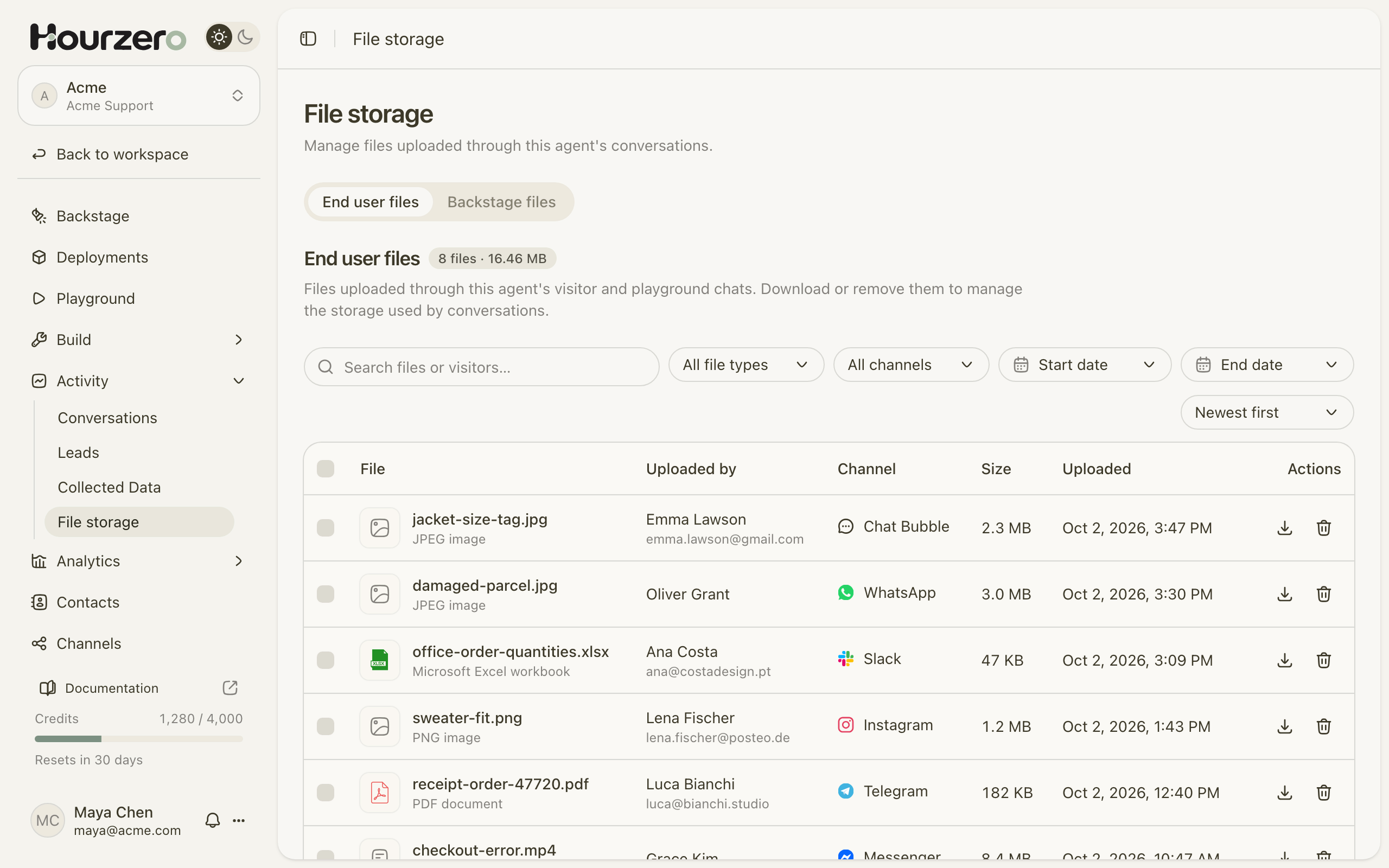
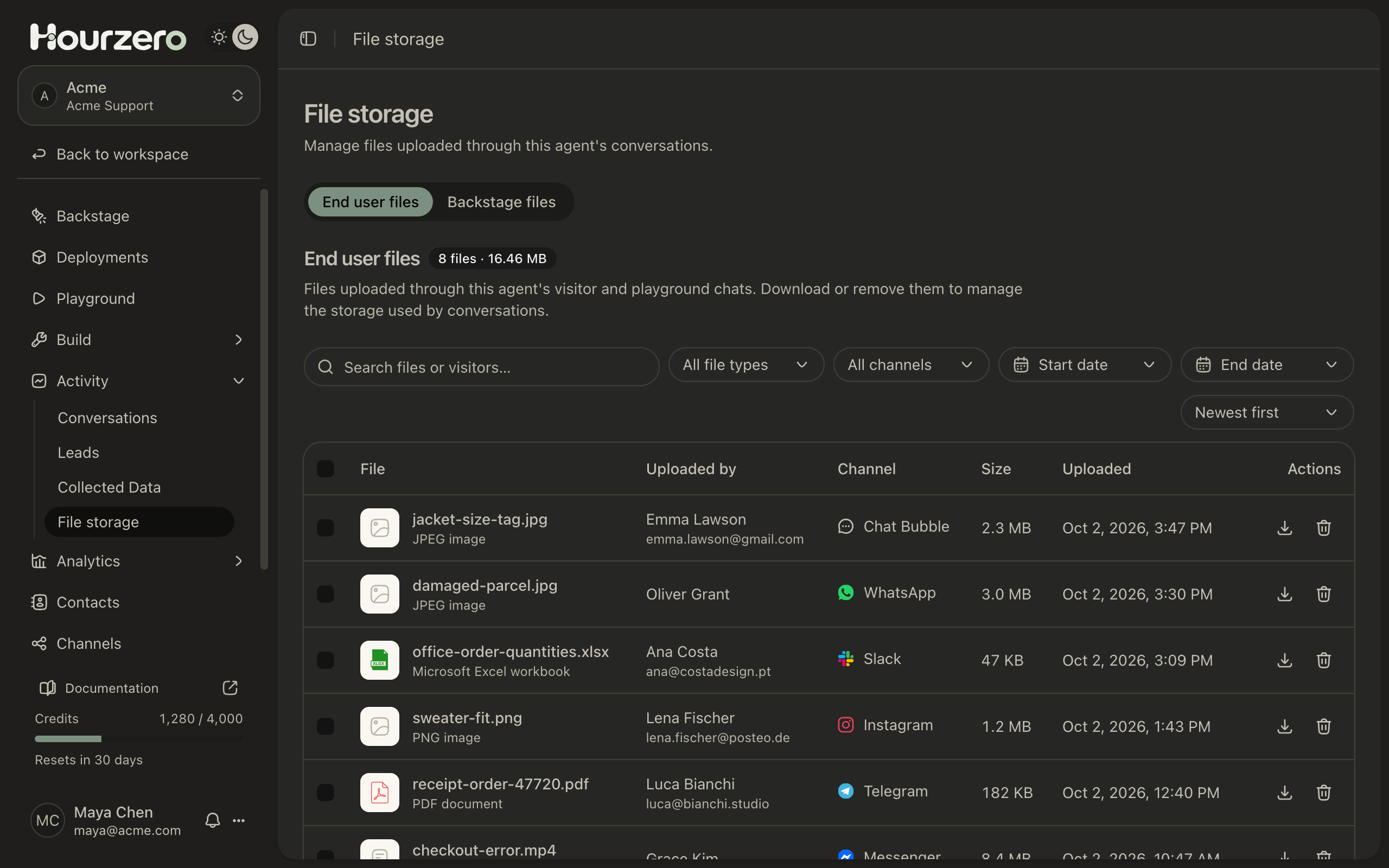
File storage lists every file that was uploaded in a chat with your agent, like a photo of a damaged parcel or a receipt. You can find a file, download it, or delete files you no longer need to free up space.
Where to find it: open your agent and go to Activity → File storage.
Which files appear here
The page has two tabs:
- End user files: files from customer chats and Playground tests. For example, Oliver Grant sent a photo of a damaged parcel on WhatsApp.
- Backstage files: files you and your teammates uploaded while chatting with Backstage, your team's internal assistant.
The total number of files and their combined size appear next to the tab title, like 8 files · 16.46 MB.
Important
Files in chats don't teach your agent anything. If a customer sends your returns policy, the agent doesn't learn from it. To add a document to your agent's knowledge, upload it in Build → Data Sources instead. See Data sources.
Here's how the three places for files compare:
| Where | What's there | Does the agent learn from it? |
|---|---|---|
| End user files | Files customers send in chats. | No |
| Backstage files | Files your team shares with Backstage. | No |
| Build → Data Sources | Documents you add on purpose, like your returns policy. | Yes, after training |
Let customers send files on your website
On WhatsApp, Instagram, and other messaging apps, customers send files the way they normally do in that app. On your website, you choose whether visitors can attach files:
- Open the Playground and pick Chat Bubble, Center Stage, or Help Page.
- On the Overview tab, turn on File uploads.
- Select Save draft, then publish the channel.
Visitors now see an attachment button in the chat window.
Find a file
- Type in Search files or visitors… to search by file name or by who uploaded it.
- Use All file types to show only Images, Documents, Audio, Video, or Other.
- Use All channels to show one channel, or Playground to see only test uploads.
- Pick a Start date and End date to show a time period.
- Change the order with Newest first, Oldest first, Largest first, or Smallest first.
The Uploaded by column shows the person's name and email when known. Otherwise it says Anonymous visitor or Playground user.
Download a file
- Select the download icon on the file's row.
- Read the warning in the Download this file? dialog, then select Download.
Warning
Files from customers can contain harmful content. Only download a file if you trust it, and keep your computer's security software up to date.
Delete files
Deleting files frees up storage for new uploads. Only workspace owners and admins can delete files. If you don't see checkboxes or trash icons, ask an owner or admin.
To delete one file:
- Select the trash icon on the file's row.
- Select Delete to confirm.
To delete several files at once:
- Tick the checkbox next to each file. Tick the box in the header to select every file on the page.
- Select Delete followed by the number of files, for example Delete 3.
- Select Delete to confirm.
A message confirms how many files were deleted. If some couldn't be removed, the message says how many. Try deleting those again.
Warning
Deleting is permanent. The file disappears from the conversation it was sent in, and you can't get it back. Download anything you need to keep first.
Storage limits
Your plan sets how many files your workspace can store and how large each file can be. When you reach the limit, new uploads are blocked with a message asking you to delete files or upgrade your plan. See Plans and billing for the limits on each plan.
Tip
Once a month, sort by Largest first and delete old videos and large files you no longer need. It's the fastest way to free up space.
Common questions
Does deleting a file delete the conversation?
No. The conversation stays, but the file is no longer available in it.
Does deleting a file remove it from the customer's phone?
No. Deleting only removes Hourzero's copy. The customer still has the file they sent.
Can I attach a file when I reply as a person?
Not yet. Human replies can only contain text. See Conversations.