

Agent settings
Rename your agent, cap its weekly spending, limit message bursts, set up webhooks, move it to another workspace, or delete it.
Agent settings holds the controls that apply to one agent as a whole: its name, how many credits it may spend, how fast visitors can send messages, and which other apps get notified when things happen. It's also where you move or delete the agent.
Where to find it: open your agent and select Settings in the sidebar.
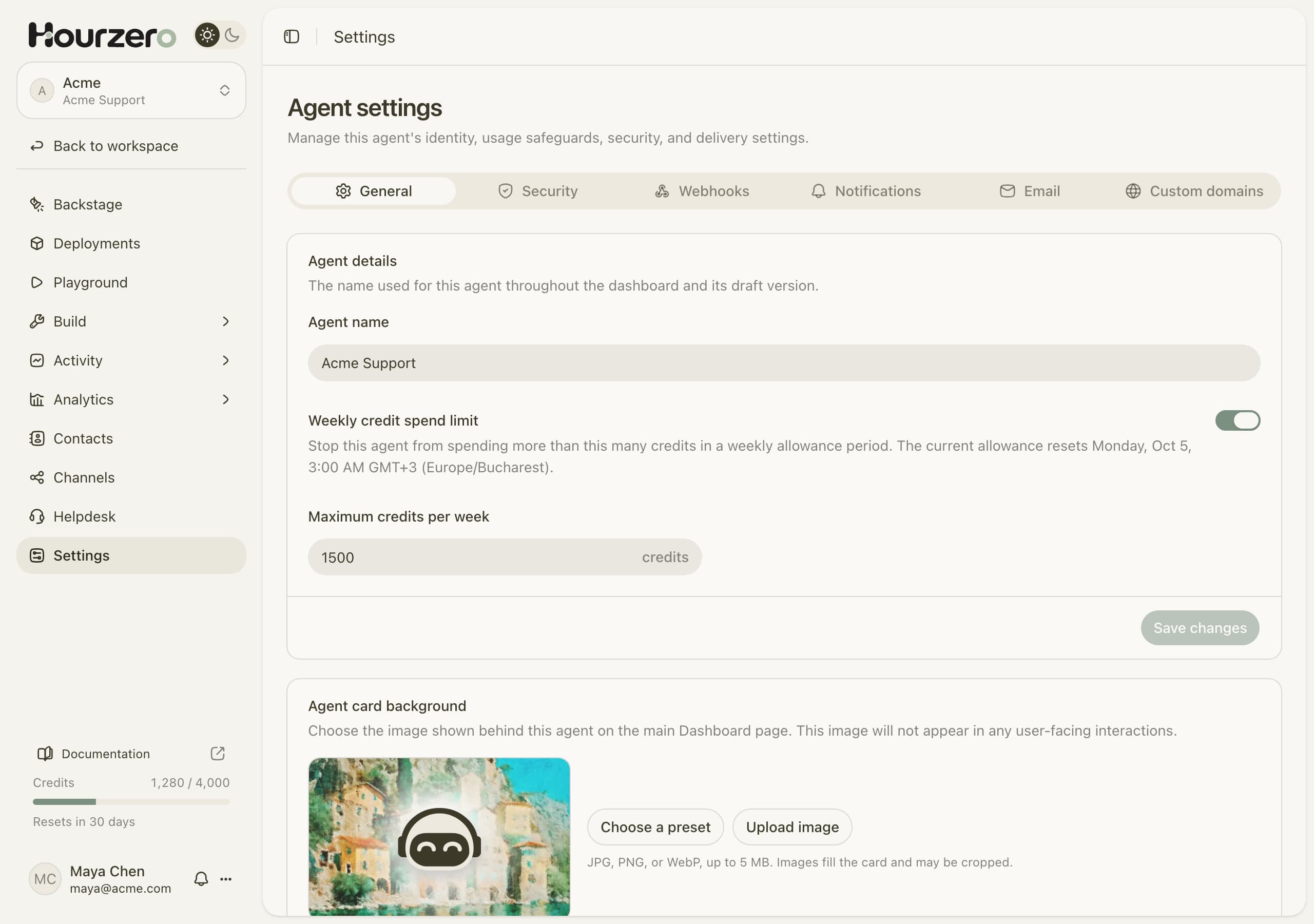
The page has five tabs: General, Security, Webhooks, Notifications, and Custom domains.
Note
Settings for your whole company account, like members, plans, and billing, live in your workspace settings, not here. See Manage your workspace.
General
Rename your agent
- In Agent details, change the Agent name.
- Select Save changes.
This name is for you and your team. It appears in the dashboard and the agent list. The name customers see in the chat is set separately for each channel in the Playground, on the Display tab, under Display name.
Set a weekly credit limit
Credits are what messages cost. A weekly limit stops one agent from using up your workspace's credits, for example during a sudden rush or if someone floods the chat.
- Turn on Weekly credit spend limit.
- In Maximum credits per week, enter a whole number between 1 and 1,000,000.
- Select Save changes.
The text under the switch tells you when the current week resets, in your own time zone. When the agent reaches its limit, it stops answering until the next week starts.
Tip
Not sure what number to pick? Check how many credits the agent used in a normal week on the Usage page, then set the limit a bit higher.
This limit doesn't add credits. If the agent stops answering, check both this limit and your workspace's remaining credits on Usage.
Change the agent card background
Agent card background is the image behind this agent on your main dashboard. Customers never see it.
- Select Choose a preset to pick a ready-made image.
- Select Upload image to use your own. Use JPG, PNG, or WebP, up to 5 MB.
Move the agent to another workspace
If your company has more than one workspace, you can move an agent from one to another. Everything important moves with it: conversations, contacts, files, and settings.
- Under Transfer agent, open Destination workspace and choose a workspace.
- Select Transfer agent.
- Read the summary and select Transfer agent again to confirm.
You need to be an owner or admin in both workspaces. If you don't see any workspaces in the list, you aren't an owner or admin anywhere else.
Warning
Moving an agent changes who can reach it and how it connects:
- People in the current workspace lose access to the agent.
- Connected apps like WhatsApp, Messenger, or Slack stay with the current workspace. The agent stops replying there until you connect those apps in the new workspace.
- Webhooks and Helpdesk are turned off until someone reviews them in the new workspace.
- Helpdesk team assignments and file folders need to be set up again.
- Past billing stays with the current workspace.
After the move, switch to the new workspace, reconnect your channels, publish them, and send a test message.
Danger zone
The Danger zone at the bottom has two actions that permanently remove data. Only workspace owners and admins can use them.
Delete conversations removes every conversation this agent has had, both Playground tests and real customer chats. Your agent's setup and its contacts stay.
Delete agent removes the agent and everything that belongs to it: its knowledge, published versions, contacts, and conversations.
To use either one:
- Select Delete conversations or Delete agent.
- Type the agent's name exactly as shown, for example
Acme Support. - Select the delete button to confirm.
Warning
Security: limit how fast visitors can send messages
A message rate limit stops one visitor from sending a flood of messages, whether it's a person or an automated script. It protects your credits and keeps the agent available for everyone else.
- Open the Security tab.
- Turn on Limit messages per visitor.
- Enter the number of Messages, the Time window, and the Unit (Second, Minute, Hour, or Day). Both numbers must be between 1 and 10,000.
- Select Save changes.
For example, 20 messages every 1 minute lets a real customer chat normally but stops someone pasting messages in a loop.
The limit applies to each customer separately on every channel: your website chat (Chat Bubble, Center Stage, and Help Page) and messaging apps like WhatsApp, Slack, and Telegram. Each channel keeps its own count, and the count follows the customer across conversations on that channel. In the Playground, it applies to each teammate who is testing.
When someone hits the limit, they get a short message telling them how many seconds to wait before trying again.
Note
This limit controls how many messages people can send. To control what the agent is allowed to say, use Guardrails.
Webhooks: notify your other apps
A webhook is a message Hourzero sends to another app the moment something happens, like a new lead. Use webhooks to add leads to your CRM, post new conversations to a team channel, or keep another system in sync.
On the Webhooks tab you can:
- select Add endpoint, paste the web address (URL) that should receive the messages, add a Description like "Production CRM", and choose the Events you want;
- turn on Include playground events if you also want to receive tests;
- Edit an endpoint, turn it off with Endpoint active, or Rotate secret;
- check Event history to see every event, whether it was Delivered or Failed, and Resend it.
When you create an endpoint, Hourzero shows a signing secret once. Copy it and give it to whoever runs the receiving app, then select I saved it. The receiving app uses it to check that messages really come from Hourzero.
Hourzero retries failed deliveries for up to three days. The Webhooks guide explains every event and how to set up the receiving side.
Notifications and Custom domains
These two tabs say Coming soon. They don't do anything yet.
- Notifications will let you choose which events notify your teammates.
- Custom domains will let you connect your own web address to customer-facing pages.
The allowed domains you set when publishing a website widget are a different thing. They control which websites can show your chat. See Website widget.
Common questions
Why did my agent stop answering?
Check these in order:
- Did it reach its Weekly credit spend limit? Raise the limit or wait for the weekly reset.
- Is your workspace out of credits? Check Usage.
- Is the conversation paused for human takeover? See Conversations.
- Are Agent replies turned off for that channel? See Channels.
Does changing the agent name change what customers see?
No. Customers see each channel's Display name, which you set in the Playground.
Why can't I transfer my agent?
The error message tells you what to fix. Common reasons:
- You aren't an owner or admin in both workspaces.
- The agent is busy, for example still training or answering a message. Wait for it to finish, then try again.
- A training file is shared with another agent. Give this agent its own copy of the file first.
- One of the agent's contacts already exists in the destination workspace.
- The destination workspace's plan doesn't have room for another agent or for the agent's files.
To move an agent back later, transfer it again from the other workspace. The same rules apply.