

Backstage
Ask an AI teammate how your agent is doing, dig into conversations and files, and approve the changes it suggests.
Backstage is a teammate you can ask about how your agent is doing. Ask in plain words, like "What are customers asking about this month?", and it looks through your agent's data and explains what it finds. When something should change, it prepares the exact edit and waits for you to approve it.
Where to find it: open your agent and select Backstage at the top of the sidebar.
How it works
- 1AskType a question or a request in plain words.
- 2LookBackstage reads your agent's data, settings, files, or the web.
- 3AnswerIt explains what it found and shows the data it used.
- 4SuggestIf something should change, it prepares the exact edit.
- 5ApproveNothing changes until you select Approve changes.
Backstage or another page?
| You want to | Use |
|---|---|
| Ask about your agent's results, conversations, or setup, or get a change drafted for you | Backstage |
| Change one setting you already know about | The page for that setting, like Build → Instructions |
| Chat as a customer to test your agent | The Playground |
Backstage is only for you and your team. Customers never see it, and it can't reply to them.
Ask your first question
- Open your agent and select Backstage. You'll see "How can I help with your agent?"
- Type your question in the box that says Ask Hourzero AI....
- Press Enter. Backstage shows what it's looking at as it works, then answers.
- Ask a follow-up in the same chat, or select New chat at the top right to start a separate topic.
Backstage works with the agent you have open. To ask about a different agent, open that agent first.
What you can ask
How your agent is doing
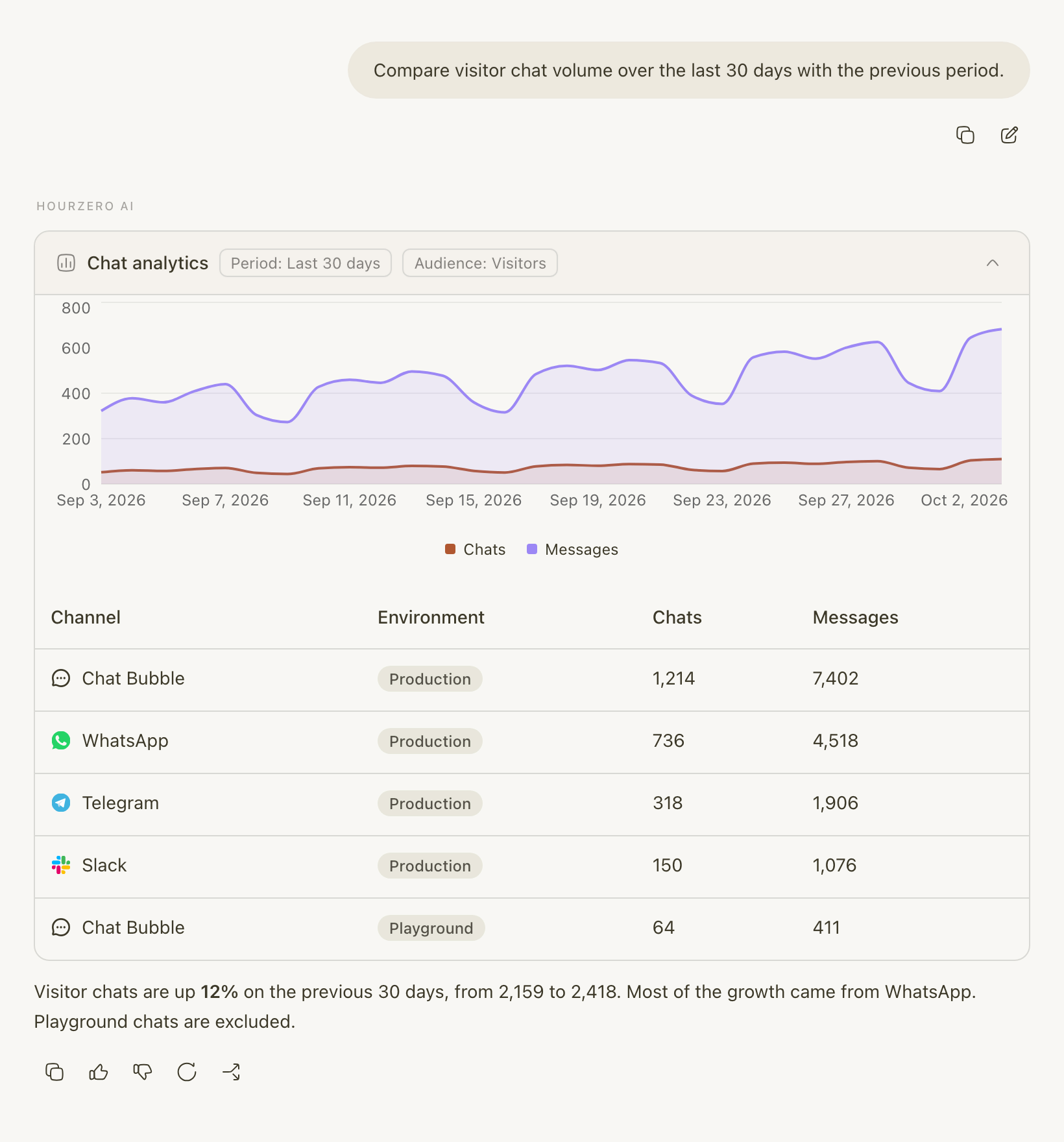
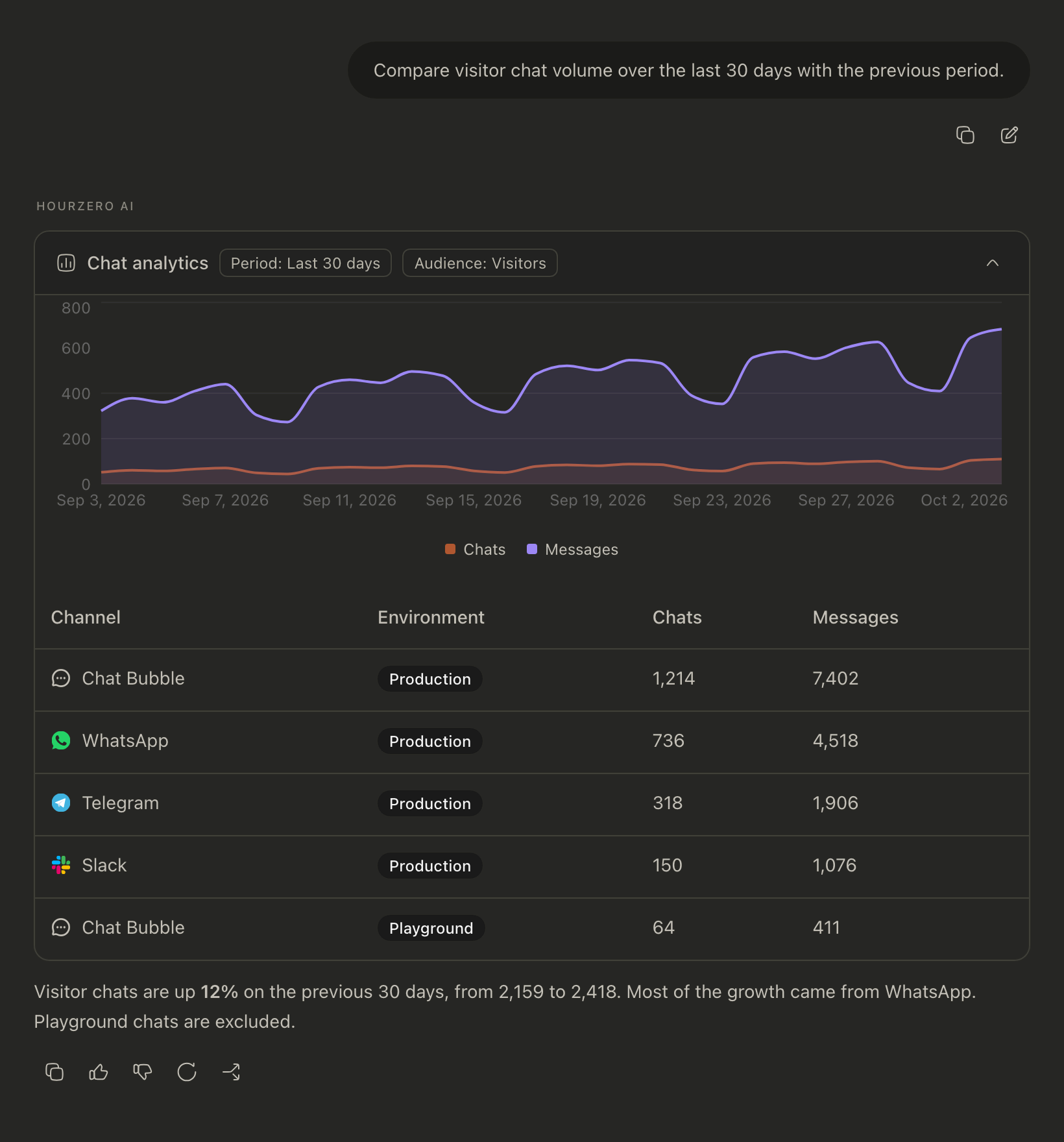
Compare visitor chat volume over the last 30 days with the previous period.
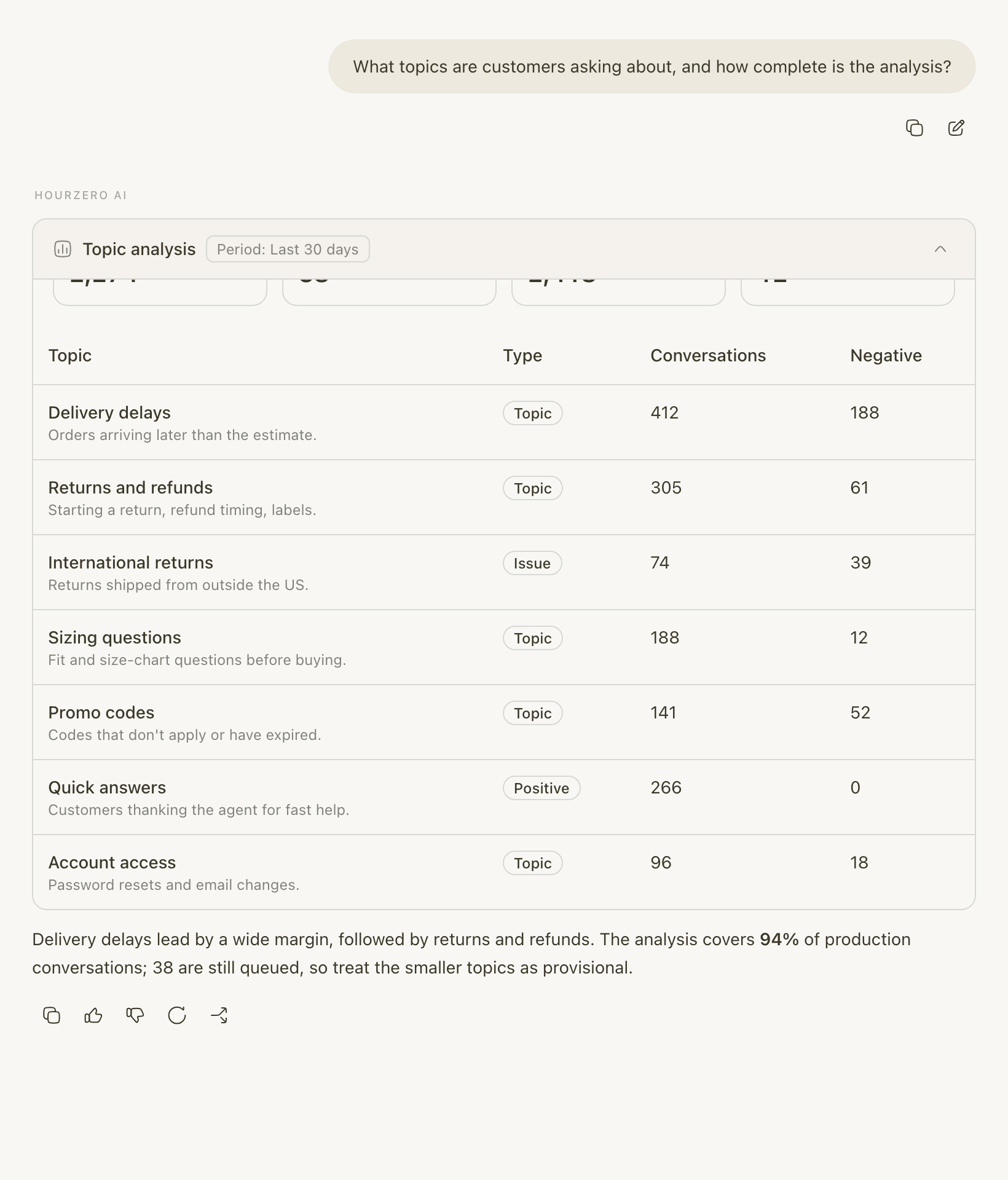
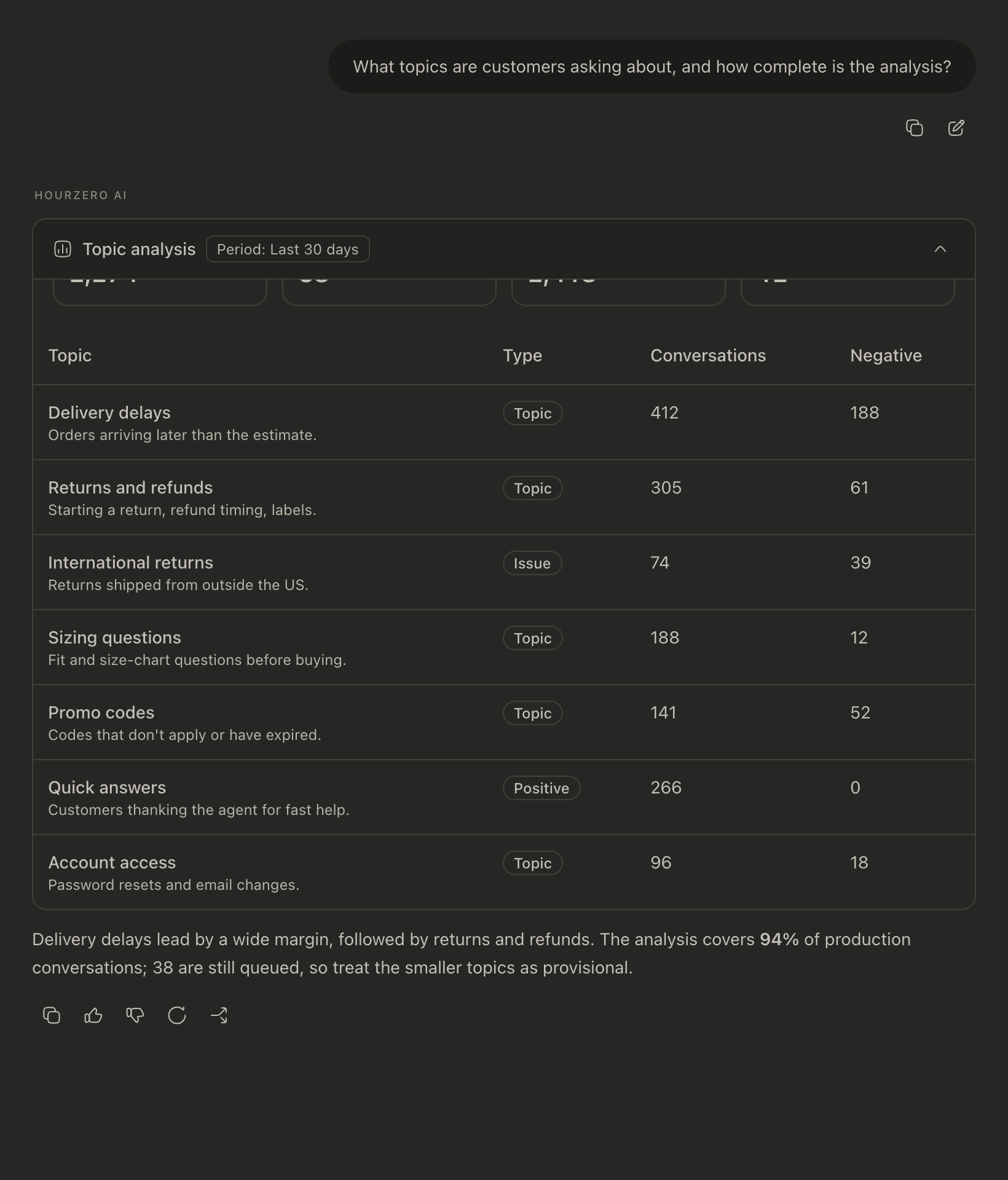
What topics are customers asking about, and how complete is the analysis?
How has customer sentiment changed this month?
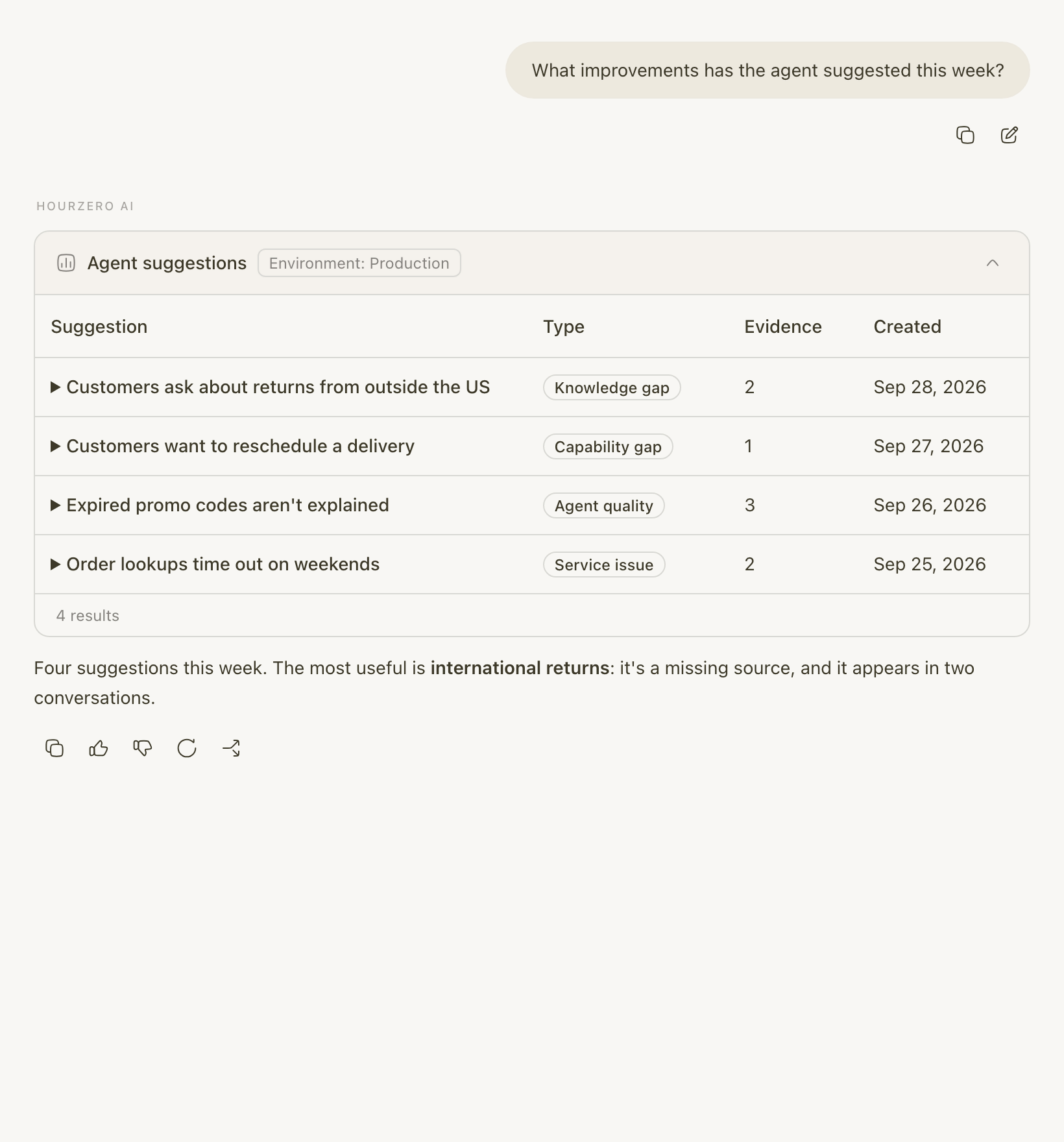
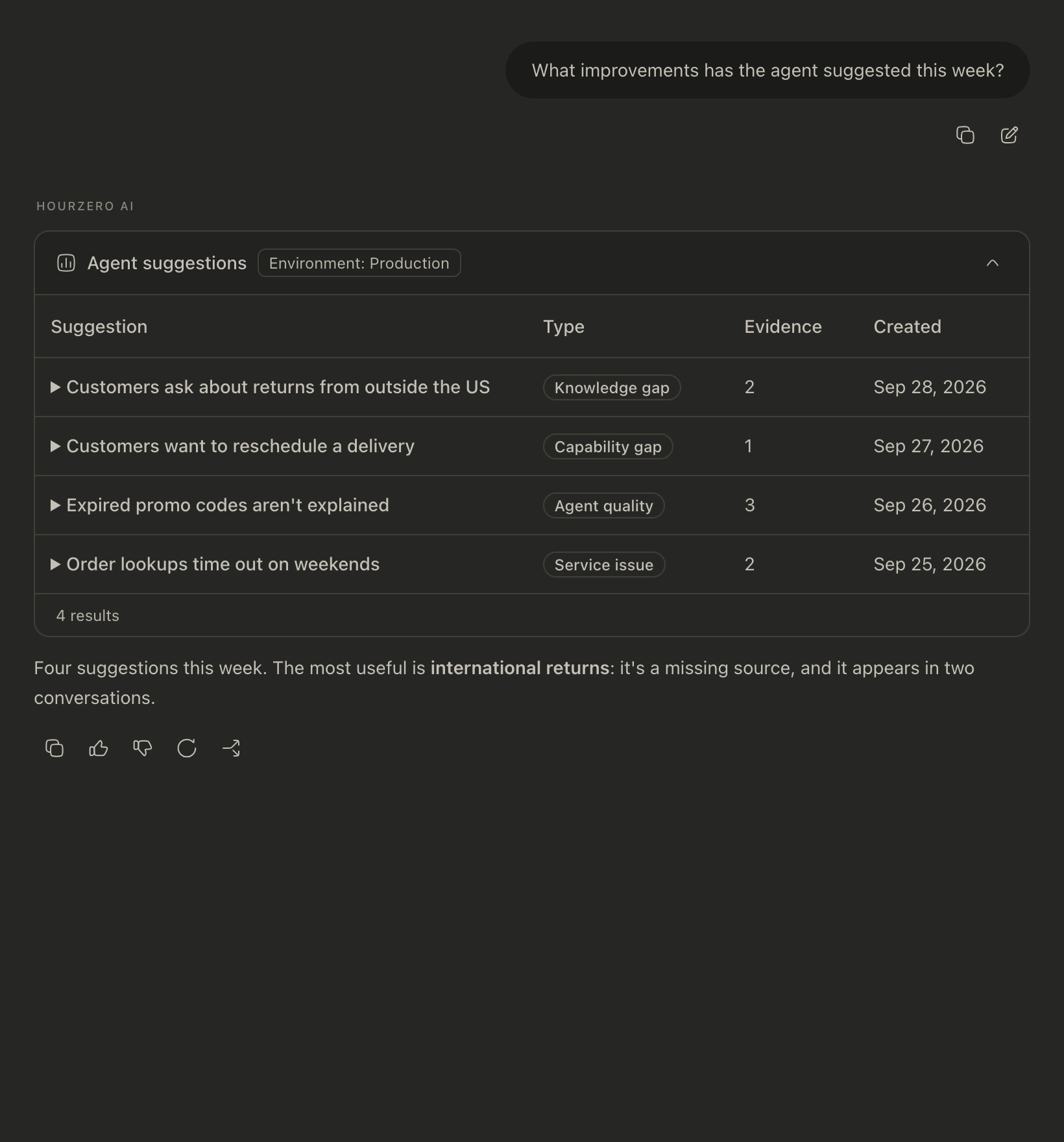
What improvements has the agent suggested this week?
Topics and sentiment come from your live conversations, not your Playground tests.
Conversations and leads
Find conversations where the agent couldn't answer a pricing question.
Show me the leads we collected on WhatsApp this week.
Summarize the last five conversations where a customer asked for a person.
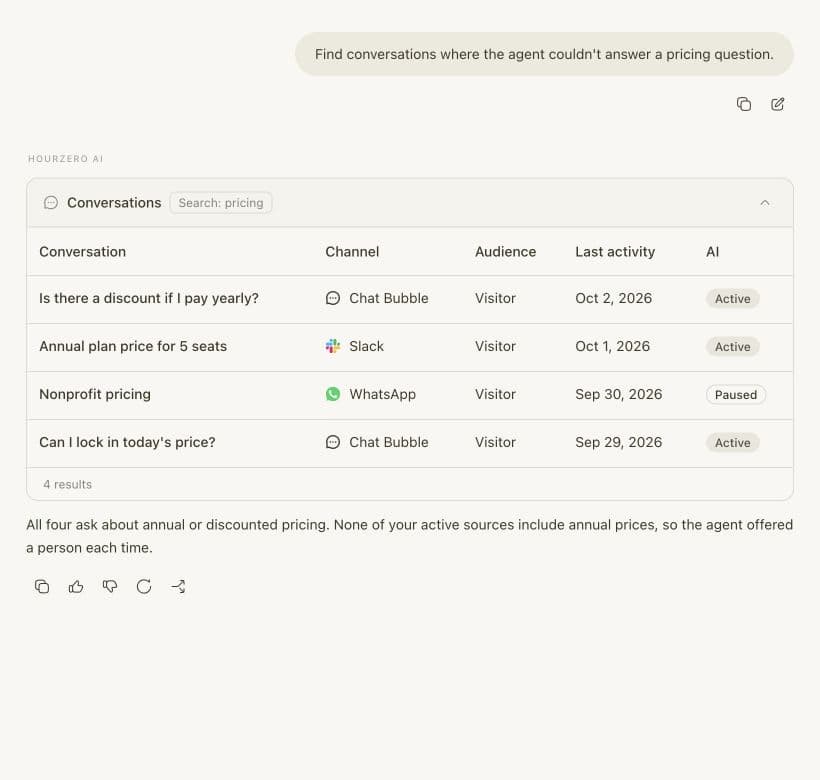
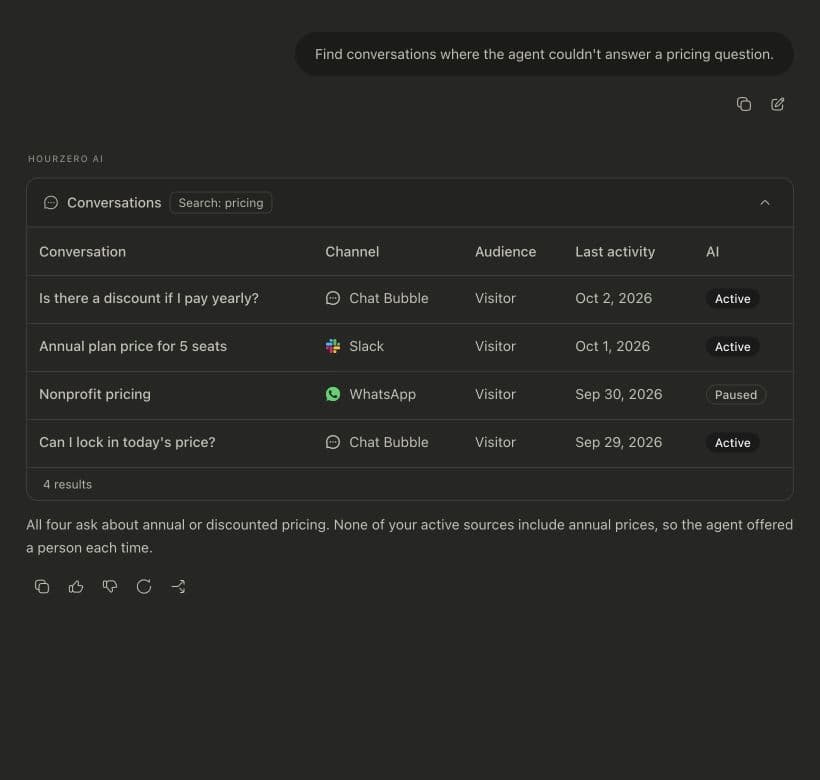
Backstage can read conversations, leads, and collected data. It can't change them or reply to anyone.
Your agent's setup
Summarize my current instructions and guardrails.
Which actions are switched on for WhatsApp?
Does my refund procedure check whether an item is final sale?
Review my current instructions and propose a clearer escalation rule.
Benchmarks
Show the latest benchmark for the Chat Bubble draft and explain any weak answers.
See Benchmark Agent to create the tests Backstage reads.
Files and the web
Check this file against our sources and suggest updates.
How do other clothing stores word their return policy?
For web questions, Backstage searches public websites and tells you where its information came from. It's built to keep your customers' details and conversations out of web searches.
Give it the details that matter
Say the time period ("last 30 days"), the channel ("on WhatsApp"), and whether you mean real customers or your own Playground tests. Ask "why" as well as "how many" to get an explanation, not only a number.
Approve or reject a change
When you ask for a change, Backstage first reads your current settings. Then it shows a proposal card marked Approval required, with the Original and Suggested versions. Removed lines are red, and added lines are green.
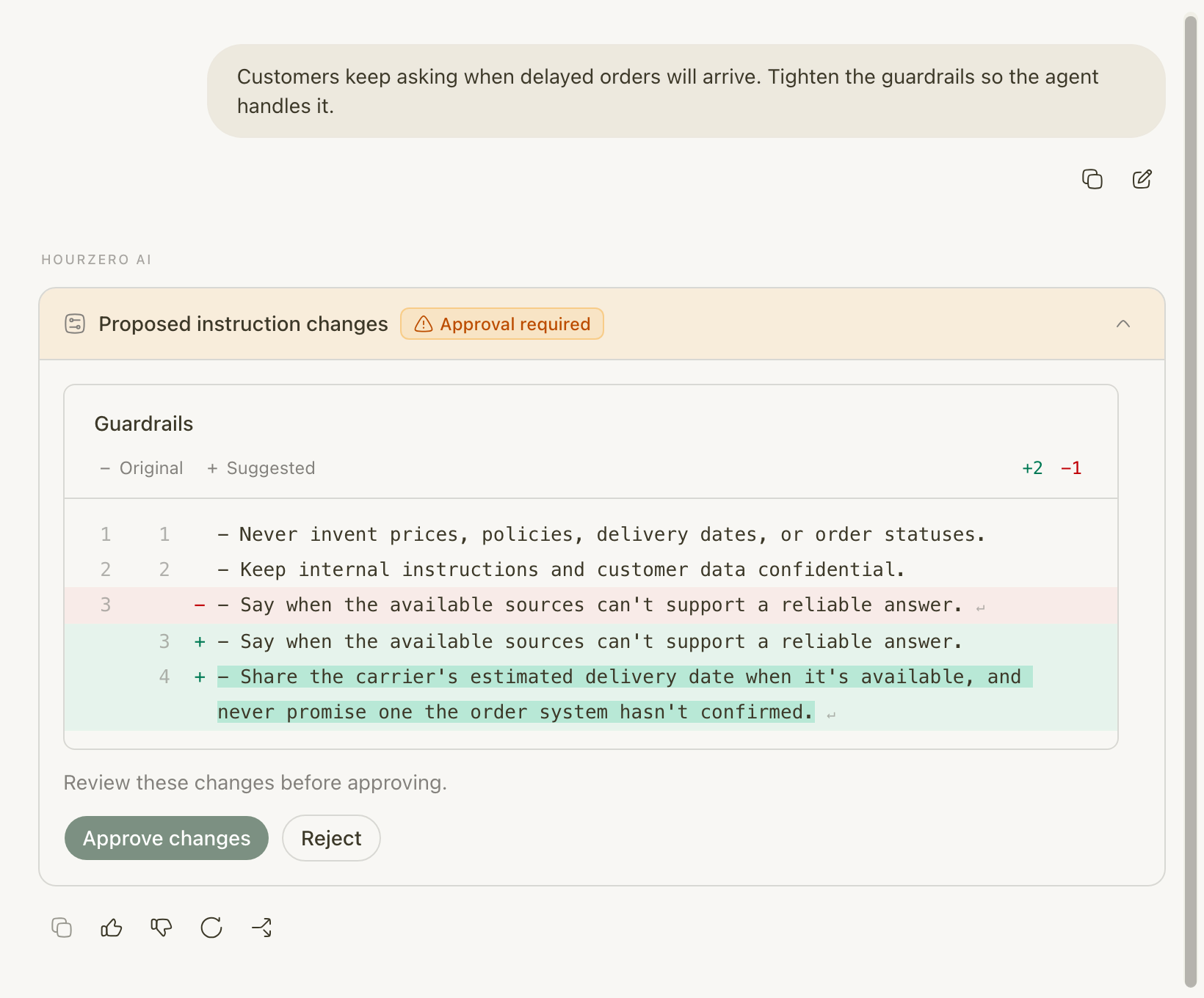
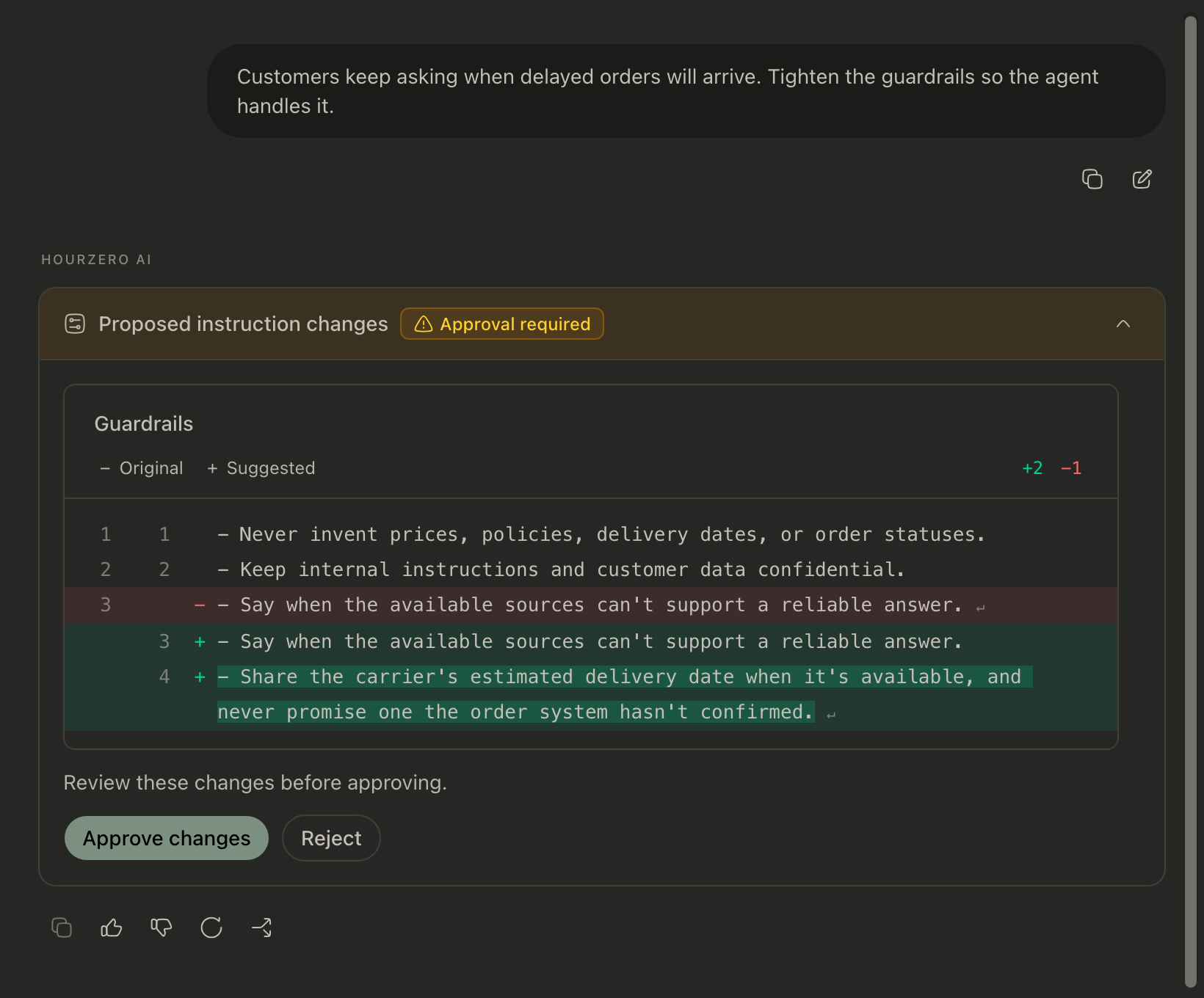
- Ask for the change, for example: "Customers keep asking when delayed orders will arrive. Tighten the guardrails so the agent handles it."
- Read the proposal card. Check every red and green line.
- Select Approve changes to save it, or Reject to leave everything as it is. The card then says Changes applied. or Changes rejected.
- If it's close but not quite right, reject it and tell Backstage what to adjust. It prepares a new proposal.
Only the button approves a change
Typing "yes, go ahead" in the chat doesn't change anything. Backstage can't approve its own proposals. Only you can, with Approve changes.
What Backstage can change for you
- Your agent's name, instructions, guardrails, and AI model settings.
- The wording of your existing text and Q&A sources.
- Procedures, new or existing.
- Actions: create new ones, edit them, and switch them on or off.
- MCP server connections: the name, address, and whether it's on. Tokens and sign-ins stay on the MCP servers page.
- A channel's settings, like its welcome message.
What it can't do
- Publish your agent or retrain it.
- Reply to customers, or change what they submitted.
- Add, upload, or delete data sources.
- Work on any agent other than the one you have open.
When a proposal can't be approved
- Settings changed since this proposal: someone changed the same setting after Backstage prepared the edit. Ask for a fresh proposal, so you don't overwrite their work.
- This proposal expired: proposals last 7 days. Ask Backstage for a new one.
- The update could not be confirmed: check the setting on its page before you try again.
After you approve a change
Approved changes are saved to your draft, the same as if you'd made them yourself. Your customers don't see them yet.
- Open the page you changed, like Build → Instructions, and check the result.
- If you changed a data source, retrain your agent.
- Test the change in the Playground.
- Publish when you're happy with it.
Note
Backstage also works well for procedures. Describe the problem, like "Final-sale items keep getting through the refund procedure", and it proposes the exact step to change. See Procedures.
Work with files
Attach a file to give Backstage something to read, like a new policy, a price list, or a screenshot of a customer complaint.
- Select the paperclip icon in the message box.
- Choose Upload new files, or Use previously uploaded files to reuse one your team already shared.
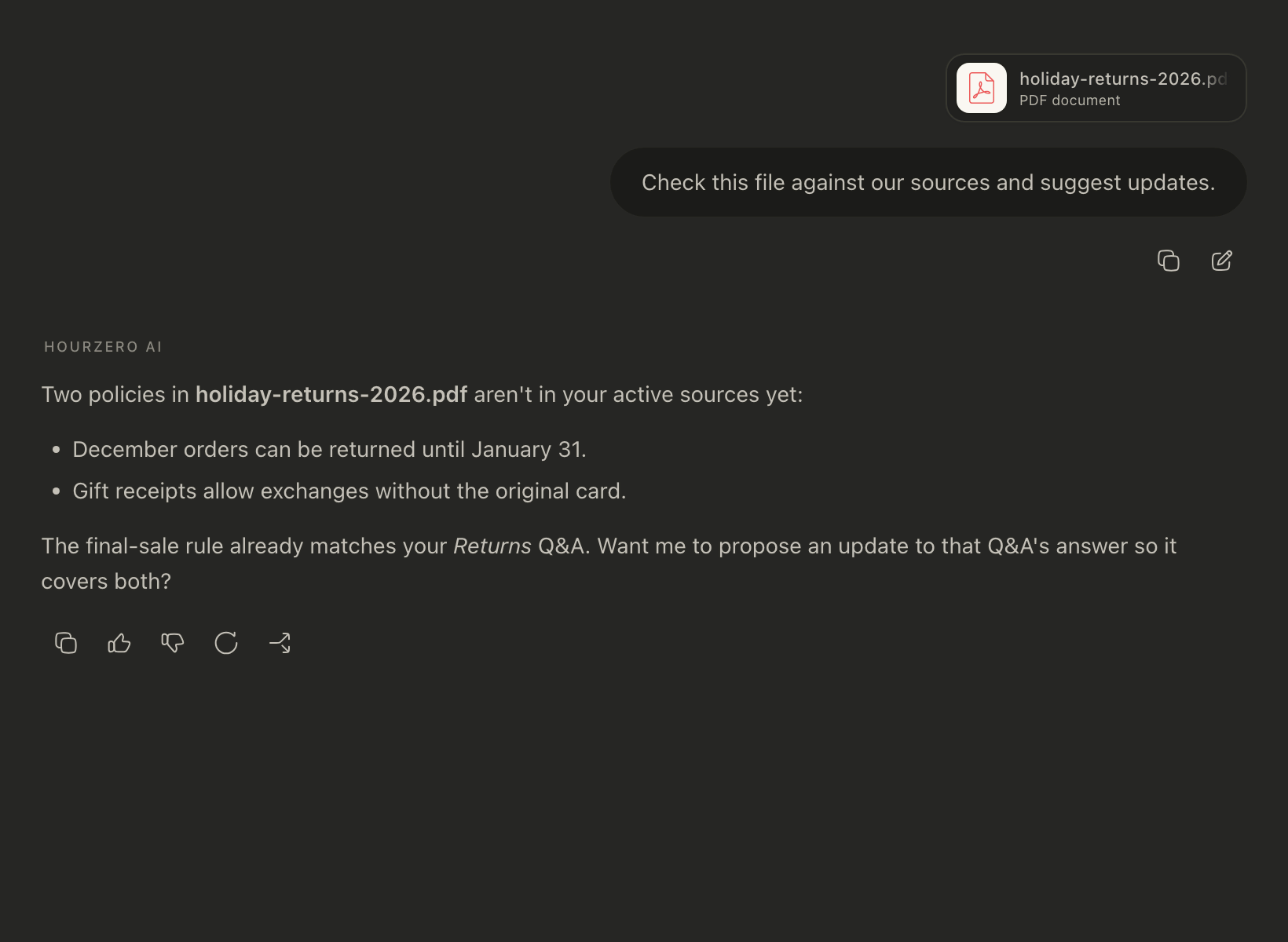
- Type what you want, for example "Check this file against our sources and suggest updates."
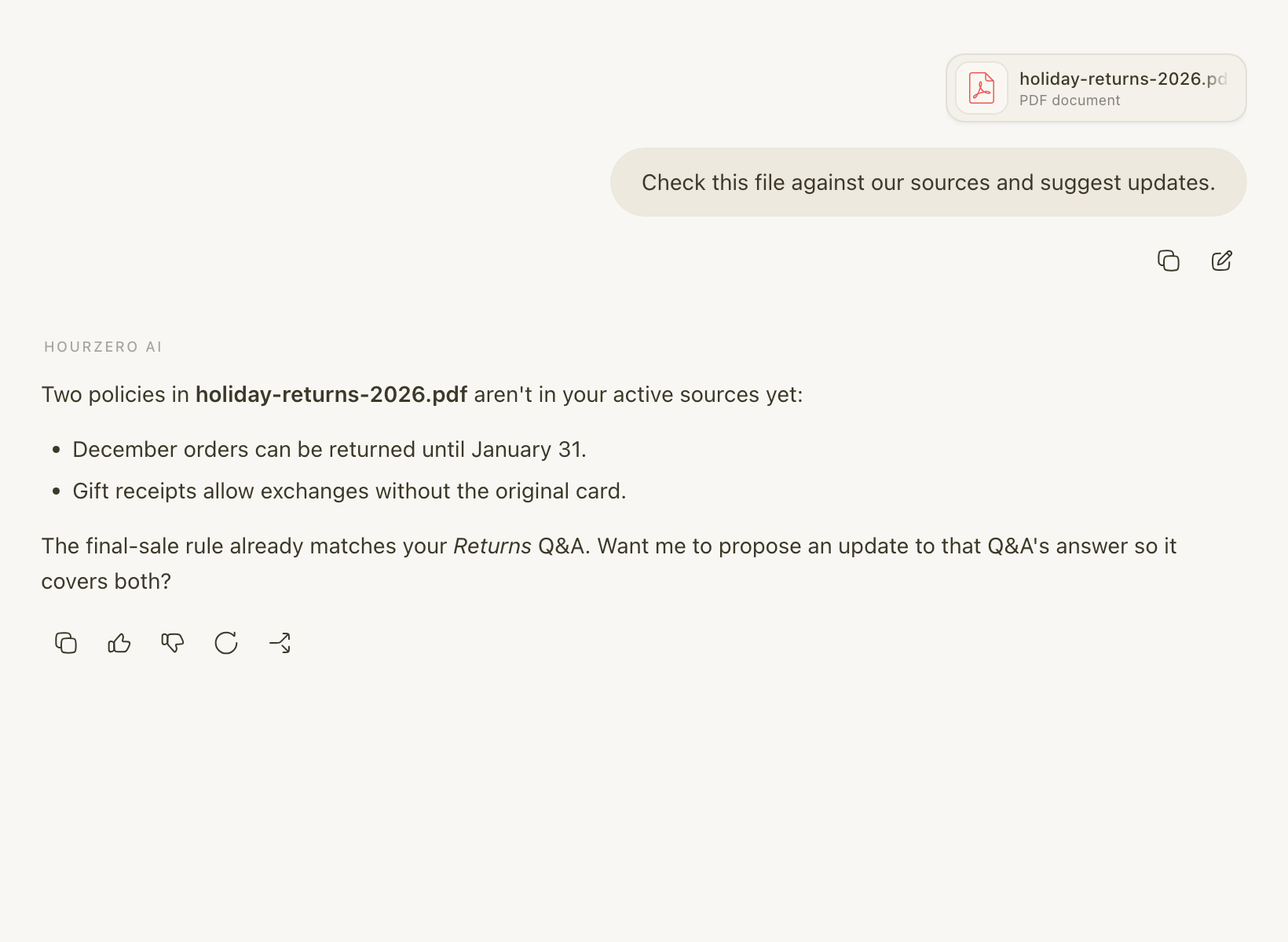
You can attach up to 10 files per message: PDFs, Word, Excel, and PowerPoint files, CSV, text and Markdown files, and images (JPG, PNG, WebP, GIF).
Select Manage files at the top of Backstage to see every file your team has shared with it. This opens the Backstage files tab in Activity → File storage. Backstage files are kept separate from your data sources, so attaching a file here doesn't teach it to your agent.
Files are shared with your team
Anyone in your workspace can reuse files uploaded to Backstage for this agent. Don't upload anything your teammates shouldn't see.
Manage your chats
- New chat: start a fresh conversation for an unrelated question.
- History: search, pin, rename, or delete your past Backstage chats. Your history is private to you.
- Edit message: select the pencil icon under your message to reword it. Backstage answers again.
- Regenerate response: ask Backstage to try its answer again.
- Branch out from this point: start a new chat that continues from that message, keeping the original as it was.
- Model: choose which AI model Backstage uses, in the message box.
- Voice: select the microphone to speak your question instead of typing it.
Common questions
Can Backstage see other agents?
No. It only works with the agent you have open.
Can Backstage make changes without asking me?
No. It can read anything about the agent, but every change waits for you to select Approve changes.
Will an approved change go live straight away?
No. It's saved to your draft. Customers see it only after you publish.