

Custom button
Let your agent offer a button that opens one of your pages, like a returns portal or a demo booking page.
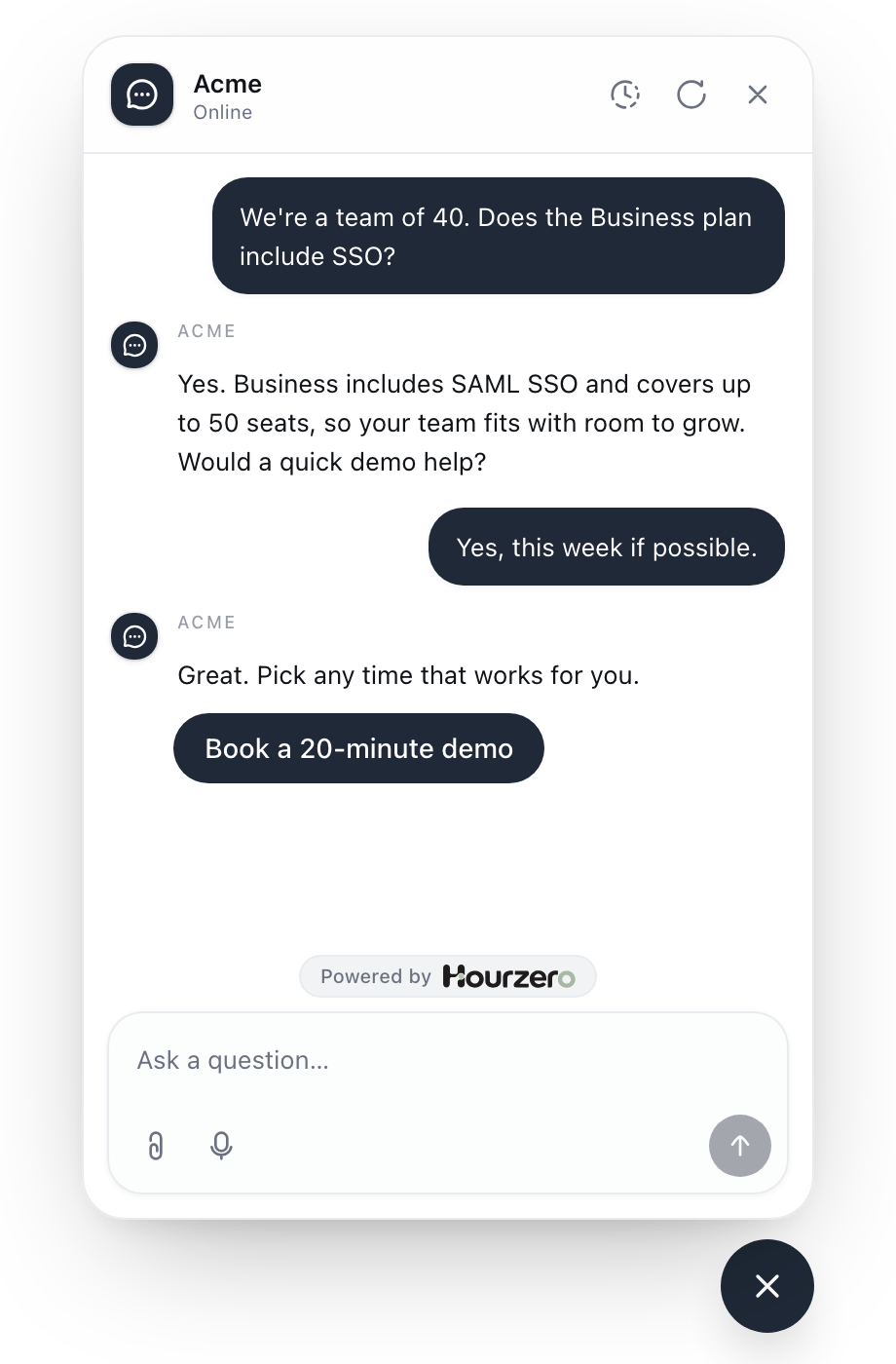
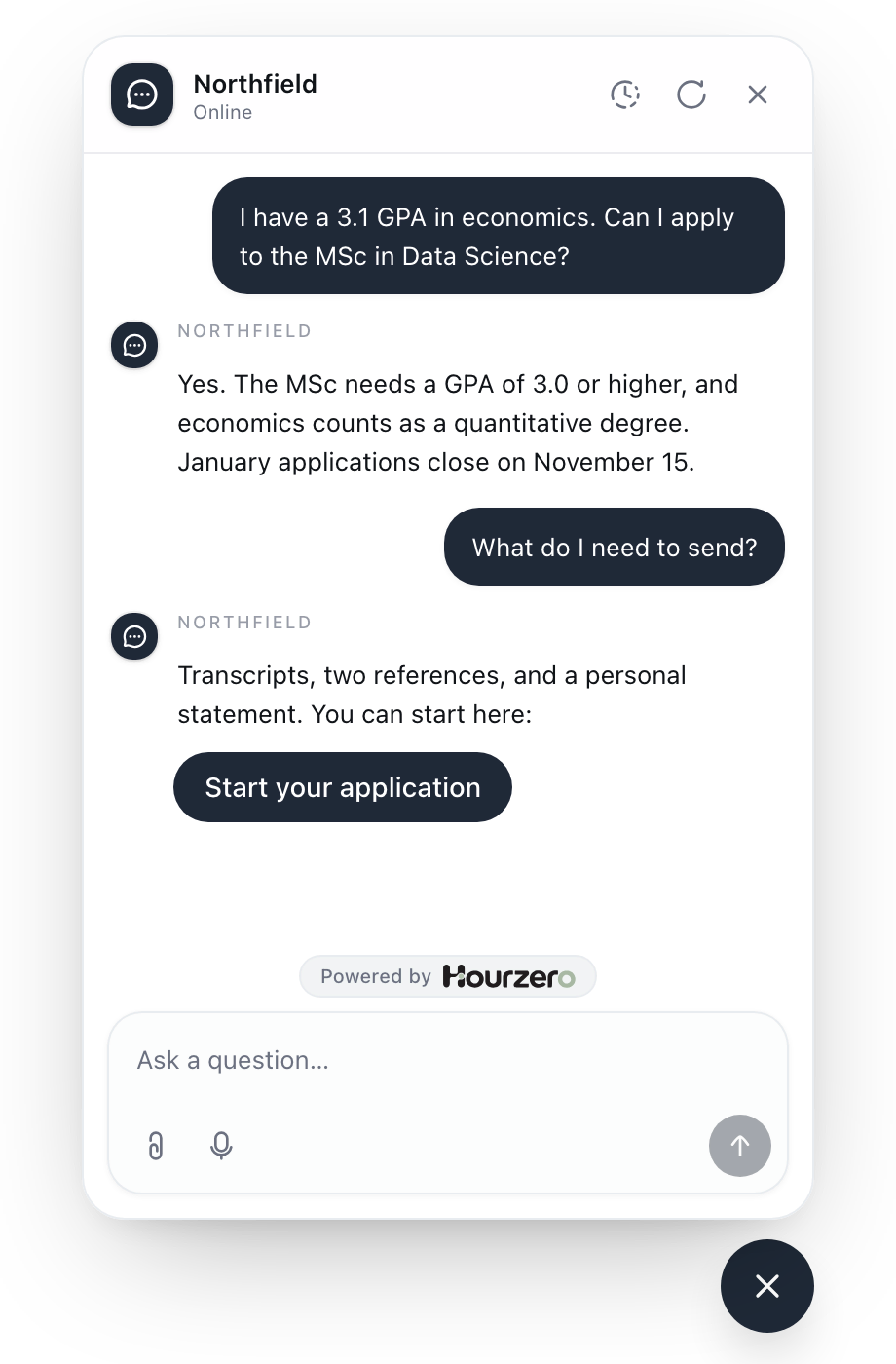
A custom button lets your agent offer a clear next step: a button that opens one of your pages. Use it for a returns portal, a demo booking page, a size guide, or an application form. One click takes the customer straight there.
Where to find it: open your agent, go to Build → Actions, and select Custom button.
How it works
- 1Customer asks"How do I return my jacket?"
- 2Agent answersIt explains the steps in the chat.
- 3Button appearsThe agent offers your Start a return button.
- 4Customer clicksYour returns page opens.
Each custom button has one fixed label and one fixed link. The agent decides when to offer it, based on your When should the agent use it? description. If you need several buttons, for example one for returns and one for the size guide, create one action for each.
Set up a button
This example adds a returns button for Acme Support.
-
Open Build → Actions and select Custom button.
-
In Action name, enter
Returns portal. -
In When should the agent use it?, enter:
Offer this button when a customer wants to return or exchange an item, after you've answered their question about returns. -
In Button label, enter
Start a return. -
In Destination URL, enter
https://acme.com/returns. -
Leave Open in a new tab on.
-
Select Create action. Under Your actions, the button's label appears as its summary.
The settings, explained
- Button label: the text on the button, up to 80 characters. Make it say exactly what happens, like Start a return or Book a 20-minute demo. Avoid vague labels like Continue (the starting label) or Click here.
- Destination URL: the page the button opens. It must be a full address that starts with
https://orhttp://. - Open in a new tab: when on, the page opens in a new browser tab, so the chat stays open where it was. When off, the page opens in the same tab.
Tip
Leave Open in a new tab on for the Chat Bubble. Customers can finish on your page and still come back to the conversation.
Where buttons appear
Buttons appear in your website chat: Chat Bubble, Help Page, and Center Stage. They take on your chat's accent color.
Important
Messaging apps such as WhatsApp, Messenger, Instagram, Slack, Discord, Telegram, and SMS only receive the agent's text, so a button won't show up there. Turn the action off for those channels in the Playground's Capabilities tab, and put the link in your instructions instead if customers on those channels need it.
What a button can and can't do
A button opens a page. That's all it does:
- It doesn't submit anything, book anything, or start a return by itself.
- The agent can't tell whether the customer opened the page or finished what's there, so it won't claim they did.
- The label and link are the same for every customer. The agent can't add an order number or change the link.
If the agent itself needs to do something, like look up an order or create a booking, use a custom action. You can use both together: look up the order with a custom action, then offer a button to your tracking page.
Note
If each customer needs a different link, such as a tracking link for their own order, ask your developer to include that link in a custom action's reply. The agent can then share it as a regular link in its answer.
Test it
- In Playground, pick a website channel such as Chat Bubble, check that the button is switched on in the Capabilities tab, and select Save draft.
- Ask a question that should lead to the button, like "How do I send this jacket back?"
- Check the label, then click the button. Make sure it opens the right page, in a new tab or the same tab as you chose.
- Ask something unrelated, like "Do you ship to Canada?" The button should not appear.
- Publish the channel when you're happy.
Common questions
Can I show more than one button at once?
Yes. Create a custom button action for each link. The agent can offer more than one when it helps, for example Start a return and See the size guide for a customer who wants a different size.
The agent mentions the page but doesn't show the button
Check that the action is switched on for this channel and that you saved the draft. Then make When should the agent use it? more specific about when the button is useful.