

Channels
See every place your agent can talk to customers, from your website to WhatsApp, and how to connect each one.
A channel is a place where customers talk to your agent: a chat window on your website, a WhatsApp number, an Instagram inbox, a Slack workspace, and so on. One agent can answer on many channels at once, using the same knowledge everywhere.
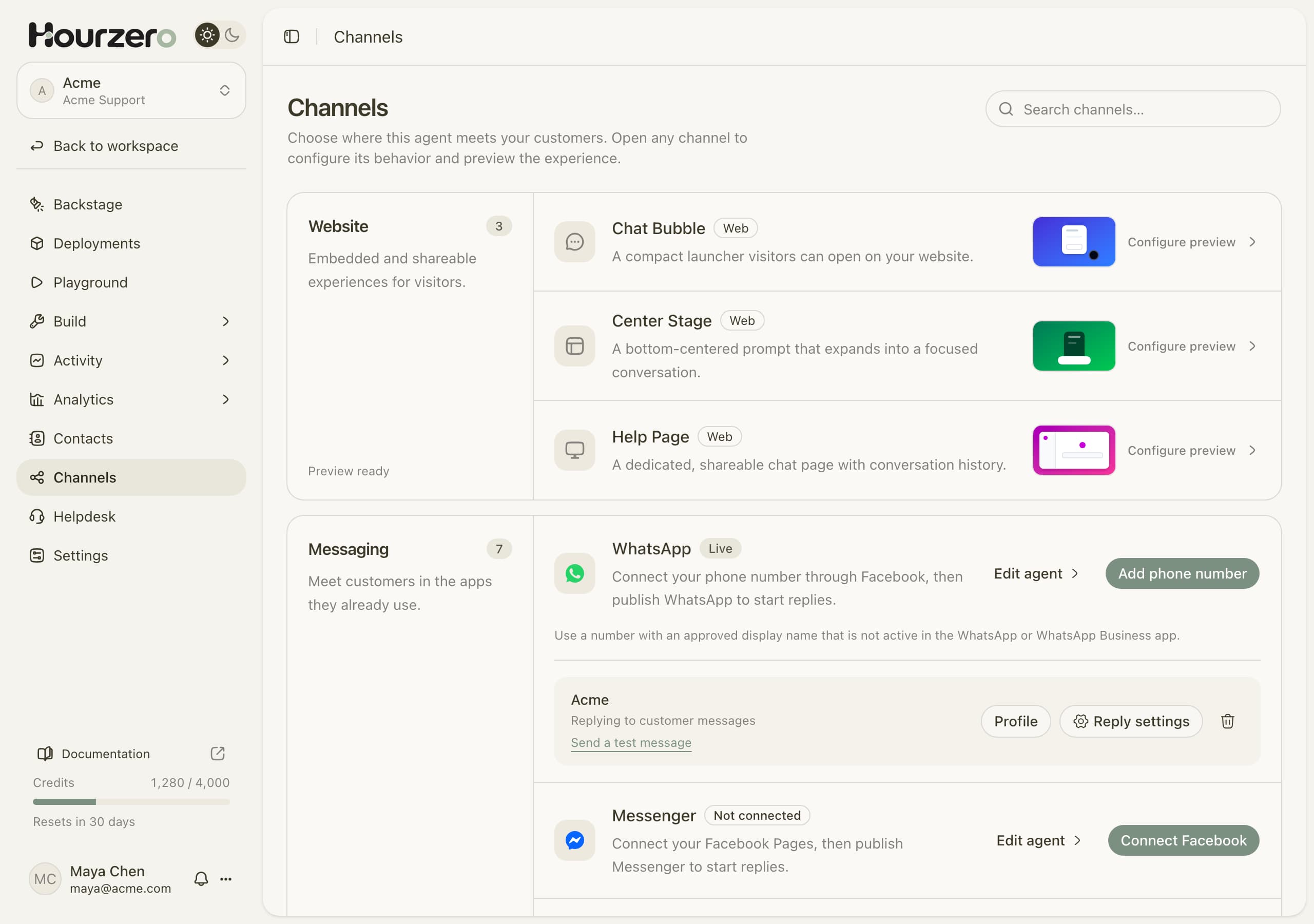
Where to find it: open your agent and select Channels in the sidebar.
How channels work
Every channel follows the same path. You connect it (website channels need no connection), style and test it in the Playground, then publish it.
- 1ConnectLink the app account, like a WhatsApp number or Facebook Page.
- 2StyleSet the name, greeting, and tone in the Playground.
- 3TestTry the channel preview before customers see it.
- 4PublishTurn the channel on for real customers.
Each channel is published on its own. Publishing WhatsApp does not change your website chat, and the other way around. Read Publishing and version history to learn how that works.
Website channels
These appear on your own website. You don't need to connect any outside account.
| Channel | What it looks like | Best for |
|---|---|---|
| Chat Bubble | A small launcher in the corner that opens a chat window. | Most websites. Always there, never in the way. |
| Center Stage | A prompt at the bottom center of the page that expands into a focused chat. | Landing pages and help pages where the chat is the main event. |
| Help Page | A full chat page with conversation history. | Previewing a dedicated support page. |
Help Page is preview only
You can style and test Help Page in the Playground, but it doesn't have a Publish button yet. To put the agent on your site today, use Chat Bubble or Center Stage.
To set up a website channel, select its row (Configure preview). It opens in the Playground, where you style it and then publish it with Publish → Website widget. The Website widget guide walks you through adding it to your site.
Messaging channels
These let customers reach your agent in apps they already use. Each one needs a connection to that app first.
| Channel | Where customers talk to the agent | Best for |
|---|---|---|
| Messages to your business phone number. | Order updates and quick questions from mobile customers. | |
| Messenger | Messages to your Facebook Page. | Shops that get questions through Facebook. |
| Direct messages to your Instagram business account. | Brands that sell or advertise on Instagram. | |
| Slack | Direct messages and @mentions in your Slack workspace. | Internal help for your team, or a customer community on Slack. |
| Discord | @mentions in your Discord server. | Gaming, software, and community support. |
| Telegram | Chats with a Telegram bot you create. | Audiences that already use Telegram. |
| Twilio | Text messages (SMS, MMS, and RCS) to your Twilio numbers. | Customers who prefer plain text messages. |
Each messaging row shows a status, such as Not connected, Connected, or Live for WhatsApp. Select Edit agent on any row to open that channel in the Playground.
Connect a messaging channel
The exact steps depend on the app. Each integration guide has the details, but the pattern is the same:
- Go to Channels and find the app you want.
- Select the connect button, for example Connect Facebook, Connect Slack, or Add phone number for WhatsApp.
- Follow the prompts to sign in to that app and approve the connection. For Twilio, you paste your Twilio account details instead. When you come back, the row lists the connected account.
- Select Reply settings on the connected account.
- Turn on the switch that assigns this agent, for example Use this agent for this Facebook Page, then save your choices. Slack skips this step: the agent you connect from becomes the workspace default.
- Select Edit agent to open the channel in the Playground, check the preview, and select Save draft.
- Select Publish, choose the channel, and then select Publish saved draft. The agent starts replying.
Important
Only workspace owners and admins can connect or disconnect apps. If the connect button is missing, ask an owner or admin. If it's turned off with a note that the app is not available yet, contact your workspace administrator.
The connection belongs to your whole workspace, not one agent. This means you connect your Facebook account once and then decide which agent answers each Page.
Decide which agent replies where
Reply settings controls which agent answers on each number, Page, account, or server. Each app splits things a little differently:
- WhatsApp: one agent per phone number.
- Messenger: one agent per Facebook Page.
- Instagram: one agent per Instagram account.
- Telegram: one agent per bot.
- Twilio: one agent per phone number or Messaging Service. Conversations that already started stay with the agent that started them.
- Slack: one agent can be the default for the whole workspace. You can also choose specific Slack channels where an agent answers mentions.
- Discord: one agent can answer across the whole server, or you can pick specific Discord channels.
If another agent already answers somewhere, the switch is turned off and says Currently assigned to that agent. Turn it off on the other agent first if you want to move it.
Tip
Using two agents? Acme uses Acme Support on its WhatsApp number and Instagram account, and a separate internal agent in Slack that helps the team look up return rules.
Change how a channel looks and behaves
Open the channel in the Playground (select its row or Edit agent). There you can:
- set the Display name, Welcome message, Suggested prompts, and other look-and-feel options on the Display tab;
- give this channel its own instructions instead of the shared ones, for example shorter answers on WhatsApp;
- choose which actions, skills, and procedures this channel may use on the Capabilities tab;
- turn Agent replies on or off on the Overview tab.
Select Save draft to keep your changes. Customers still see the old version until you publish that channel again. The Playground guide explains every option.
Stop replies on one channel
To pause your agent on a single channel without disconnecting the app:
- Open the channel in the Playground.
- On the Overview tab, turn off Agent replies. The label changes to Replies off after publishing.
- Select Save draft.
- Select Publish, choose the channel, and publish. The agent stops answering there.
The connection and reply settings stay saved, so you can turn replies back on later the same way.
Warning
Turning off Agent replies on a website channel and publishing it turns off the live widget. Visitors on your site can no longer start a chat.
Check that a channel really works
A connection in the dashboard doesn't prove that messages reach your agent. After you publish:
- Send a real message the way a customer would, for example a WhatsApp message to your business number asking "Where is my order 48213?".
- Check that the agent replies in that app.
- Open Activity → Conversations and find the chat under Visitors, with the right channel label.
For WhatsApp, you can also select Send a test message under the connected number.
Common questions
Can I use the same knowledge on every channel?
Yes. All channels share the agent's data sources and model. Only the look, the optional channel instructions, and the allowed capabilities differ per channel.
Why does my WhatsApp number fail to connect?
Use a number with an approved display name that isn't active in the WhatsApp or WhatsApp Business app on a phone. The WhatsApp guide covers the full requirements.
Integration guides
 WhatsAppAnswer messages to your business phone number.
 MessengerReply to messages on your Facebook Page.
 InstagramAnswer direct messages on Instagram.
 SlackAnswer questions inside your Slack workspace.
 DiscordHelp your community in a Discord server.
 TelegramConnect a Telegram bot to your agent.
 TwilioReply to text messages through Twilio.