

Helpdesk teams and assignment
Group teammates into teams and choose how tickets are handed out, by hand, by workload, or in turns.
Teams decide who works on which tickets. Each team has members and an assignment method. You can hand out tickets yourself, or let Hourzero share them out fairly among the people who are working.
Where to find it: open Helpdesk and go to Manage → Teams. Only workspace owners and admins can create or change teams. Teammates need to be workspace members first.
How tickets reach a team
Every new ticket goes to your default team, whether the agent opened it or you created it by hand. Setting up the Helpdesk creates this team and calls it General. It's marked Default. You can rename it, but you can't archive or delete it.
To send a ticket to another team, open it and change Team in the Details panel. If nobody owns the ticket yet, the new team's assignment method runs straight away.
Tip
Start simple. One team with everyone in it works well for a small shop. Add a Billing or Returns team later, when you notice tickets that need a specialist.
Choose an assignment method
Each team has an Assignment strategy with three options.
| Method | Pick it when |
|---|---|
| Manual | One person wants to read every ticket and choose who handles it |
| Balanced workload | Tickets vary in size, and you don't want anyone overloaded |
| Round robin | Tickets are similar, and you want everyone to get the same number |
Manual
Hourzero doesn't assign anything. New tickets wait in Unassigned until someone picks an owner. If a teammate replies to an unassigned ticket, they become its owner.
Example: Acme has two people in support. Each morning Maya opens Unassigned and hands tickets to herself or Alex.
Balanced workload
The ticket goes to the person with the fewest open tickets right now. If two people are tied, it goes to whoever got a ticket from Hourzero longest ago.
Example: Alex has 2 open tickets and Priya has 5. The next ticket goes to Alex, and keeps going to Alex until the two are closer.
Round robin
People take turns, no matter how many open tickets each has. The next ticket goes to whoever has waited longest since Hourzero last gave them one.
Example: with Maya, Alex, and Priya on the team, tickets go to Maya, then Alex, then Priya, then Maya again.
Who can get a ticket automatically
With Balanced workload or Round robin, Hourzero only picks a teammate who:
- is in the team's Members,
- is set to Available (see Set availability),
- is working right now according to their schedule, or isn't in any schedule,
- isn't on time off,
- has fewer open tickets than the team's Maximum open tickets per member, if you set one.
Hourzero tries to assign a ticket that has no owner when:
- the ticket is created,
- it's moved to the team,
- the customer sends a new message,
- it's set back to an open status, for example when you reopen it.
Hourzero doesn't take a ticket away from someone who already owns it. The one exception is Unassign on member reply, described below.
Create a team
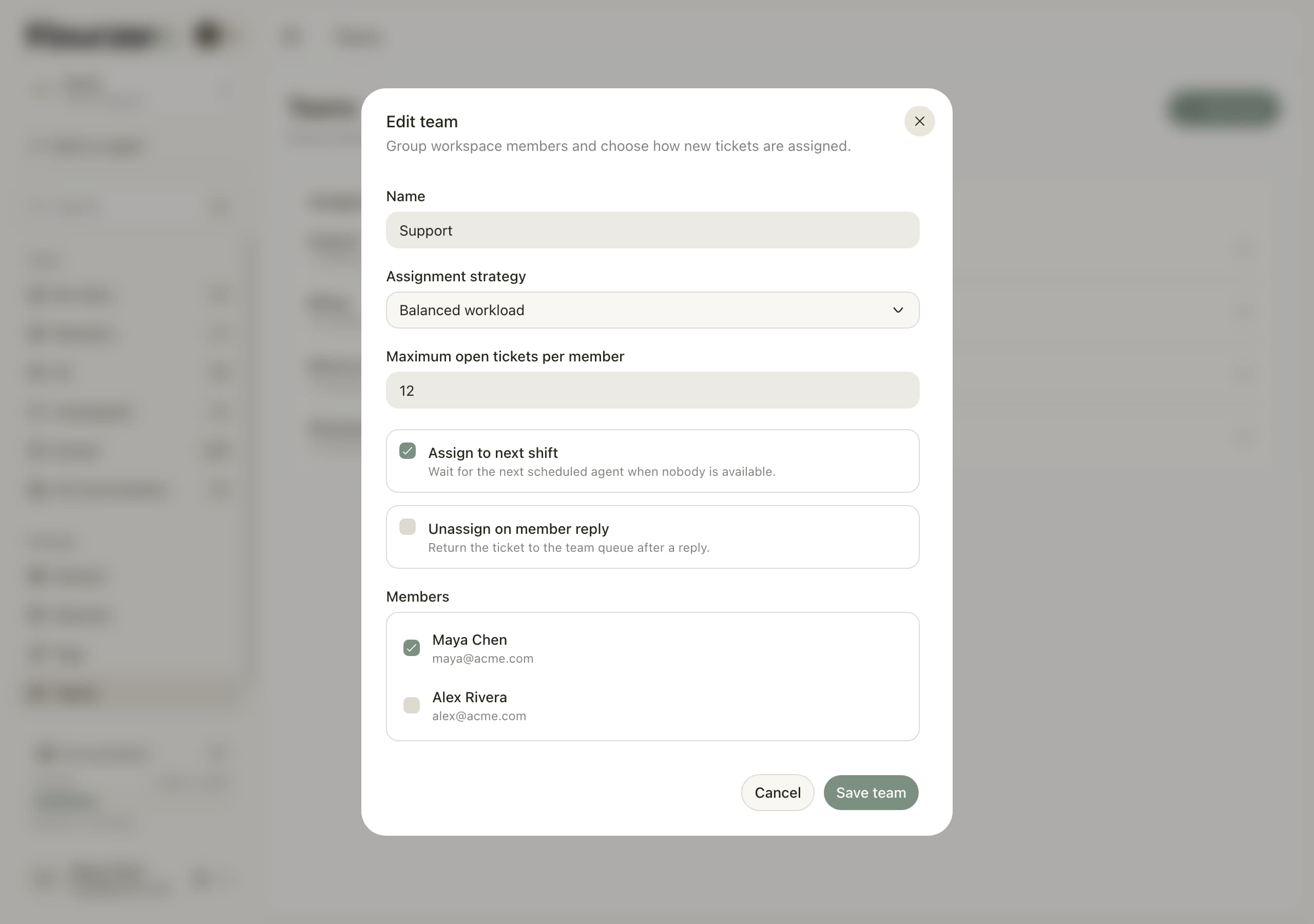
- Go to Manage → Teams and select Add team.
- Enter a Name, such as
Billing. - Choose an Assignment strategy.
- Optional: set Maximum open tickets per member. Leave it empty for No limit.
- Optional: tick Assign to next shift.
- Optional: tick Unassign on member reply.
- Under Members, tick the teammates on this team.
- Select Save team.
The team appears in the list with its number of members and its assignment method. A teammate can be on more than one team.
Here's a billing team for Acme:
Name: Billing
Assignment strategy: Round robin
Maximum open tickets per member: 10
Assign to next shift: on
Unassign on member reply: off
Members: Maya Chen, Alex Rivera
Maximum open tickets per member
This caps how many open tickets one person can hold before Hourzero skips them. Once Alex has 10 open tickets, new ones go to someone else until he closes a few. You can still assign tickets to him by hand.
Assign to next shift
Turn this on so tickets wait for the next person to start work, instead of sitting with nobody.
Without it, a ticket that arrives when nobody can take it stays Unassigned. With it, Hourzero picks the teammate whose next working hours start soonest. Their name and the time show under Scheduled in the ticket's Details. A few minutes after their shift starts, Hourzero assigns the ticket.
Example: a ticket arrives on Saturday night. Maya's next shift starts Monday at 08:00, before anyone else's. The ticket shows Maya under Scheduled with Monday 08:00 as the time, and lands in her inbox when she starts.
This only works for teammates who are set to Available, and it looks up to two weeks ahead. If you assign the ticket by hand or move it to another team before then, the scheduled assignment is cancelled.
Unassign on member reply
After a teammate replies, the ticket goes back to Unassigned. When the customer answers, Hourzero assigns it again with the team's method, so whoever is free picks it up.
Turn it on for fast chat support where anyone can take the next message. Leave it off when one person should own a ticket from start to finish, like a refund.
Set availability
Availability tells Hourzero who is around right now. Change it under Manage → General → Team availability. Every workspace member is listed with one of four options:
- Available: can get tickets automatically.
- Away, Busy, or Paused: gets no new tickets automatically.
Everyone starts as Available. Availability is set separately for each agent's Helpdesk.
Owners and admins can change anyone's availability. Other members can change their own, as long as Member availability is turned on in General. It's on by default.
Tip
Availability is for right now; schedules are for planned hours. Ask teammates to switch to Away when they step out for a while. For holidays, add time off in Schedules instead.
Reassign tickets by hand
- One ticket: in the ticket's Details panel, select Assigned to and pick a teammate, or Unassigned. A green dot marks people who are Available. The new owner gets a notification.
- Many tickets: tick them in the inbox and select Assign.
- Another team: change Team in the ticket's Details panel, or pick No team.
Archive or delete a team
Use the ⋯ menu next to a team:
- Edit changes its name, method, settings, and members.
- Archive stops the team from assigning tickets automatically. To bring it back, select Edit, then Save team.
- Delete permanently removes the team after you confirm. Its tickets are left with No team.
You can't archive or delete the default team.
Troubleshooting
A ticket stays Unassigned
Work through this list:
- Is the ticket on a team that uses Balanced workload or Round robin? Manual never assigns.
- Does the team have members?
- Is at least one member set to Available?
- Is that person working right now? Check their schedule's hours and time zone, and their time off.
- Have they reached Maximum open tickets per member?
If nobody qualifies, assign the ticket by hand. Or turn on Assign to next shift so tickets wait for the next person to start work.
One person gets every ticket
With Balanced workload, a teammate who closes tickets quickly keeps getting more. That's expected. Switch to Round robin if you'd rather everyone gets the same number, or set Maximum open tickets per member.
Also check whether the others are set to Away, or are outside their working hours.