

Contacts
See the people who talk to your agent on every channel, and import or export their names, emails, and phone numbers.
Contacts is your agent's address book. It lists the people who have talked to your agent, the channels they used, and any name, email address, or phone number Hourzero knows about them. You can also import a list of customers or export everyone to a spreadsheet.
Where to find it: open your agent and select Contacts in the sidebar.
What a contact is
A contact is a customer or visitor: someone on the other side of the chat. Contacts are not the same as your teammates. Your teammates are workspace members who sign in to Hourzero, and you manage them in Members.
Hourzero adds a contact when someone starts talking to your agent. What it knows depends on the channel:
- On WhatsApp or Twilio, it usually knows the phone number.
- On Slack or Messenger, it often knows the person's name.
- On your website, a visitor stays anonymous until they share details, for example in a lead form.
That's why some fields are empty. The page reminds you: "Profile fields may be empty when a channel does not provide them."
Read the contacts table
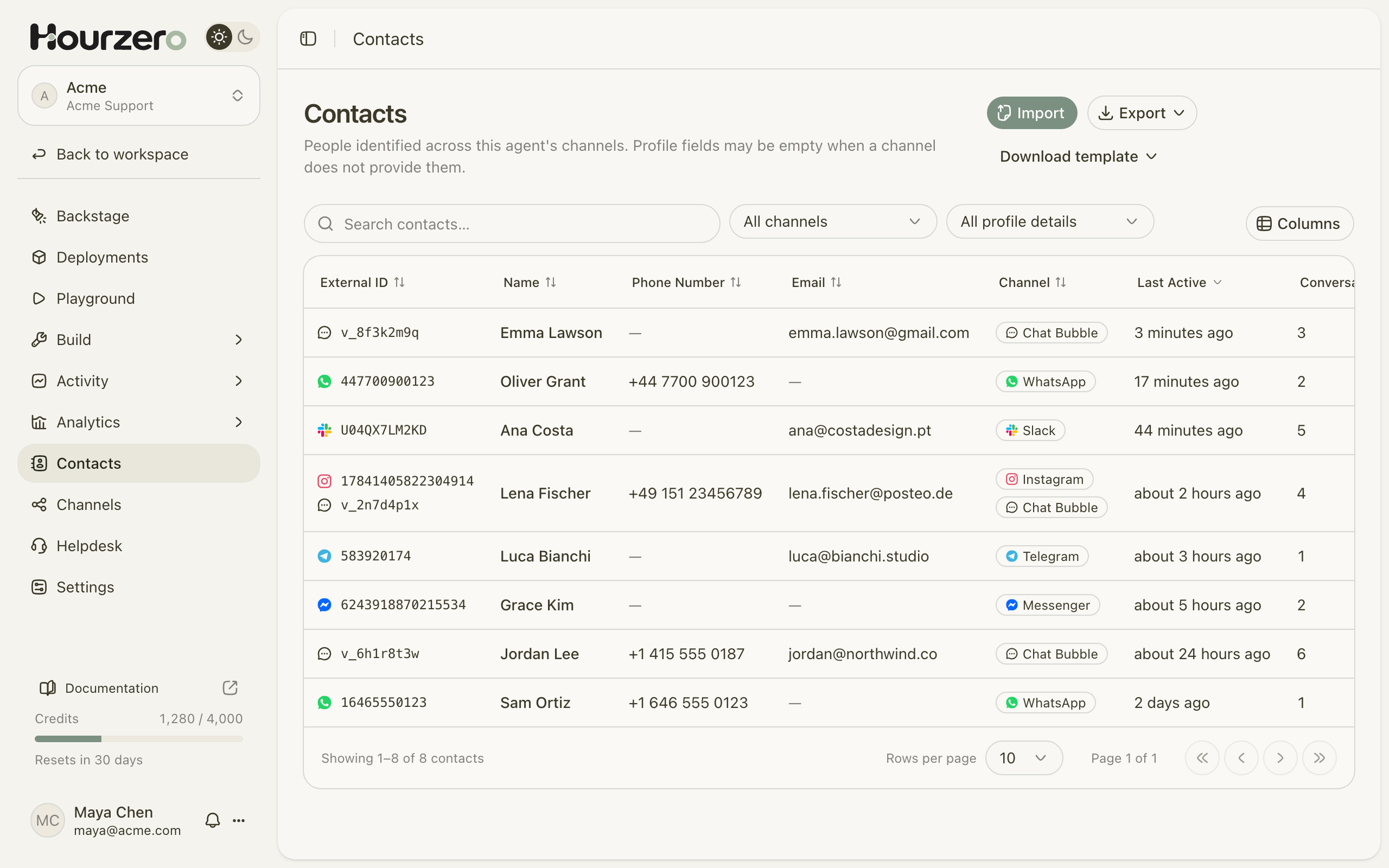
The table shows these columns by default:
- External ID: the ID the channel uses for this person, such as a WhatsApp number or a website visitor ID. A small icon shows the channel.
- Name, Phone Number, and Email: what Hourzero knows about the person.
- Channel: every channel this person has used.
- Last Active: when they last took part in a chat.
- Conversations: how many chats they've had with this agent.
Two more columns are hidden: Contact ID (Hourzero's own ID for the person) and First Seen. Select Columns to show or hide any column.
One person can appear with more than one identity. In the screenshot above, Lena Fischer has an Instagram ID and a Chat Bubble ID on the same row.
Find a contact
- Type in Search contacts… to search by name, email, phone, ID, or channel.
- Use the channel menu (All channels) to show people from one channel.
- Use the details menu (All profile details) to show Complete details (name, email, and phone), Partial details, or No profile details.
- Select a column header to sort by it.
- Select Clear to remove your filters.
Use Rows per page at the bottom to show 10, 25, or 50 contacts at a time.
Tip
Filter by No profile details to see how many people chat without leaving any contact info. If the number is high and you want to follow up with them, add a Collect leads action so the agent can ask for an email address.
Import contacts
Importing adds people you already know, like customers from your online store, to the list.
- Select Download template and choose CSV template or Excel template (.xlsx).
- Fill in the template. Keep the three columns Name, Email, and Phone, and don't add others.
- Give every person at least an email address or a phone number. Name is optional.
- Select Import and choose your file, or drag it onto the upload area.
- Select Import contacts.
- Review the result: Imported (new contacts added), Duplicates (skipped), and Invalid (rows with a problem). Any problems are listed under Rows to review, with the row number and what to fix.
Here's what a small import file looks like:
Name,Email,Phone
Maya Chen,maya@acme.com,
Jordan Lee,jordan@northwind.co,+1 415 555 0187
Sam Ortiz,,+1 646 555 0123
Important
The file must have exactly the columns Name, Email, and Phone. If it has extra columns, like "Company" or "Notes", the whole import is rejected. Copy your data into the template instead of uploading a full export from another tool.
Import rules
- Files can be CSV or Excel (.xlsx), with up to 100,000 rows and up to 20 MB.
- For Excel files, Hourzero only reads the first sheet.
- If an email or phone number matches someone who's already a contact, or appears twice in the file, that row is skipped as a duplicate. Hourzero doesn't create a second copy of the person.
- Rows with problems, like an email address without an @, don't stop the rest of the file. Fix them and import only those rows again.
To import another file, select Import another file in the result screen.
Importing only adds people to the list. It doesn't send them messages, and it doesn't give the agent access to any other customer information.
Export contacts
- Select Export.
- Choose CSV file or Excel file (.xlsx). The download starts right away.
The export includes every contact for this agent, not only the ones on your screen. Filters and search don't change what's exported. The file has three columns: Name, Email, and Phone.
Note
Exports contain personal information. Store the file safely and only share it with people who need it.
Common questions
Why can't I see a contact's conversations from this page?
Contacts shows who people are, not what they said. To read their chats, go to Activity → Conversations and filter by channel or search for the chat. See Conversations.
What's the difference between Contacts and Leads?
A lead is a form someone filled in during a chat, like "Talk to our team". Contacts is the list of people. One person can submit several leads. See Leads and collected data.
Does adding a contact give them access to Hourzero?
No. Contacts are customers. To let a teammate sign in, invite them under Members.