

Leads and collected data
Find the contact details, feedback, and form answers your agent collected in chats, and export them to a spreadsheet.
When your agent asks customers for information, the answers are saved here. Leads holds contact details from people who want to hear from you, like a demo request. Collected Data holds everything else your agent gathers, like return requests or delivery feedback.
Where to find it: open your agent and go to Activity → Leads or Activity → Collected Data.
How information gets here
Your agent only collects information when you give it an action that asks for it. Each action saves its answers to one of the two pages:
| Action | What it collects | Where answers go |
|---|---|---|
| Collect leads | Name, email, phone, company, and similar sales details. | Leads |
| Collect data | Other details the agent gathers during the chat, like a rating or an order number. | Collected Data |
| Custom form | Answers to a form you design, shown in the chat. | Collected Data |
- 1Add an actionChoose what the agent should ask for.
- 2Customer answersThe agent asks in the chat or shows a form.
- 3SavedThe answers appear in Leads or Collected Data.
- 4Use themReview, export, or send them to other apps.
If a customer shares a name, email, or phone number this way, Hourzero also adds it to their entry in Contacts.
Tip
Need a person to follow up on a problem, not just a record? Use a Human escalation action instead. It creates a ticket in Helpdesk rather than a row on these pages.
Read the list
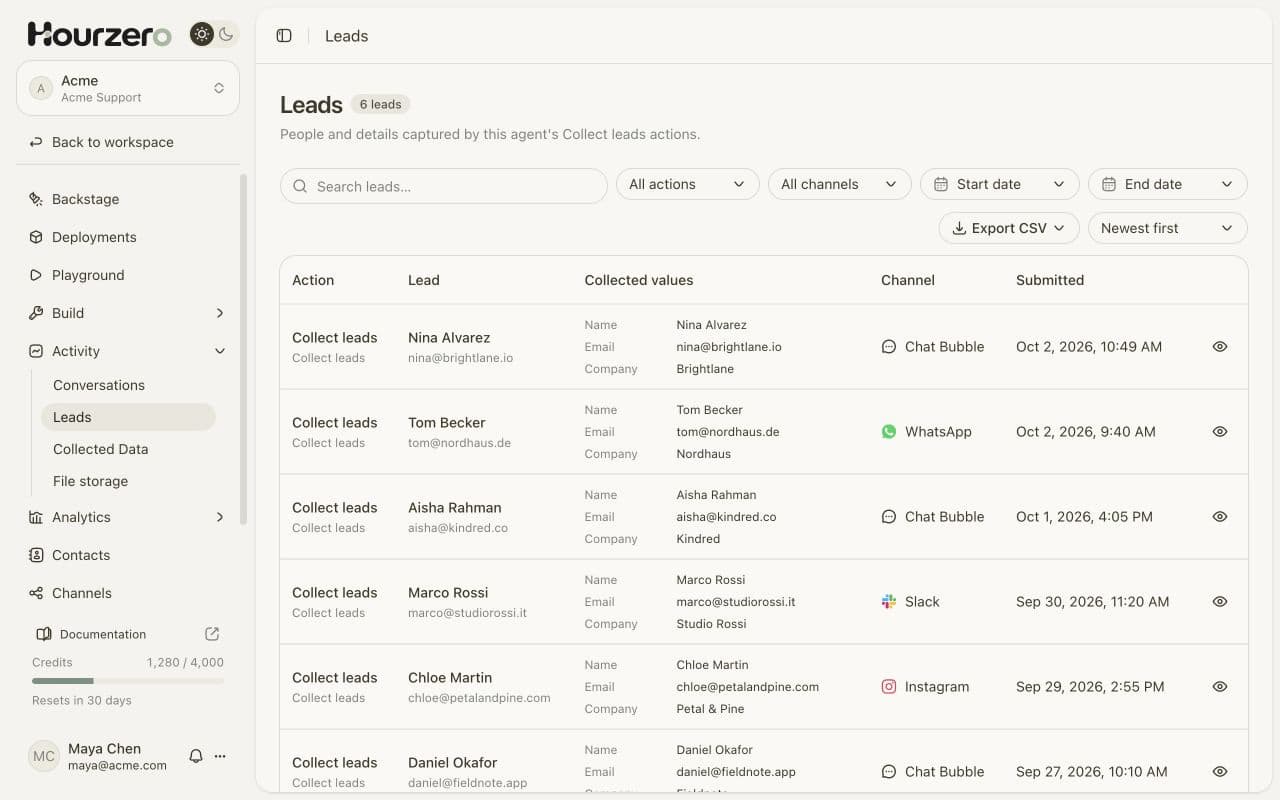
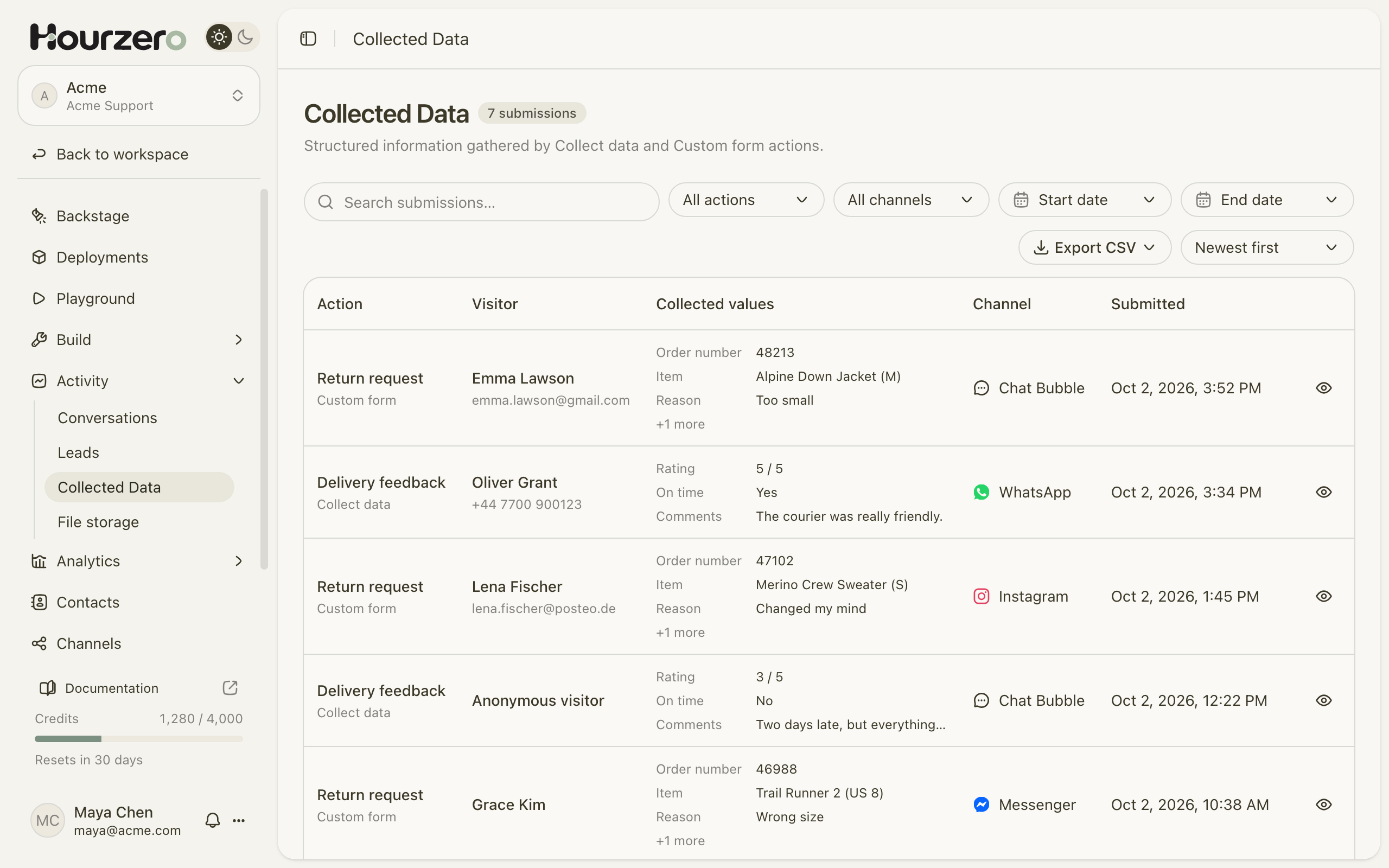
Both pages work the same way. The title shows how many entries there are, like 6 leads or 7 submissions. Each row shows:
- Action: the name of the action that saved it, like "Return request", and the action type underneath.
- Lead (on Leads) or Visitor (on Collected Data): who it came from. If the person didn't share their details, it says Anonymous visitor. Tests from the Playground say Playground user.
- Collected values: the first few answers. "+1 more" means there are more.
- Channel: where the chat happened, like WhatsApp or Chat Bubble. Playground tests show Playground.
- Submitted: the date and time.
See every answer
Select the eye icon at the end of a row. A window opens with:
- the Action, Channel, the person, and the Conversation it came from;
- Collected values: every answer, labelled with the field names from your action;
- Contact details: the person's name, email, and phone, when known.
Use the conversation title to find the full chat on the Conversations page if something looks wrong.
Find entries
- Type in the search box to search the entries.
- Use All actions to show entries from one action, for example only "Return request".
- Use All channels to show one channel, or Playground to see only your tests.
- Pick a Start date and End date to show a time period.
- Use Newest first or Oldest first to change the order.
- Select Clear to remove filters.
Use Rows per page at the bottom to show 10, 25, or 50 entries at a time.
Export to a spreadsheet
- Optional: set filters to narrow the list, for example last month's leads from WhatsApp.
- Select Export CSV.
- Choose Export all to download every entry, or Export matched entries to download only the ones that match your filters. Each option shows how many entries it includes.
- A progress bar appears above the table. You can keep working while the file downloads.
The CSV file opens in Excel, Google Sheets, or Numbers.
Note
Exports contain personal information like names and email addresses. Store the file safely and only share it with people who need it.
Send new entries to other apps automatically
Instead of exporting by hand, you can have Hourzero tell another app the moment something is saved. A webhook is a message Hourzero sends to another app the moment something happens, like a new lead.
Hourzero sends two events:
- lead.created when a new lead is saved;
- submission.created when new collected data or form answers are saved.
Set this up under Settings → Webhooks. See Webhooks for the steps.
Important
Hourzero doesn't email leads or add them to your CRM on its own. Use a webhook, or export the list, to get them into the tools your team uses.
Troubleshooting
A customer says they filled in a form, but I can't find it
- Check the filters. Select Clear and look again.
- Open the chat in Conversations. If the form appears but was never sent, the customer didn't finish it. Seeing a form in the chat doesn't mean it was submitted.
- Make sure the action is turned on for that channel on the Playground's Capabilities tab, and that you published the channel after adding it.
I only see Playground entries
Your live channels might not have the action yet. Turn the action on for each channel in the Playground, select Save draft, then publish the channel. See Publishing and version history.