

Human escalation
Hand a conversation to your team. The agent opens a Helpdesk ticket and can pause itself so a teammate can reply.
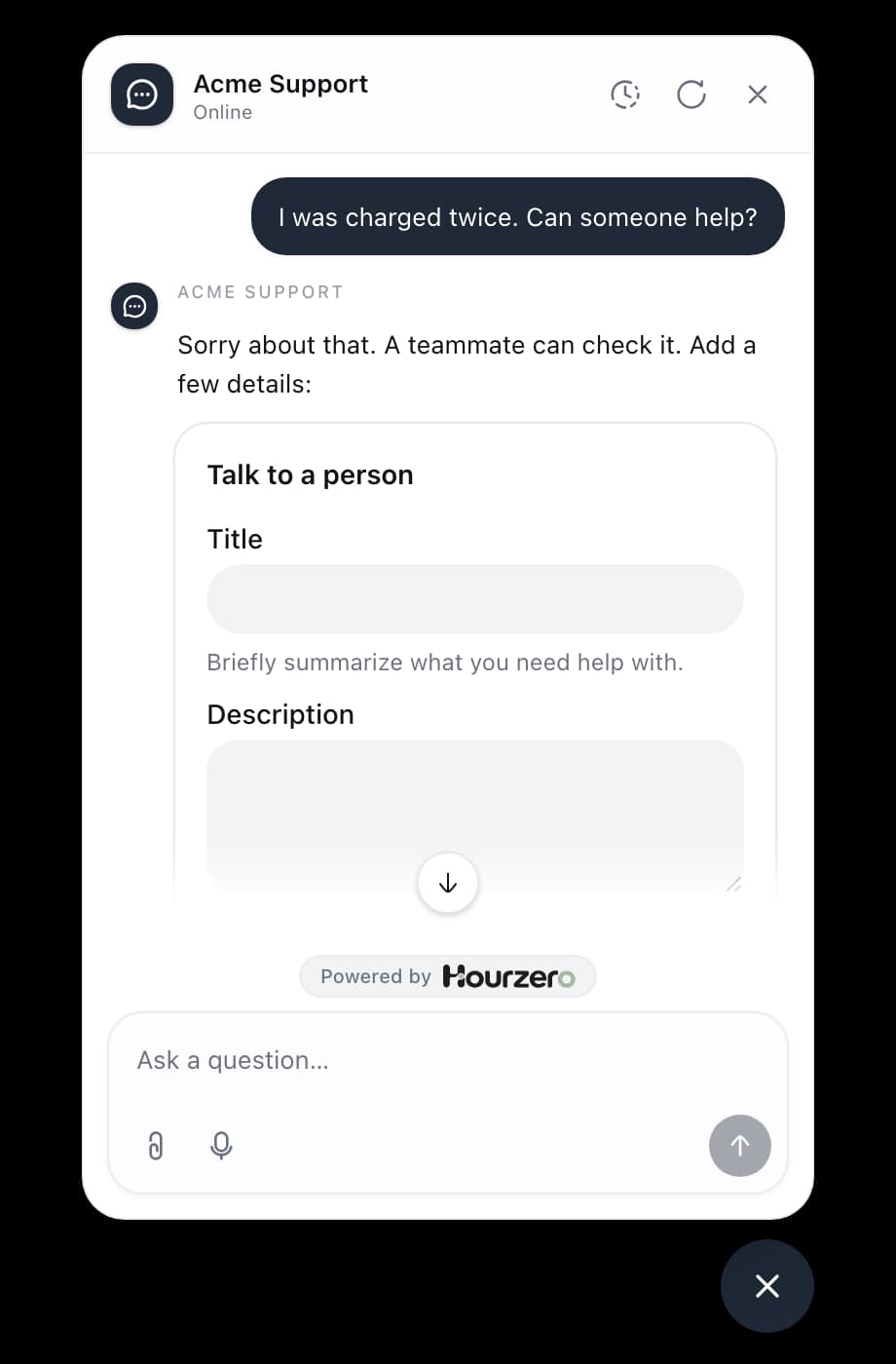
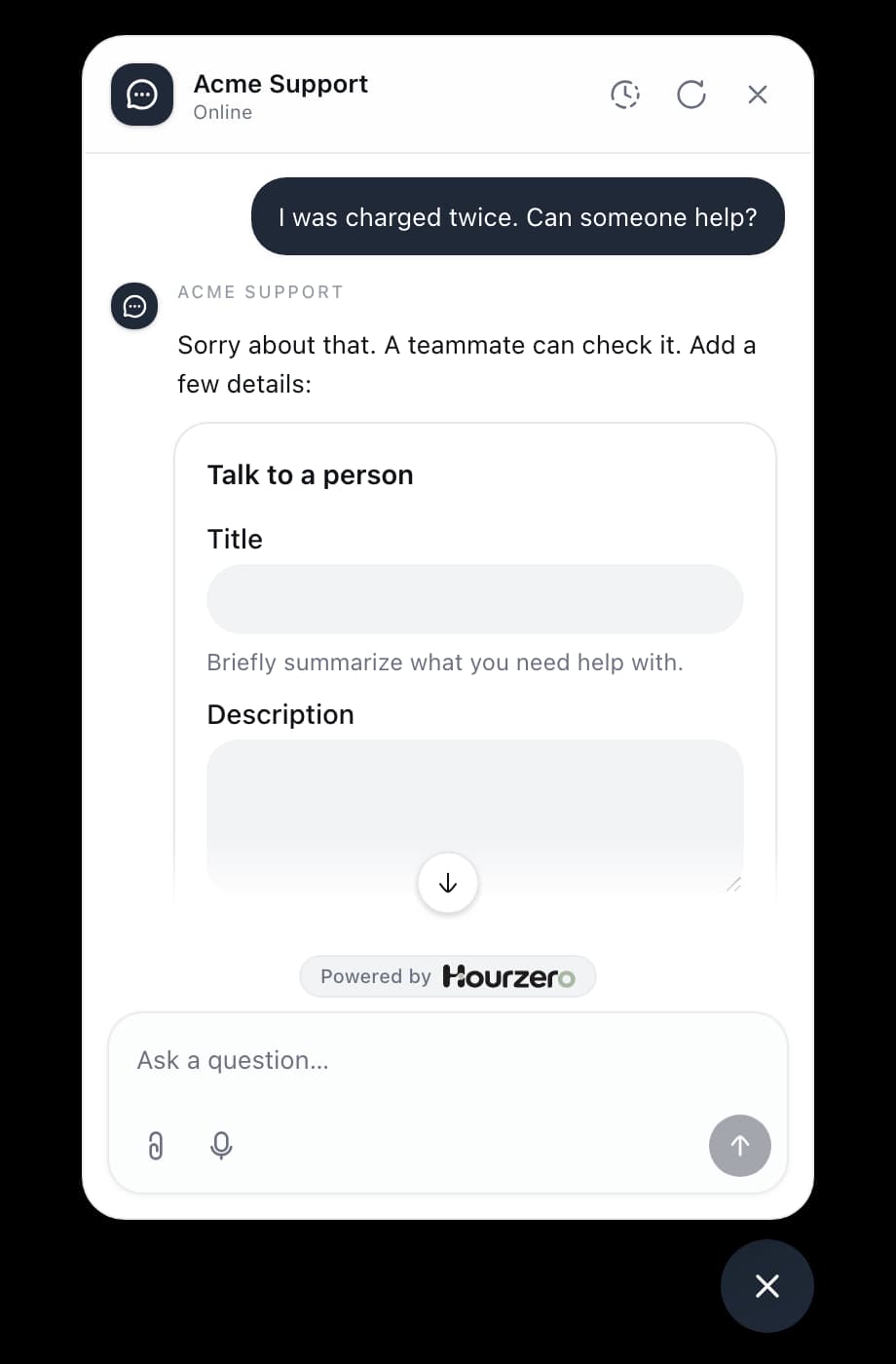
Human escalation hands a conversation to a person on your team. When a customer asks for a human, or has a problem the agent shouldn't handle alone, the agent opens a Helpdesk ticket. By default it also stops replying in that chat, so a teammate can take over in the same conversation.
Where to find it: open your agent, go to Build → Actions, and select Human escalation.
How it works
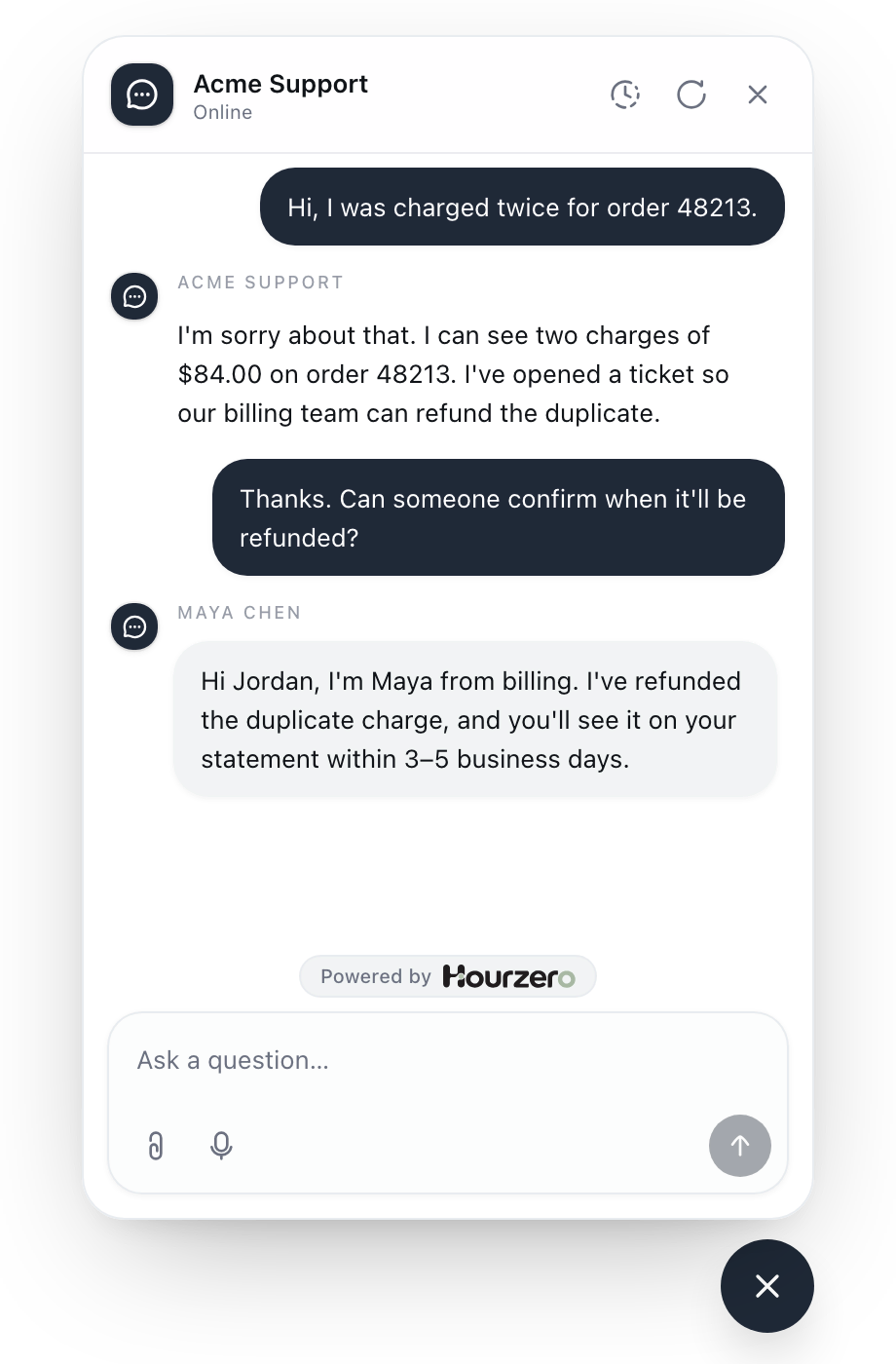
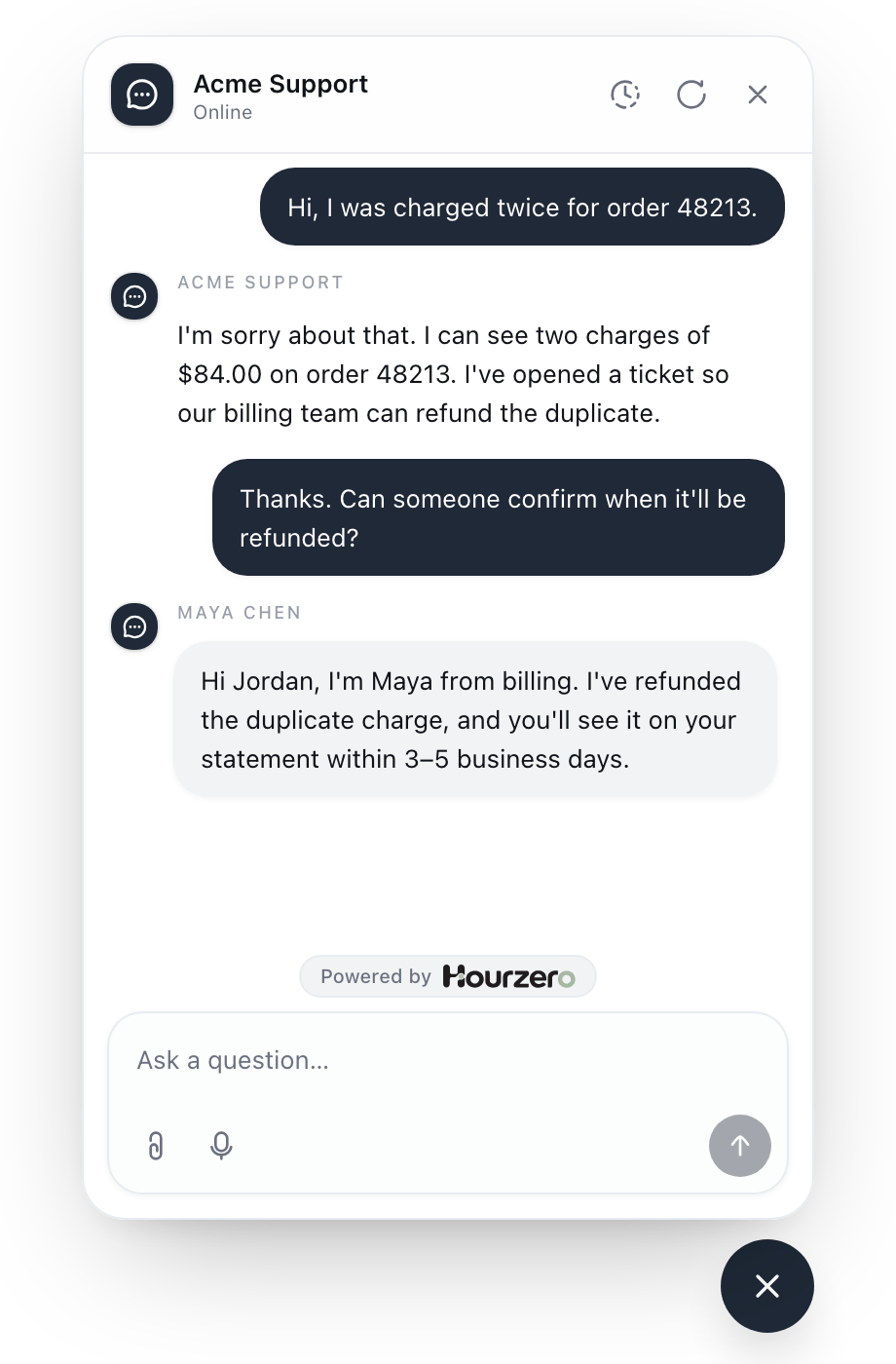
- 1Customer needs help"I was charged twice for order 48213."
- 2Ticket openedThe agent creates a Helpdesk ticket.
- 3AI pausesThe agent stops replying in that chat.
- 4Teammate repliesMaya answers in the same conversation.
Before you start: turn on Helpdesk
Human escalation creates Helpdesk tickets, so Helpdesk must be on for the agent.
- In your agent's sidebar, open Helpdesk.
- If this is your first time, select Set up Helpdesk.
- Under Manage, open General.
- Turn on Enable Helpdesk.
Until Helpdesk is on, the Human escalation card shows Helpdesk disabled, an existing escalation action shows Disabled, and its switch in the Playground can't be turned on. If you turn Helpdesk off later, the agent stops offering escalation.
Tip
Set up your teams and who is available before you go live, so tickets reach the right people. See Helpdesk teams.
Set up the action
This example creates the Talk to a person escalation that Acme Support uses for billing problems.
-
Open Build → Actions and select Human escalation.
-
In Action name, enter
Talk to a person. -
In When should the agent use it?, enter:
Use when the customer asks for a person, or when a billing problem like a double charge or a missing refund can't be solved from the help center. Summarize the issue. Don't promise a response time. -
Under Escalation method, choose Form or Auto (see below).
-
Under Additional ticket fields, select Add field to ask for more, for example an
Order numberfield with Type Short text. -
If you chose Form, edit the Form presentation: Form title, Form description, and the Submit button text.
-
Under Human takeover, leave Pause AI after escalation on.
-
Under Confirmation, write the Success message, for example
Thanks, your request is with our billing team. We'll reply here. -
Select Create action.
Form or Auto
- Form shows a form in the chat. The customer writes the ticket's title and description, plus any additional fields, and selects your submit button. It works in your website chat: Chat Bubble, Help Page, and Center Stage.
- Auto shows no form. The agent writes the title and description from the conversation and fills in any additional fields from what the customer said. It works on every channel, including WhatsApp and other messaging apps.
Ticket fields
Every ticket has a Title and a Description. Both are always required, and you can't remove them. Use Additional ticket fields for anything else your team needs, like an order number or the type of problem. You can add up to 18. Each one has a Label, Type, Description, and Required switch, just like fields in other actions.
The customer's name, email, and phone (when known), the channel, and the conversation are added to the ticket automatically. The agent is told never to ask customers for internal details like team names or IDs.
What happens after escalation
The ticket appears in your Helpdesk inbox with the whole conversation, the customer's details, and your additional fields. The success message is shown only after the ticket has been created.
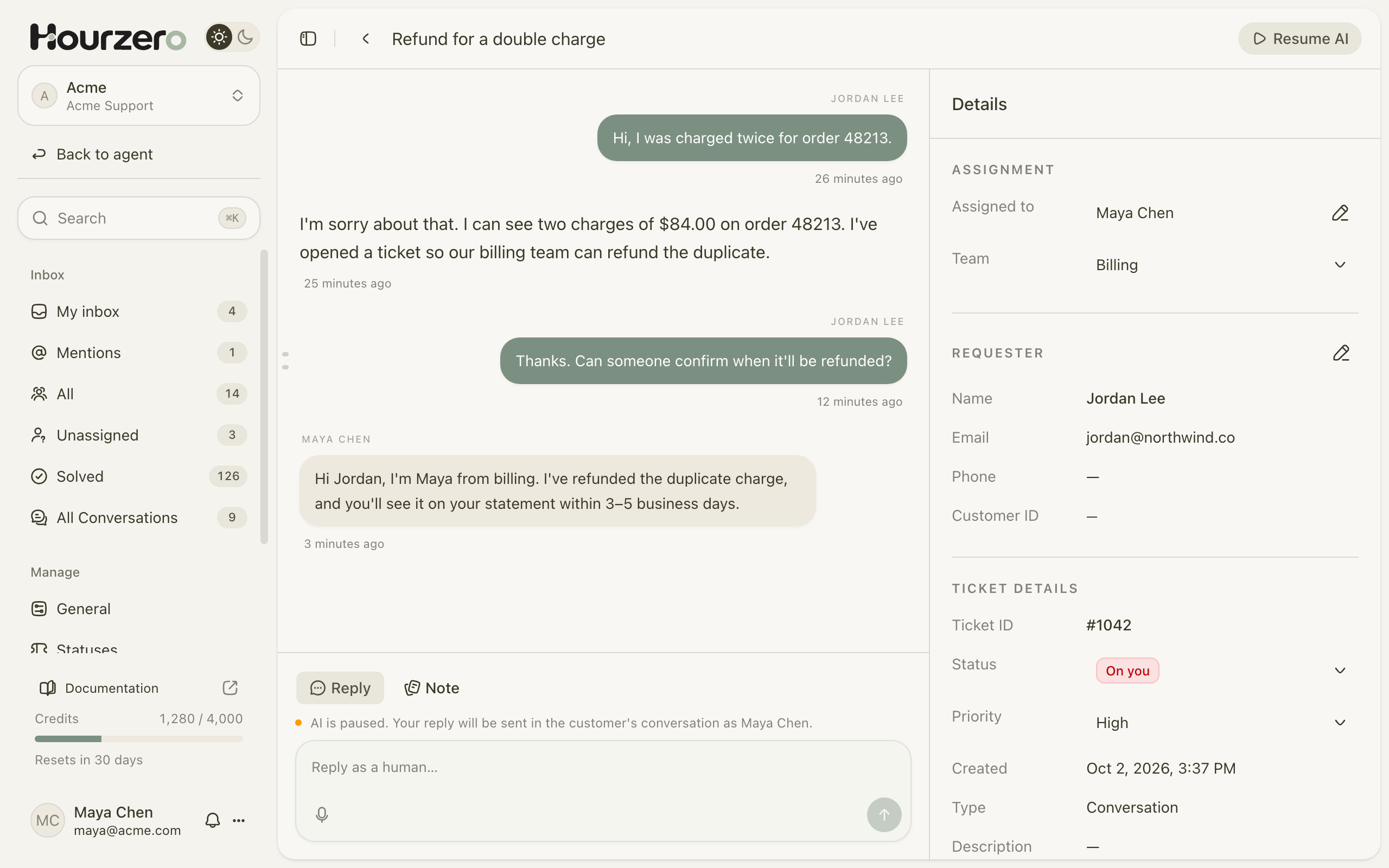
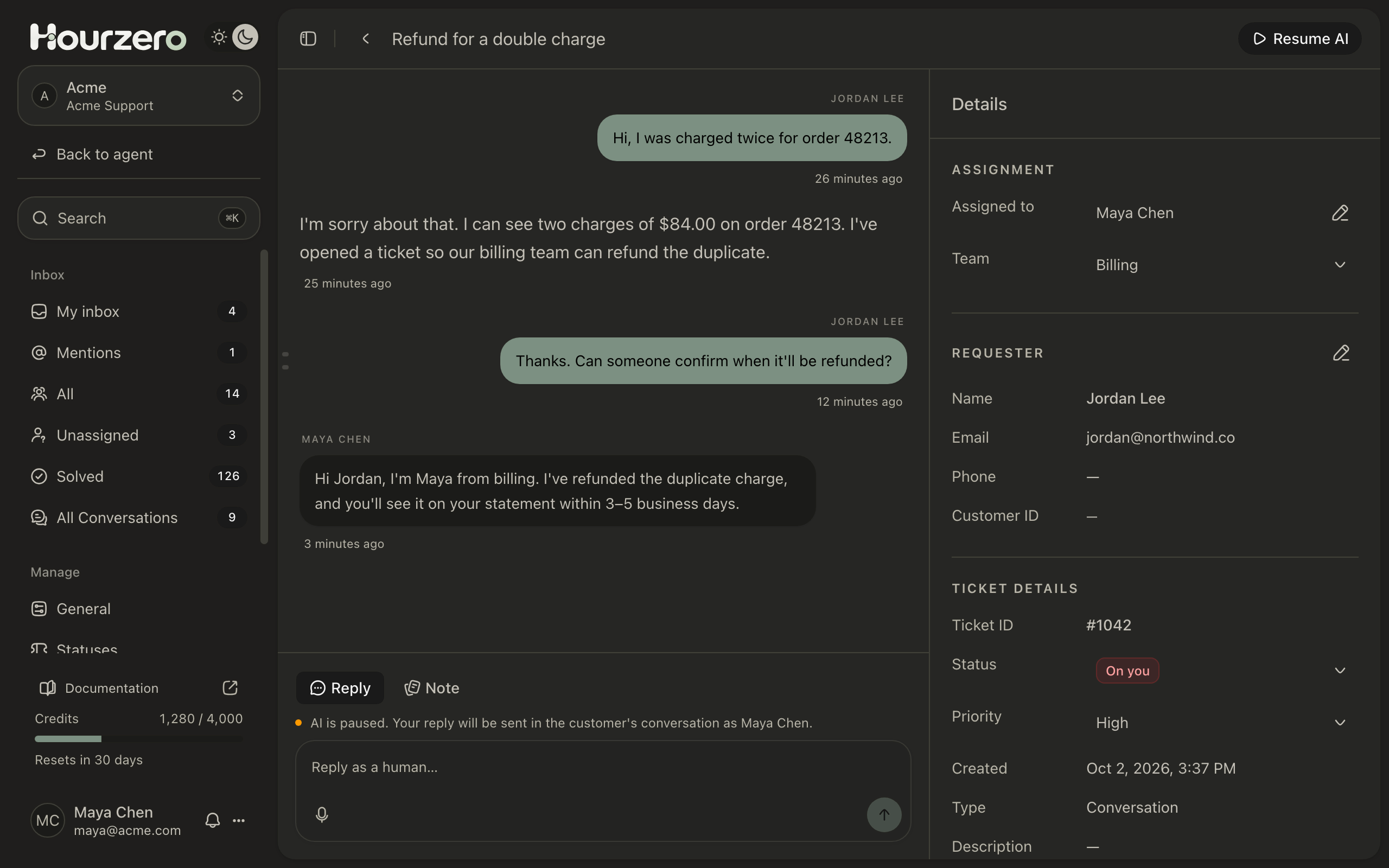
With Pause AI after escalation on:
- The agent stops replying in that conversation. New messages from the customer wait for a person.
- A teammate opens the ticket and writes in the reply box. The reply appears in the customer's chat under the teammate's name, through the same channel the customer used.
- When the issue is handled, the teammate selects Resume AI to let the agent reply again. Closing or cancelling the ticket also hands the conversation back to the agent automatically.
Teammates can also pause or resume the agent from the conversation in Activity → Conversations.
With Pause AI after escalation off, the ticket is still created, but the agent keeps replying in the chat. This suits teams that follow up later, for example by email.
Important
A ticket means your team has the request. It doesn't mean someone is online right now. Write a success message that matches how your team really works. Say "We'll reply here within one business day" only if that's true.
Test it
- Make sure Helpdesk is on.
- In Playground, check that the action is switched on for your channel in the Capabilities tab, and select Save draft.
- Say "I was charged twice, can I talk to someone?" Fill in the form, or with Auto, check that the agent asks only for what's missing.
- Check that the success message appears.
- Open Helpdesk and find the new ticket. Check its title, description, and your additional fields.
- Send a reply from the ticket and check that it appears in the Playground chat.
- Select Resume AI, or close the ticket, and check that the agent replies again.
- Publish the channel when you're happy.
Warning
Escalations you test in the Playground create real tickets in your Helpdesk. Close or cancel them when you're done so they don't sit in your team's inbox.
Common questions
Can the customer change their mind?
Yes. The form has a Cancel button. If the customer cancels, no ticket is created.
Will the agent promise a callback or a response time?
It shouldn't. The success message you write is what confirms the request, so keep it accurate. To be safe, add "Don't promise a response time" to When should the agent use it?, as in the example above.
Why can't I switch the action on in the Playground?
Helpdesk is off for this agent. Turn on Enable Helpdesk under Helpdesk → Manage → General.