

Actions overview
Give your agent things it can do, like look up an order, save a lead, or hand a chat to a teammate.
Most of the time your agent answers questions. Actions let it do things as well: look up an order, save a customer's details, open a support ticket, search the web, or show a button. Think of an action as something your agent can do, not just say.
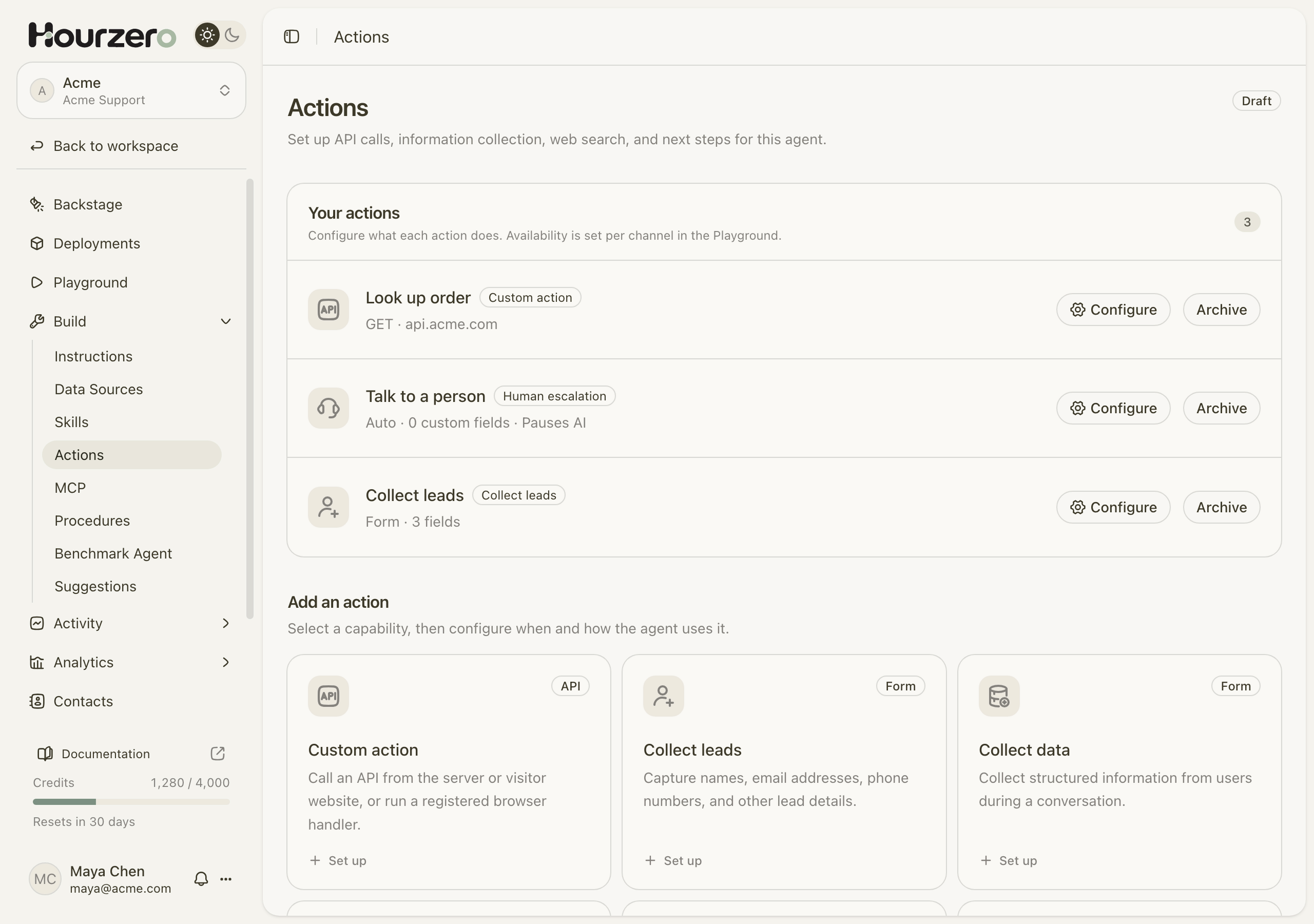
Where to find it: open your agent and go to Build → Actions.
How it works
You set up an action once, decide which channels may use it, and then the agent uses it on its own whenever a conversation calls for it.
- 1Set upPick an action and tell the agent when to use it.
- 2Switch onChoose which channels can use it in the Playground.
- 3TestTry it in the Playground preview.
- 4PublishPublish each channel so customers get it.
The agent decides when to run an action by reading the description you write in When should the agent use it?. A clear description is the most important part of every action.
The action catalog
There are seven kinds of action. Each one has its own guide.
Which action should I use?
Start from what you want to happen in the conversation.
| I want the agent to… | Use |
|---|---|
| Check an order, booking, or account in our own system | Custom action |
| Get contact details from someone who wants a demo, a quote, or a call back | Collect leads |
| Gather details that aren't contact info, like a damaged-item report | Collect data |
| Always show the same form with the same fields | Custom form |
| Answer with up-to-date public information, like news or a public web page | Web search |
| Send people to a page, like a tracking page or returns portal | Custom button |
| Hand the conversation to a person on my team | Human escalation |
You can combine actions. For example, Acme Support uses a custom action to look up order 48213 and a custom button to share the tracking link.
Tip
Not sure whether you need Collect leads or Collect data? Ask yourself: "Will someone on my team contact this person?" If yes, use Collect leads. Leads land on Activity → Leads; everything else lands on Activity → Collected Data.
Add an action
- Open Build → Actions.
- Under Add an action, select the card you want, for example Collect leads. A setup window opens.
- In Action name, enter a name you'll recognize, such as
Demo request. Only your team sees it. - In When should the agent use it?, describe the situation in plain words. Every action starts with a sample description that you can edit.
- Fill in the settings on the right. They are different for each kind of action.
- Select Create action. The action appears under Your actions with a short summary, such as "Form · 3 fields".
To change an action later, select Configure next to it, make your changes, and select Save changes.
You can add as many actions of each kind as you like, except Web search: an agent has one. Once it exists, its card shows Configured and opens your existing setup.
Write a good "When should the agent use it?"
This description is the agent's instructions for the action. A good one answers three questions:
- When? What does the customer say or want that should trigger it?
- What first? What does the agent need to know before it runs?
- What next? What may the agent say after it runs, and what should it never promise?
Here is a good example for an order lookup at Acme:
Use when a customer asks where their order is, when it will arrive,
or what was in it. Ask for the order number if they haven't given it.
Only share the status and delivery date that the lookup returns.
Never promise a delivery date the lookup didn't provide.
Avoid vague descriptions like "Use for orders." The agent may then run the action for questions it can't answer, or skip it when it should run.
Choose which channels can use an action
Every channel has its own on/off switch for each action. This lets you, for example, offer a form in your website chat but not on WhatsApp. New actions start switched on for every channel.
- Open Playground.
- Under Preview channel, pick a channel, for example Chat Bubble.
- Open the Capabilities tab.
- In the Actions card, find your action. Its switch shows Enabled or Disabled. Turn it on or off.
- Select Save draft.
- Test the action in the preview on the right.
- When it works the way you want, publish that channel. Customers get the change only after you publish.
Important
Saving the draft doesn't change anything for customers. Each channel keeps its live version until you publish that channel again. This is also true when you create, edit, or archive an action.
Forms and buttons need the website chat
Forms and buttons appear in your website chat: Chat Bubble, Help Page, and Center Stage. Messaging apps such as WhatsApp, Messenger, Instagram, Slack, Discord, Telegram, and SMS only receive the agent's text replies. On those channels, turn off form and button actions, or use the Auto collection mode where an action offers it.
Human escalation can't be switched on until Helpdesk is turned on for the agent. Until then, it shows a Helpdesk disabled badge. See Human escalation for setup.
Archive or delete an action
When you no longer need an action, archive it first:
- Under Your actions, select Archive next to the action. It shows an Archived badge, and your draft stops using it.
- Publish the channels that used it so customers stop getting it too.
- To bring it back, select Restore.
To delete an archived action for good, select the trash icon next to it, then select Remove action.
Warning
Hourzero won't delete an action that a live channel still uses. Archive it or turn it off for that channel, publish the channel, and then delete it.
Actions and procedures
An action does one thing. A procedure is a step-by-step flow, like "handle a return", that can use several actions in order. When you write a procedure step, type @ to pick one of your actions.
Important
A procedure only runs on a channel if every action it uses is available there. If you archive an action, or turn it off for a channel, any procedure that uses it stops running on that channel. Check your procedures before you archive or switch off an action.
Test before you publish
- Make sure the action is switched on for the channel in the Playground, and select Save draft.
- In the preview, ask something that should trigger it, for example "Where's my order?"
- Check that the agent asks for anything it's missing, such as the order number.
- Check the result: the answer, the form, the button, or the saved record.
- Ask something that should not trigger it, for example "Do you sell gift cards?", and make sure the agent just answers.
- Open the chat in Activity → Conversations to see each action the agent ran and what came back. These details are only visible to your team.
- Publish the channel when you're happy with the result.
Common questions
Why doesn't my agent use the action?
Check these in order: the action is switched on for this channel in the Playground; you selected Save draft; and the When should the agent use it? description matches what you asked. For live channels, also make sure you published the channel after your changes.
Will the agent run an action just because a customer asks?
Only when the request matches the action's description and the agent has the details it needs. The agent also can't claim something happened unless the action confirms it. For example, it won't say a refund was issued just because a form was shown.
Where do I see what an action saved?
Leads go to Activity → Leads. Collected data and custom form answers go to Activity → Collected Data. Escalations become tickets in Helpdesk. See Leads and collected data.