

Members and invitations
Invite teammates to a team workspace, choose their role, and manage pending invitations.
Members are the people on your team who can sign in and work on your agents. Invite a colleague, pick a role for them, and they can start helping within minutes.
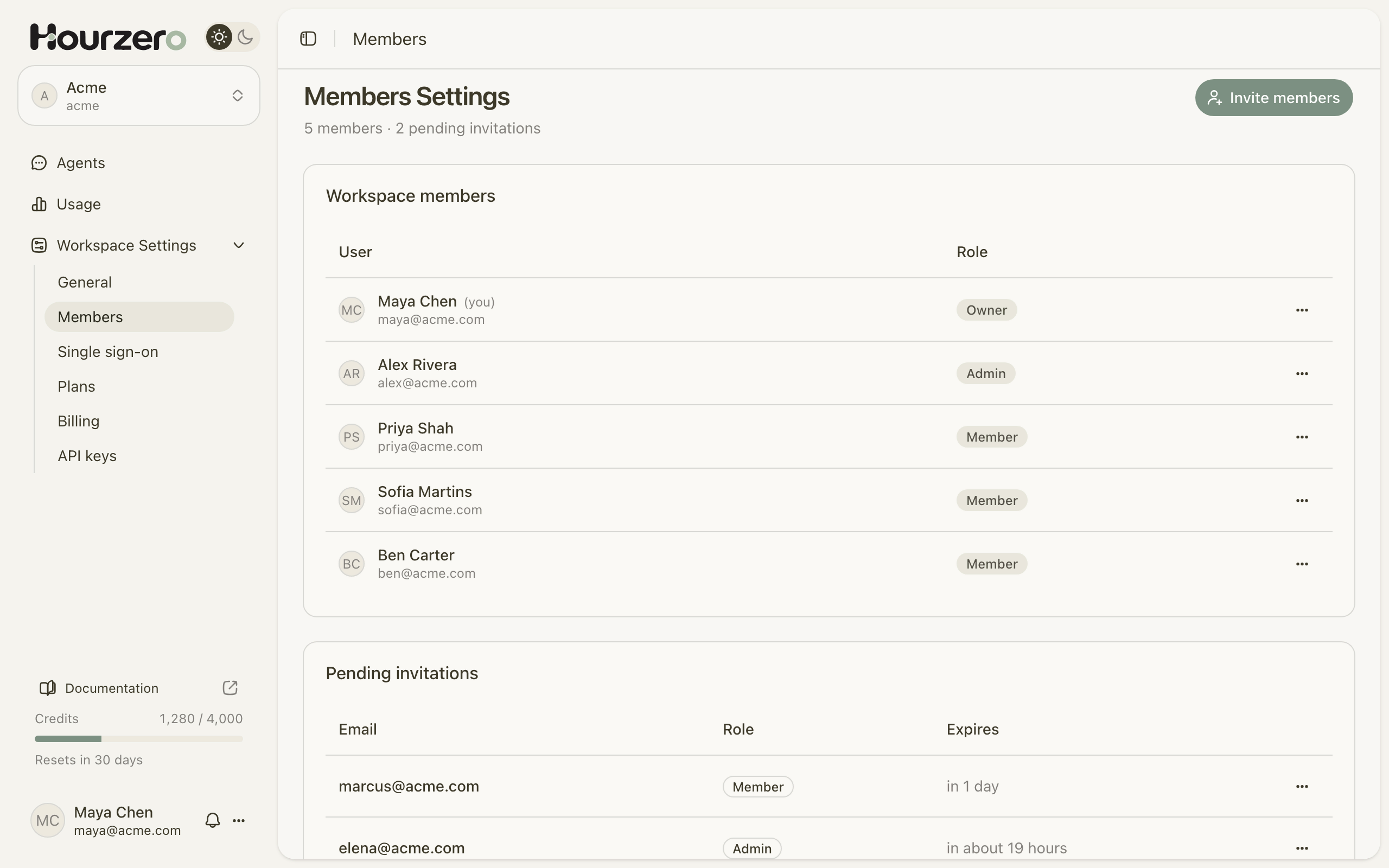
Where to find it: go to Workspace Settings → Members in a team workspace.
How it works
Your Personal workspace is only for you, so you can't invite anyone to it. Create a team workspace first. See Workspaces and agents.
- 1InviteAn owner or admin sends an invitation by email.
- 2AcceptYour teammate opens the link and accepts.
- 3CollaborateThey appear under Workspace members and can start working.
Roles
Every member has one role. Think of it like keys to an office: everyone gets in, but only some people hold the keys to the safe.
- Owner runs the workspace. Owners can do everything, including deleting the workspace and managing other owners.
- Admin helps run the workspace. Admins manage people, billing, and connections, but can't delete the workspace or change an owner.
- Member builds and runs agents day to day.
| What you can do | Owner | Admin | Member |
|---|---|---|---|
| Build, train, test, and publish agents | Yes | Yes | Yes |
| View conversations and usage | Yes | Yes | Yes |
| Connect messaging apps (WhatsApp, Slack, and others) | Yes | Yes | No |
| Delete agents or conversations, move agents | Yes | Yes | No |
| Change Helpdesk settings | Yes | Yes | No |
| Invite and remove members, change roles | Yes | Yes | No |
| Manage the plan, billing, and invoices | Yes | Yes | No |
| Set up single sign-on | Yes | Yes | No |
| Rename the workspace | Yes | Yes | No |
| Make someone an owner, or change or remove an owner | Yes | No | No |
| Delete the workspace | Yes | No | No |
The person who creates a team workspace becomes its first owner.
Invite a teammate
Owners and admins can send invitations.
- Go to Workspace Settings → Members and select Invite members.
- Enter your teammate's Email, for example
jordan@acme.com. - Choose a Role: Admin or Member. New invitations start as Member.
- Select Send invitation. You'll see "Invitation sent to jordan@acme.com".
The invitation now appears under Pending invitations, with how long it has left before it expires.
Tip
Invite people as Member first. You can raise their role later in a couple of clicks.
To give someone the Owner role, invite them first. Once they've joined, an owner can select Make owner in their menu.
Accept an invitation
Your teammate receives an email with a link to join. When they open it:
- They sign in with the email address the invitation was sent to. If they don't have a Hourzero account yet, they create one with that address first.
- They see Join Acme with the role they were given.
- They select Accept invitation. Hourzero takes them to the dashboard, and Acme appears in their workspace menu.
They can also select Decline if the invitation was a mistake.
Important
Invitations expire after 48 hours. The invitation only works for the exact email address it was sent to, and that address must be verified.
Manage pending invitations
Open the ... menu next to an invitation:
- Resend invitation sends the email again and gives your teammate a fresh 48 hours.
- Revoke invitation cancels it. The link stops working.
Change a role
- Open the ... menu next to the member.
- Select Make owner, Make admin, or Make member. You'll see "Role updated".
The member's current role is greyed out in the menu. A workspace always needs at least one owner, so the last owner can't be changed to another role.
Remove a member or leave the workspace
- Remove someone: open the ... menu next to them and select Remove member. They lose access to the workspace and its agents right away.
- Leave yourself: open the ... menu on your own row (marked (you)) and select Leave workspace.
If you're the only owner, you can't leave. Make another member an owner first, then leave.
Note
Removing a member doesn't delete their account or the work they did. Agents, conversations, and settings stay in the workspace.
Member limits
Each plan includes a set number of members, and people you've invited count toward it while their invitation is pending.
| Plan | Members included |
|---|---|
| Free | 1 |
| Hobby | 2 |
| Standard | 3 |
| Pro | 5 |
| Enterprise | Custom |
If the workspace is full, Hourzero won't send the invitation. Remove a member, revoke a pending invitation, or upgrade. See Plans, billing, and invoices.
Add support teammates to Helpdesk
Members can also answer customers in the Helpdesk. After they join, add them to a Helpdesk team so tickets can be assigned to them. See Helpdesk teams.
Troubleshooting
My teammate didn't get the invitation email
Check the email address under Pending invitations and ask them to look in their spam folder. Then select Resend invitation. If the address is wrong, revoke the invitation and send a new one.
The invitation says it was sent to a different email address
Your teammate is signed in with another account. They should select Use another account and sign in with the invited address.
The invitation says it's unavailable
It has expired, was revoked, or was already used. Ask an owner or admin to send a new one.
I can't see the Invite members button
Only owners and admins can invite. Members see "Invitations are managed by Owners and Admins" instead.