

Helpdesk
Hand a conversation to a real person when the agent shouldn't handle it alone, and track it as a ticket until it's solved.
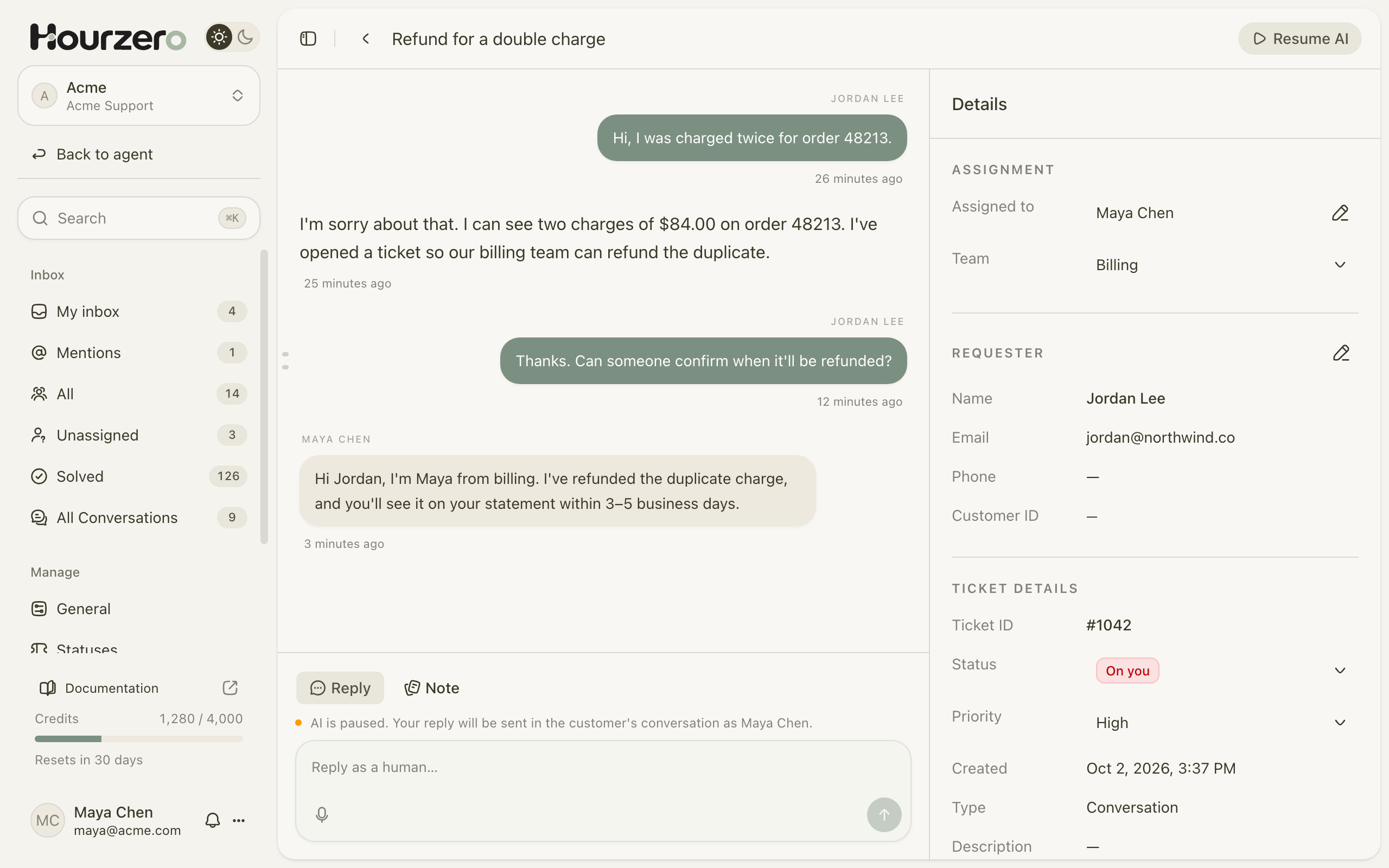
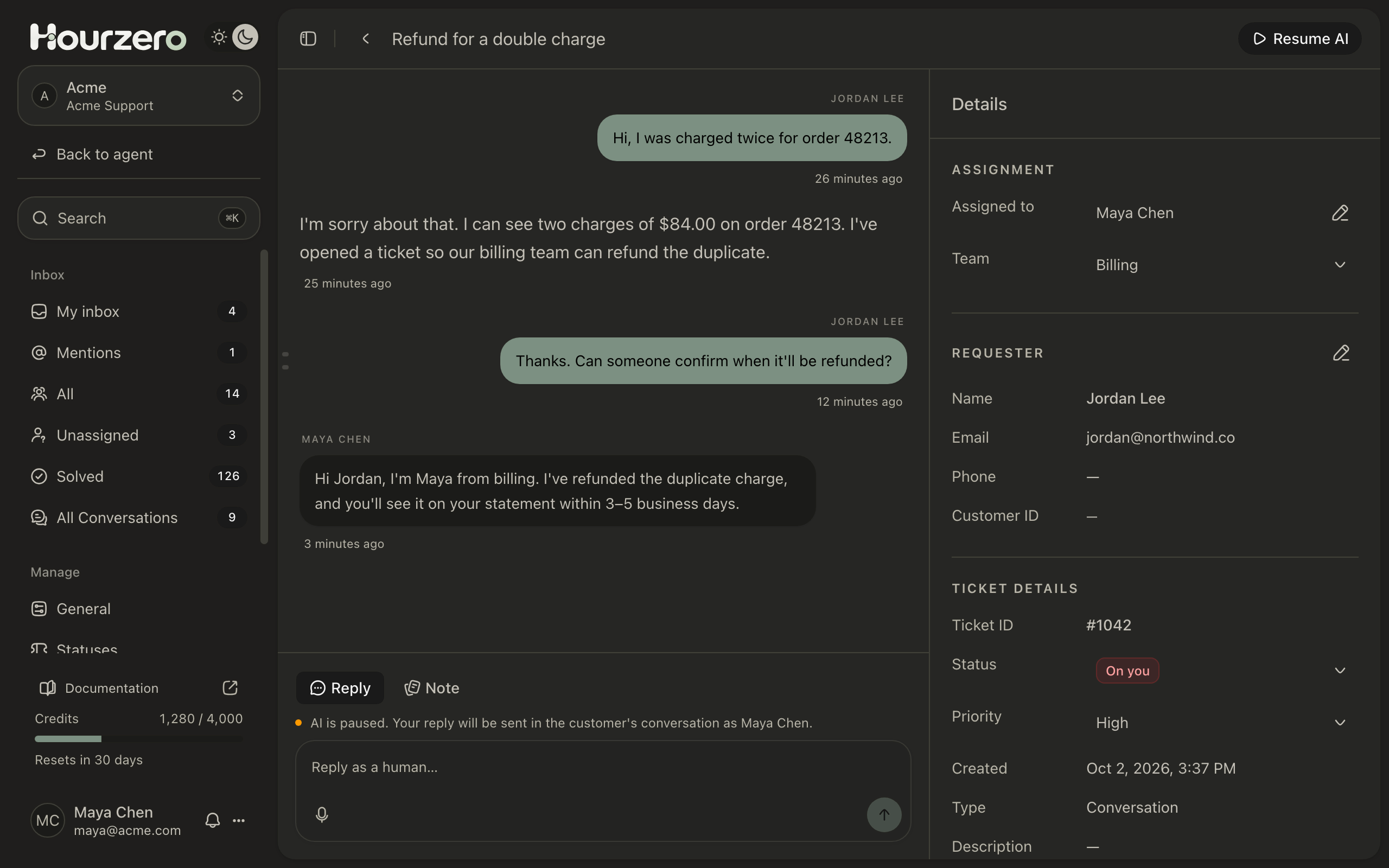
The Helpdesk is where your team steps in when a customer needs a person. The agent opens a ticket, a teammate picks it up, and they reply in the same chat the customer started, on the same channel.
Where to find it: open your agent and select Helpdesk in the sidebar. The sidebar switches to the Helpdesk menu: your ticket lists at the top, and settings under Manage.
When to use it
Your agent handles most questions on its own. The Helpdesk is for the moments it shouldn't:
- Money: refunds, double charges, and billing mistakes.
- Exceptions: a return the policy doesn't cover, or an order that needs a manual change.
- People who ask for a person: some customers want a human, and that's fine.
- Upset customers: a calm human reply often does more than another automated answer.
You decide when the agent hands over. You describe those moments in the Human escalation action.
How it works
- 1Customer asksA customer needs something the agent shouldn't handle alone.
- 2Agent escalatesThe agent collects the details and opens a ticket.
- 3Ticket opensThe ticket lands in your inbox, and the AI stops replying in that chat.
- 4Teammate repliesA teammate answers in the same chat, under their own name.
- 5ResolvedYou close the ticket, and the AI takes the conversation back.
Here's the same journey for Acme:
- Jordan writes on Acme's website: "I was charged twice for order 48213."
- The agent sees this is a billing problem and offers a short Talk to a person form.
- Jordan fills it in. A ticket opens in the Helpdesk with the full chat attached.
- Hourzero gives the ticket to someone on the team, or it waits for someone to pick it up.
- Maya from billing reads the chat, refunds the charge, and replies. Jordan sees her answer in the same chat window.
- Maya sets the ticket to Closed. If Jordan writes again, the agent answers as usual.
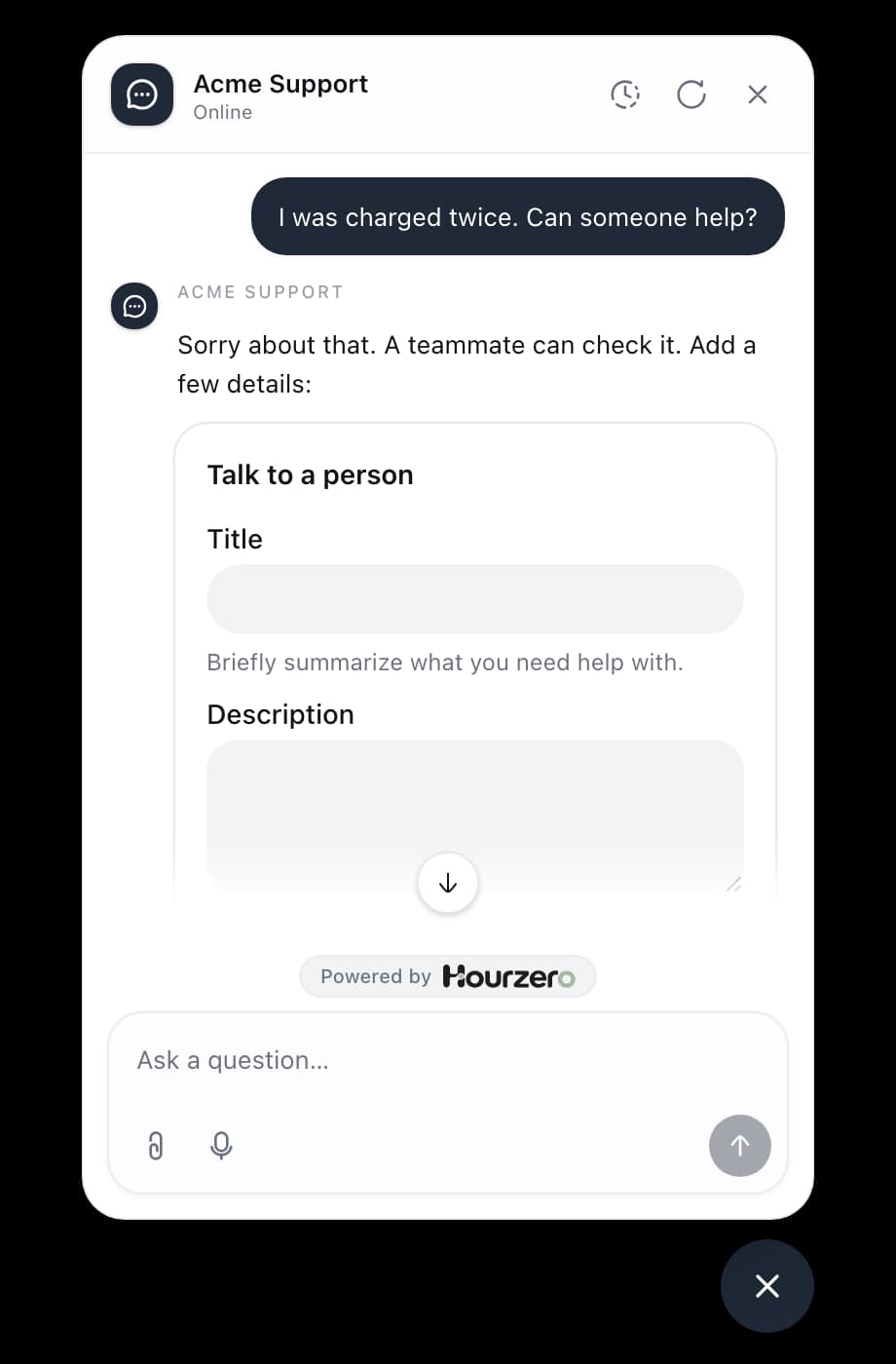
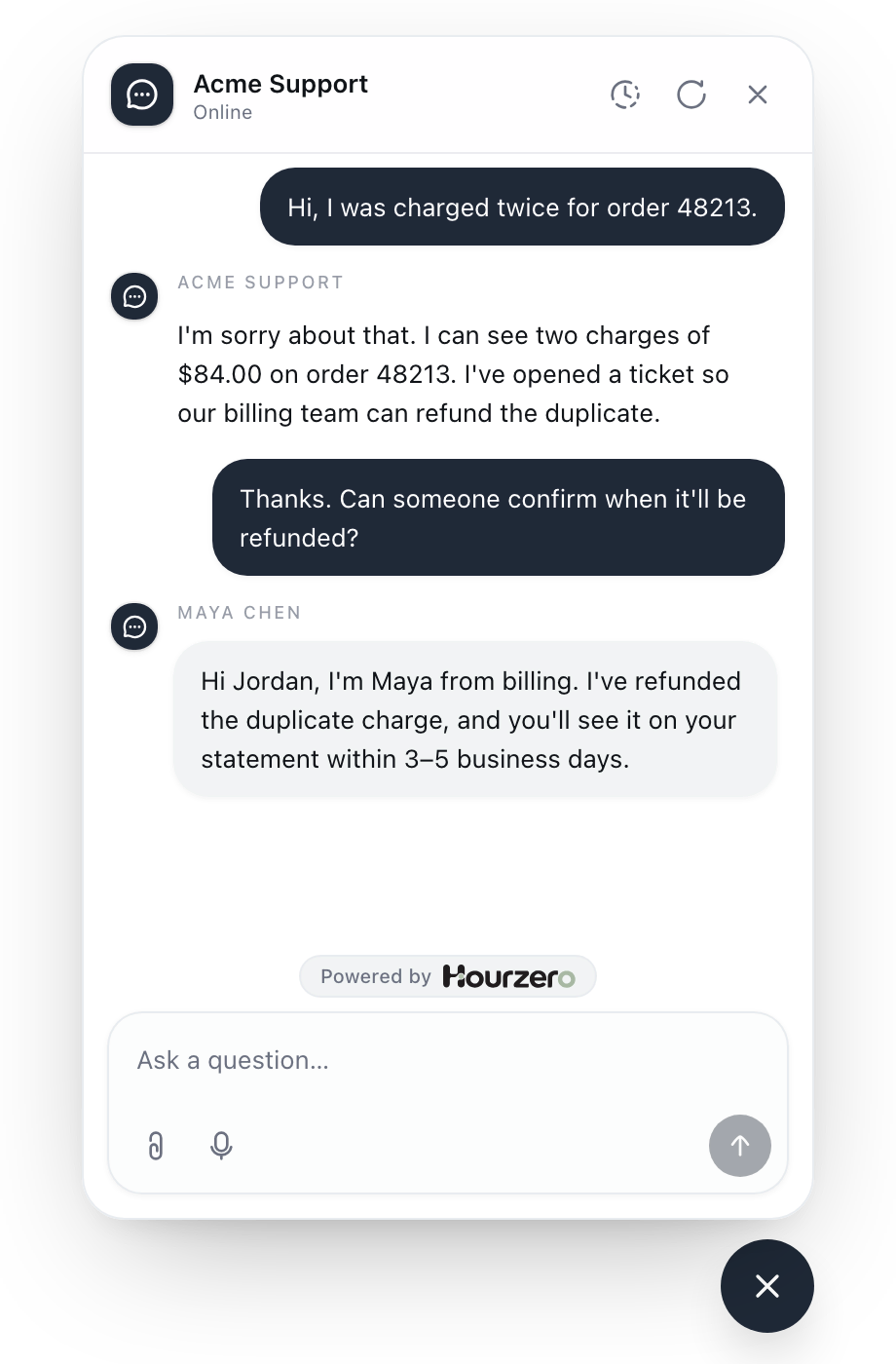
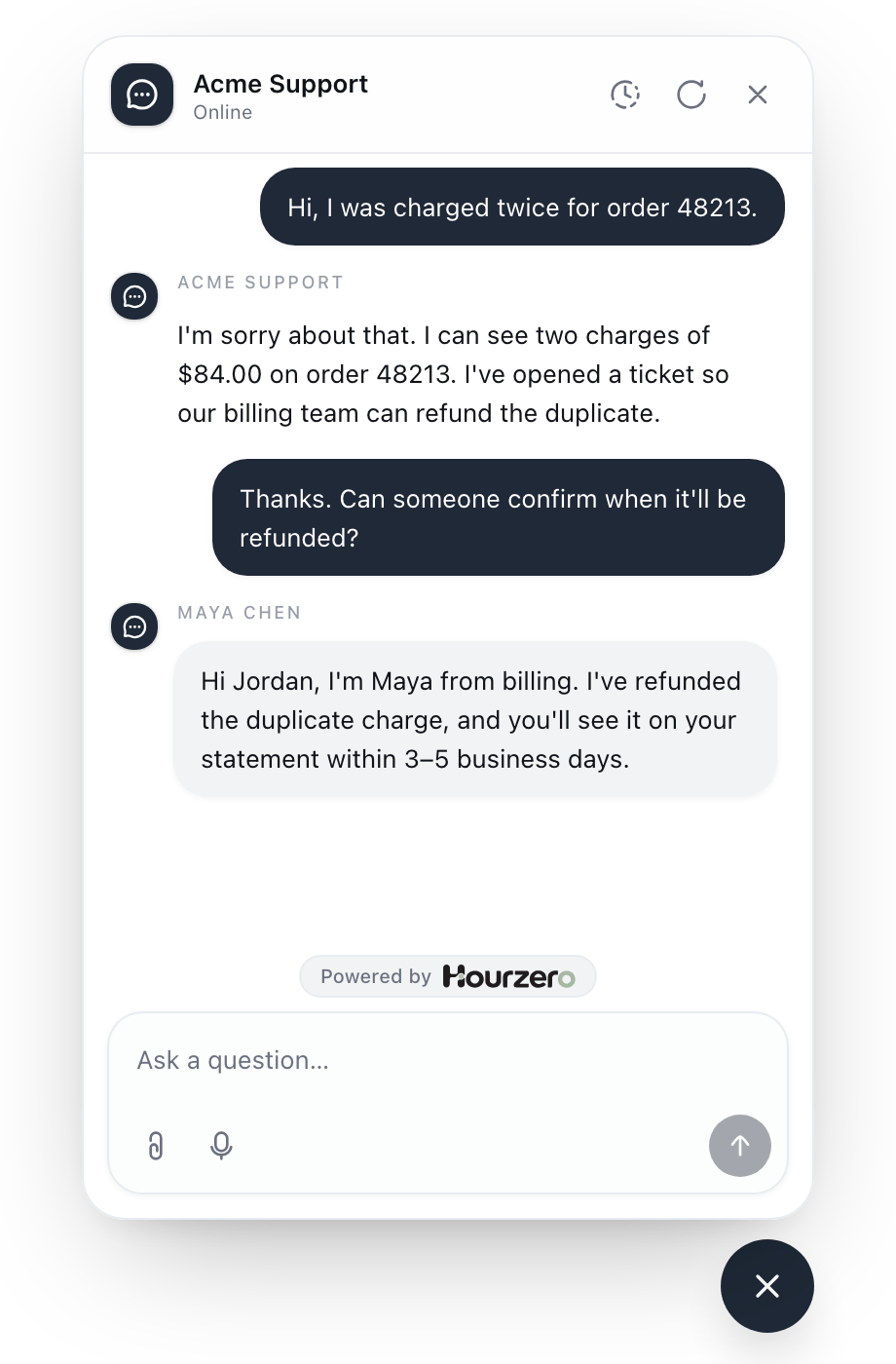
Replies reach customers where they started. On your website, they appear in the chat window. On messaging channels such as WhatsApp or Slack, they're sent through that app.
Set up the Helpdesk
- Open your agent and select Helpdesk in the sidebar.
- If you see Finish Helpdesk setup, select Set up Helpdesk. Hourzero creates the standard ticket statuses and a team called General.
- Under Manage, select General, then turn on Enable Helpdesk.
- Go back to your agent and add a Human escalation action under Build → Actions. Describe when the agent should hand over. See Human escalation.
- Optional: add teams and working hours so tickets go to the right people. See Teams and assignment and Schedules.
To leave the Helpdesk, select Back to agent at the top of the sidebar.
The agent can only hand over while Helpdesk is on
If Enable Helpdesk is off, the agent can't use the Human escalation action at all. Your existing tickets stay where they are.
Note
Only workspace owners and admins can set up the Helpdesk and change its settings, statuses, teams, and schedules. Everyone in the workspace can work on tickets.
Reply or note
Every ticket has two ways to write: Reply and Note. They look alike, but they go to very different people.
| Reply | Note | |
|---|---|---|
| Who sees it | The customer, in their chat | Only your workspace team |
| Where it appears | In the conversation, under your name | Under Internal notes in the ticket |
| AI must be paused | Yes | No |
| Changes the status | Yes, to On customer | No |
Use a reply to talk to the customer:
Hi Jordan, I'm Maya from billing. I've refunded the duplicate charge, and you'll see it on your statement within 3–5 business days.
Use a note to talk to your team. Select Mention to bring in a teammate. They get a notification and the ticket shows up in their Mentions list.
@Alex Rivera Can you confirm the second charge on order 48213 is a duplicate before I refund it?
Check the tab before you send
Reply goes to the customer. Note stays inside your team. Look at which one is selected before you write anything private.
What the AI does while a person helps
When the agent opens a ticket, it pauses itself in that chat. That way the customer doesn't get an automated answer while your teammate is working on it. This is the Pause AI after escalation setting in the Human escalation action, and it's on by default.
- The ticket's top-right button shows Resume AI while the AI is paused, and Pause AI while it's running.
- You can only reply as a person while the AI is paused. If it isn't, the ticket offers a Pause AI button first.
- When you set the ticket to Closed or Cancelled, the AI picks the chat back up on its own. You can also select Resume AI at any time.
You don't need a ticket to step in. You can pause the AI and reply in any chat from Activity → Conversations. See Conversations.
Tip
Make the agent's handover message honest. "Thanks, I've passed this to our billing team. They usually reply within one business day." works well. Only promise response times your team can actually meet.
How tickets move along
Hourzero updates the status as the conversation goes:
- A new ticket starts as New.
- When the customer writes, it moves to On you.
- When a teammate replies, it moves to On customer.
- You set On hold, Closed, and Cancelled yourself.
Read more in Statuses and tags.
Common questions
What if the customer writes again after the ticket is closed?
The closed ticket stays closed. The agent answers the new message as usual. If the customer needs a person again, the agent can open a new ticket.
Can I create a ticket myself?
Yes. Select New ticket in the inbox. A ticket you create by hand isn't connected to a chat, so you can't reply to the customer from it. It's useful for tracking something like a phone call. See Inbox.
How do teammates know they have work?
Teammates get a notification (the bell next to their name at the bottom of the sidebar) when a ticket is assigned to them, when a customer replies on their ticket, and when someone mentions them in a note.
Who gets each ticket?
That depends on the team. A team can hand out tickets by hand, or let Hourzero share them out among the people who are working. See Teams and assignment.