

Publishing and version history
Understand the difference between your draft and what customers see, publish each channel, and roll back to an earlier version.
Your agent always has two sides: the draft you are working on, and the live version customers talk to. Publishing is how a draft becomes live. The Deployments page keeps a history of every time you published, so you can see what changed and go back if something goes wrong.
Where to find it: open your agent and select Deployments in the sidebar. You publish from the Playground.
Draft and live, in plain words
Think of a document you are writing. Saving keeps your changes, but nobody else sees them. Sending it is what puts it in front of other people. Hourzero works the same way:
- Saving keeps your changes in the draft. You can test the draft in the Playground. Customers never see it.
- Publishing sends a copy of the saved draft to one channel. From that moment, customers on that channel get the new version.
- 1EditChange instructions, knowledge, or channel settings.
- 2SaveYour changes are kept in the draft.
- 3TestTry the draft in the Playground.
- 4PublishCopy the draft to one channel for customers.
After you publish, you keep editing the same draft. Your next changes stay private until you publish again.
Tip
Editing the draft is safe. You can rewrite instructions or try a new model, test it in the Playground, and customers keep getting the old version until you choose to publish.
Each channel is published separately
Every channel has its own live version. When you publish the Chat Bubble, only the Chat Bubble changes. WhatsApp, Instagram, Slack, and your other channels keep the version they had.
This is useful when you want to try a change in one place first. For example, Acme updates its return instructions and publishes them on the Chat Bubble. After a day of good answers, Maya Chen publishes the same draft to WhatsApp and Instagram.
Important
Changes to shared things, like instructions, data sources, or the model, only reach a channel when you publish that channel. If you want a change everywhere, publish each channel.
What a published version includes
When you publish, Hourzero saves a full copy of everything that channel needs:
- your instructions, guardrails, and model;
- the knowledge from your latest training;
- your actions, skills, and procedures, and which of them the channel may use;
- the channel's look and settings, like its display name, welcome message, and allowed websites;
- whether Agent replies is on or off for that channel.
Note
Published versions use the knowledge from your most recent training. If you added or changed data sources, retrain before you publish. See Data sources.
Publish a channel
- Make your changes and select Save draft in the Playground.
- If you changed your data sources, retrain the agent.
- Test the draft in the Playground preview.
- Pick the channel you want to publish from the channel menu.
- Select Publish at the top right, then choose the option for that channel. For Chat Bubble and Center Stage it is Website widget. For messaging channels it is the channel name, like WhatsApp.
- Review the dialog. Website channels need at least one allowed domain. Messaging channels show whether the connection is ready.
- Select Publish saved draft. If the channel was published before, the button says Publish latest draft.
A message confirms the channel is published, and a new row appears on the Deployments page with the badge In production.
Note
Only saved changes get published. If you have unsaved changes, the publish button in the dialog stays turned off until you select Save draft. Help Page doesn't have a Publish button yet.
Read the version history
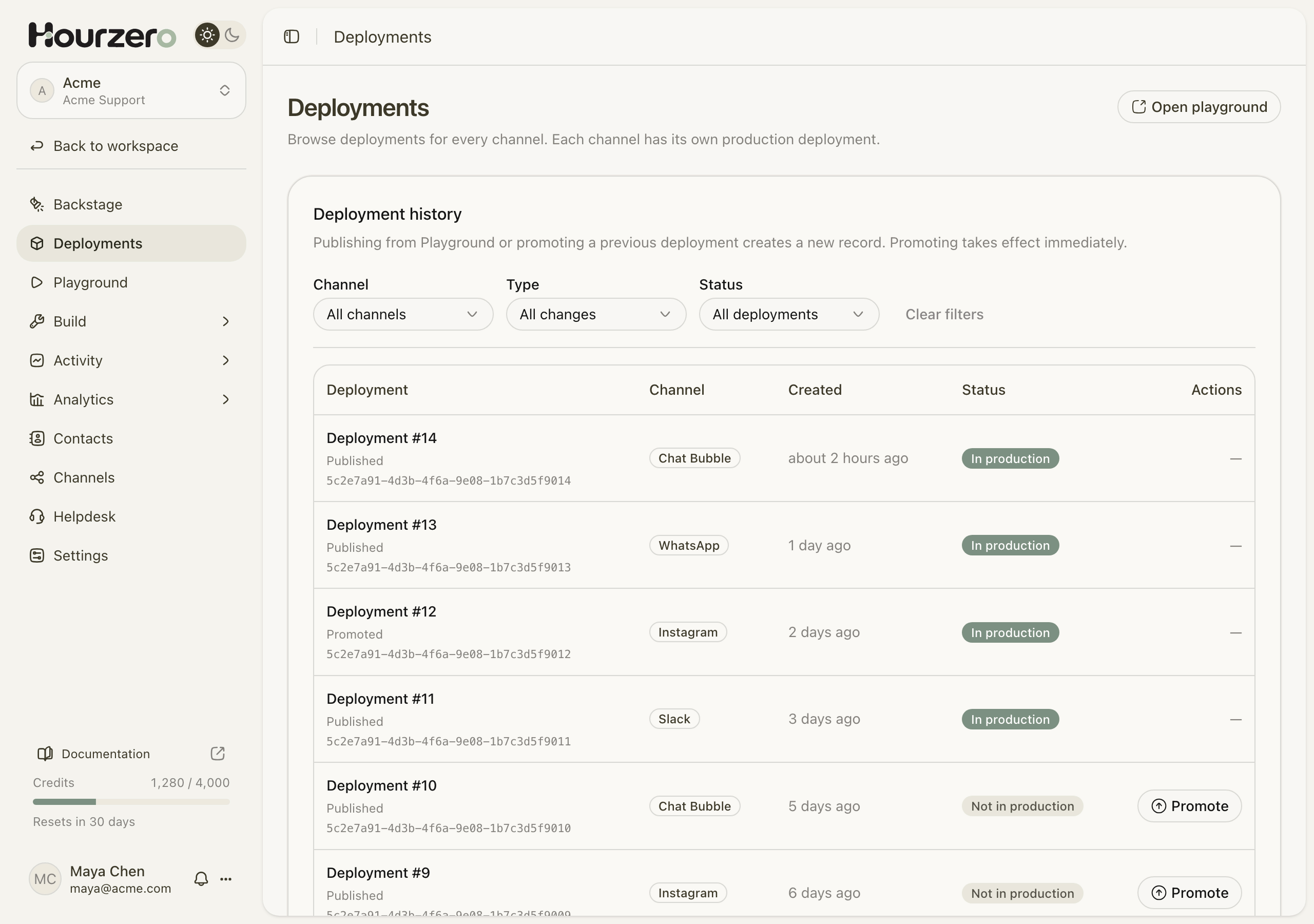
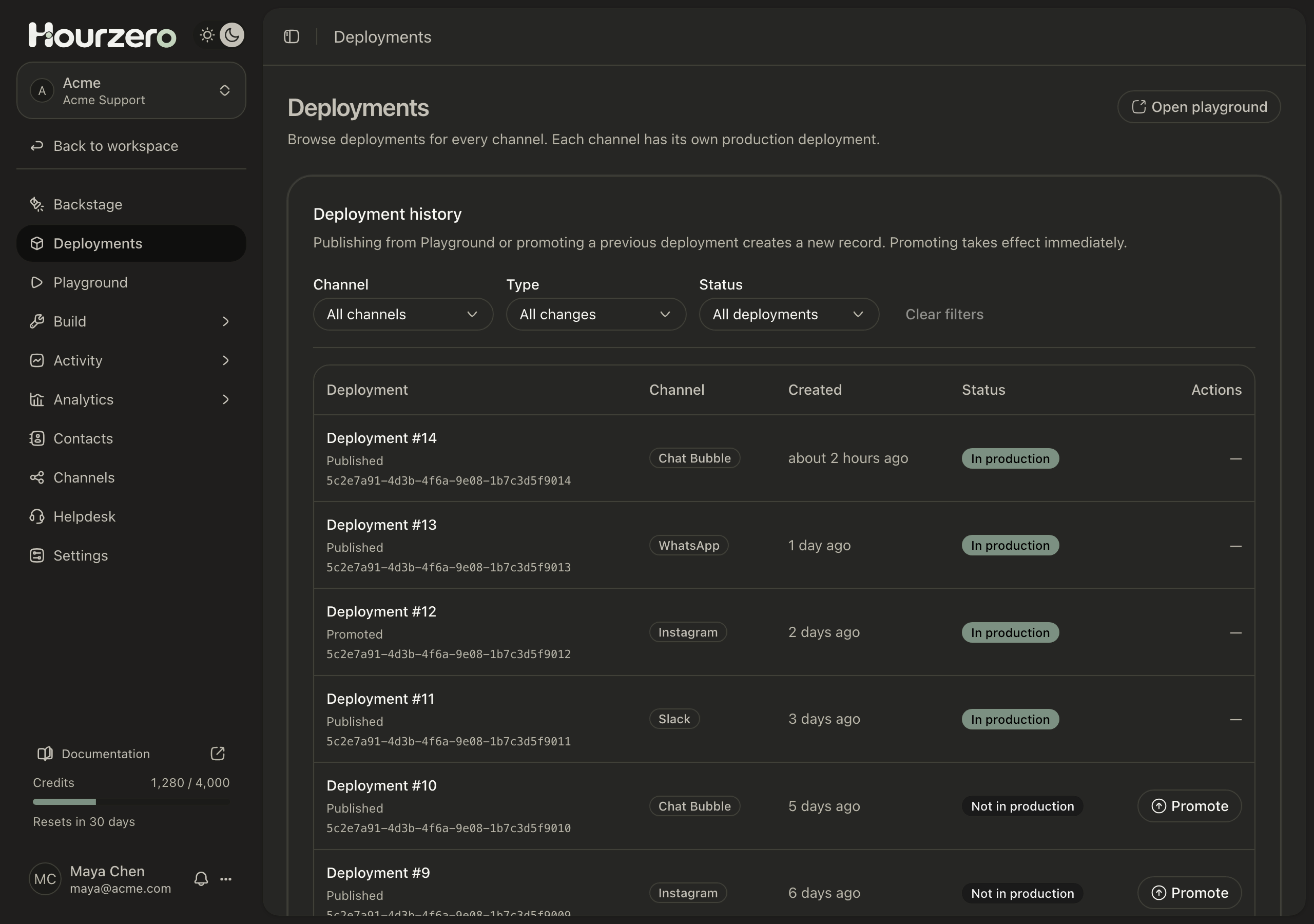
Each row on the Deployments page is one publish, numbered in order: Deployment #1, Deployment #2, and so on.
- Channel shows which channel the version was published to.
- Created shows when it happened.
- Status shows In production for the version a channel uses right now, and Not in production for older ones.
- Under the number, Published means it came from the Playground. Promoted means someone rolled back to it.
Use the Channel, Type, and Status filters above the list to narrow it down. Select Clear filters to see everything again.
Look at an old version
Select a deployment number to open it. The page shows exactly what that channel was using:
- Channels: the channel's settings at the time, and whether replies were turned on;
- Instructions and model: the instructions, guardrails, and model settings;
- Data sources: the files, pages, and notes the agent knew;
- Skills, Actions, and Procedures: what the agent could do.
This is the place to answer "what was WhatsApp actually using last Tuesday?" when a customer reports a strange answer.
Roll back to an earlier version
If a new version causes problems, you can put an earlier one back. Hourzero calls this Promote.
- On the Deployments page, find the earlier version you want. Use the Channel filter to show only that channel.
- Select the deployment number and check the details.
- Select Promote.
- If the version covers more than one channel, choose the channel.
- Select Promote to production.
The change happens right away. Customers on that channel get the earlier version, and a new row marked Promoted appears at the top of the history.
Important
Rolling back doesn't touch your draft. The draft may still contain the change that caused the problem. Fix it in the Playground and test it before you publish again.
When you can't roll back
Hourzero can't promote a version if something it relies on is gone. You see an error message when:
- an action, skill, procedure, or data source it uses was deleted;
- the app account it used, like a WhatsApp number or Slack workspace, was disconnected;
- that version is already the one in production on that channel;
- the agent is archived.
If that happens, fix the draft and publish a new version instead.
Common questions
Do customers see my changes when I select Save draft?
No. Saving only changes the draft. Customers see changes after you publish the channel.
Why does WhatsApp answer differently from my website chat?
The two channels are probably on different versions. Check the Deployments page to see which version each channel is using, then publish the channel that is behind.
How do I stop the agent on one channel?
Turn off Agent replies for that channel in the Playground, save, and publish. See Channels for the steps.