

MCP servers
Plug your agent into another app's toolbox so it can check bookings, orders, and more during a chat.
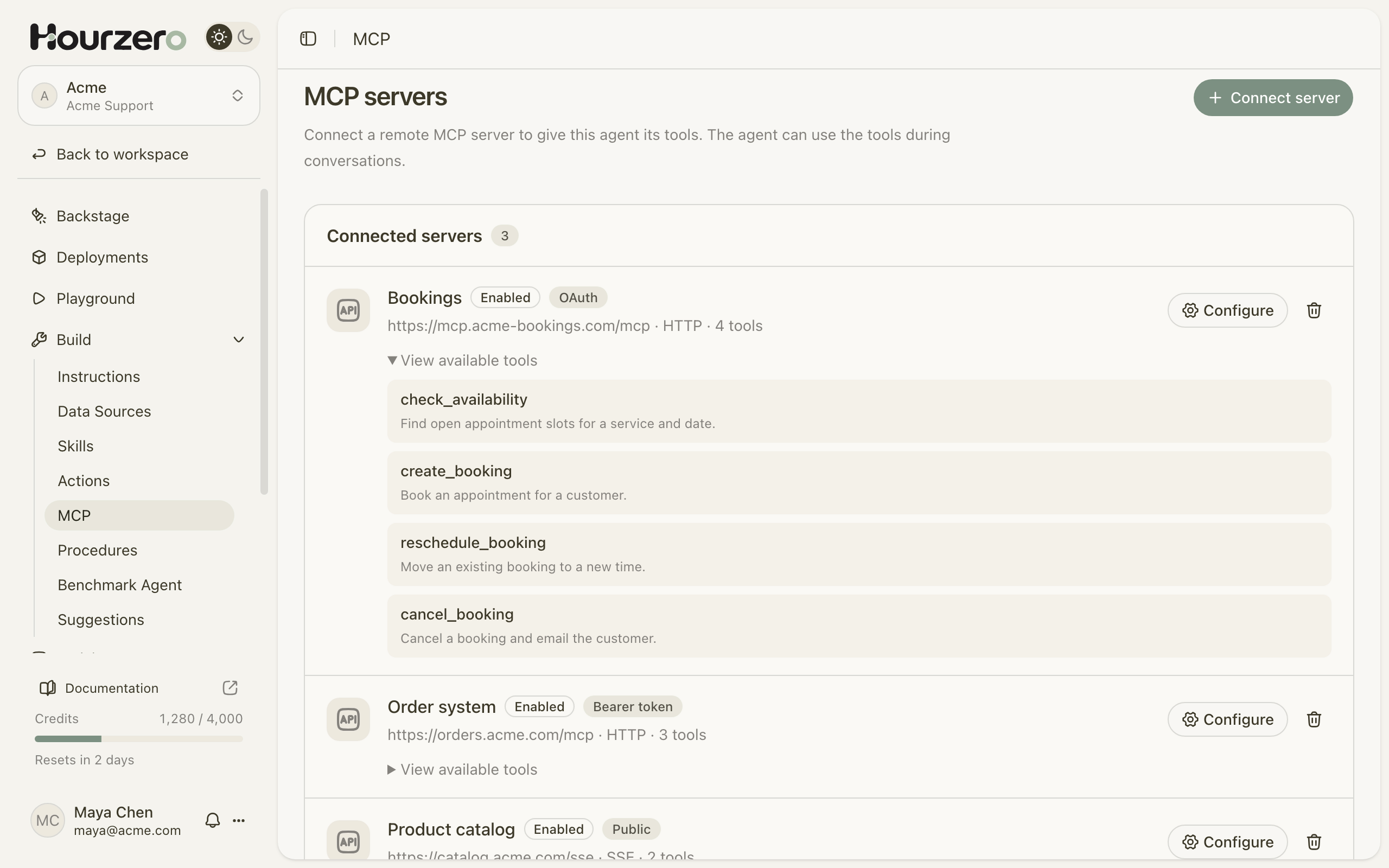
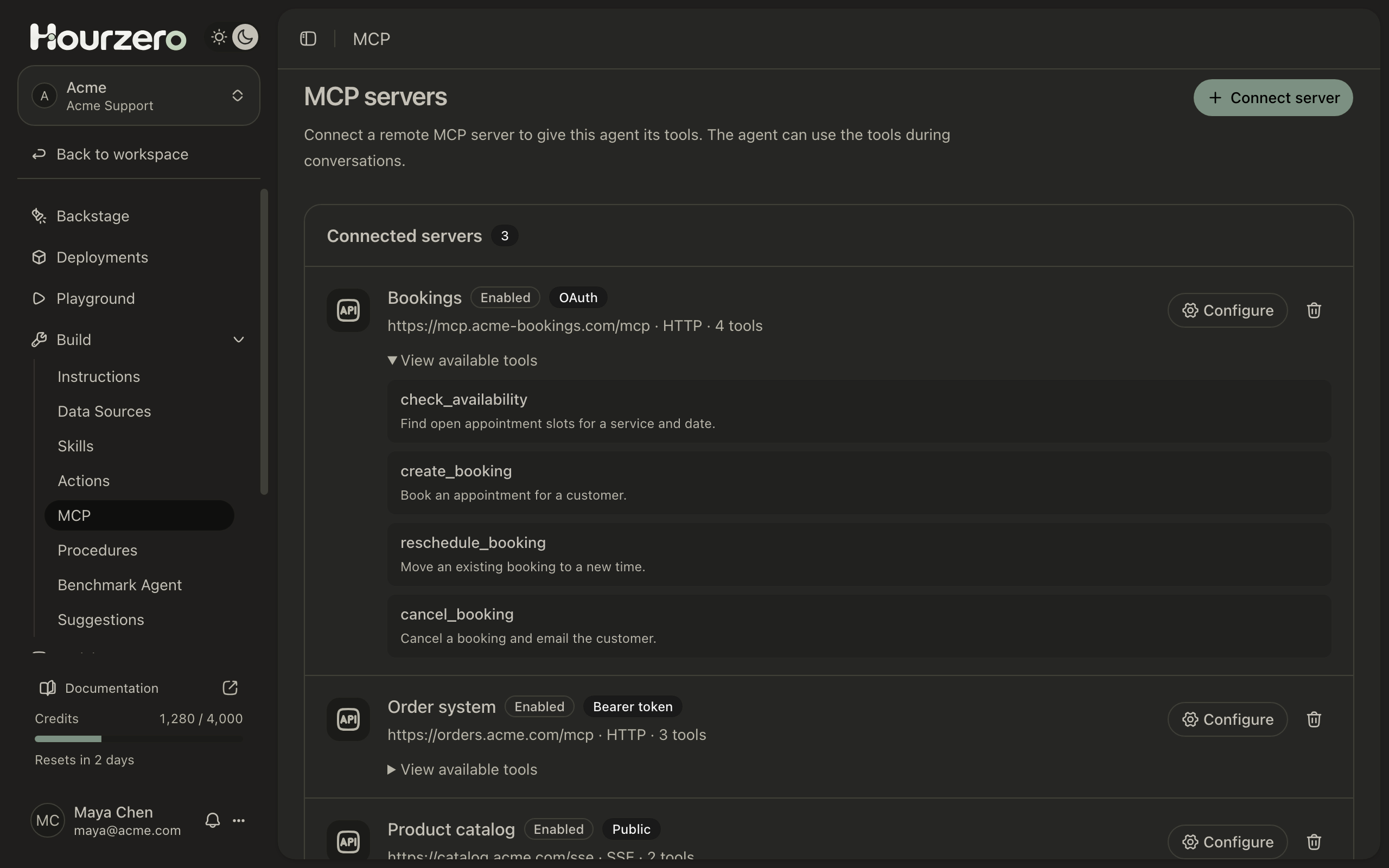
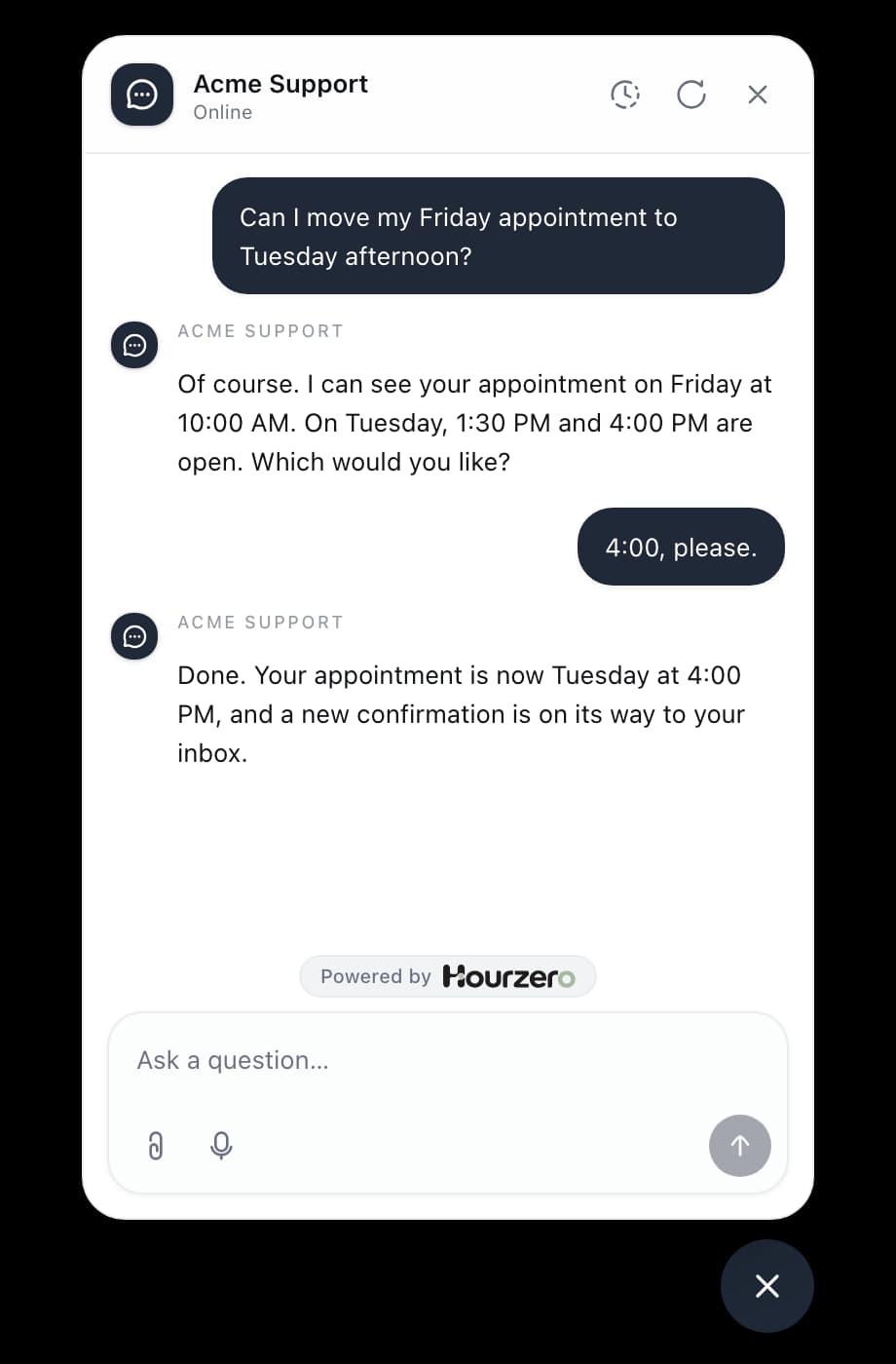
Connecting an MCP server is like plugging your agent into another app's toolbox. The app, say your booking system, offers a set of tools such as "check availability" or "reschedule booking". Once connected, your agent can use those tools while it talks to customers.
MCP (Model Context Protocol) is a shared standard that lets AI agents use tools from other apps. Many software providers now offer an MCP server for their product.
Where to find it: open your agent and go to Build → MCP.
How it works
- 1ConnectAdd the server's web address and how to sign in.
- 2DiscoverHourzero lists the tools the server offers.
- 3Turn onChoose which channels can use the server.
- 4UseThe agent uses a tool when a customer needs it.
MCP server, action, or skill?
| Choose | When |
|---|---|
| MCP server | The app you use already offers an MCP server. You get all its tools at once, and the provider keeps them up to date. |
| Custom action | You want one specific request to your own system, set up field by field. |
| Skill | The agent needs know-how, like making a PDF, not access to another system. |
If you're not sure whether an app has an MCP server, search its help center for "MCP". To build a single request yourself, see Custom action.
Before you connect
Ask the app's provider for these details. They're usually in the provider's help pages or developer settings.
- The server's web address (URL). It must start with
https://and be reachable on the internet. Servers that only run on your own computer or private network can't be connected. - The connection type. Hourzero supports Streamable HTTP (the most common) and Server-sent events (SSE). The provider will tell you which one to use.
- How it signs in. No sign-in, a token, or OAuth (explained below).
- An account with the right access. The agent can only do what that account is allowed to do.
Choose how Hourzero signs in
The Authentication setting tells Hourzero how to prove it's allowed to use the server.
- No authentication: for public servers anyone can use, such as a product catalog. The server shows a Public badge.
- Bearer token: the provider gives you a secret key, a long string of characters. You paste it once and Hourzero sends it with every request. Treat it like a password. Hourzero stores it encrypted and never shows it again.
- OAuth: you sign in to the other app in a new tab and approve access, much like "Sign in with Google". You never share a password with Hourzero. The provider's sign-in must support a feature called dynamic client registration, so ask them if you're unsure.
| Method | What you need from the provider |
|---|---|
| No authentication | The server URL |
| Bearer token | The server URL and a token |
| OAuth | The server URL and an account you can sign in with |
Connect a server
- Go to Build → MCP and select Connect server.
- Enter a Name you'll recognize, such as
Bookings. - Paste the Server URL, for example
https://mcp.acme-bookings.com/mcp. - Choose the Transport the provider recommends.
- Choose the Authentication method. For Bearer token, paste the token.
- Leave Enabled turned on.
- Select Connect server. For OAuth, the button says Continue with OAuth: a new tab opens where you sign in and approve access.
- Wait while Hourzero connects and lists the server's tools. The server then appears under Connected servers.
- Select View available tools under the server and check that the tools you expect are there.
Tip
If the sign-in tab doesn't open, your browser may be blocking pop-ups. Allow pop-ups for Hourzero and try again.
Choose which channels can use it
Each channel has its own switch, so the booking server can be on in Chat Bubble and off in Instagram.
- Open the Playground and pick the channel.
- Open the Capabilities tab.
- Under MCP servers, turn on the switch next to the server. It shows Enabled.
- Select Save draft, then test the server in the preview.
- When you're happy, select Publish and publish that channel.
Testing versus live: the same switch controls both. In the Playground preview, the agent uses your saved draft straight away. Customers on a live channel get the change only after you publish that channel.
A new server is switched on for a channel unless you've already changed that channel's MCP switches. Check the switch on each channel either way.
One main switch, plus one per channel
The Enabled switch in a server's settings turns it on or off everywhere. When it's off, the Playground shows "Disabled in MCP settings" and the channel switch is greyed out.
Tools can change real things
A tool like cancel_booking cancels a real booking. Connect with an account that has only the access the agent needs, read each tool's description, and test in the Playground before you publish.
Edit or remove a server
Select Configure on a server to change its name, URL, transport, sign-in method, or Enabled switch. Then select Save changes. Hourzero connects again and refreshes the list of tools.
- Bearer token: leave the token box blank to keep the saved token. If you change the URL, paste the token again.
- OAuth: select Reconnect OAuth to sign in again. Changing the URL or transport also asks you to sign in again.
- Remove: select the trash icon, then Remove. This removes the server from your draft only.
Live channels keep the server settings they were published with. After any change, publish the channels that use the server so customers get it too.
When the provider changes its tools
If the provider adds, removes, or changes tools, your agent stops using that server to stay safe. Open Configure and select Save changes so Hourzero can check the new tools, then publish the channels that use it.
Troubleshooting
"Connection failed"
The full message reads "Could not connect to this MCP server. Check its URL, transport, and token." Check that you pasted the MCP address itself, not the provider's homepage. Confirm the transport matches what the provider says, and that the token is current.
OAuth didn't finish
You'll see a message such as "Authorization was cancelled" or "The authorization attempt expired". Start again with Continue with OAuth and complete sign-in in the new tab. "Could not start OAuth" usually means the provider doesn't support the sign-in method Hourzero needs; ask them about a bearer token instead.
The tool works in the Playground but not for customers
Check that the server's switch is on for that channel, then publish the channel.
The agent stopped using a server
The provider may have changed its tools. Open Configure, select Save changes, then publish the affected channels.
A tool returns a permission error
The account you connected doesn't have access to that task. Fix the permissions with the provider. Your agent's instructions can't grant extra access.
How do I see when a tool was used?
Open the chat in Conversations. Steps where the agent used a server's tool are marked MCP tool.