Discord
Add your agent to a Discord server so members get answers when they mention it in a channel.
Add your agent to a Discord server, and members get answers when they mention it. It works well for gaming, software, and fan communities, where the same questions come up in #help every day.
Where to find it: open your agent and go to Channels → Discord.
What members see
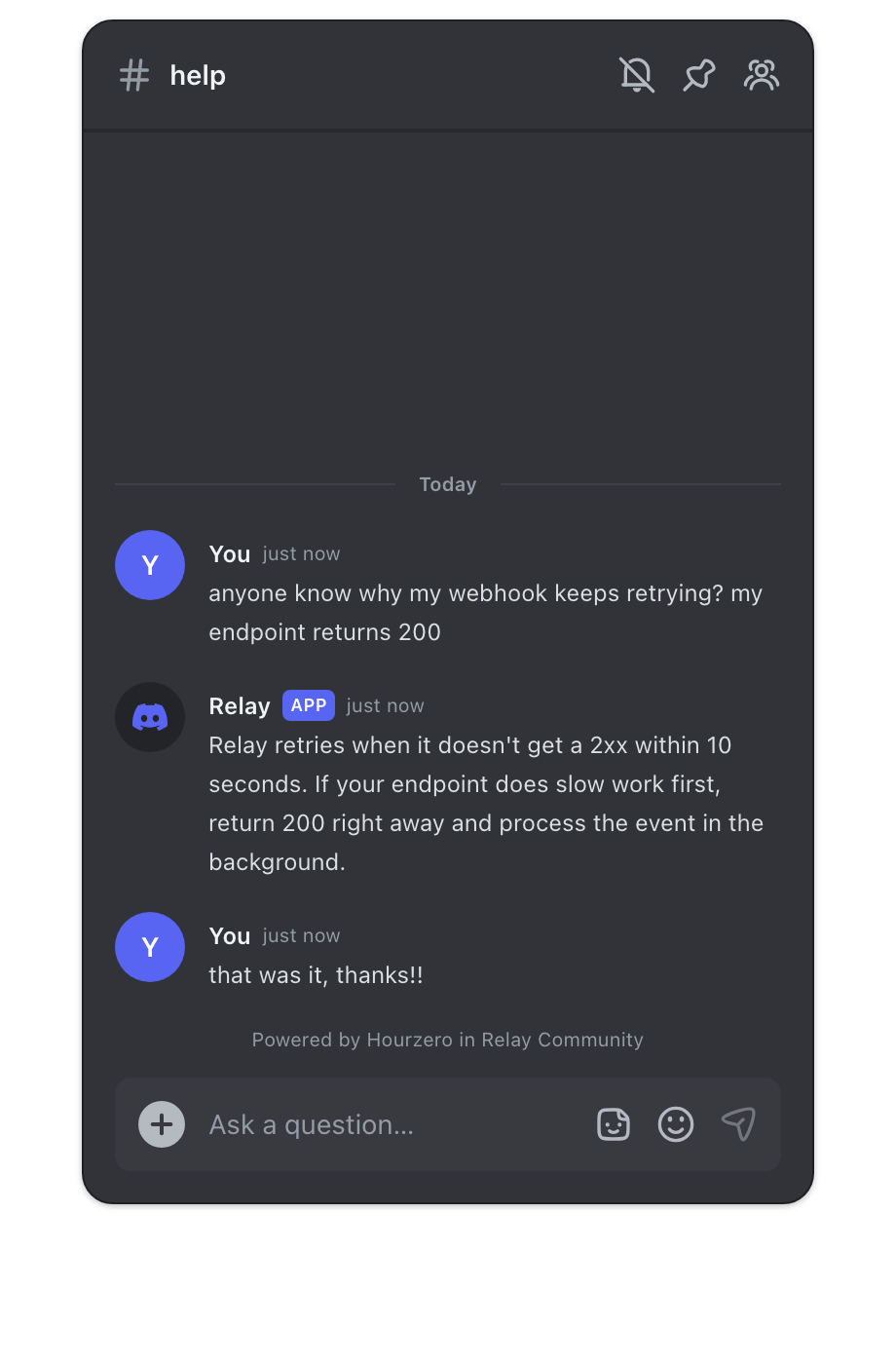
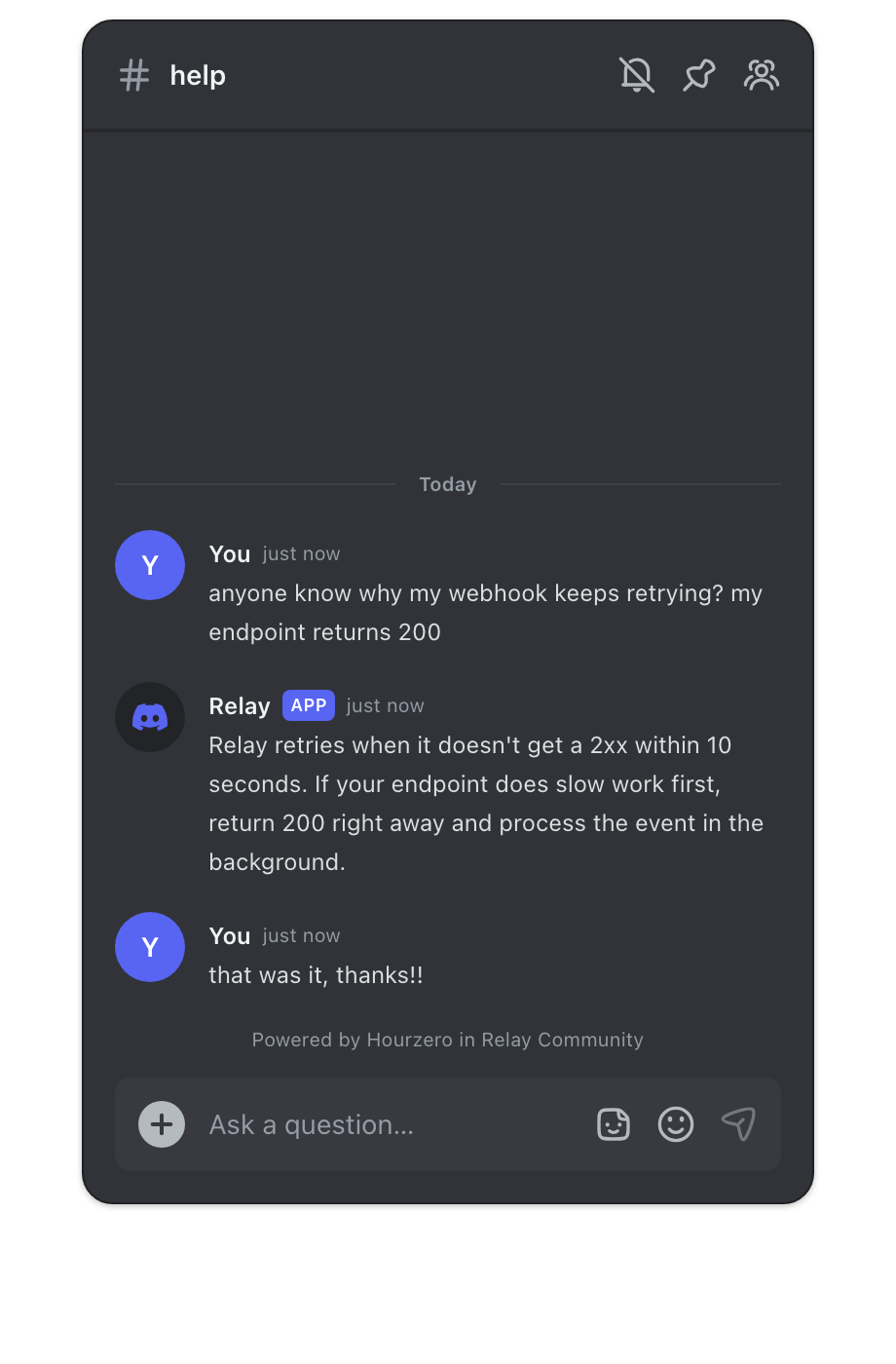
The agent joins your server as a bot. Members mention it in a channel, for example @Acme Support how do I return a jacket?. The agent starts a thread from that message and answers there. Members can keep asking follow-up questions in the thread without mentioning the bot again.
The bot uses one name and picture in your server. You choose them in Hourzero, like "Acme Support" with your logo.
The bot only answers in server channels. It doesn't reply to private messages.
How it works
- 1ConnectAdd the bot to your Discord server.
- 2Choose the agentPick where this agent answers: the whole server, or specific channels.
- 3PublishTurn on replies and set the bot's name and picture.
- 4TestMention the bot in a channel and check the reply.
Before you start
- You're a workspace owner or admin in Hourzero. Other members can't see the setup buttons.
- You can add bots to the Discord server. Discord requires the Manage Server permission for this. Server owners and most admins have it.
Connect your Discord server
- Go to Channels and find the Discord row.
- Select Connect Discord. Discord opens in a new tab. If a server is already connected, the button says Add server instead.
- Log in to Discord if asked. Under Add to server, choose your server.
- Review the permissions. The bot asks to read and send messages, read message history, create and manage threads, add reactions, embed links, attach files, and change its own nickname. Leave them all on.
- Select Authorize.
- The tab returns to the Hourzero Channels page with the message "Discord connected. Publish Discord to start replies." Your server appears under the Discord row.
During setup, Discord shows the bot as Hourzero. After you publish, it takes your agent's name in your server.
Choose where the agent answers
Each server can have one default agent. You can also pick specific channels for an agent. When you connect from an agent's Channels page, that agent becomes the server default, unless another agent already is.
- Under your server, select Reply settings.
- Turn on Use this agent across the server. The agent then answers mentions in every channel that has no other agent assigned.
- Under Use this agent in specific channels, tick the channels where this agent should answer mentions. Channels that belong to another agent say Assigned to that agent.
- Select Save choices. A message confirms: "Choices saved. Publish Discord to apply them."
If the channel list is empty or a channel is missing, check that the bot can see that channel in Discord, then select Refresh.
A specific channel always wins over the server default. For example, a game studio might use one agent across the server and a separate billing agent in #payments.
One name and picture per server
Discord gives a bot one name and picture per server. The server's default agent sets them when you publish. Agents picked for single channels answer under that same name and picture.
A thread stays with the agent that first answered it, even if you change Reply settings later.
Set the bot's name and picture
- In the Discord row, select Edit agent. The Playground opens with Discord selected.
- On the Display tab, set the Display name, up to 32 characters. Leave it blank to use the agent's name.
- Under Avatar, select Upload image and choose a JPG or PNG file up to 5 MB.
- Select Save draft, then publish Discord.
The new name and picture appear in your server after you publish. Only the server's default agent can change them.
Publish Discord
- In the Discord row, select Edit agent. The Playground opens with Discord selected.
- On the Overview tab, make sure Agent replies says Replies on after publishing. Select Save draft if you changed anything.
- Select Publish → Discord. The Publish Discord dialog shows whether the draft is saved and the connection is ready.
- Select Publish saved draft. The next time, the button says Publish latest draft.
A message confirms "Discord published". The bot now answers mentions in the channels you chose.
Important
Connecting doesn't start replies, and neither do later changes. New instructions, a new name or picture, or new Reply settings only reach Discord after you publish Discord again.
Test it for real
- Open your server in Discord and go to a channel where the agent should answer.
- Mention the bot with a question, for example
@Acme Support do you ship to Canada?. - Check that a thread opens under your message with the agent's answer. Ask a follow-up in the thread without mentioning the bot.
- In Hourzero, open Activity → Conversations and select Visitors. The chat appears with the Discord label.
Stop or disconnect
To pause the agent but keep the server connected, open the Playground for Discord, turn off Agent replies on the Overview tab, save, and publish.
To remove the server from Hourzero:
- In Channels, select the trash icon next to your server.
- Read the warning and select Disconnect.
All agents stop replying in that server, and the bot leaves it. Your past conversations stay saved in Hourzero.
Troubleshooting
The bot doesn't answer a mention
- Does the channel have an agent? Either a server default, or the channel ticked in someone's Reply settings.
- Can the bot see and post in that channel? Check the channel's permissions in Discord.
- Did you publish Discord after changing anything?
- Does your workspace have credits left? Check the Usage page.
Members send the bot private messages and get no answer
That's expected. The bot only answers mentions in server channels. Ask members to mention it in a channel instead.
"Discord published, but its name or photo could not be updated"
The answers are live, but Discord didn't accept the new name or picture. Check that the bot still has the Change Nickname permission in your server and that the picture is a JPG or PNG. Then publish Discord again.
"No compatible channels are visible to the Discord bot"
The bot can't see any text channels. In Discord, give the bot's role access to the channels you want, then select Refresh in Reply settings.
"That Discord server is already connected to another Hourzero workspace"
A server can only belong to one Hourzero workspace. Disconnect it in the other Hourzero workspace first.
The button says "Discord is not available yet"
Discord isn't ready to connect in Hourzero yet. Contact your workspace administrator.