

Data sources
Give your agent the knowledge it needs from files, website pages, text, and Q&A, then keep it up to date.
Data sources are the knowledge your agent uses to answer questions: your help center, policy documents, product details, and common questions with their answers. The better your knowledge, the better your agent's answers.
Where to find it: open your agent and go to Build → Data Sources.
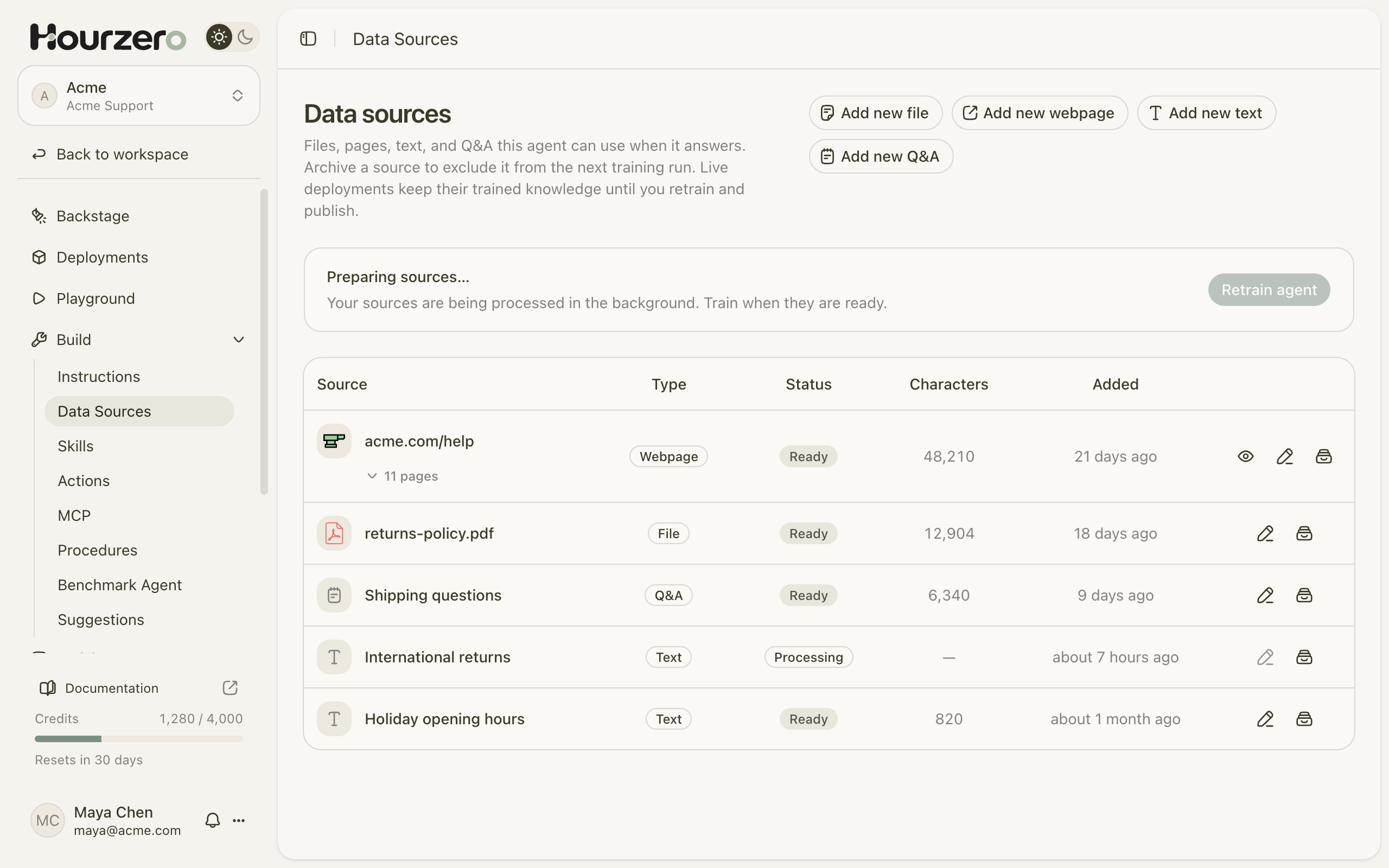
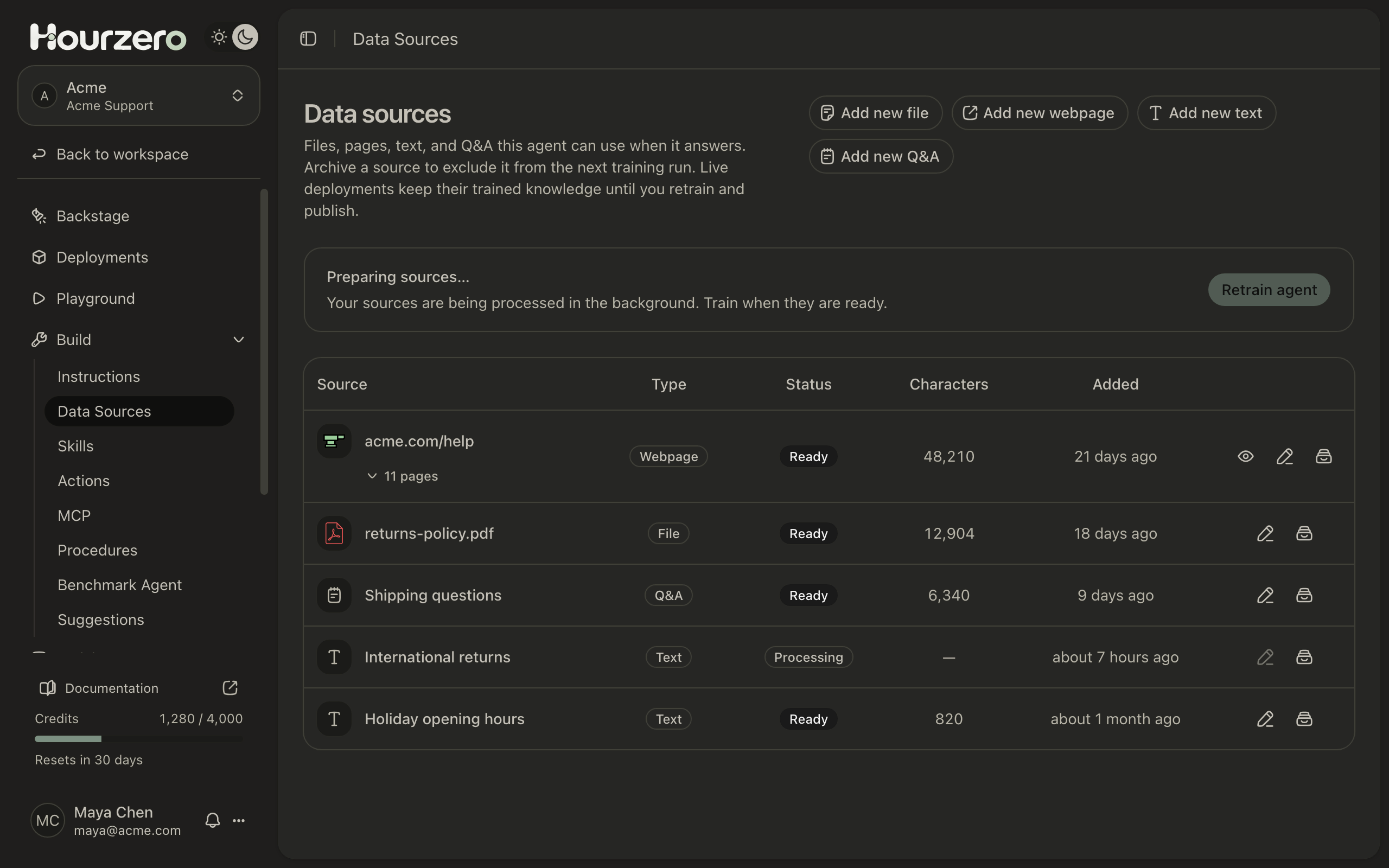
How it works
You can add four kinds of knowledge:
- Webpages: pages from your website, such as your help center or shipping page.
- Files: documents like PDFs, Word files, spreadsheets, and slides.
- Text: a note you paste in, such as your holiday opening hours.
- Q&A: questions with the exact answers you want customers to get.
After you add or change knowledge, you train the agent. Training means Hourzero reads all your current sources so the agent can use them. Then you test in the Playground and publish.
- 1Add knowledgeAdd pages, files, text, or Q&A.
- 2TrainHourzero reads your sources.
- 3TestAsk questions in the Playground.
- 4PublishLive channels get the new knowledge.
Important
Your live agent keeps using the knowledge it had when you last published. New or changed sources reach customers only after you retrain and then publish each channel.
Add pages from your website
- Select Add new webpage. The Add webpages window opens.
- Under Website, type your website address, for example
acme.com. - Select Find pages. Hourzero looks up pages on that website and lists them with how much text each one has.
- Tick the pages you want. Use Select all or Deselect all to go faster.
- Optional: if a page is missing, type it in Add another URL and select Add URL. It must be on the same website.
- Select Add pages.
You can add up to 100 pages at a time. All the pages appear as one source in the list. Select the arrow under the source name to see every page it includes.
Note
Hourzero reads your pages when you add them. It doesn't check your website again later. If a page changes, edit the source or add the page again, then retrain.
To check what Hourzero read from a page, select View parsed content (the eye icon) on the source's row. You can open each page from there with Open page.
Upload files
- Select Add new file. The Add files window opens.
- Drag your files into the window, or click it to choose files from your computer.
- Select Add files. Each file shows as its own source.
You can upload these file types: PDF, Word (.doc and .docx), Excel (.xlsx), PowerPoint (.pptx), CSV, plain text (.txt), and Markdown (.md and .mdx).
PDFs are read page by page, so scanned documents and tables work too.
File limits
- Up to 10 files at a time.
- Hourzero reads up to 400,000 characters from each file. Anything after that is cut off, so split very long documents into smaller files.
- The largest file you can upload depends on your plan:
| Plan | Largest file |
|---|---|
| Free | 5 MB |
| Hobby | 10 MB |
| Standard | 25 MB |
| Pro | 50 MB |
| Enterprise | 100 MB |
Your plan also limits how many files your workspace can store in total. See Plans and billing for details.
Paste text
Use text for short pieces of information that aren't on your website, like a new policy or a seasonal notice.
- Select Add new text. The Add plain text window opens.
- Give it a clear Title, for example
Holiday opening hours. - Paste or type the information in Content.
- Select Add text.
For example:
Title: Holiday opening hours

Our support team is available 9:00–17:00 (CET) on weekdays.
Between December 24 and January 1, we answer messages within 2 business days.
Orders placed after December 18 may arrive after Christmas.
Add questions and answers
Q&A is best for questions you already know customers will ask, where you want the agent to give a specific answer.
- Select Add new Q&A. The Add Q&A window opens.
- Type a Question and its Answer.
- To add more, select Add pair. The window shows how many pairs are ready.
- Select Add Q&A.
For example:
Question: Can I exchange a jacket for a different size?
Answer: Yes. You can exchange unworn items within 30 days of delivery.
Start the exchange from your order page, and we'll send a free return label.
Tip
Write questions the way customers ask them, not the way your team talks. "Can I swap my jacket for a bigger one?" is closer to what people type than "Size exchange procedure."
Train your agent
The banner above the list shows where your knowledge stands:
- Preparing sources… means Hourzero is still reading new sources. Wait until they're ready.
- Source changes are ready to train means you've added or changed something since the last training.
- Agent is trained means the agent is using all your current sources.
To train:
- Wait until your new sources show Ready in the Status column.
- Select Retrain agent (or Train agent the first time).
- The banner shows Training agent… and how many sources are done. You can leave the page while it runs.
- When it finishes, a message says Training complete.
- Test a few questions in the Playground, then publish each channel.
When you first create an agent, training starts on its own once your sources are ready. After that, you start it yourself.
Check a source's status
Each row shows the source's Type, Status, how many Characters of text Hourzero read, and when it was Added.
| Status | What it means |
|---|---|
| Pending or Processing | Hourzero is still reading the source. |
| Ready | The source is ready to train. |
| Failed | Hourzero couldn't read it. The reason appears under the source name. |
| Archived | The source is set aside and won't be used in the next training. |
If a source fails, check the message under its name. Common fixes are uploading a different copy of the file or checking that the page loads in your browser.
Edit a source
You can fix or update a source without adding it again.
- Select Edit source (the pencil icon) on the source's row.
- Change the Source name or the content. For files, you edit the text Hourzero read; the original file stays the same. For webpages, you can edit each page's title and text.
- Select Save changes. A message confirms Source updated.
- Retrain your agent, then publish.
Stop using a source
There's no on/off switch for sources. To stop using one, archive it. Archiving is safe: you can restore it at any time.
- Select Archive source (the box icon) on the source's row.
- Confirm with Archive source. The row fades and shows Archived.
- Retrain your agent and publish, so the agent stops using it.
Live channels keep using what they were trained on until you retrain and publish.
To use it again, select Restore source on the archived row, then retrain.
Delete a source for good
Deleting removes a source and its content permanently. For files, it also deletes the uploaded file. This can't be undone.
Deleting is always two steps: archive, then delete.
- Select Archive source on the source's row and confirm. You can only delete archived sources.
- On the archived row, select Delete permanently.
- Read the window. If the source can be deleted, select Delete permanently again.
If a live channel is still answering with this source, Hourzero won't delete it yet. The window lists each one, for example "Chat Bubble deployment (v4)". Retrain your agent, publish each listed channel, then try again.
This protects your live agent from losing knowledge it still relies on.
To remove a single page from a webpage source, archive the source first. Then open View parsed content and remove that page.
Tips for good knowledge
- Start with what customers ask most. Look at your last 20 support emails or chats and make sure each question has an answer in your sources.
- Keep one version of each fact. If your return window is in a PDF and on a web page, make sure both say the same thing. Conflicting sources lead to confusing answers.
- Prefer clear, current pages. Leave out outdated pages, blog posts, and marketing pages that don't answer real questions.
- Use Q&A for exact wording. Prices, legal phrases, and promises are best as Q&A pairs.
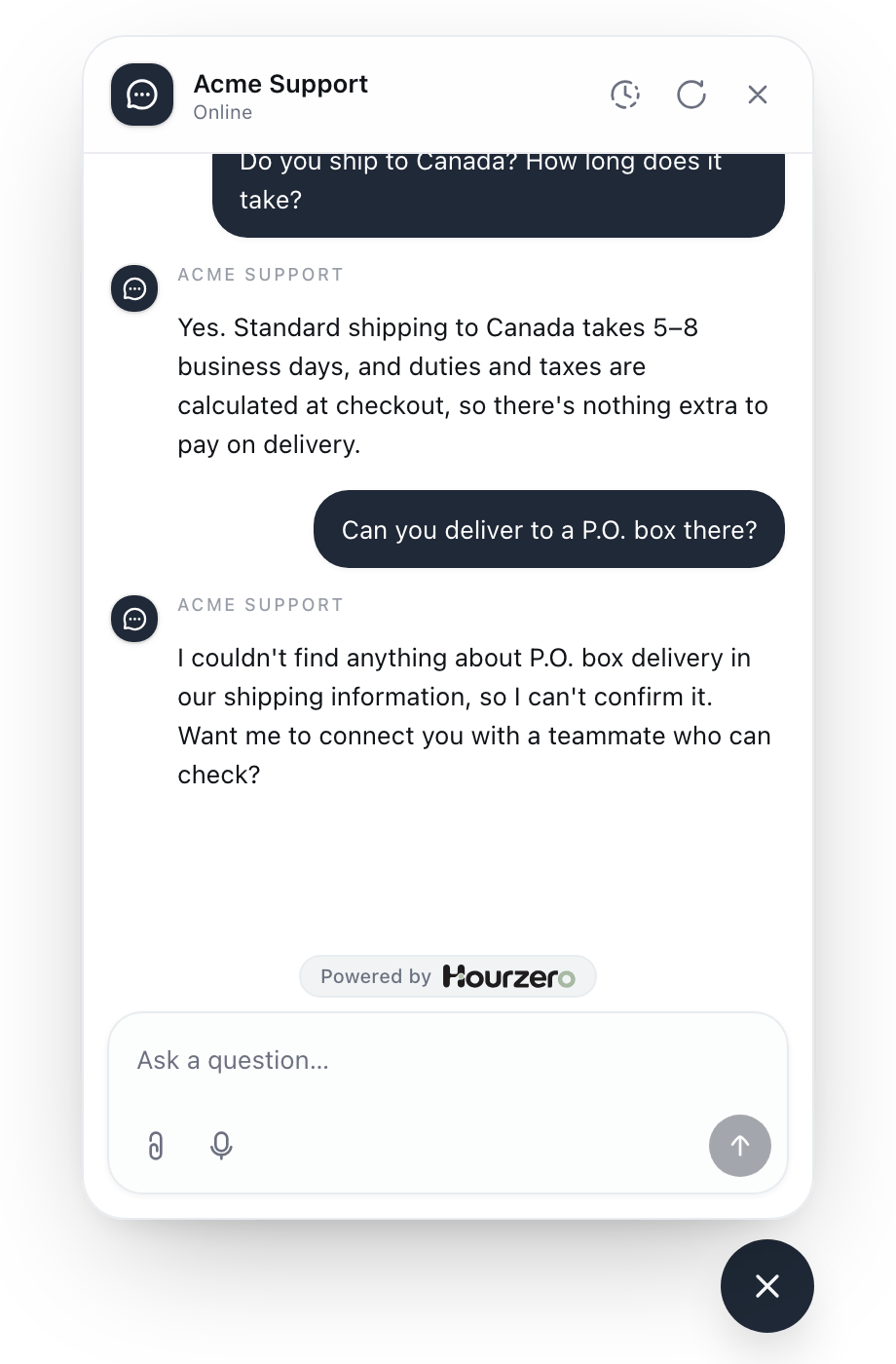
- Fill gaps you find. When the agent says it couldn't find something, add that information and retrain. The Suggestions page collects these gaps for you.
Warning
Don't add private information you wouldn't want a customer to see, like internal pricing notes or staff phone numbers. The agent may use anything in its knowledge when it answers.
Common questions
I added a source, but the agent doesn't know about it.
Make sure the source shows Ready, then select Retrain agent. To update live channels, publish them after training.
My website changed. Will the agent see the new content?
Not on its own. Edit the webpage source, or add the changed pages again, then retrain and publish.
Why can't I delete a source?
It must be archived first, and no live channel can still be using it. The delete window lists the channels to retrain and publish.