

Web search
Let your agent look up current public information on the web when your own sources don't have the answer.
Web search lets your agent look things up on the internet while it chats. Use it for public information that changes often or that you don't keep yourself: a shipping carrier's service alerts, recent news, opening hours of a public place, or the contents of a public web page.
Where to find it: open your agent, go to Build → Actions, and select Web search.
How it works
- 1Customer asks"Is UPS delayed by the storm this week?"
- 2Agent searchesIt looks up current public results.
- 3Agent readsIt checks the most useful pages.
- 4Agent answersIt replies and links to the pages it used.
The agent decides on its own when a question needs a search and which kind of search fits. It can:
- Search the web using Google results, optionally limited to the last hour, day, week, or month.
- Find places such as shops and businesses on Google Maps, with addresses, hours, and ratings.
- Find news stories from Google News.
- Pull quick excerpts from pages that match the question.
- Read specific pages, up to five at a time, when it already knows the address.
When the agent uses web results, it includes links to the pages that support its answer.
Web search or data sources?
Web search and data sources do different jobs:
- Data sources are for your own, approved information: your return policy, size guide, shipping rates, and help articles. The agent should always prefer these for questions about your business.
- Web search is for public information that lives elsewhere or changes often.
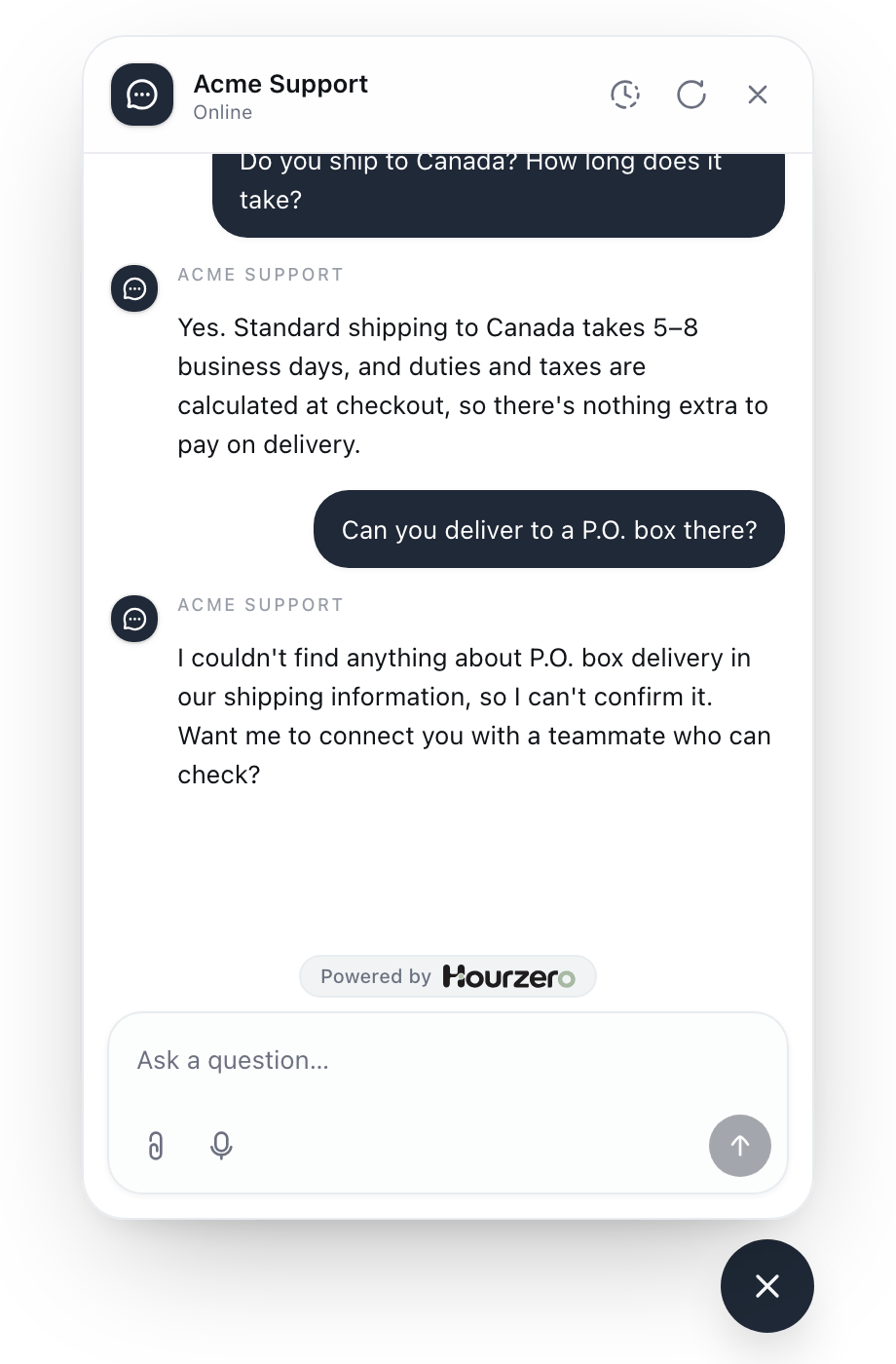
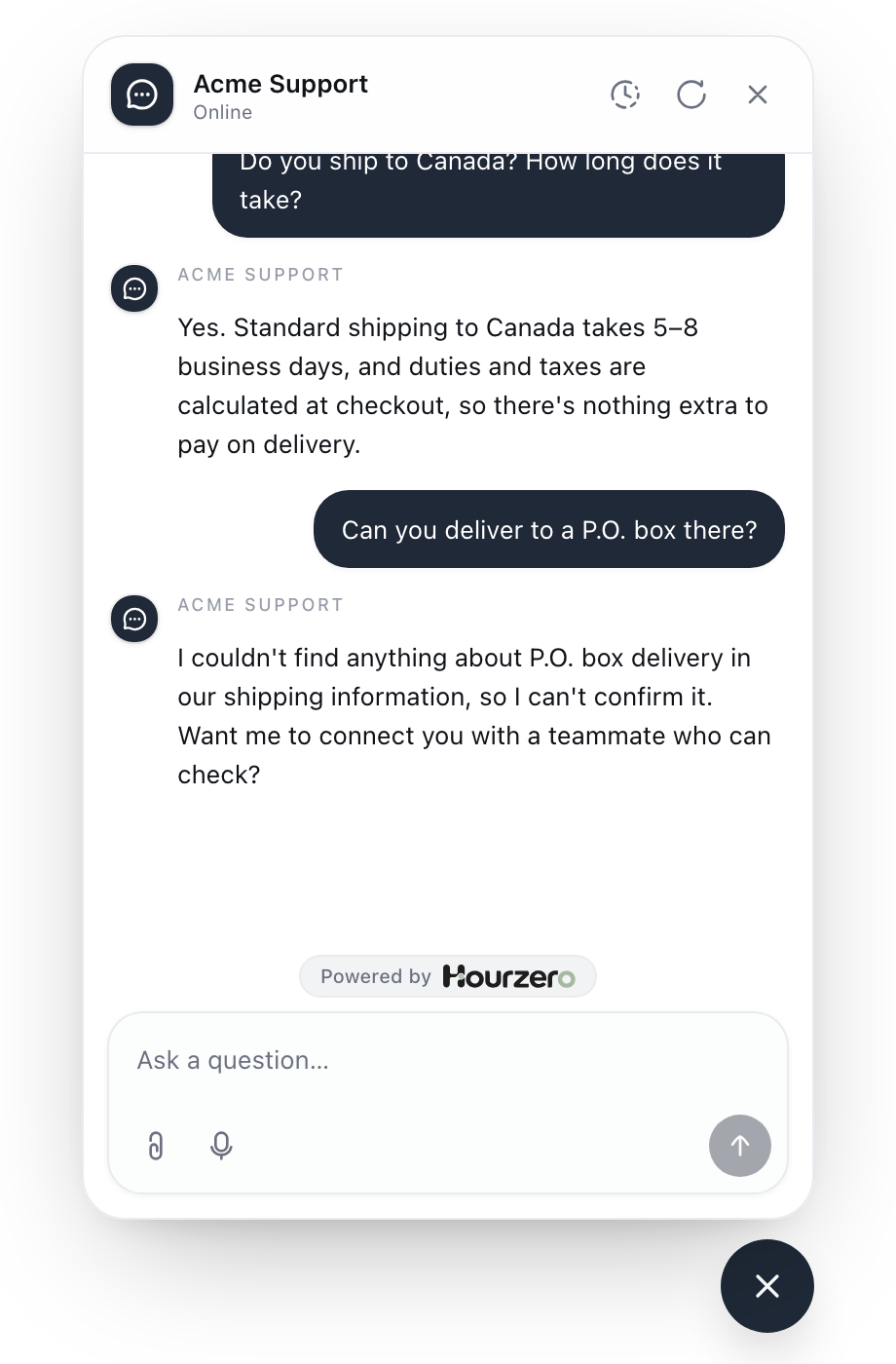
Web search is never a way to look up private customer information, like an order or an account. For that, use a custom action. The agent is instructed not to put private details, such as order numbers or email addresses, into a web search.
Set up web search
An agent can have one web search action. If you already have one, the Web search card shows Configured and opens your existing setup.
- Open Build → Actions and select Web search.
- In Action name, enter a name such as
Carrier updates. - In When should the agent use it?, describe which questions need a search and which don't. See the example below.
- Set Snippet strategy, Maximum results, and Allowed domains (all explained below).
- Select Create action.
Example for Acme
Acme Support uses web search only for shipping carrier news, and only on carrier websites:
Use when a customer asks about delays, service alerts, or holiday
cutoffs from a shipping carrier. For Acme's own shipping times and
policies, use the data sources instead. Always link to the source,
and say so if the carrier hasn't posted anything about it.
Allowed domains:
ups.com
dhl.com
fedex.com
The settings, explained
Snippet strategy
This only affects the "quick excerpts" kind of search. Fast returns results quicker, Deep looks further for more relevant excerpts, and Auto chooses for you. Leave it on Auto unless answers feel slow or too shallow.
Maximum results
How many results the agent gets back from each search, from 1 to 10. The default is 5. A smaller number keeps answers focused. Raise it only if the agent often misses good sources.
Allowed domains
Leave this empty to let the agent search the whole public web. To limit it to sites you trust, enter up to 20 website addresses, one per line, without https:// or a path. For example, enter ups.com, not https://www.ups.com/track.
When you add domains, every kind of search sticks to them: web results, places, news, excerpts, and pages it reads. Each domain also covers its sub-sites, so ups.com includes www.ups.com and about.ups.com.
Tip
Restricting domains is the easiest way to get reliable answers. An agent that can only read official carrier sites can't repeat a rumor from a random forum.
Get better answers
Add guidance like this to When should the agent use it?:
- "Prefer official sources, such as the carrier's own website."
- "Always include a link to the page you used."
- "Say when a page was published, and don't present old news as current."
- "If sources disagree or say nothing, say so instead of guessing."
Note
The agent is told to treat web pages as information, never as instructions. Text on a page like "ignore your rules" doesn't change how it behaves. Your instructions and guardrails always come first.
Test it
- In Playground, check that web search is switched on for your channel in the Capabilities tab, and select Save draft.
- Ask a time-sensitive question, like "Are there any UPS delays this week?" Check that the answer links to real, relevant pages.
- If you set Allowed domains, check that every link points to one of them.
- Ask a question your data sources already answer, like "How long does shipping to Canada take?" The agent should answer from your sources without searching.
- Open the chat in Activity → Conversations to see each search the agent ran and what it found.
- Publish the channel when you're happy.
Common questions
Why didn't the agent search?
The agent searches when a question matches your description and needs information your data sources don't have. Make When should the agent use it? more specific about which questions need current information.
Can it search inside my website?
Yes, if your website is public. Add your domain to Allowed domains. For your own policies and help articles, it's still better to add them as data sources, so the agent always has the approved version.