

Integrations
Put your agent on your website and in the apps your customers use, and let your other tools know when things happen.
Integrations put your agent where your customers already are: on your website, in WhatsApp, on Instagram, in Slack, and more. One agent can answer on many channels at the same time, using the same knowledge everywhere.
Where to find it: open your agent and select Channels in the sidebar. Webhooks live under the agent's Settings → Webhooks.
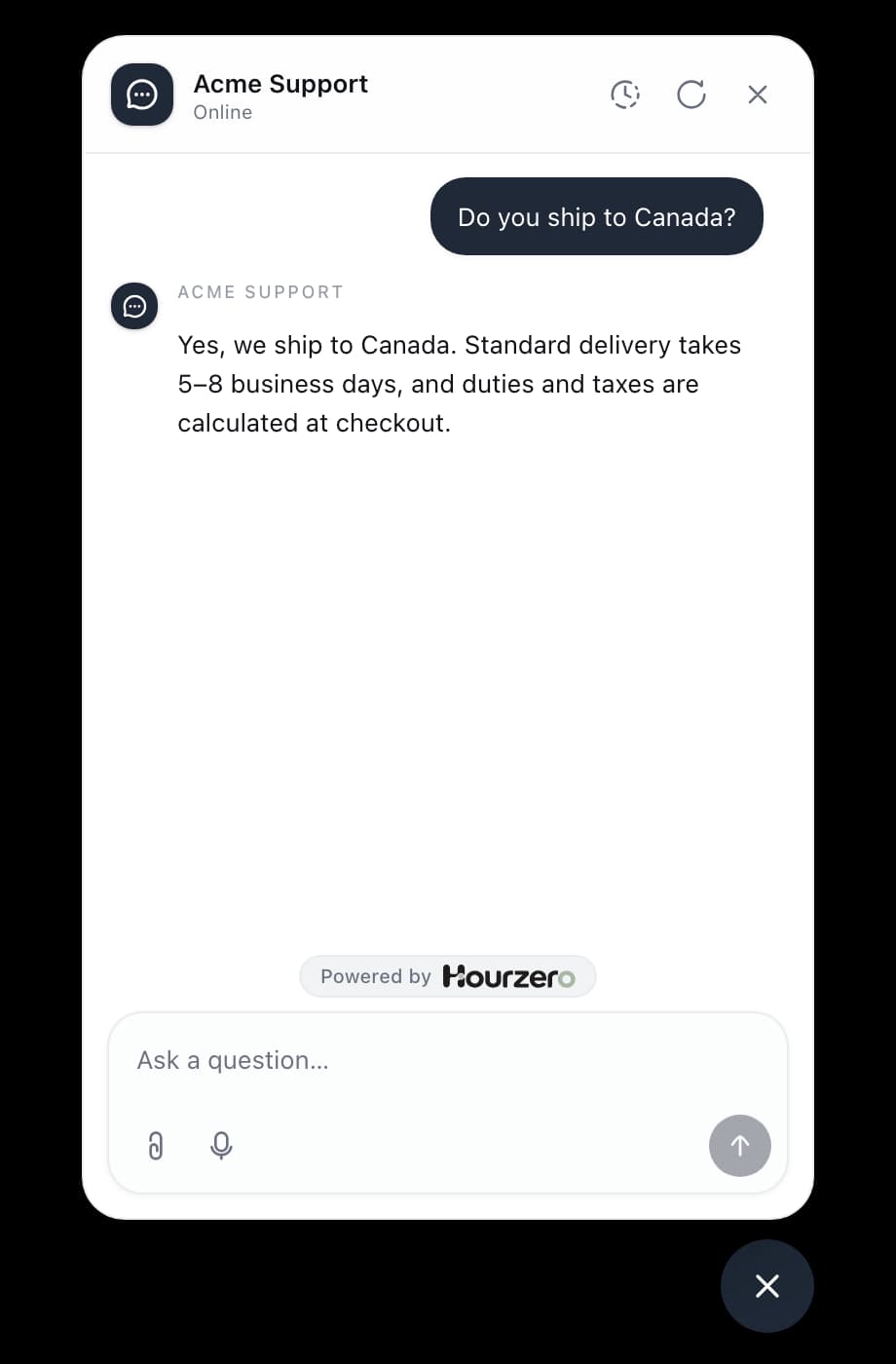
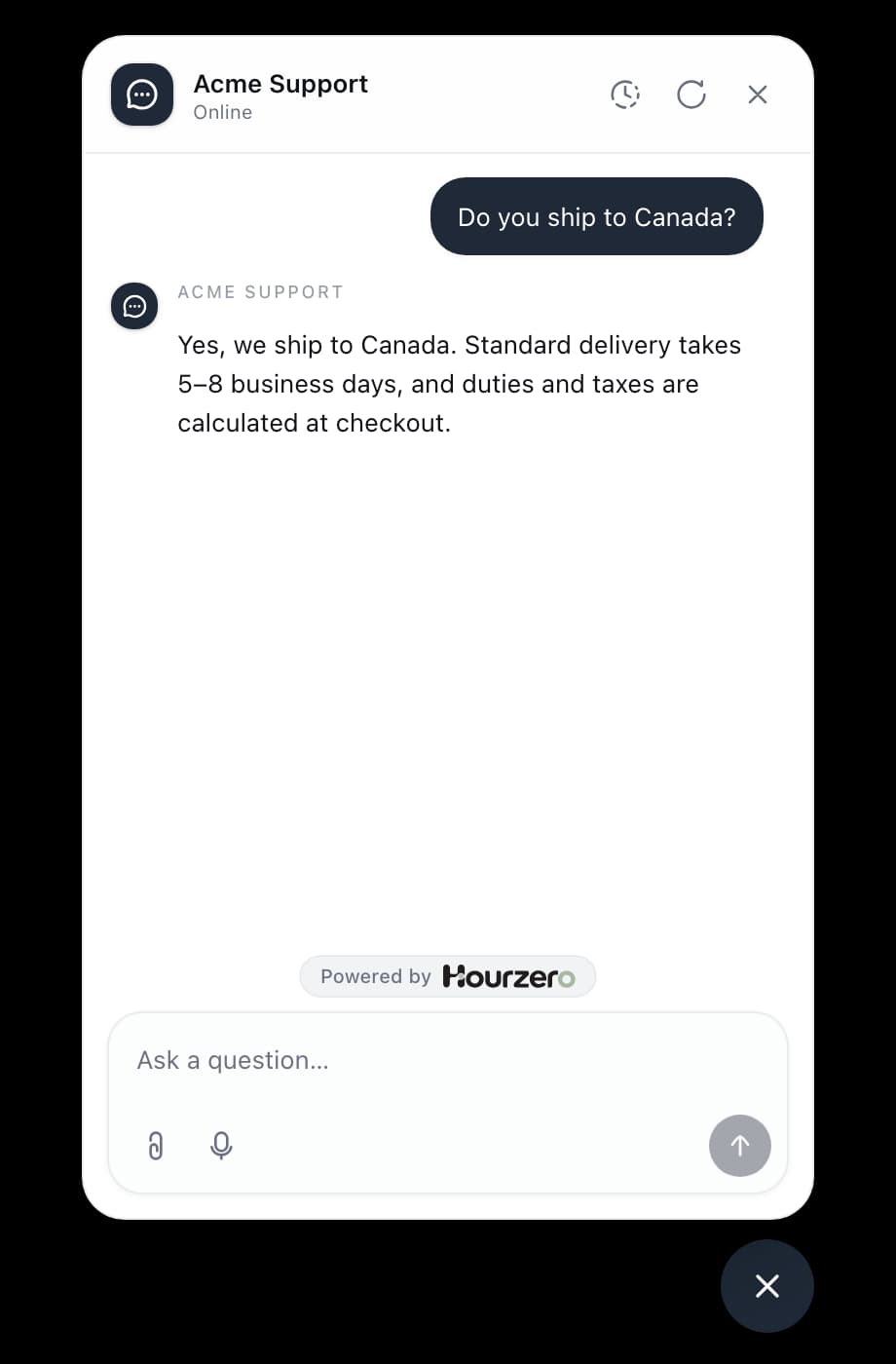
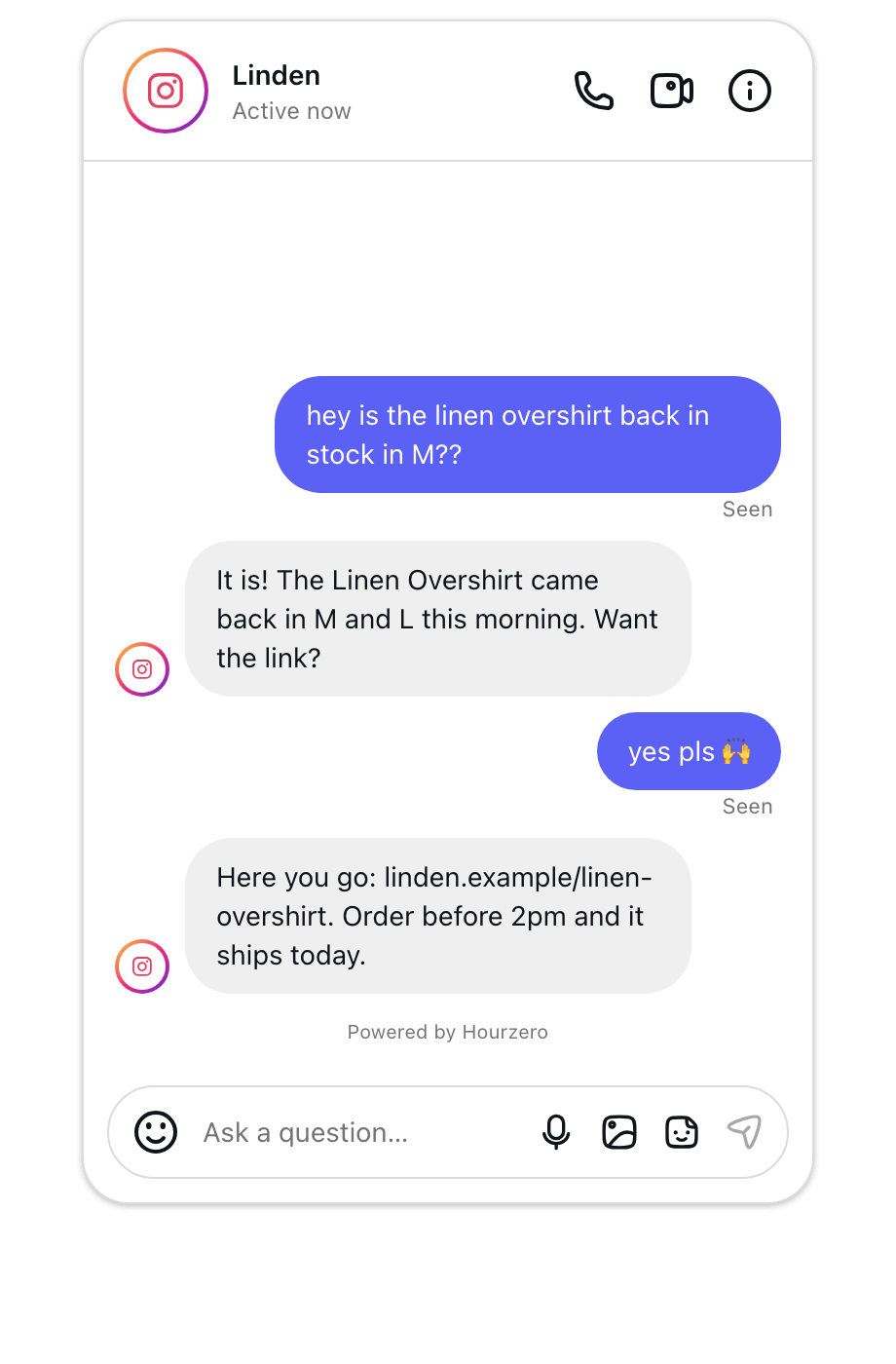
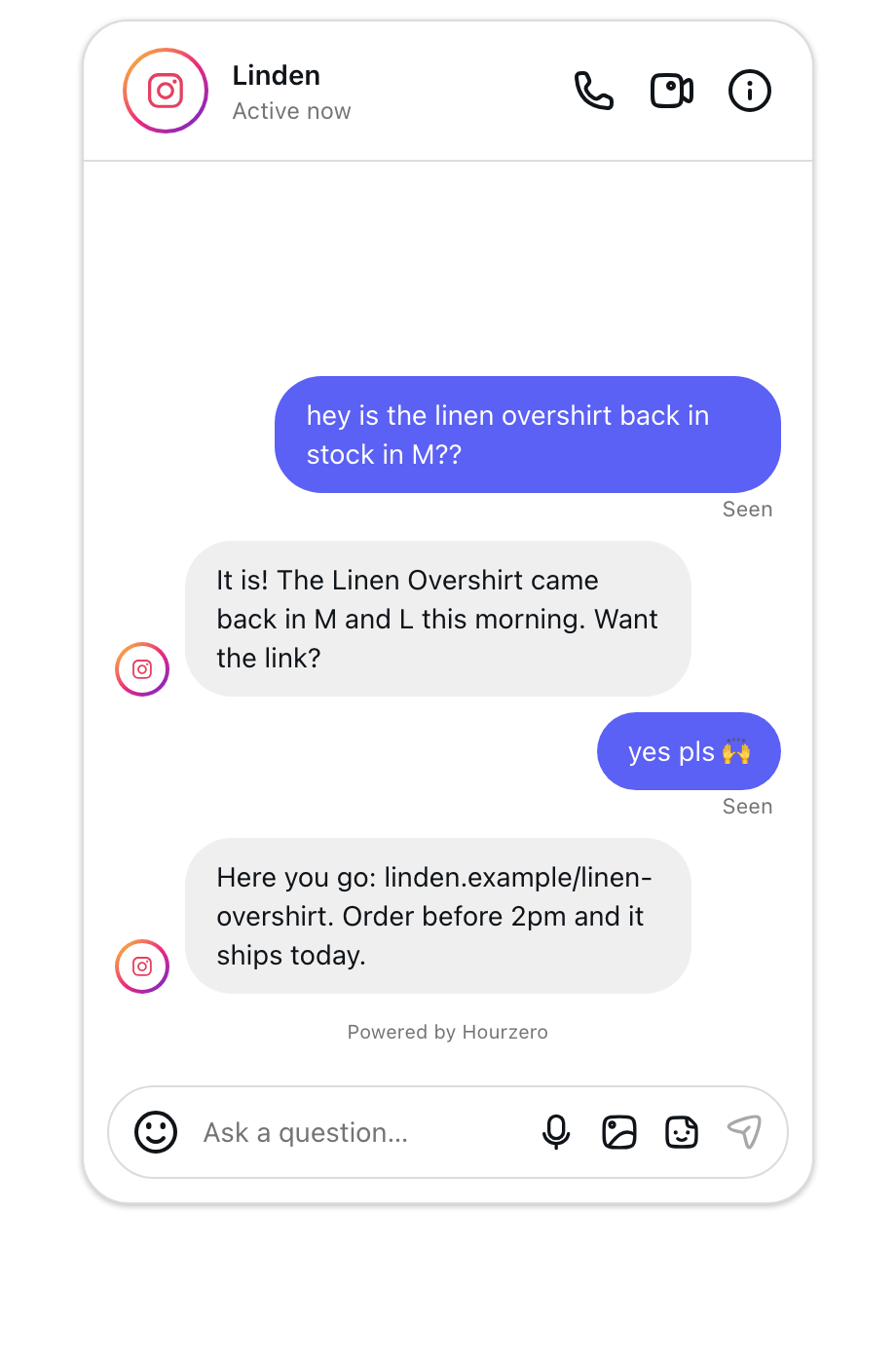
Choose an integration
 WhatsAppAnswer messages sent to your business phone number.
 MessengerReply to messages on your Facebook Page.
 InstagramAnswer direct messages on your Instagram account.
 SlackAnswer questions in your Slack workspace.
 DiscordHelp your community inside a Discord server.
 TelegramCreate a Telegram bot that your agent answers.
 TwilioReply to text messages (SMS, MMS, and RCS) through Twilio.WebhooksTell your other tools the moment something happens, like a new lead.
Which channel should I start with?
Start where your customers already ask questions today. You can add more channels later, one at a time.
- Your website first. Most people look for help on your site. The website widget needs no outside account: you paste a small piece of code once, and the agent appears on every page.
- WhatsApp or text messages if customers contact you by phone. Use WhatsApp if your customers already message you there. Use Twilio for plain text messages to a phone number you have with Twilio.
- Instagram or Messenger if you sell on social media. Questions from ads, posts, and stories often arrive as direct messages. Instagram and Messenger let the agent answer them right away.
- Slack or Discord for communities and teams. Slack works well for your own team, for example looking up the returns policy. Discord suits gaming, software, and fan communities.
- Telegram if your audience lives there. Telegram gives you a bot people can find by name.
Webhooks are different: they aren't a place where customers chat. A webhook is a message Hourzero sends to another app the moment something happens, like a new lead, so your CRM or spreadsheet stays up to date.
Tip
Launch one channel, read the first week of conversations in Activity → Conversations, and improve the agent before you add the next one. Fixes you make then help every channel.
How every channel works
Every messaging channel follows the same four steps. Once you've set up one, the others will feel familiar.
- 1ConnectSign in to the app, like WhatsApp or Slack, from Channels.
- 2Choose the agentPick which agent answers there in Reply settings.
- 3PublishTurn on replies from the Playground.
- 4TestSend a real message and check the reply.
- Connect. You link your account with the app, for example your Facebook Page or your Twilio account. The connection belongs to your whole workspace, so you only connect it once.
- Choose the agent. In Reply settings, you decide which agent answers on each number, Page, bot, or server. Each place has one agent, so two agents never answer the same customer.
- Publish. In the Playground, select Publish, choose the channel, and publish. Customers only get answers after this step.
- Test. Send a real message the way a customer would and check that the reply arrives.
The website widget is simpler. There's nothing to connect: you choose which websites may show it, publish, and paste the code into your site.
Connecting is not the same as publishing
A connected channel doesn't answer anyone until you publish it. Later changes, like new instructions or a different welcome message, also stay in your draft until you publish that channel again.
Each channel is published on its own. Publishing WhatsApp doesn't change your website widget, and the other way around. Publishing and version history explains how this works.
What you need before you start
- The right role. Only workspace owners and admins can connect or disconnect apps. If you don't see a connect button, ask an owner or admin.
- An account with the app. For example, a Facebook account that manages your Page, permission to add apps to your Slack workspace, or a Twilio account. Each guide lists exactly what you need.
- A tested agent. Try a few real customer questions in the Playground first, so your first live answers are good ones.
Check that a channel really works
A connection in the dashboard doesn't prove that messages reach your agent. After you publish:
- Send a real message the way a customer would, for example "Where is my order 48213?".
- Check that the agent replies in that app.
- In Hourzero, open Activity → Conversations and select Visitors. Your test chat appears with the channel's name.
Common questions
Do I need a separate agent for each channel?
No. One agent can answer on every channel and uses the same knowledge everywhere. You can still use different agents in different places. For example, Acme uses Acme Support on its website and WhatsApp, and a separate internal agent in Slack.
Can a channel answer differently from the others?
Yes. In the Playground, each channel has its own name, welcome message, and look. You can also give a channel its own instructions, for example shorter answers on WhatsApp.
What does it cost?
Agent replies use your workspace's credits on every channel. Some apps also charge you directly. For example, Twilio bills your Twilio account for each text message.
The connect button is greyed out. What now?
If the row says the app "is not available yet", that app isn't ready to connect in Hourzero yet. Contact your workspace administrator.