

Skills
Give your agent ready-made know-how, like making a PDF invoice, that it pulls out only when a conversation needs it.
A skill is like a recipe card your agent keeps in a drawer: it only takes it out when a customer asks for that dish. Each skill teaches the agent one specialized job, such as making a PDF invoice or reading a spreadsheet, and the rest of the time it stays out of the way.
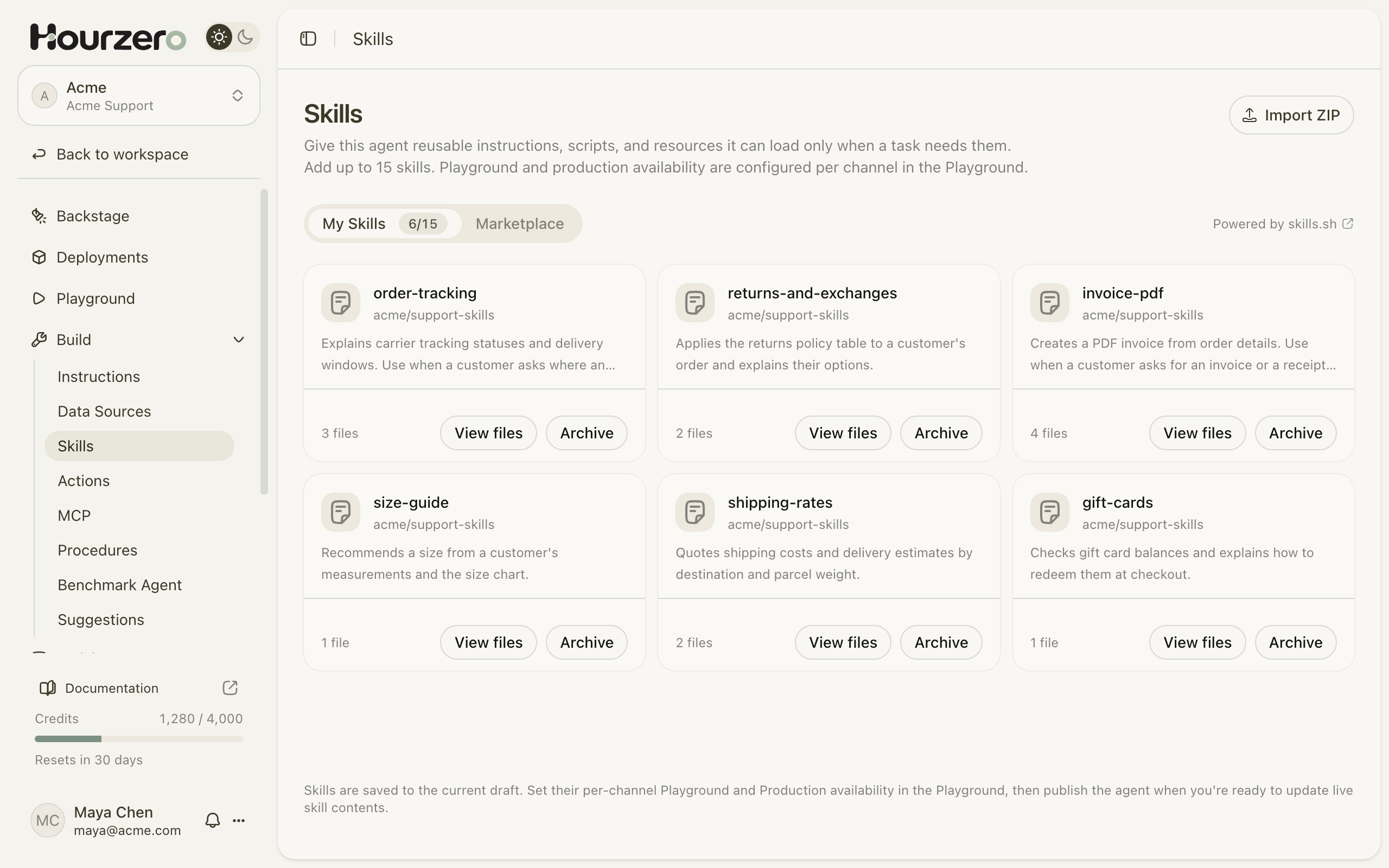
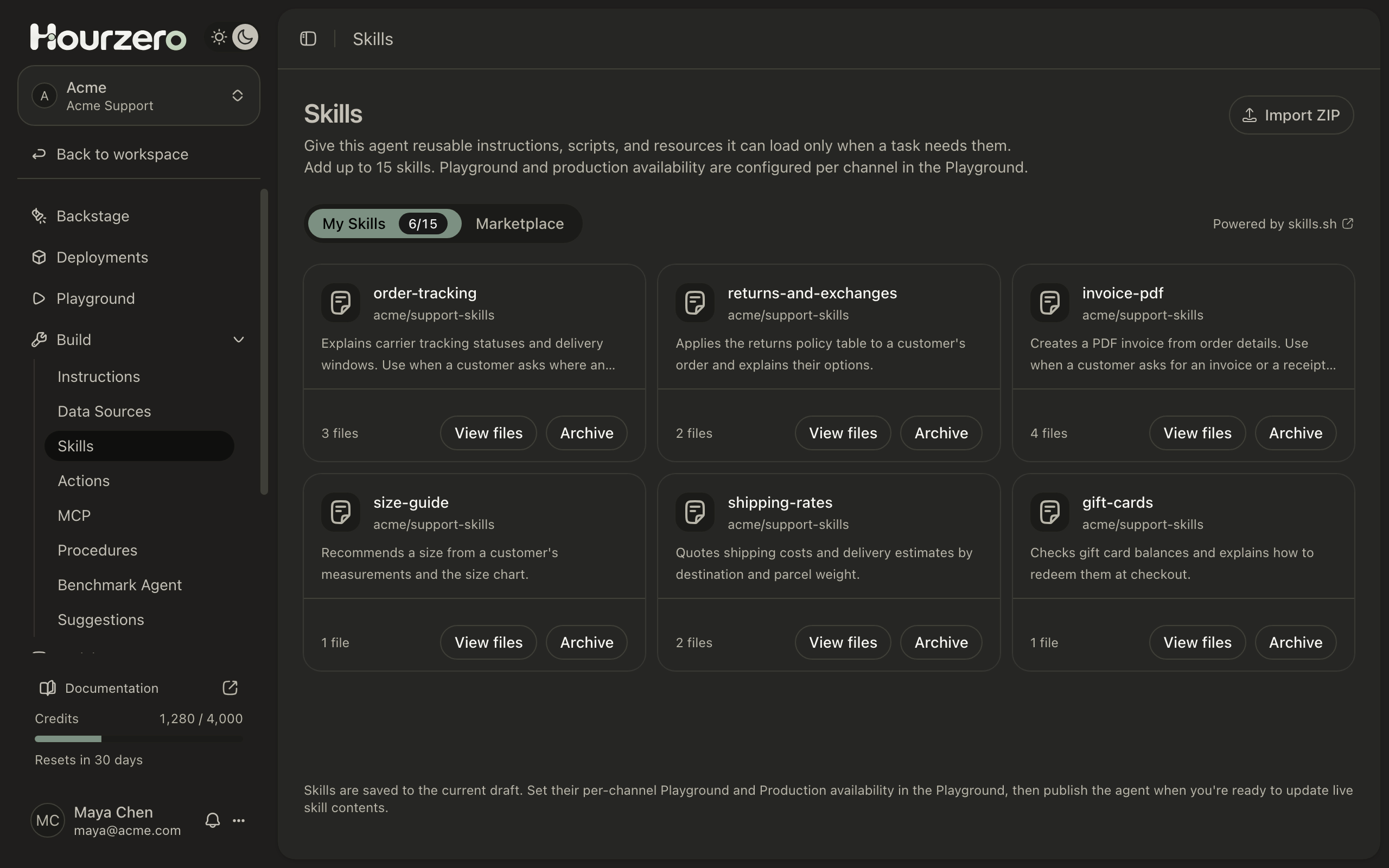
Where to find it: open your agent and go to Build → Skills.
How a skill works
- 1AddPick a skill from the marketplace or upload your own.
- 2Turn onSwitch it on for the channels that should use it.
- 3AskA customer asks for something the skill covers.
- 4UseThe agent opens the skill and follows its steps.
A skill is a small package. It always has a set of written instructions, and it can also include example files or a small program (a script) that does the work, such as building a PDF.
Your agent always knows each skill's name and one-line description. It reads the full instructions only when a customer's request matches. That keeps everyday answers focused and saves the specialized steps for the moment they're needed.
Skill, action, procedure, or instructions?
These four tools sound alike. Each one answers a different need.
| Use | When you want the agent to… | Acme example |
|---|---|---|
| Instructions | Behave a certain way in every conversation | "Always use the customer's first name." |
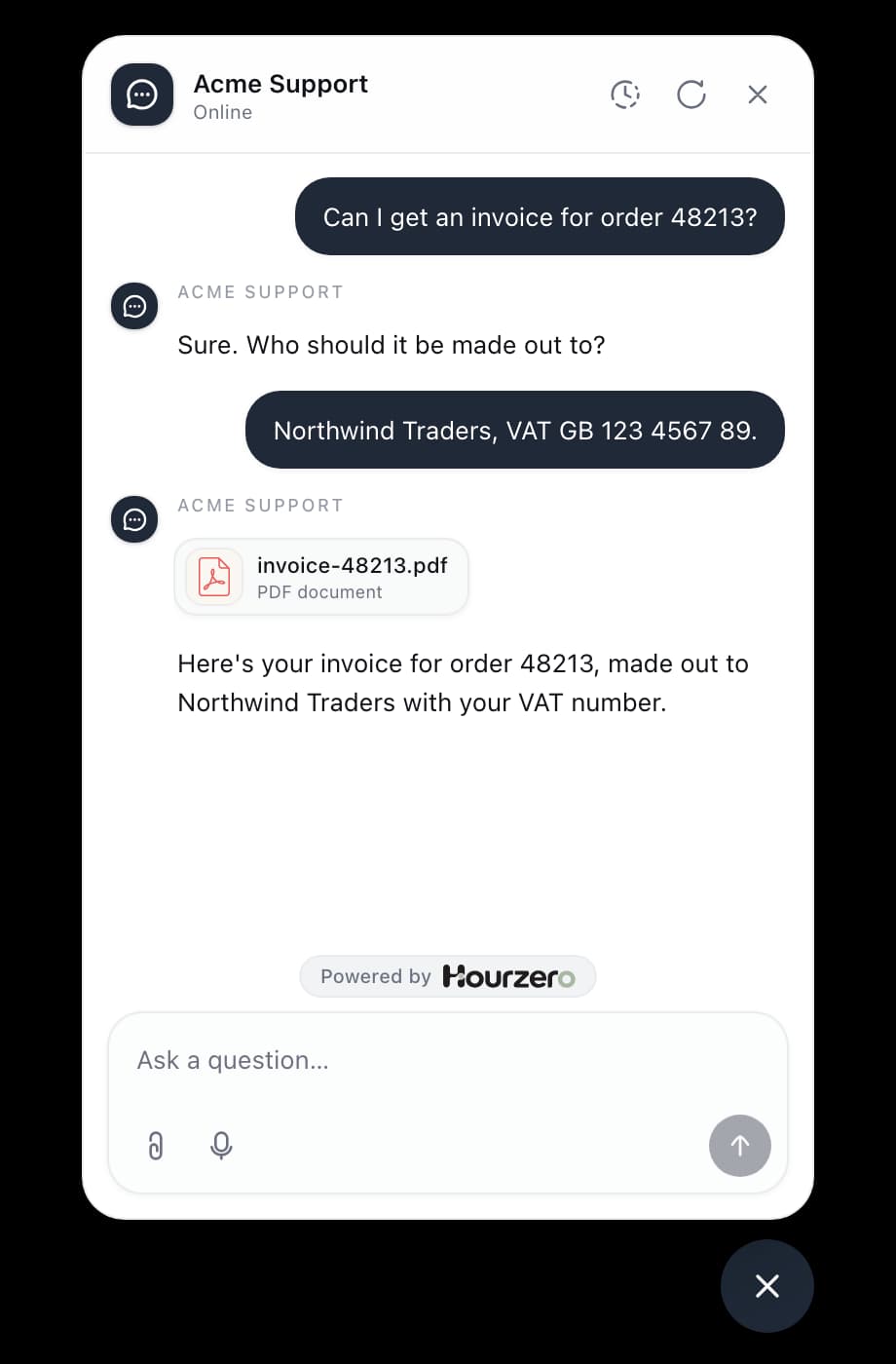
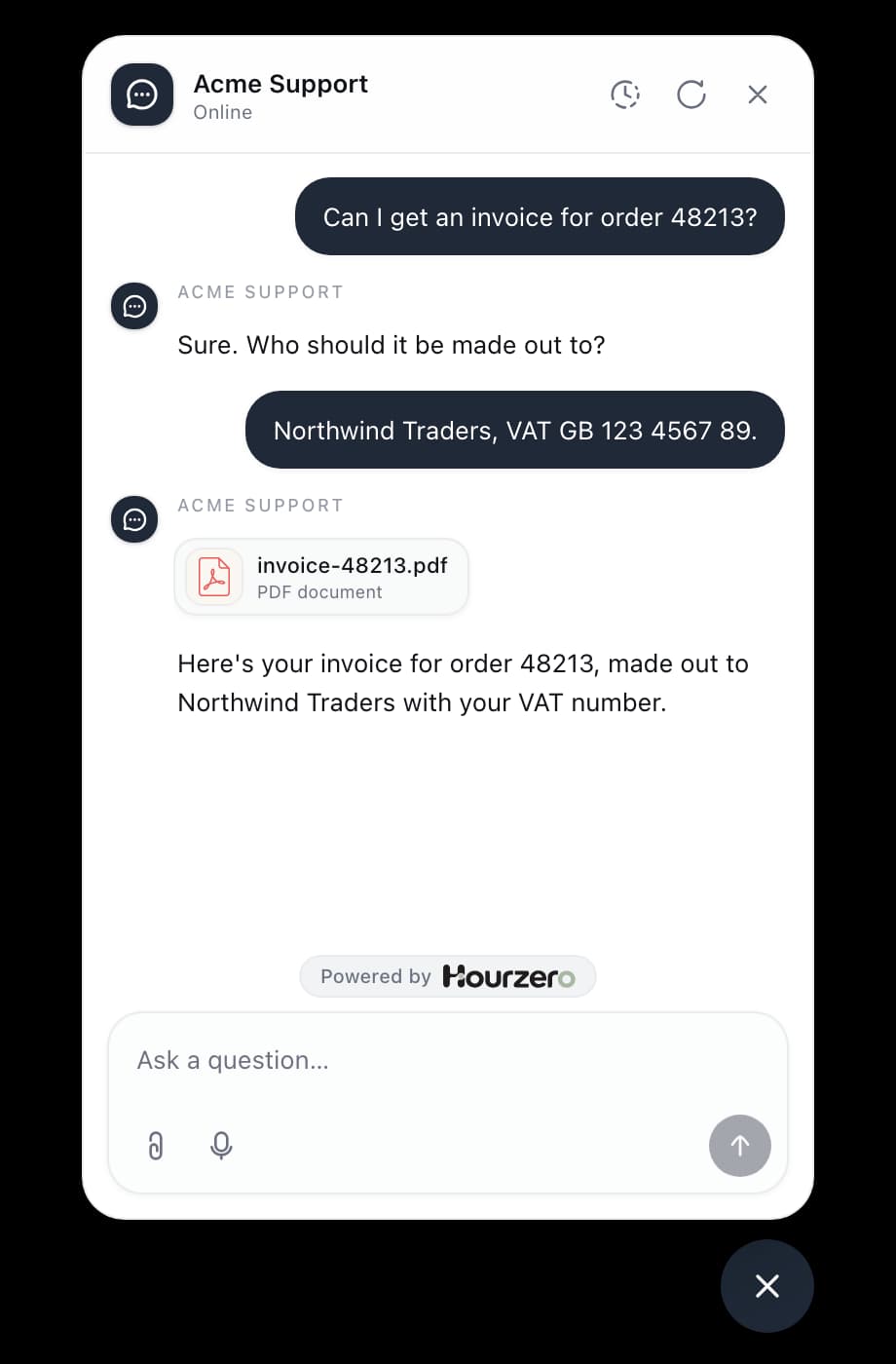
| Skill | Know how to do one specialized task | Make a PDF invoice for an order. |
| Action | Do something in another system, or show a form or button | Look up order 48213 in the order system. |
| Procedure | Follow fixed steps in a set order | Change a delivery address: ask, check, then decide. |
A skill teaches the agent how to do something. It doesn't connect to your systems. If the invoice needs live order details, pair the skill with an action that looks up the order.
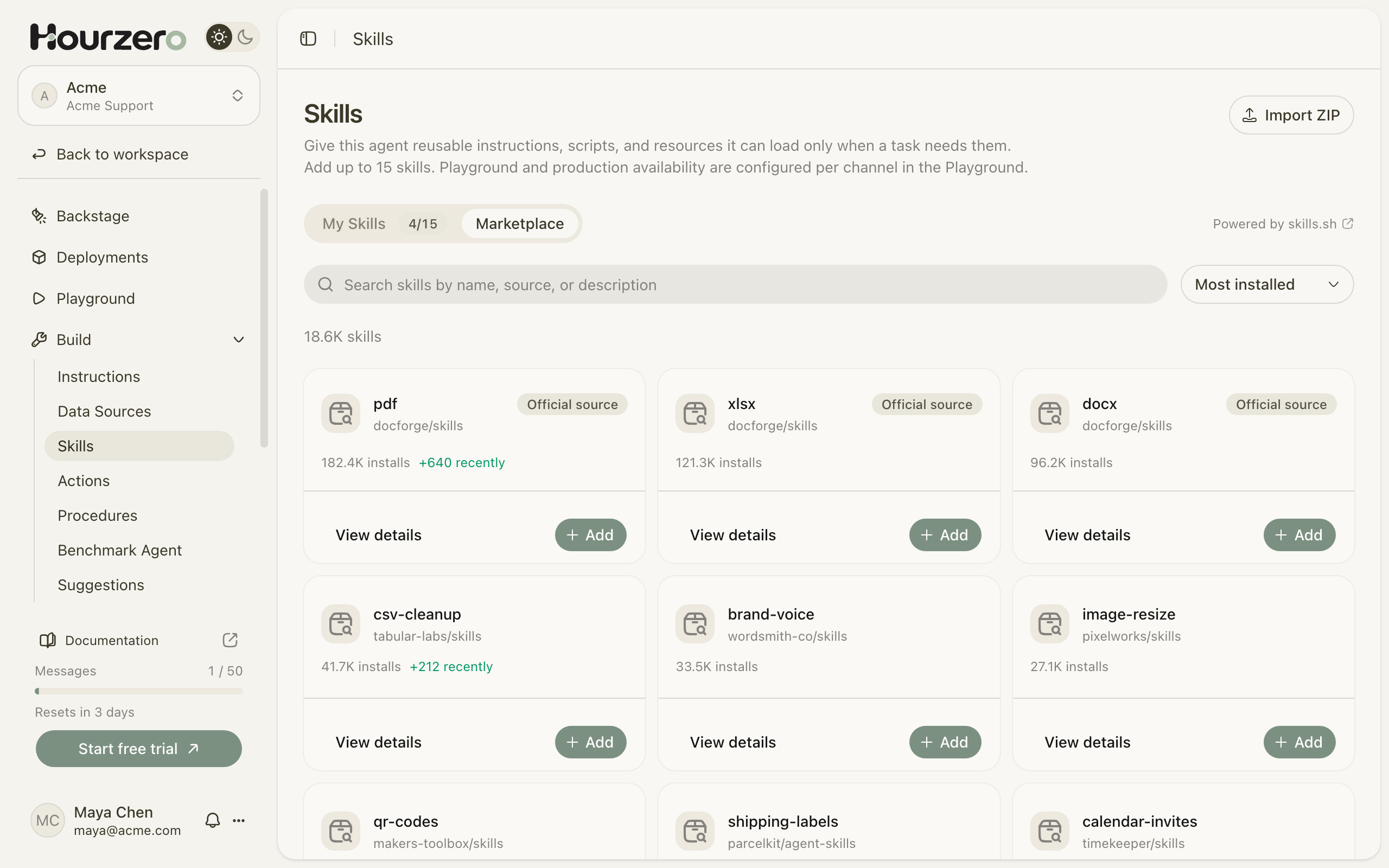
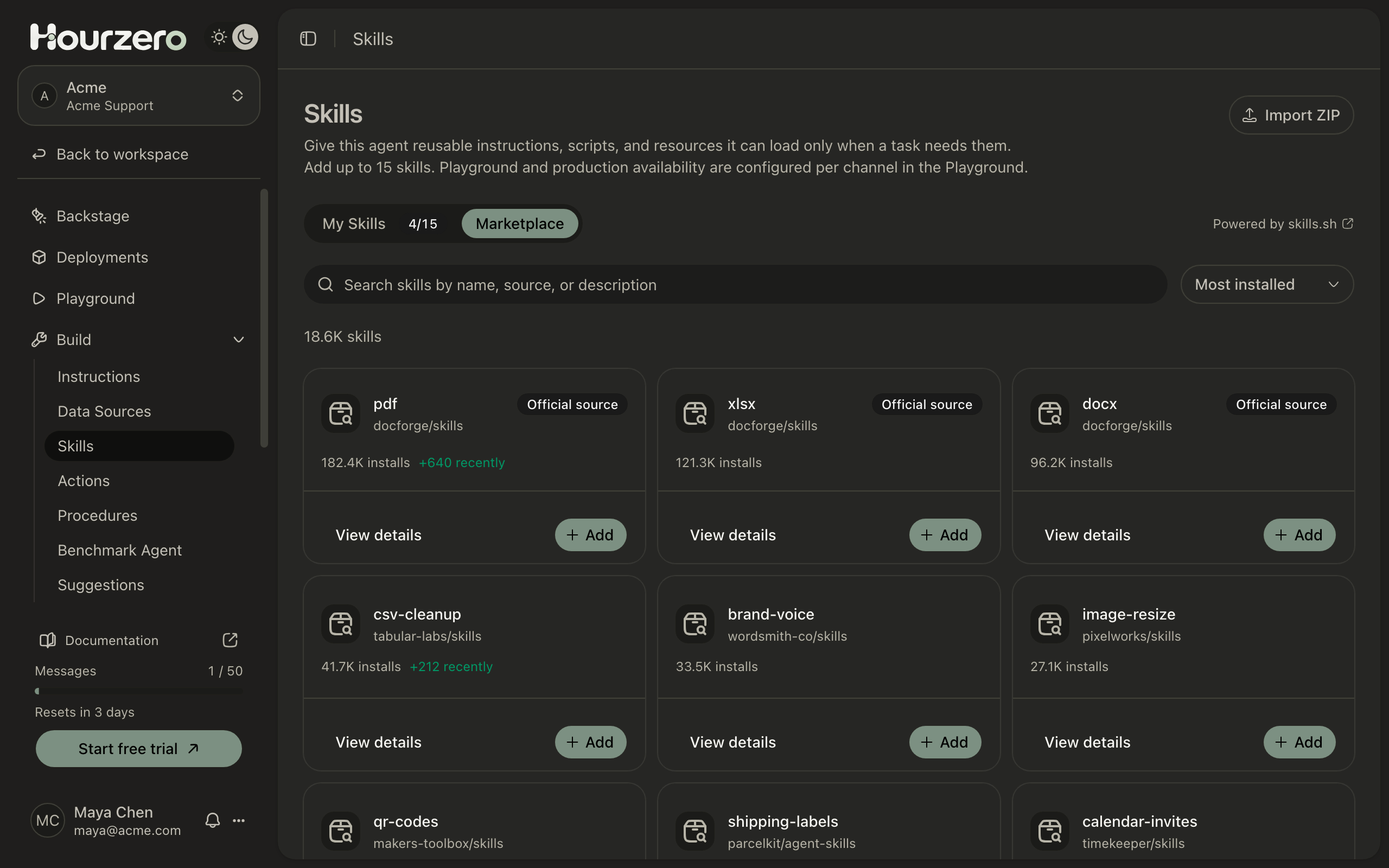
Add a skill from the marketplace
The marketplace is a public library of ready-made skills, run by skills.sh.
- Go to Build → Skills and open the Marketplace tab.
- Type at least 2 characters in the search box, or use the menu on the right to sort by Most installed, Trending, Hot now, or Official.
- Select View details on a skill to check what it does (see the next section).
- Select Add skill in the details window, or Add on the card. The skill now appears under My Skills.
Note
Adding a skill doesn't turn it on. New skills start switched off on every channel until you turn them on.
Check a skill before you add it
Select View details on any skill. The window has two tabs:
- Overview shows About this skill, any Security audits from outside reviewers, and the full Instructions the agent will follow.
- Files lists every file in the skill. Pick a file from the list to read it.
Read the instructions as if you were handing them to a new teammate. Ask yourself: would I be happy for my agent to do this with a customer?
Review before you trust
Some skills include programs. A high install count, an Official source badge, or a passing audit is helpful, but it's not a guarantee. If you see "No partner audits are available yet", read the files yourself before adding the skill.
Turn a skill on for a channel
Each channel has its own switch, so a skill can be on in Chat Bubble and off in WhatsApp.
- Open the Playground and pick the channel you want, for example Chat Bubble.
- Open the Capabilities tab.
- Under Skills, turn on the switch next to the skill. It changes to Enabled.
- Try it in the preview, then select Save draft.
- When it works the way you want, select Publish and publish that channel. Customers on that channel can now use the skill.
The same switch covers testing and the live channel. Customers only get the change after you publish.
Upload your own skill
If you've written a skill yourself, or a partner sent you one, you can upload it as a ZIP file.
- On Build → Skills, select Import ZIP.
- Choose or drop your ZIP file. Hourzero unpacks it in your browser and shows the skill's name, description, and files.
- Check the details, then select Import skill. If a skill with the same name is already added, the badge says Update and the button says Update skill.
Your ZIP needs:
- one skill per ZIP, with a file named
SKILL.mdat the top level; - a short header at the top of
SKILL.mdwith aname(lowercase letters, numbers, and hyphens, up to 64 characters) and adescription(up to 1,024 characters); - a size of up to 10 MB zipped and 5 MB unzipped.
Here's a simple SKILL.md you can adapt:
---
name: invoice-pdf
description: Creates a PDF invoice from order details. Use when a customer asks for an invoice or a receipt for an order.
requires-code-execution: true
---

# Invoice PDF

1. Get the order's items and totals from the conversation or an order lookup.
2. Ask who the invoice should be made out to. Add a company name and VAT number only if the customer gives them.
3. Create the PDF and send it to the customer.

Rules:
- Never invent prices or totals. Use only amounts from the order.
- One invoice per order.
Tip
The description decides when the agent opens a skill. Say what it does and when to use it: "Use when a customer asks for an invoice."
Update, archive, or remove a skill
- Update: if a marketplace skill has a newer version, its details window shows Update available. Your current copy stays in place until you select Update skill.
- Archive: select Archive on a skill's card. The agent stops using it, and it disappears from the Playground switches. Select Restore to bring it back.
- Remove: archived skills show a trash button. You can't remove a skill while a live channel still uses it. Publish those channels without it first.
An agent can have up to 15 skills, including archived ones. The My Skills tab shows how many you've used, for example 4/15.
Skill changes go into your draft. Live channels keep the skills they were published with until you publish them again.
Costs and limits
Instruction-only skills work with any available model. Skills that require code execution are available only with OpenAI, Anthropic, Gemini, or xAI models, and run in the provider's own code execution container.
Execution languages, installed libraries, network access, and time limits depend on the provider. Gemini uses Python and a fixed library environment, so arbitrary shell scripts or dependency installation may not work. A skill can declare requires-code-execution: true in its frontmatter; bundled scripts also identify an executable skill.
Files in and out
Only OpenAI and Anthropic models can work with conversation files and send generated files back:
- Conversation files the visitor shared are copied into the execution container before the reply, up to 5 MB each.
- Generated files the agent saves for the visitor are attached to its reply, up to 5 files of 5 MB each. Larger files are skipped and the reply says so.
- Allowed file types: PDF, PNG, JPEG, GIF, WebP, Word (.docx), Excel (.xlsx), PowerPoint (.pptx), CSV, text, Markdown, and JSON. Hourzero checks that each file's contents match its type and rejects Office files that contain macros or embedded objects. Other files are skipped and the reply says which ones.
- Gemini and xAI models can run code but can't attach generated documents. Gemini charts shown inline are still attached. The Playground warns you when a channel uses skills that run code with one of these models.
Hourzero copies generated files into its own storage and then deletes the provider's copies, along with the conversation files it uploaded.
Downloads
Generated files are kept for 21 days, then become unavailable and are removed by scheduled cleanup.
- Web chat: visitors see the file as an attachment. Each download creates a new link that works for 15 minutes, so links copied out of a chat stop working soon after.
- Slack, WhatsApp, Instagram, Discord, Telegram, Teams, and email: the file is sent as a real attachment.
- Messenger and Twilio: these channels can't carry files, so the agent sends a download link that works for the full 21 days.
- Dashboard: workspace members can download any retained file from Conversations.
Downloads always go through Hourzero. Previews shown in the chat use storage links that expire after 15 minutes.
Costs
Hourzero doesn't charge sandbox minutes for new replies. Normal reply credits still apply. The provider's code execution may cost extra on the provider account.
Test a skill
- Turn the skill on for one channel and select Save draft.
- In the Playground preview, ask something the skill covers, such as "Can I get an invoice for order 48213?"
- Open the file or answer it produces and check it carefully.
- Ask something unrelated, such as "Do you ship to Canada?" The answer shouldn't change because of the skill.
- Turn the skill off and ask the first question again. The agent shouldn't use it this time.
To see when the skill was used, open the chat in Conversations. Steps where the agent used a skill are marked Skill.
Common questions
Why isn't the agent using my skill?
Check that the skill is switched on for that channel and that you selected Save draft. For customers, the channel also needs to be published. If it's all on, make the description clearer about when to use it.
Can a skill look up an order in my system?
Network access depends on the execution provider. For authorized business-system access, use an action or an MCP server.
The marketplace won't load. What now?
The page shows an error with Try again. Your added skills keep working while the marketplace is unavailable.