

Custom form
Show one specific form in the chat, with exactly the fields you need, and save every answer.
A custom form shows the same form in the chat every time, with exactly the fields you choose. Use it for things like exchange requests, free-trial sign-ups, or warranty registrations. Every submitted form is saved to Activity → Collected Data.
Where to find it: open your agent, go to Build → Actions, and select Custom form.
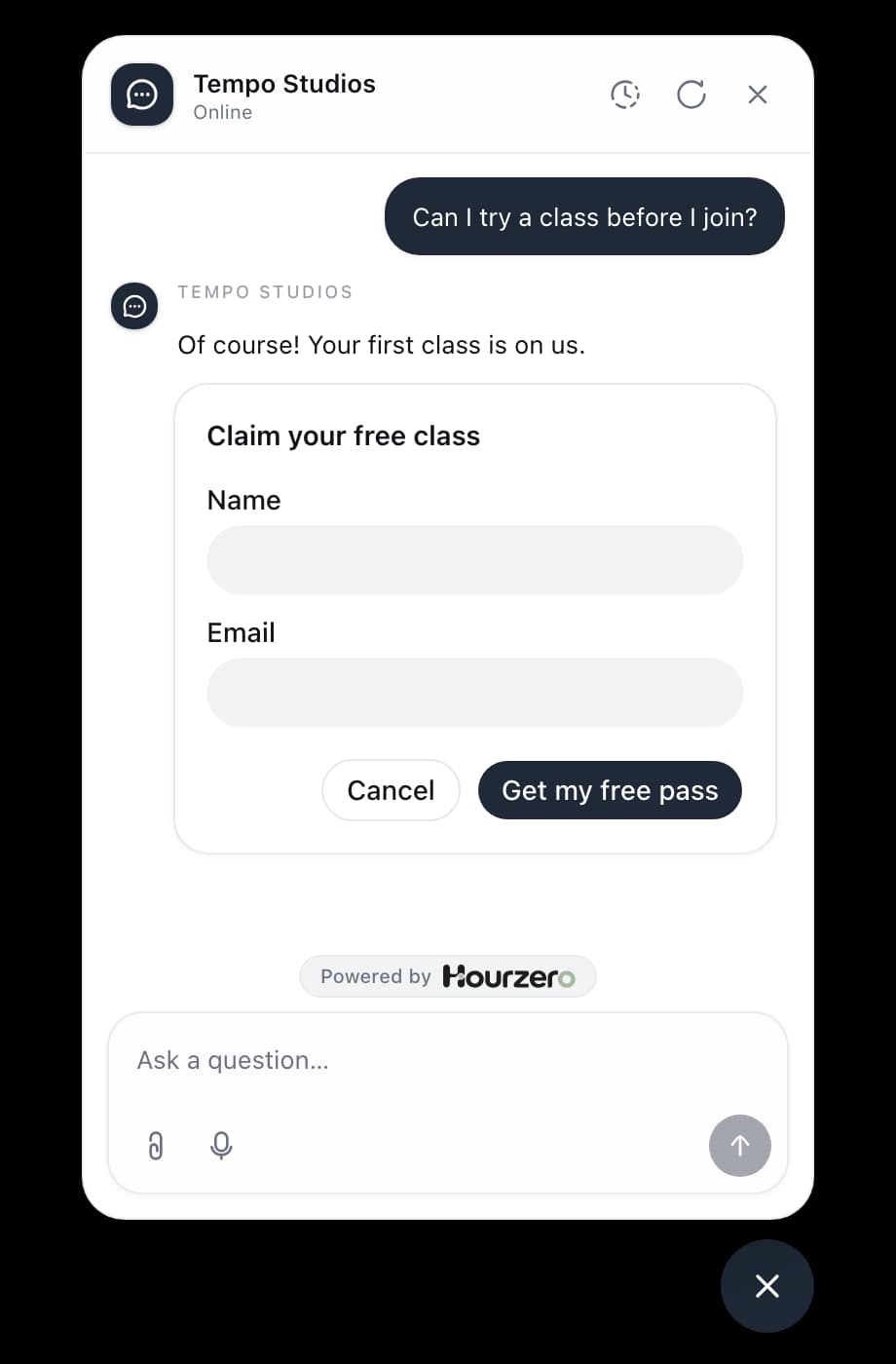
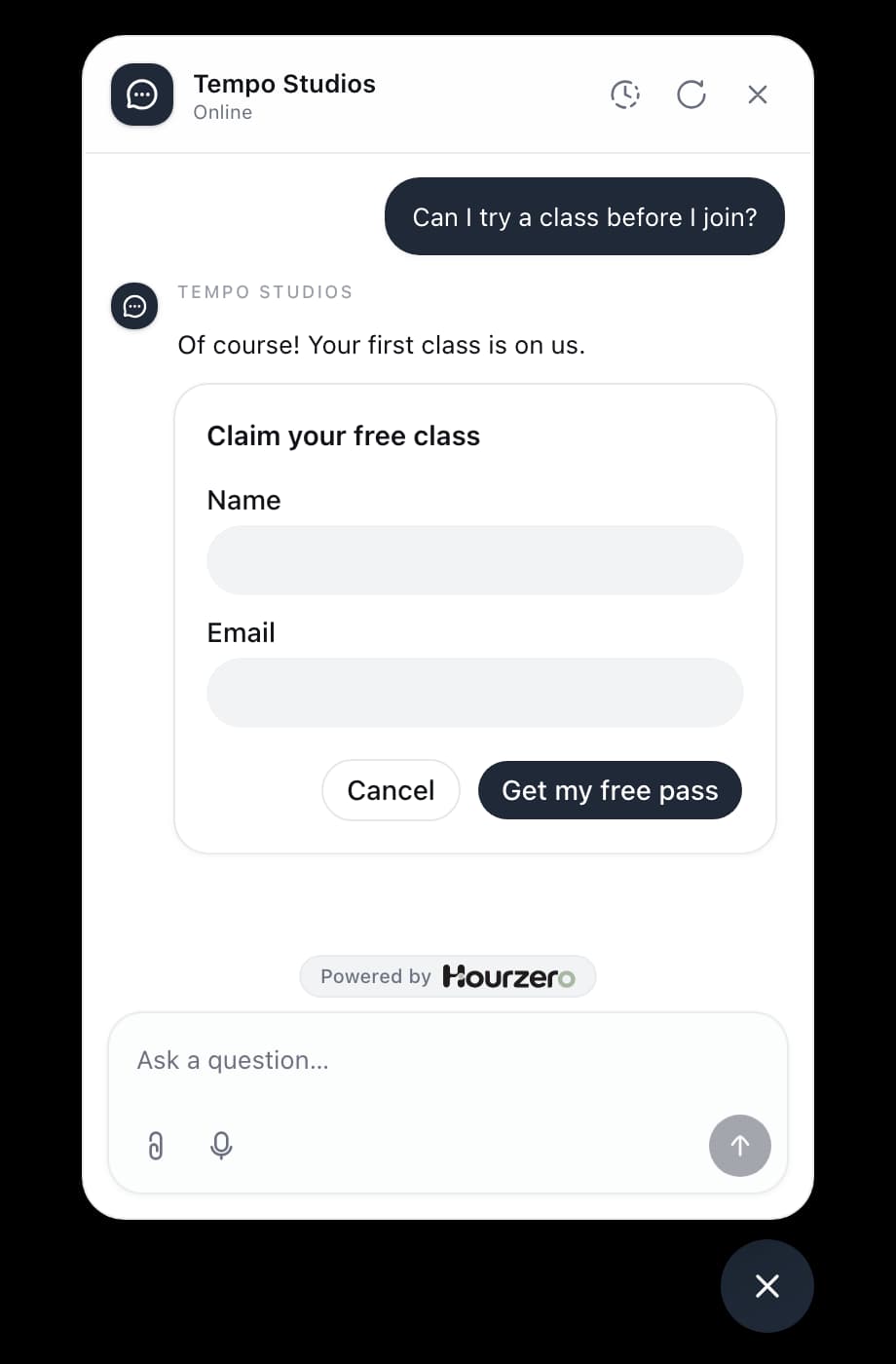
How it works
- 1Customer asks"Can I exchange my jacket for a bigger size?"
- 2Form appearsThe agent shows your form in the chat.
- 3Customer submitsThey fill it in and select your submit button.
- 4Answer savedIt appears on Activity → Collected Data.
A custom form is always a form. If you'd rather have the agent pick up details from the conversation, use Collect data with the Auto method instead.
Note
Forms appear in your website chat: Chat Bubble, Help Page, and Center Stage. Messaging apps such as WhatsApp and Slack only receive text, so turn this action off for those channels in the Playground.
Example: an exchange request form
This example builds a form Acme Support shows when a customer wants a different size.
-
Open Build → Actions and select Custom form.
-
In Action name, enter
Exchange request. -
In When should the agent use it?, enter:
Show this form when a customer wants to exchange an item for a different size. Don't show it for refunds or damaged items. -
Leave Form configuration set to Dashboard fields.
-
In the Form builder, select the title "Tell us what you need" and type
Request an exchange. Select Add description and enterWe'll check stock and email you about your new size. -
The form starts with one field called Details. Select its label and type
Order number. In Field settings, set Field type to Short text. -
Select Add field, name it
Item, and set Field type to Short text. -
Select Add field, name it
New size, set Field type to Select, and enterXS, S, M, L, XLin Options. -
Select Add field, name it
Notes, set Field type to Long text, and turn off Required field. -
Select the submit button ("Submit") and type
Request exchange. -
Under After submission, enter
Thanks! We've saved your exchange request. -
Select Create action.
Tip
Keep the success message honest. "We've saved your exchange request" is true the moment the form is submitted. "Your exchange is confirmed" is not, unless something else actually confirms it.
Build your form
Everything in the Form builder is edited in place, the way the customer will see it:
- Title and description: select the title to change it. Select Add description for a line of text under it.
- Fields: select a field's label to rename it. Select Add helper text to show a hint under the field.
- Field settings: select a field (or its gear icon) to choose its Field type (Short text, Long text, Email, Phone, Number, Yes / no, or Select), its Options for a select field, and whether it's a Required field. Select Remove to delete it.
- Submit button: select the button text to change it.
- After submission: the message that replaces the form once it's submitted.
A form needs at least one field and can have up to 20.
What the customer sees
When the agent shows the form, the customer fills it in and selects your submit button. If a required field is empty, the form asks them to complete it. Once submitted, the form is replaced by your success message.
The customer can also select Cancel. Nothing is saved, and the form shows "Form cancelled."
Showing the form doesn't save anything. Only a submitted form creates an entry on Activity → Collected Data. To send each new entry to another tool, set up a webhook for the submission.created event.
Test it
- In Playground, check that the form is switched on for your channel in the Capabilities tab, and select Save draft.
- Ask "Can I swap my jacket for a large?" The form should appear.
- Try to submit it with a required field empty, then fill it in and submit.
- Start a new chat, show the form again, and select Cancel.
- Open Activity → Collected Data, filter by Playground, and check that only the submitted form was saved.
- Ask something unrelated. The agent should not show the form.
- Publish the channel when you're happy.
Let your website supply the form
Sometimes the right fields depend on your website, for example a different form for each product. A developer can make your website provide the form's fields instead of setting them in the dashboard.
- Under Form configuration, choose Website form schema.
- In Form handler name, enter the name your developer registered, for example
delivery_question. - Under Form copy, fill in Form title, Submit button, and Success message. These are used when your website doesn't provide its own.
Important
Website forms only work in the Chat Bubble or Center Stage embedded on your own website. They don't appear in the Playground preview or on messaging apps, so test them on your live site.
For developers
Register a schema factory on the page where the chat is embedded. Its name must match Form handler name:
window.hourzero("registerFormSchema", {
  delivery_question: async (args, user) => ({
    title: "Ask about your delivery",
    fields: [
      {
        name: "order_number",
        label: "Order number",
        type: "text",
        validation: { required: { value: true } },
      },
      {
        name: "question",
        label: "Question",
        type: "textarea",
        placeholder: "How can we help?",
      },
    ],
    submitButtonText: "Send question",
    successMessage: "Your question has been saved.",
  }),
});
- Call it after the embed script loads, or set up the
window.hourzeroqueue first, as shown on Custom action. - Field
typecan betext,textarea,email,phone,number,boolean, orselect. Aselectfield needs anoptionsarray of strings. - Field
namemust use lowercase letters, numbers, and underscores, and start with a letter. Names must be unique. - Fields support
label,placeholder(shown as helper text),defaultValue, andvalidation.required.value. Fields are optional unless marked required. - Optional
title,description,submitButtonText, andsuccessMessagereplace the dashboard copy. A schema needs 1 to 20 fields. - The factory only supplies the form. Submissions are checked and saved by Hourzero, not sent to your website. Don't treat a submitted form as proof of who the customer is.