

Troubleshooting
Fix the most common problems: a missing chat bubble, wrong answers, changes that aren't live, and channels that don't reply.
Find the problem you're seeing, then work through its checklist from the top. The first items fix most cases, so you rarely need to go far down the list.
Before you start, it helps to know where the problem is. Ask yourself:
- 1ArrivedIs the customer's message in Activity → Conversations?
- 2AnsweredDid the agent reply, or is there an error in the chat?
- 3Up to dateDoes Deployments show your latest version for that channel?
If the customer's message isn't in Conversations at all, the problem is the connection to the channel. If the message is there but the answer is wrong, the problem is the agent's knowledge or instructions.
The chat bubble doesn't appear on my website
Most common fix
The website address isn't in Allowed domains, or you changed the domains and didn't publish. The address must match exactly: acme.com doesn't cover www.acme.com.
- Check the allowed websites. In the Playground, open Chat Bubble (or Center Stage), select Publish → Website widget, and look at Allowed domains. Add every address visitors use, for example both
acme.comand*.acme.com. If the list is empty, the widget appears nowhere. - Publish again. Changes to allowed domains stay in your draft until you select Publish saved draft or Publish latest draft.
- Check that replies are on. On the Overview tab, Agent replies should say Replies on after publishing. If you changed it, save and publish.
- Check the code is on the page. Ask whoever manages your website to confirm the Hourzero script is pasted on every page, ideally in a site-wide footer setting.
- Check you published the right style. The code says
chat-bubbleorcenter-stage. That style must be the one you published. - Ask your developer to check for blocking. Some websites block scripts from other addresses. In the browser's developer console they'll see "Hourzero: widget unavailable" if the widget couldn't load.
The Help Page can't be published, so it never appears on a website. See Website widget for the full setup.
The agent gives wrong or made-up answers
Most common fix
The answer isn't in your data sources, or you added it but didn't retrain and publish. Add the missing information, select Retrain agent, then publish the channel.
- See what the agent looked up. Open the chat in Activity → Conversations. Boxes like Knowledge retrieval or Action show what the agent searched and what it got back. Select one to expand it.
- Check the information exists. On Build → Data Sources, open the source and select View parsed content. Make sure the right facts are there, and that Hourzero read the file or page correctly.
- Look for conflicts. If your return window is 30 days in one source and 14 days in another, the agent may pick either. Keep one version of each fact.
- Retrain. If the banner says Source changes are ready to train, select Retrain agent and wait for Training complete.
- Publish. Live channels keep using what they had at the last publish, even after training.
- Use Q&A for exact wording. Prices, policies, and promises work best as Q&A pairs.
- Tighten the instructions. On Build → Instructions, tell the agent what to do when it doesn't know, for example: "If the answer isn't in your knowledge, say so and offer to connect the customer with our team."
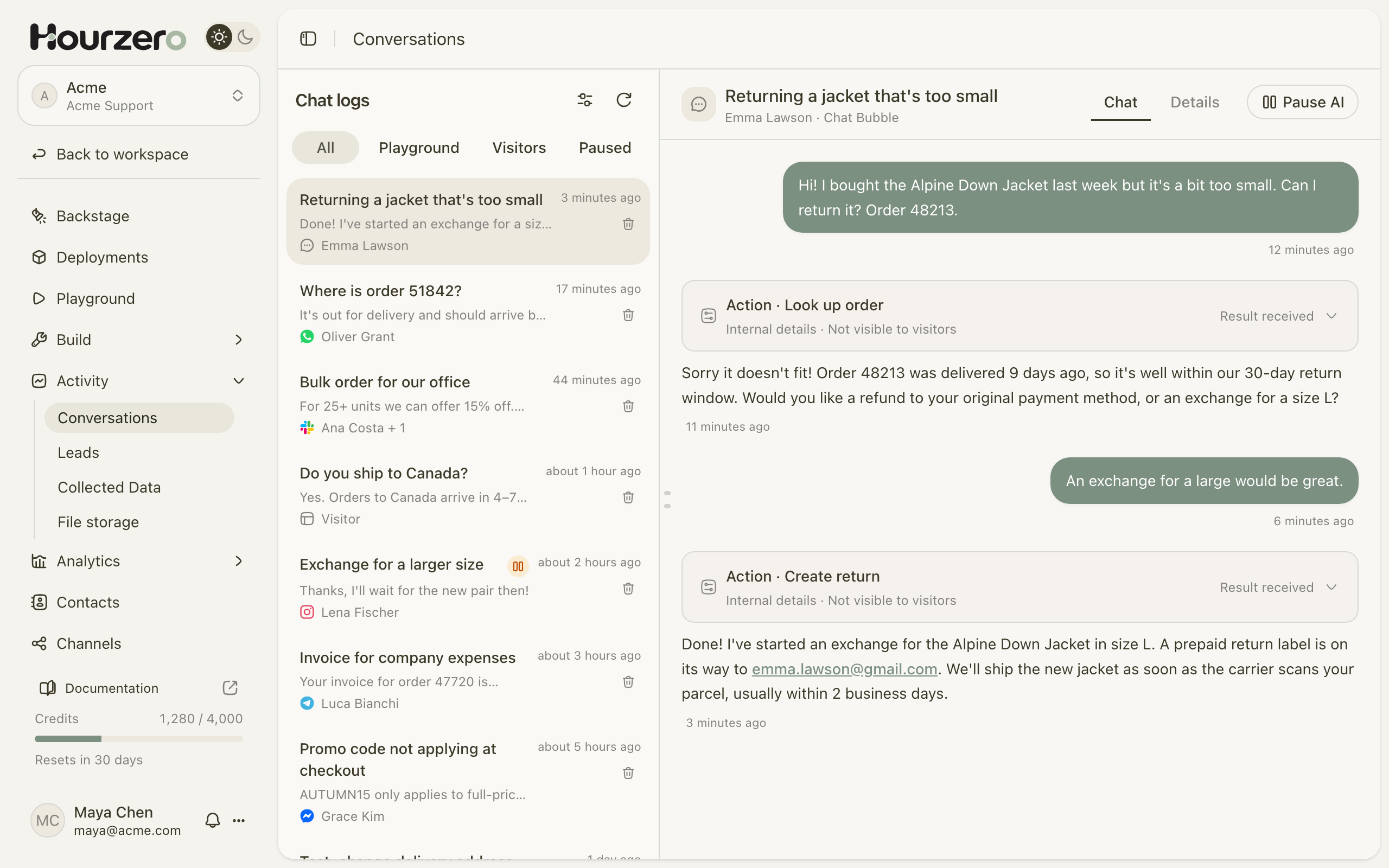
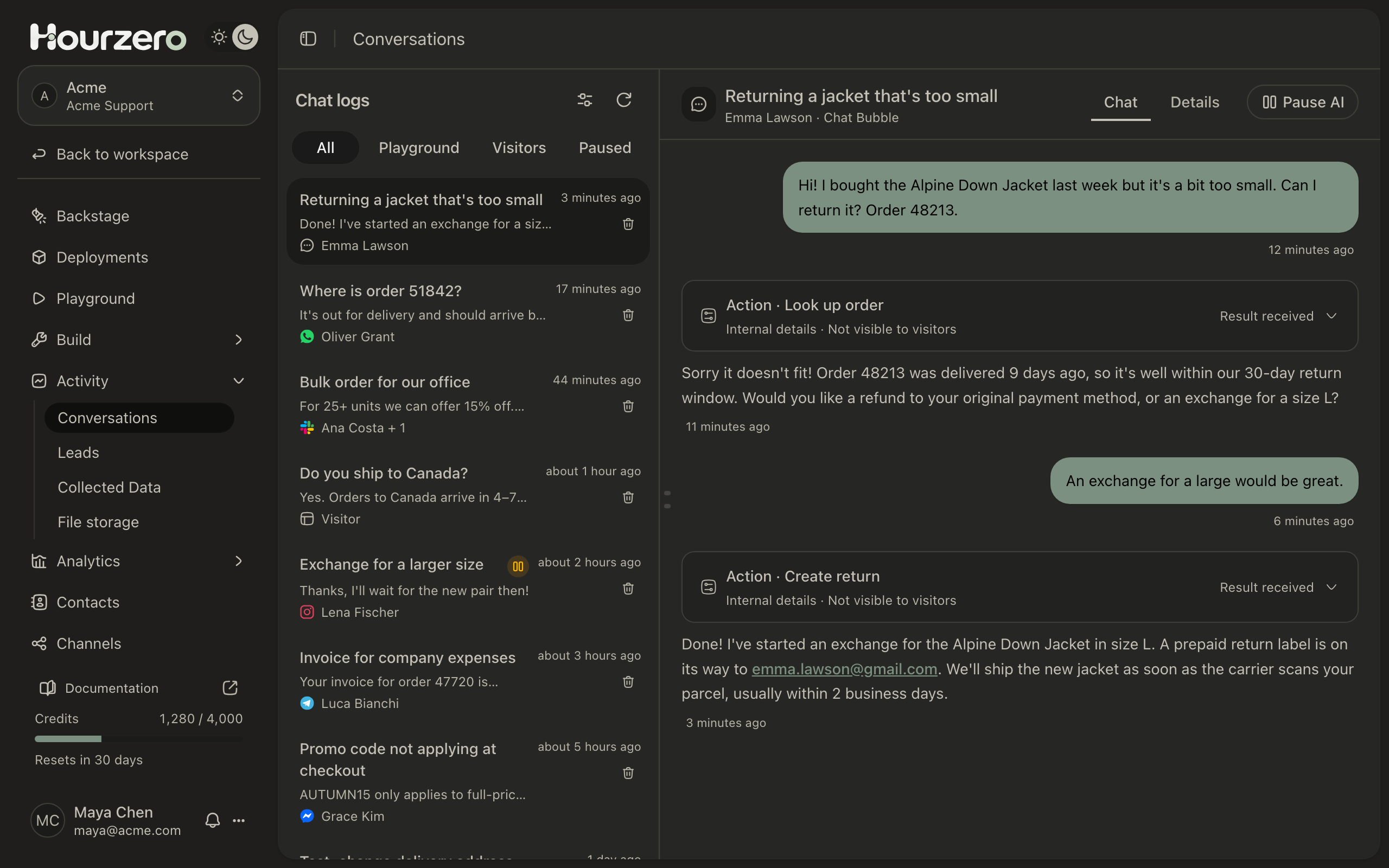
The Suggestions page lists questions customers asked that your sources didn't cover. A benchmark lets you retest a set of questions after each fix.
My changes aren't live
Most common fix
You saved but didn't publish, or you published a different channel. Each channel is published on its own.
- Save. In the Playground, the bottom of the settings panel should say Draft saved. Publish this channel to apply your changes. If it says Unsaved draft changes, select Save draft.
- Retrain if you changed knowledge. Training is needed after any change to data sources.
- Publish every channel you want to update. Pick the channel under Preview channel, select Publish, and choose it. Publishing Chat Bubble doesn't update Center Stage, WhatsApp, or any other channel.
- Check shared instructions. If a channel has Use shared instructions turned off, it ignores the Instructions page. Edit that channel's own instructions on the Overview tab.
- Check what's live. Open Deployments. The row with In production for that channel is what customers get. Its Created time should match when you published.
- Reload. On your website, reload the page. In messaging apps, send a new message.
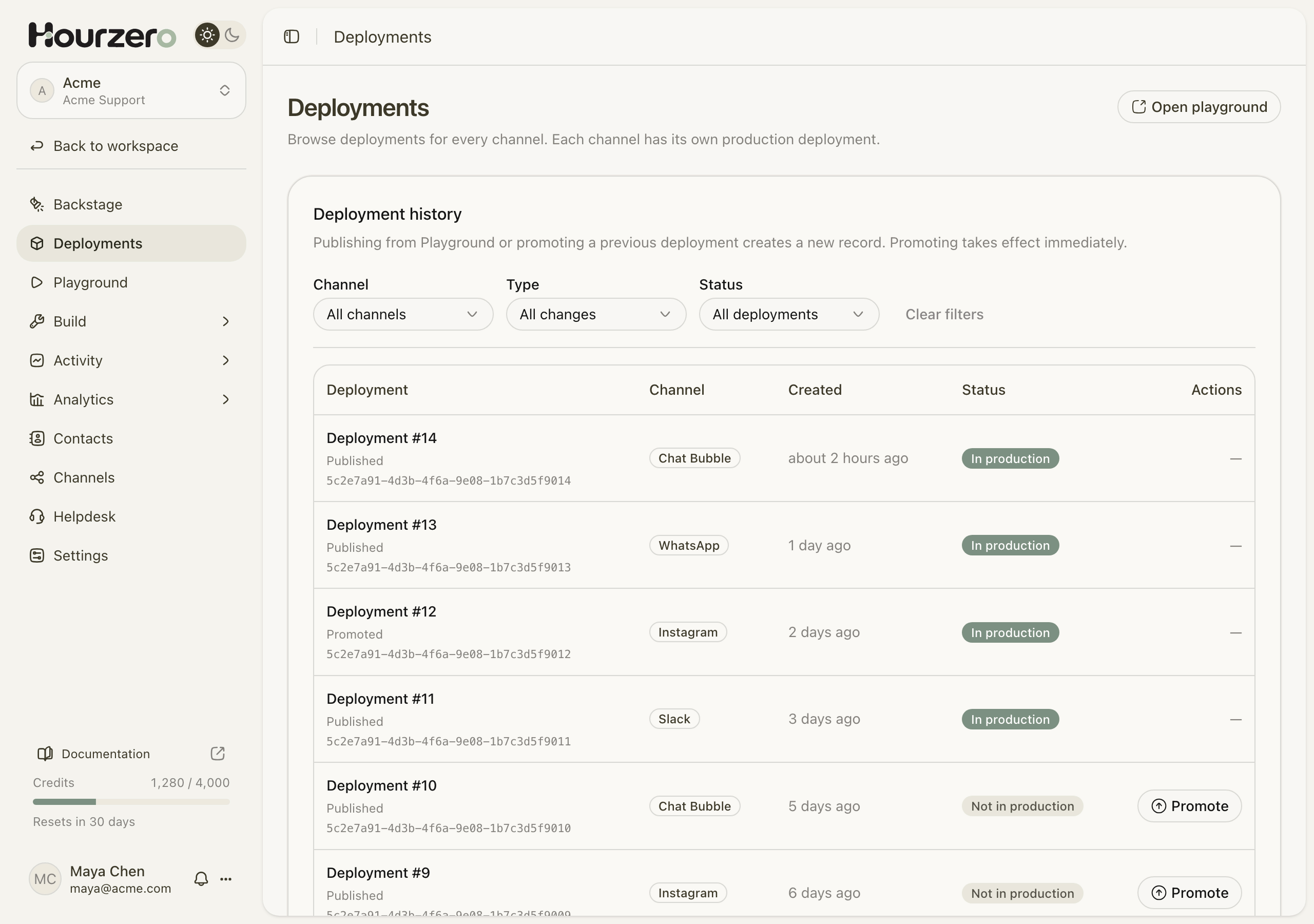
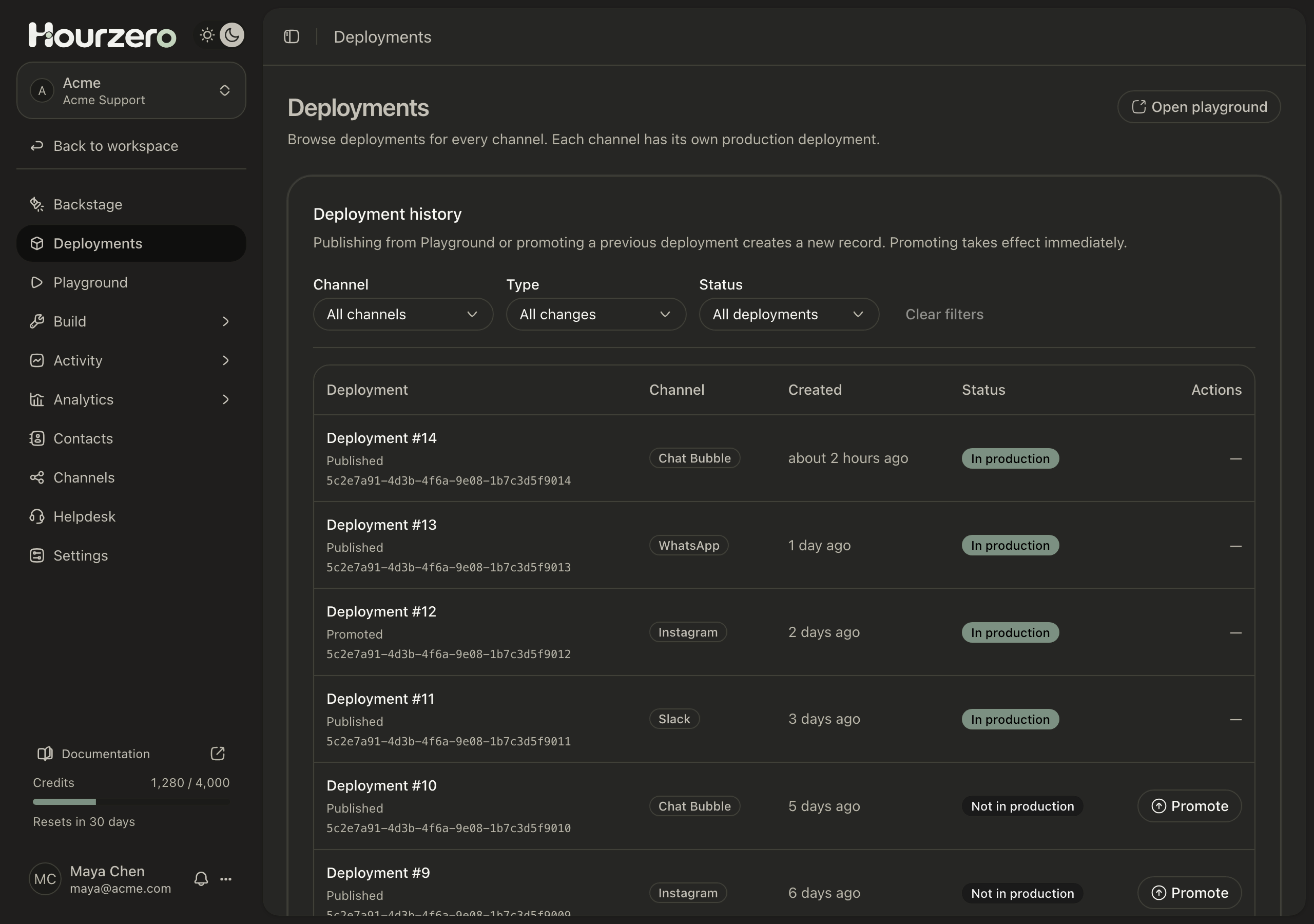
See Publishing and version history.
The agent stopped replying everywhere
Most common fix
The workspace ran out of credits, or the agent hit its weekly limit. Check Usage first.
- Check workspace credits. Open Usage in the workspace sidebar, or look at the Credits meter at the bottom of the sidebar. At zero, every agent stops replying. Upgrade in Workspace Settings → Plans or wait for the monthly reset.
- Check the agent's weekly limit. Open the agent's Settings. If Weekly credit spend limit is on and used up, the agent waits until Monday 00:00 UTC. Raise the limit if you need to.
- Look for an error message. In the Playground or website chat you may see "This workspace has run out of available credits…" or "This agent has reached its weekly credit spend limit." Messaging apps don't show these messages. The customer gets no reply.
See Usage and credits.
The agent stopped replying to one customer
- Check whether the chat is paused. Open it in Activity → Conversations. If the button says Resume AI, a teammate or a Helpdesk ticket paused the agent. Select Resume AI when it's OK for the agent to answer again.
- Check the Paused view. Select Paused at the top of the chat list to see every chat waiting for a person.
- Check the message limit. If the customer sent many messages quickly, on your website or in a messaging app, Limit messages per visitor in the agent's Settings → Security may be holding them back for a short time.
WhatsApp, Slack, or another app isn't replying
Most common fix
The channel is connected but not published, or Agent replies is off. Open the channel in the Playground, check Agent replies, select Save draft, then Publish.
- Check the connection. Open Channels. The app should show Connected, or Live for WhatsApp. If it says Not connected, connect it again. Only owners and admins can connect apps.
- Check which agent answers. On the connected account, select Reply settings and make sure this agent is assigned to that number, Page, account, or Slack channel. If the switch says Currently assigned to another agent, change it there first.
- Publish the channel. In the Playground, pick the channel, make sure Agent replies is on, select Save draft, then Publish.
- Check credits and paused chats. See The agent stopped replying everywhere and The agent stopped replying to one customer.
- Send a fresh test message from a real account, the way a customer would. Then look for it under Visitors in Activity → Conversations.
App-specific checks:
- Slack: the app must be in the channel. Type
/invite @Hourzerothere, then @mention it. - Discord: @mention the bot in a server channel it can see and post in. It doesn't answer private messages.
- Telegram: in groups, mention the bot by its username.
- WhatsApp: the agent replies to messages customers send. It can't message customers first.
- Messenger and Instagram: make sure the right Facebook Page or Instagram account is connected and assigned.
- Twilio: in Twilio, the number's incoming message webhook must point to the Hourzero address and use HTTP POST.
Each integration guide has a troubleshooting section for its app.
A form, button, or action doesn't show up
- Check the channel allows it. In the Playground, open the Capabilities tab for that channel. The action's switch should say Enabled.
- Check the channel type. Forms and buttons only appear in your website chat. WhatsApp, Slack, and other messaging apps only get text replies.
- Check the description. On Build → Actions, select Configure and read When should the agent use it?. The customer's question has to match what you describe.
- Turn on the Helpdesk for Human escalation. Human escalation shows Helpdesk disabled until Enable Helpdesk is on.
- Save and publish. Select Save draft, test in the preview, then publish the channel.
See Actions overview.
A file or web page won't add as a data source
- Read the reason. A source with Failed shows why under its name.
- Check the file type. Hourzero accepts PDF, Word, Excel (
.xlsx), PowerPoint (.pptx), CSV, plain text, and Markdown. - Check the size. The largest file depends on your plan, from 5 MB on Free to 100 MB on Enterprise. You can add up to 10 files at a time.
- For web pages, check that the page loads in your browser.
- Very long files are cut off after 400,000 characters. Split them into smaller files.
See Data sources.
Topics or Sentiment are empty
- Widen the filters. Choose All time and All channels.
- Check you have real conversations. Playground tests aren't analyzed.
- Give it time. Conversations are analyzed after they've been quiet for 30 minutes, in groups of 25. Results usually appear within 24 hours.
See Analytics.
I can't invite a teammate
- Check the workspace. Personal workspaces can't have other members. Create a team workspace and invite people there.
- Check your role. Only owners and admins can invite.
- Check your plan's member limit. Pending invitations count toward it. Select Revoke invitation on one you no longer need, or upgrade.
- Check the email address. The invited person must accept with the exact email address you invited, within 48 hours. Select Resend invitation if it expired.
I can't sign in
- Forgot your password? Select Forgot password? on the sign-in page.
- Asked to verify your email? Enter the code from the email Hourzero sent you, or request a new one.
- No access to your authenticator app? Select Use a backup code on the Two-factor authentication page.
- Your company uses SSO? Select Sign in with SSO and enter your work email. If it says SSO isn't available, contact your IT team.
See Account settings and 2FA and Single sign-on.
Still stuck? What to send us
Include these details so we can help quickly:
- the workspace and agent name, for example "Acme / Acme Support";
- the channel, for example WhatsApp or Chat Bubble;
- whether it happened in the Playground or with a real customer;
- the date and time, with your time zone;
- what you expected and what happened instead;
- the exact error message, or a screenshot.
Warning
Never share passwords, backup codes, API keys, or tokens from apps like Twilio, even with support.