

Analytics
See how many people chat with your agent, what they ask about, and how they feel, and turn those trends into improvements.
Analytics shows how your agent is doing at a glance. You can see how busy it is, which channels people use, what customers ask about most, and whether they leave happy. Use it to decide what to improve next.
Where to find it: open your agent and go to Analytics. It has three pages: Chats, Topics, and Sentiment.
Pick a time period and channel
Every Analytics page has filters at the top:
- Date range: Last 7 days, Last 30 days, Last 90 days, or All time.
- Channel: All channels, or one channel like WhatsApp.
- On Chats only: All conversations, Production (real customers), or Playground (your tests).
Select the refresh icon to load the latest numbers.
Chats: how busy your agent is
Chats counts conversations as they happen, so the numbers are always up to date.
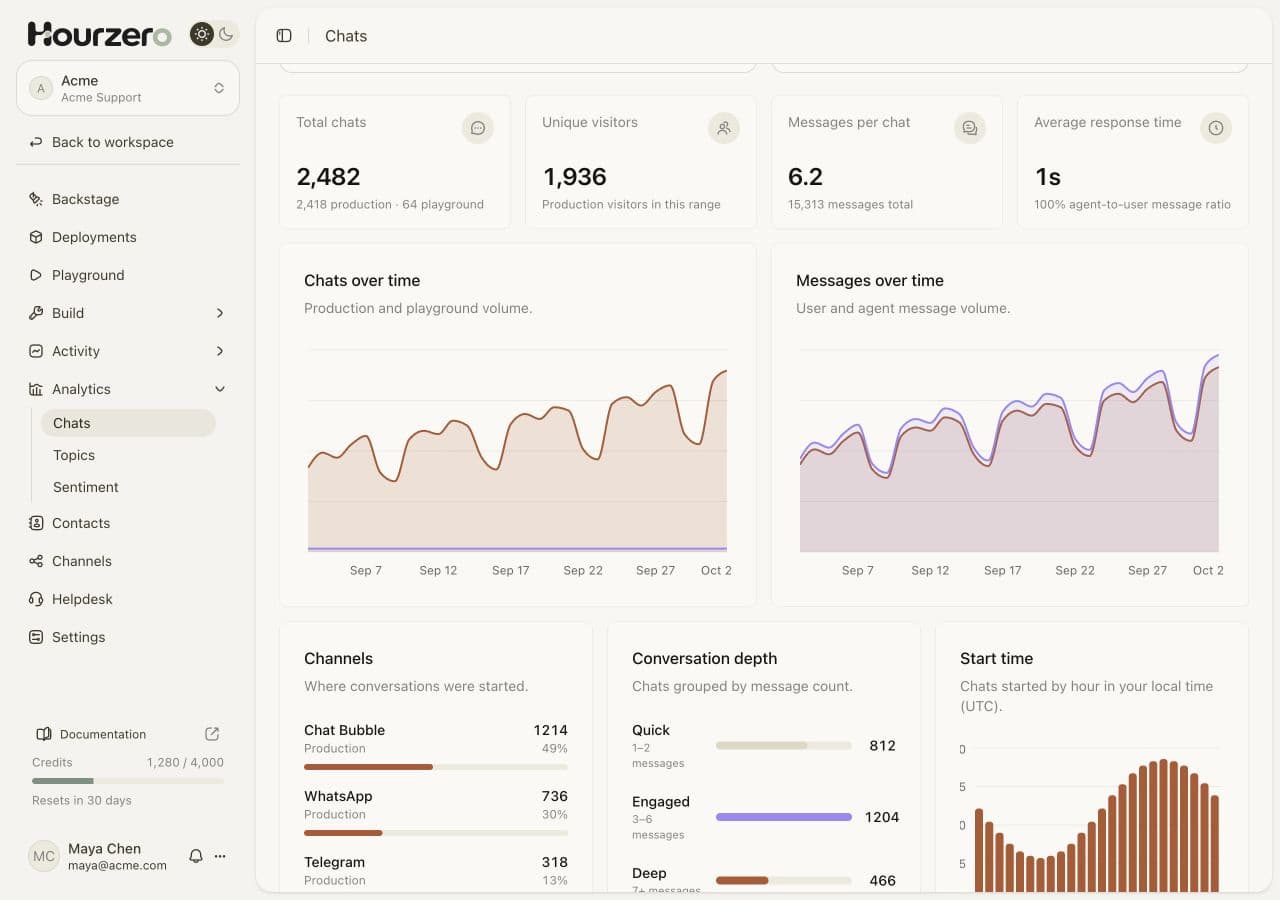
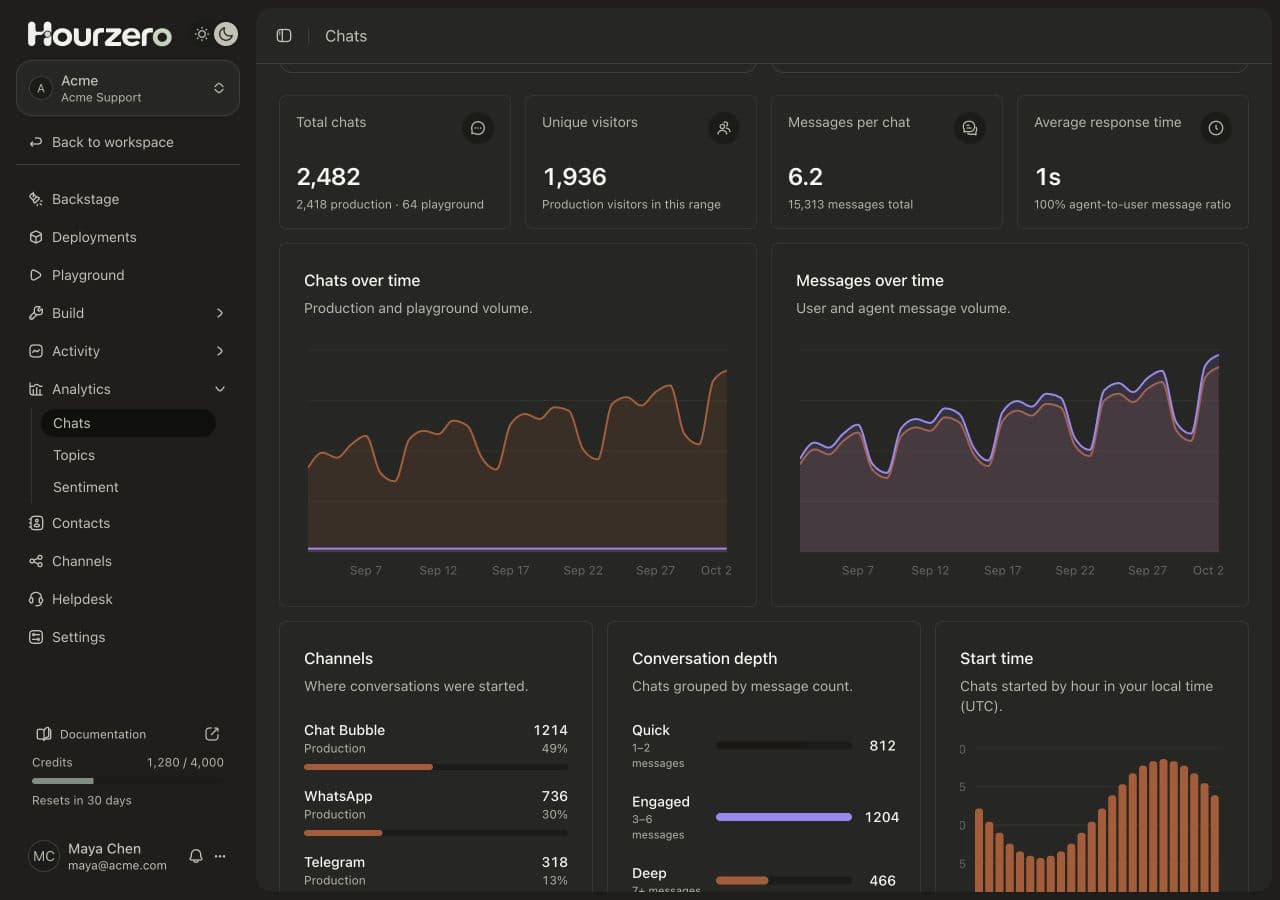
The numbers at the top
- Total chats: how many conversations started in the period. Underneath, you see how many were real customers (production) and how many were tests (playground).
- Unique visitors: how many different customers chatted. Tests aren't counted.
- Messages per chat: the average number of messages in a conversation, with the total underneath.
- Average response time: how long the agent takes to reply on average. The percentage underneath compares the number of agent messages to customer messages.
The charts
- Chats over time: conversations per day, with real customers and tests shown as separate lines.
- Messages over time: customer messages and agent messages per day.
- Channels: where conversations started, with the number and share for each channel.
- Conversation depth: how long chats are. Quick chats have 1–2 messages, Engaged chats have 3–6, and Deep chats have 7 or more.
- Start time: how many chats start in each hour of the day, in your time zone.
At the bottom you also find Average chat duration (from the first to the last message), Action calls (how often the agent used an action), Chats with attachments, and Agent messages.
What to do with it
- Lots of Quick chats? Customers may get their answer right away, which is good. If Topics shows they're leaving unhappy, the agent may be missing information.
- Lots of Deep chats? Customers may be going back and forth to get an answer. Read a few long chats in Conversations and see where they get stuck.
- A busy hour? Use Start time to plan when your team should be around to take over chats.
- One channel growing fast? Make sure its look and channel instructions fit. See Channels.
Topics: what customers talk about
Topics reads your real customer conversations and groups them by subject. It shows four lists:
- Common topics: subjects customers bring up, like "Delivery delays" or "Returns and refunds".
- Common issues: problems customers run into, like "International returns".
- What customers appreciate: things customers praise.
- What customers criticize: things customers complain about.
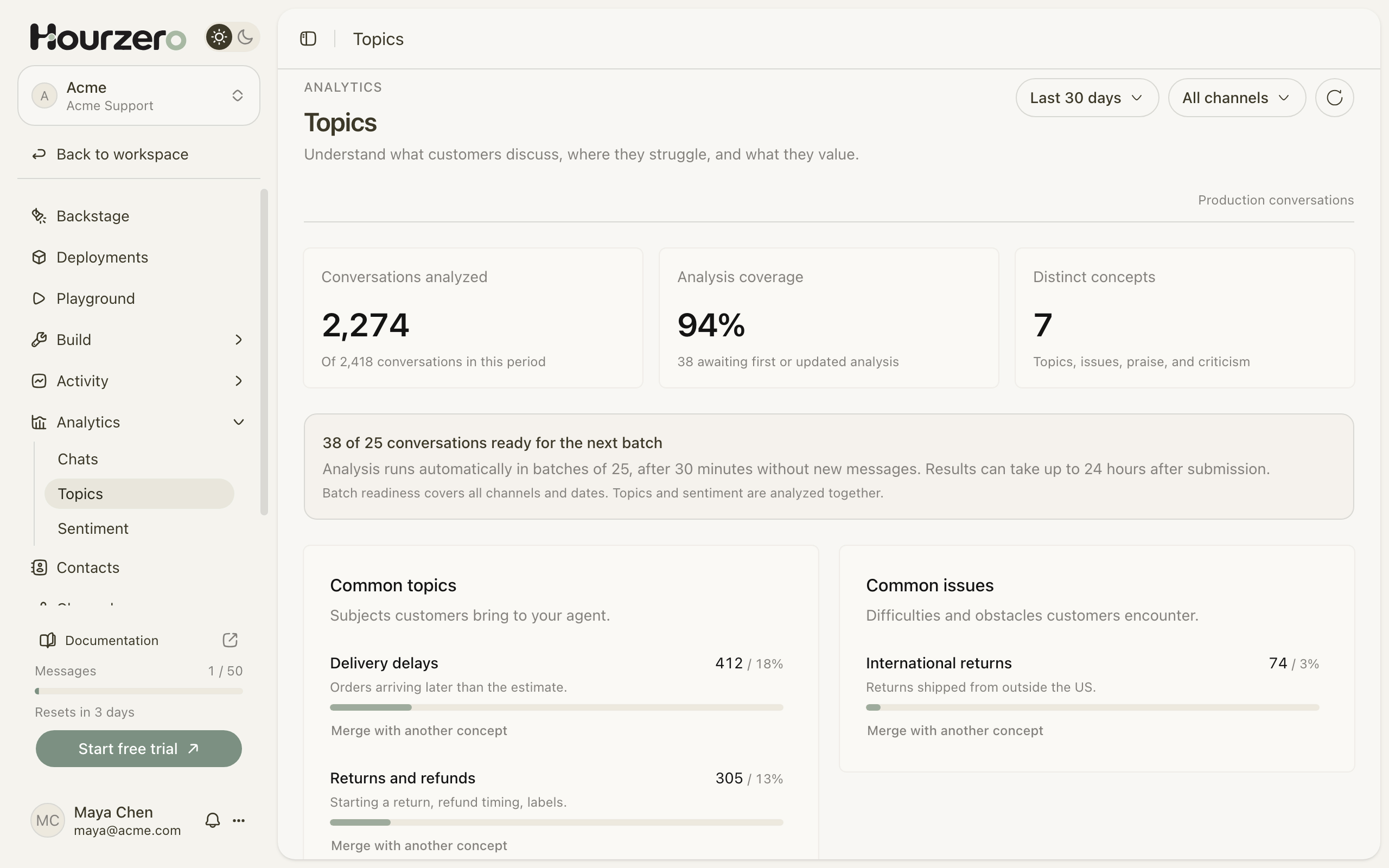
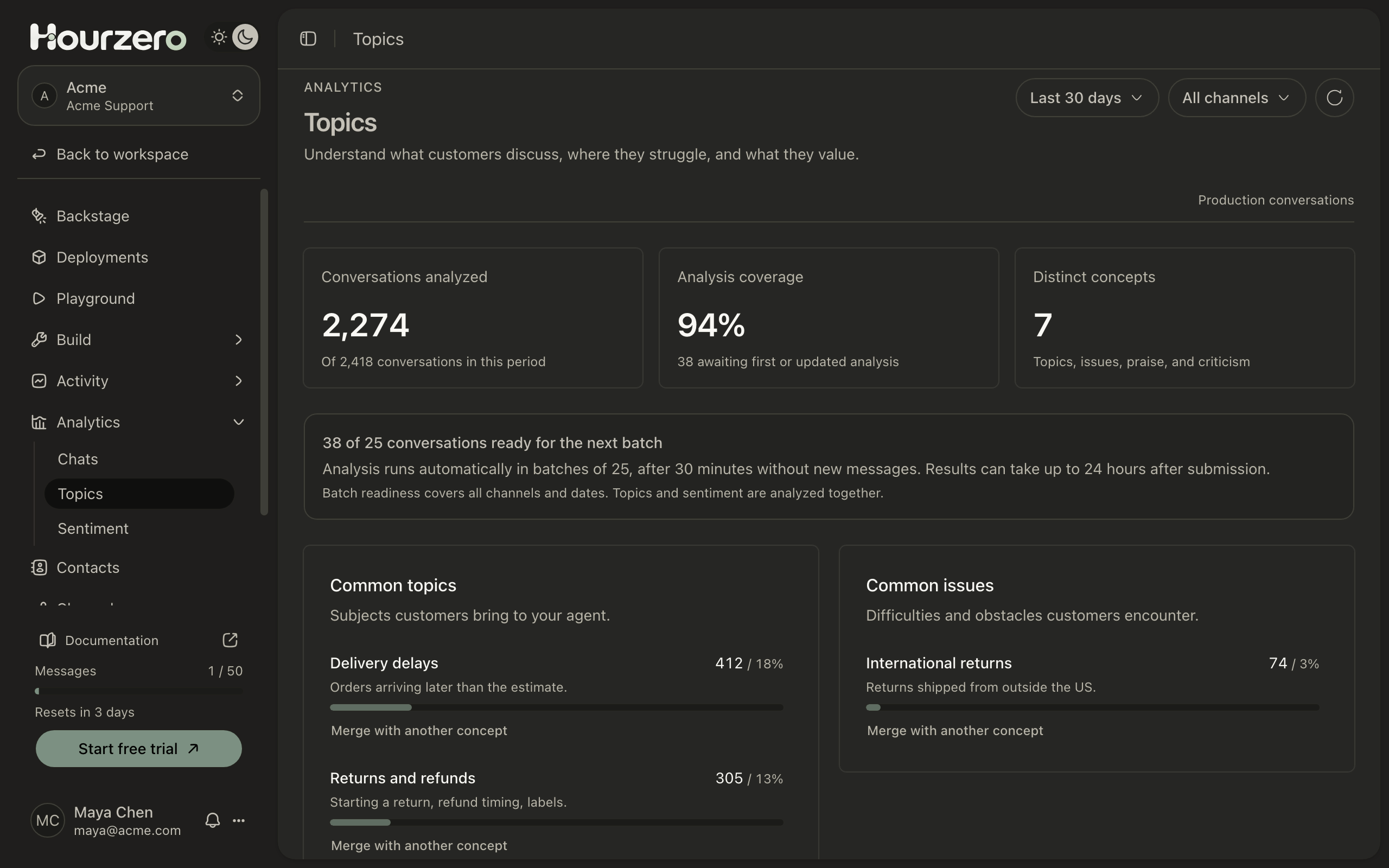
Each item shows a short description, how many conversations mention it, and the share of all analyzed conversations. One conversation can count toward several items.
The cards at the top show Conversations analyzed, Analysis coverage (the share of conversations that have been analyzed so far), and Distinct concepts (how many different topics, issues, and praise or criticism items were found).
What to do with it
- A topic keeps rising? Make sure the agent knows the answer. For example, if "Delivery delays" grows, add your latest shipping updates in Data sources and retrain.
- A common issue keeps appearing? Write a clear answer as a Q&A pair, or add a procedure that walks customers through it.
- Criticism about the agent itself? Adjust its tone or rules in Instructions.
- Praise? Share it with your team, and keep doing what works.
Tip
For specific fixes based on real chats, check Suggestions. It points out questions your agent couldn't answer.
Merge topics that mean the same thing
Sometimes the same subject shows up twice, like "Late delivery" and "Delivery delays". Merge them to get one accurate count:
- Under the topic you want to remove, select Merge with another concept.
- In Merge into concept, choose the topic to keep.
- Select Merge concepts.
The counts are combined without counting any conversation twice. Future analysis uses the topic you kept. You can only merge items of the same kind, for example two topics or two issues.
Sentiment: how customers feel
Sentiment shows whether customers seem happy, unhappy, or neutral in their conversations.
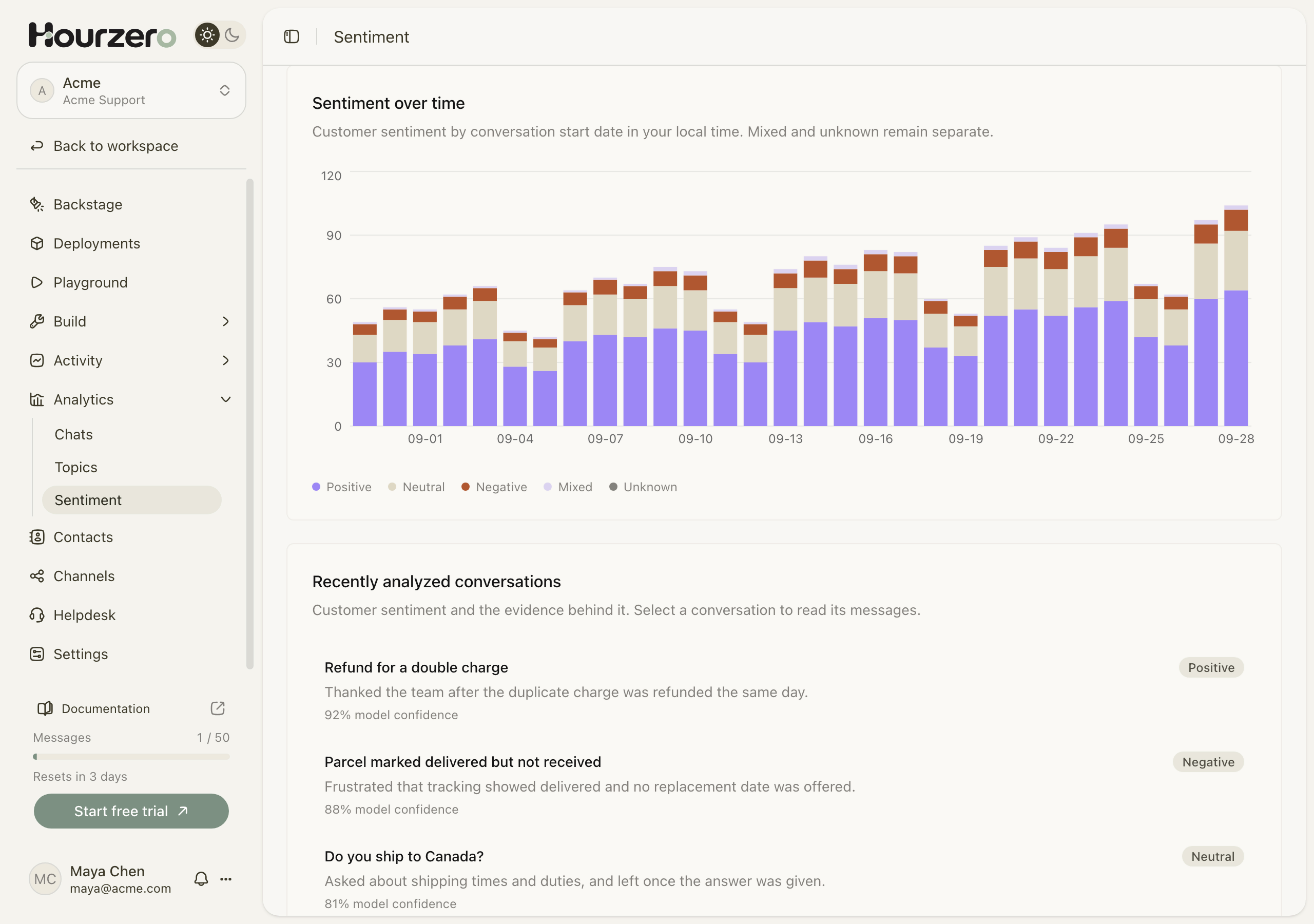
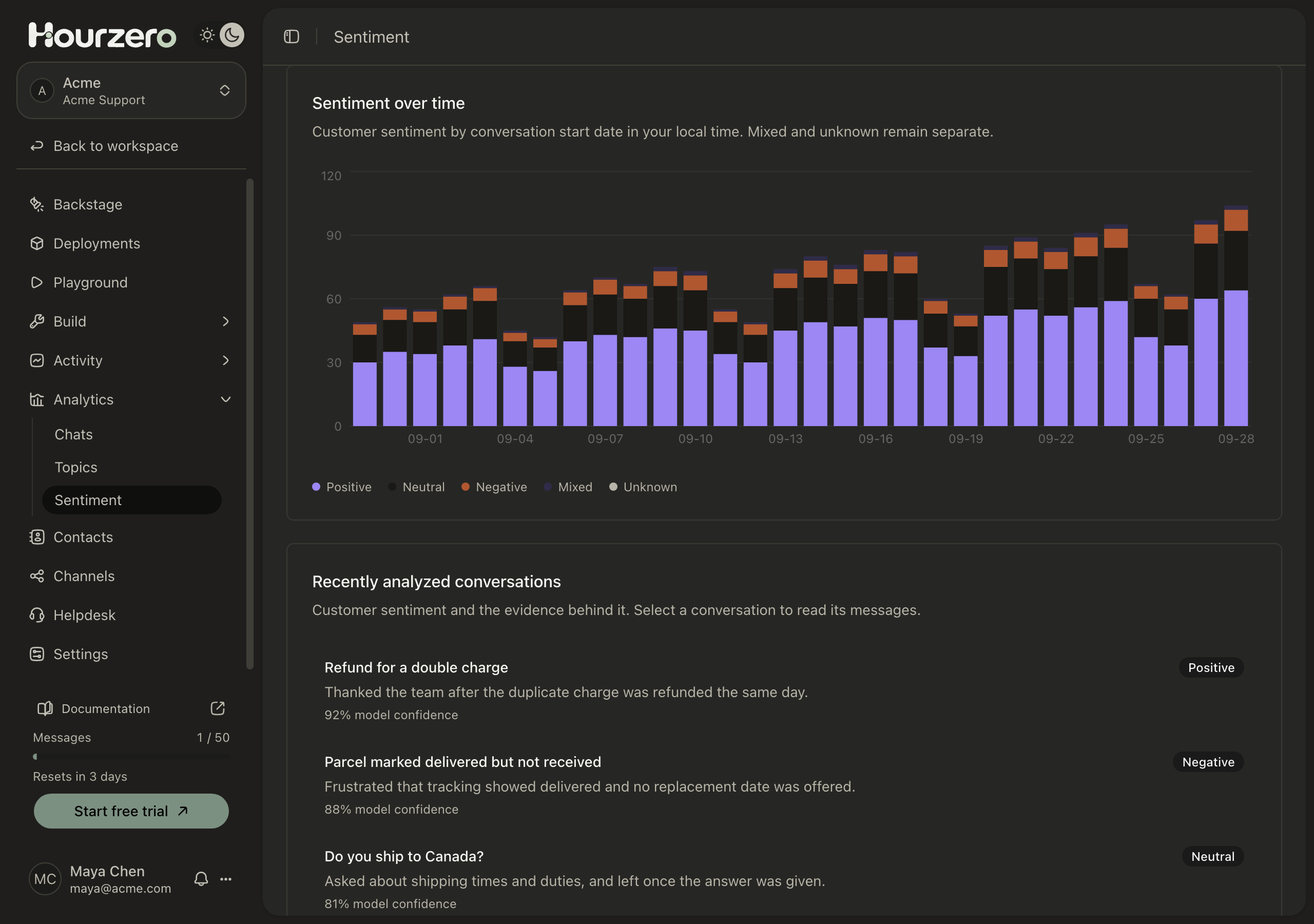
Each analyzed conversation gets one label:
- Positive: the customer seemed satisfied, like thanking the team after a refund.
- Neutral: a plain exchange, like asking whether you ship to Canada.
- Negative: the customer seemed frustrated, like a parcel marked delivered that never arrived.
- Mixed: both good and bad feelings.
- Unknown: not enough to tell.
The page shows how many conversations got each label, a Sentiment over time chart by day, and Recently analyzed conversations. Each recent conversation shows a one-line reason for its label and how sure the analysis was, like "92% model confidence". Select one to read the whole conversation.
What to do with it
- Negative sentiment going up? Open the negative conversations and read the reasons. Look for a common cause, like a missing policy or a confusing answer.
- Many negative chats about one subject? Cross-check with Topics, then fix the answer or add a Human escalation action so a person can step in.
- Positive sentiment after a change? Your fix is working.
Important
Topics and sentiment are AI estimates based on the message text. They aren't a customer survey. Read a few real conversations before you make a big decision.
How Topics and Sentiment are analyzed
Topics and Sentiment don't update instantly. Hourzero analyzes conversations in the background, in groups.
- 1Chat goes quietNo new messages for 30 minutes.
- 2Waits in lineHourzero collects conversations into groups of 25.
- 3AnalyzedAI reads each chat and labels topics and sentiment.
- 4ShownResults appear, usually within 24 hours.
- Only real customer conversations are analyzed. Playground tests never affect Topics or Sentiment.
- A box on the page tells you how many conversations are ready, for example "38 of 25 conversations ready for the next batch".
- Very long conversations are shortened before analysis. Those show Transcript shortened in the recent list.
- If a customer writes again later, the conversation is analyzed again.
Note
A brand-new agent may show "Your conversation insights are on their way" for a while. Results appear once 25 conversations are ready and the first group has been analyzed.
Troubleshooting
Topics and Sentiment are empty
- Check the Date range and Channel filters. Try All time and All channels.
- Make sure you have real customer conversations. Playground tests aren't analyzed.
- Wait until at least 25 conversations have been quiet for 30 minutes, then allow up to 24 hours.
It says "A recent analysis failed"
Select Retry analysis. If the button isn't there or it keeps failing, contact your Hourzero administrator.
It says "Analysis needs configuration"
Automatic analysis isn't set up on your Hourzero server yet. Contact your Hourzero administrator.
The chat numbers don't match my bill
Chats and messages count conversations, not credits. To see what you spent, open Usage in your workspace.