

Conversations and human takeover
Read every chat your agent has had, see why it answered the way it did, and step in to reply yourself.
The Conversations page is your agent's chat history. Every chat lands here, whether a customer wrote on WhatsApp or a teammate tested the agent in the Playground. You can read the full exchange, see what the agent looked up or did behind the scenes, and pause the agent to reply as a person.
Where to find it: open your agent and go to Activity → Conversations.
Find a conversation
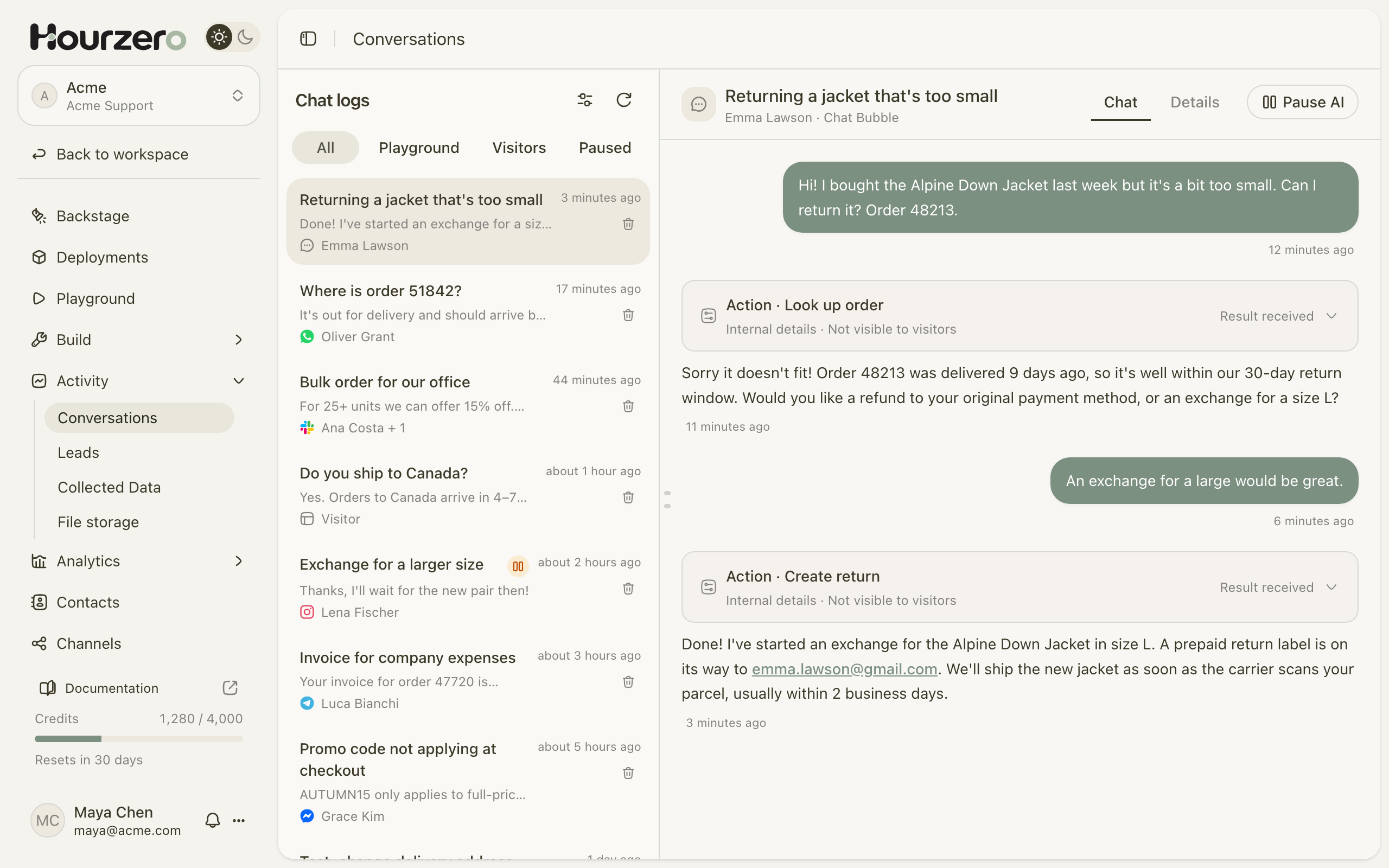
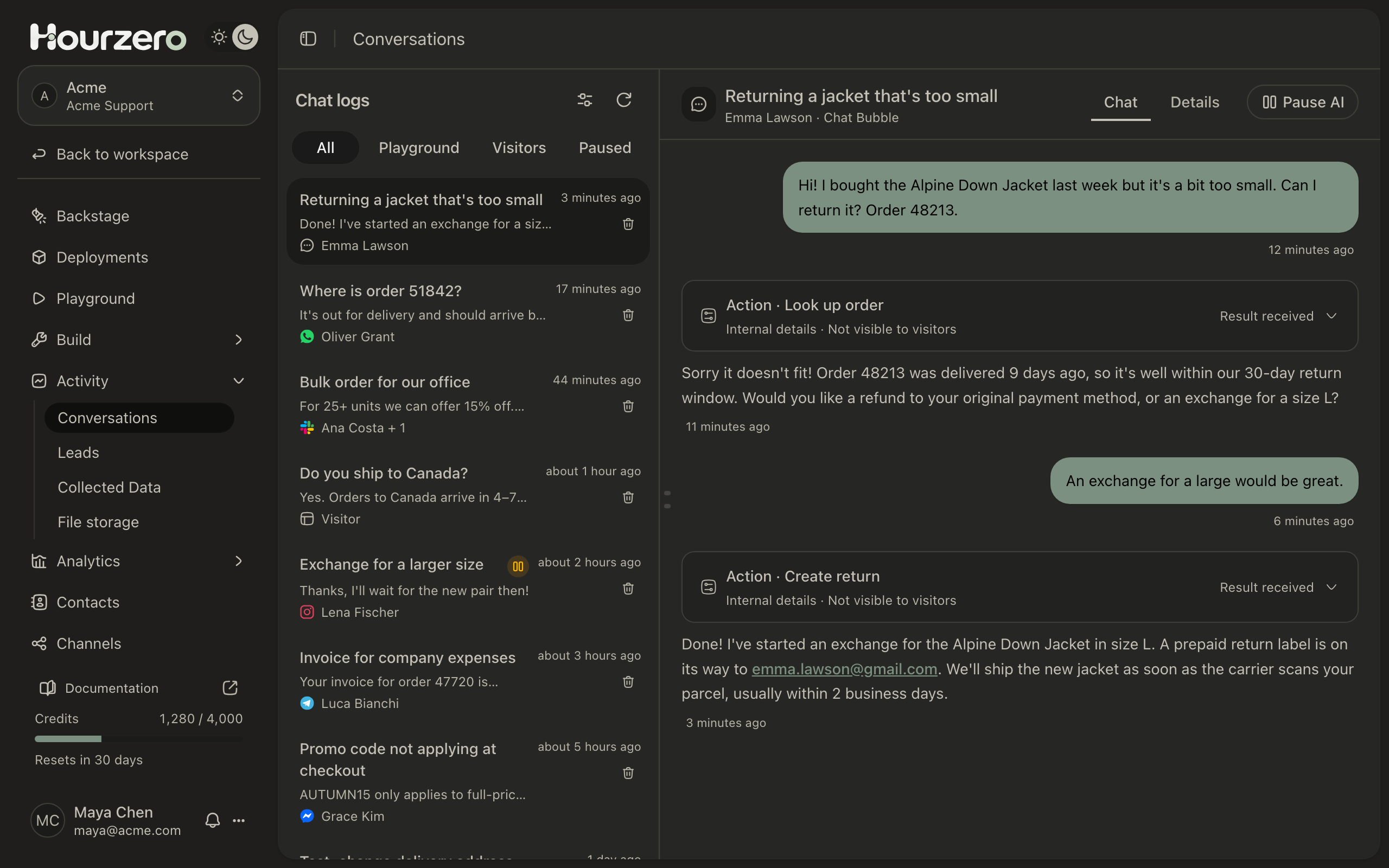
The list on the left is called Chat logs. The newest chats are at the top. Each one shows its title, the latest message, who the agent was talking to, and a small icon for the channel. Scroll to the bottom and select Load more conversations to see older ones.
Use the buttons at the top of the list to switch views:
- All: every conversation.
- Playground: test chats that you and your teammates ran in the Playground.
- Visitors: real conversations with customers on your live channels.
- Paused: chats where someone paused the agent to reply as a person.
Select the refresh icon to check for new chats.
Narrow the list with filters
Select the filter icon next to Chat logs to open Filter conversations. You can combine:
- Last activity: show chats that were active between two dates (From and To).
- Channel: show chats from one channel, such as WhatsApp or Chat Bubble.
- Visitor details: Identified visitors (people who shared a name, email, or phone number) or Anonymous visitors.
- Last reply: whether the customer or the agent wrote last. Choose Visitor or playground user to find chats where the customer is still waiting.
- Has attachments: only chats where someone uploaded a file.
Select Apply filters. Select Clear filters to go back to the full list.
Tip
Set Last reply to Visitor or playground user and choose the Visitors view once a day. It shows customers whose last message didn't get an answer, which is a quick way to catch problems.
Playground chats versus live chats
It matters where a chat came from:
- A Playground chat is a test of your draft. It shows how the agent behaves with your latest saved changes, before customers see them.
- A Visitors chat is a real customer talking to the live version of a channel.
The two can answer differently, because a channel only gets your changes when you publish it. If a customer got a strange answer, check which version that channel was using on the Deployments page.
Note
A good answer in the Playground doesn't prove a live channel works. After you publish, send a real message through the channel and look for it under Visitors.
Read a conversation
Select a chat to open it. Customer messages appear on the right, and the agent's replies appear on the left. Each message shows when it was sent. When a teammate joins, their name appears above their messages.
See what the agent did behind the scenes
Sometimes the agent looks something up or takes an action before it answers. These steps appear in the chat as boxes, like Action · Look up order in the screenshot above. Each box shows:
- the type of step, such as Action, Knowledge retrieval (searching your data sources), Skill, Procedure, or MCP tool;
- a status on the right, such as Result received, Failed, or Awaiting approval.
Select a box to expand it. You see the Input the agent sent and the Result it got back. This tells you why the agent answered the way it did. For example, if Acme Support said order 48213 was delivered nine days ago, the Result shows the order details it received from your system.
Note
These boxes are marked Internal details · Not visible to visitors. Customers only see the agent's reply and any form, button, or file it shares.
Check the details
Select the Details tab above the chat to see a summary:
- Source: whether it was a Playground test or a visitor chat, and on which channel.
- With and Participants: who took part.
- Started, Last message, and Messages: when it happened and how long it was.
- AI replies: Active, or Paused · Human Takeover if a person took over.
- Attachments: files that were uploaded during the chat.
- Action history: every action the agent ran, with its result.
Take over a conversation
Sometimes a person should answer. Maybe the customer is upset, or the question needs a decision the agent can't make. Human takeover lets you pause the agent in one conversation and reply yourself.
- 1Pause AIStop the agent from replying in this chat.
- 2ReplyWrite to the customer as yourself.
- 3Resume AIHand the chat back to the agent.
- Open the conversation.
- Select Pause AI at the top right. A message confirms AI paused, and the button changes to Resume AI.
- A reply box appears at the bottom with the note AI is paused. Your replies are marked as your name.
- Type your reply in the box that says Reply as a human… and send it.
- Your message appears in the chat with your name. Hourzero delivers it to the customer in the same channel, like their WhatsApp chat or the chat window on your website.
- When you're done, select Resume AI. The agent answers the customer's next message again.
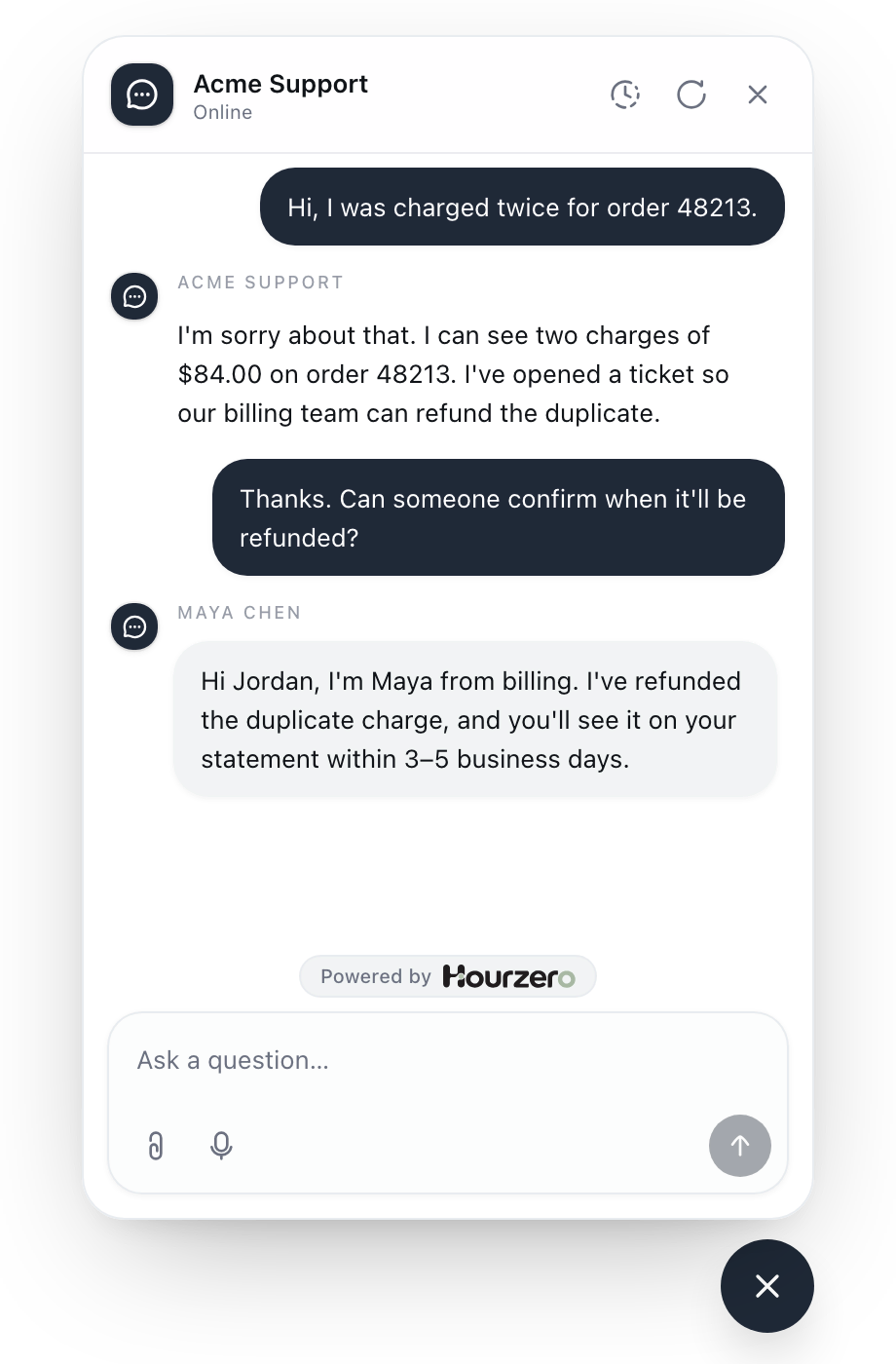
While the agent is paused, customer messages still arrive and stay in the history. The agent stays paused in that conversation until someone selects Resume AI. Other conversations aren't affected.
Important
While a chat is paused, nobody answers automatically. Paused chats show a pause icon in the list. Check the Paused view regularly so no customer is left waiting.
You can't attach files to a human reply yet. If you need to send a document, share a link in your message.
Hand off to your team with Helpdesk
If you want conversations to become tickets that your team can assign and track, turn on Helpdesk. You can also add a Human escalation action so the agent offers to bring in a person when it can't help.
Delete a conversation
Workspace owners and admins can delete a conversation:
- In the list, select the trash icon next to the conversation.
- Confirm in the Delete this conversation? dialog.
To delete all of an agent's conversations at once, go to Settings.
Warning
Deleting is permanent. It removes the chat from Hourzero, but it doesn't unsend messages the customer already received, and it doesn't undo anything the agent did, like starting a return.
Troubleshooting
A chat I expected isn't in the list
Select All and Clear filters first. Check that you are in the right workspace and agent. If a live chat is still missing, make sure the channel is published and connected. See Channels.
The agent stopped answering one customer
Open the chat and check whether it says Resume AI. If so, a teammate paused it. Select Resume AI to let the agent answer again.
My human reply didn't send
You see an error message if Hourzero couldn't deliver it. Check that the channel is still connected, then try again.