Procedures overview
Give your agent a step-by-step checklist for one situation, like a return or an address change, so it handles it the same way every time.
A procedure is a checklist your agent follows step by step for one situation, such as changing a delivery address or starting a return. You describe the process once in plain words, Hourzero turns it into a flow, and the agent works through it in order every time that situation comes up.
Where to find it: open your agent and go to Build → Procedures.
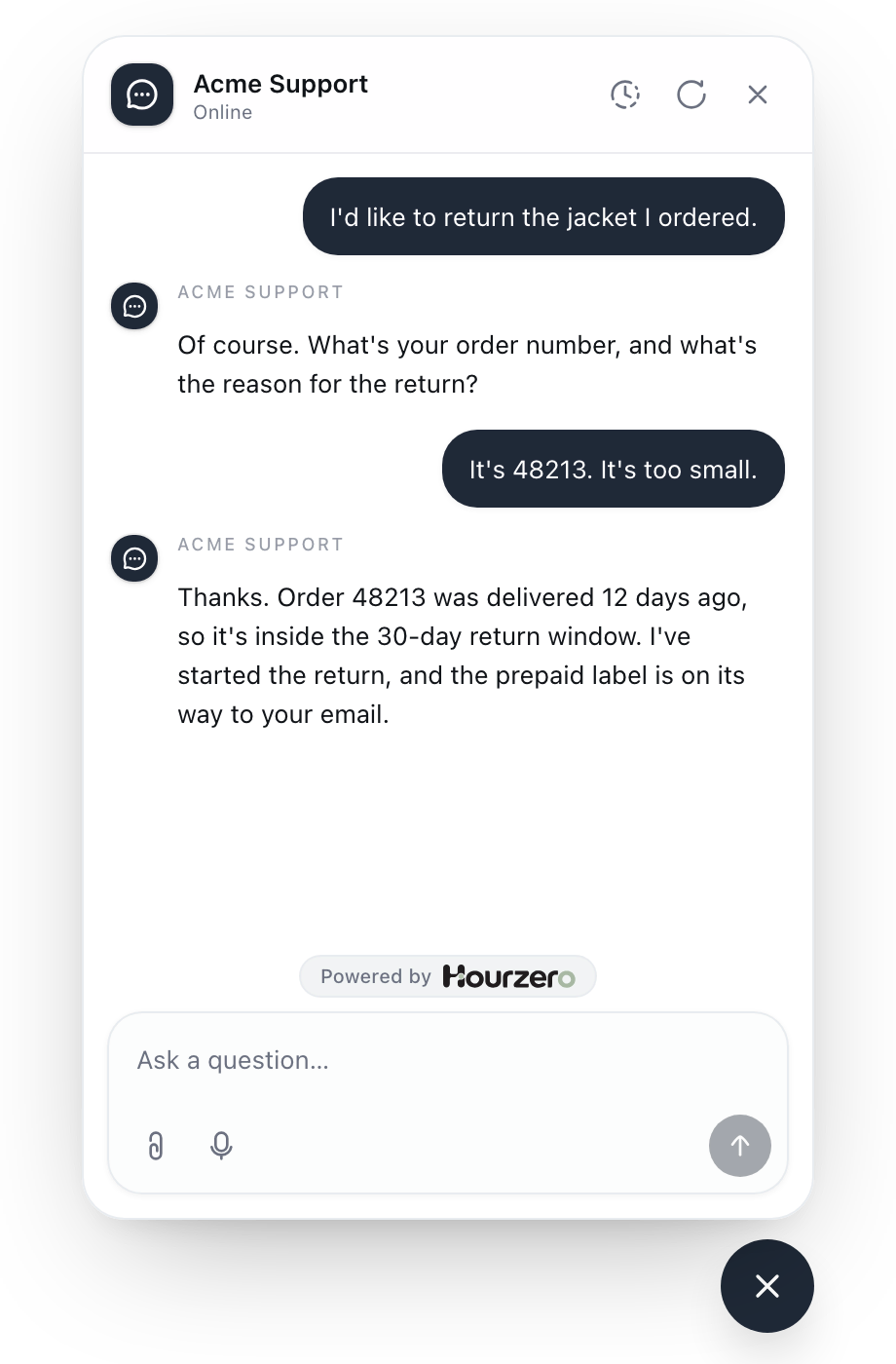
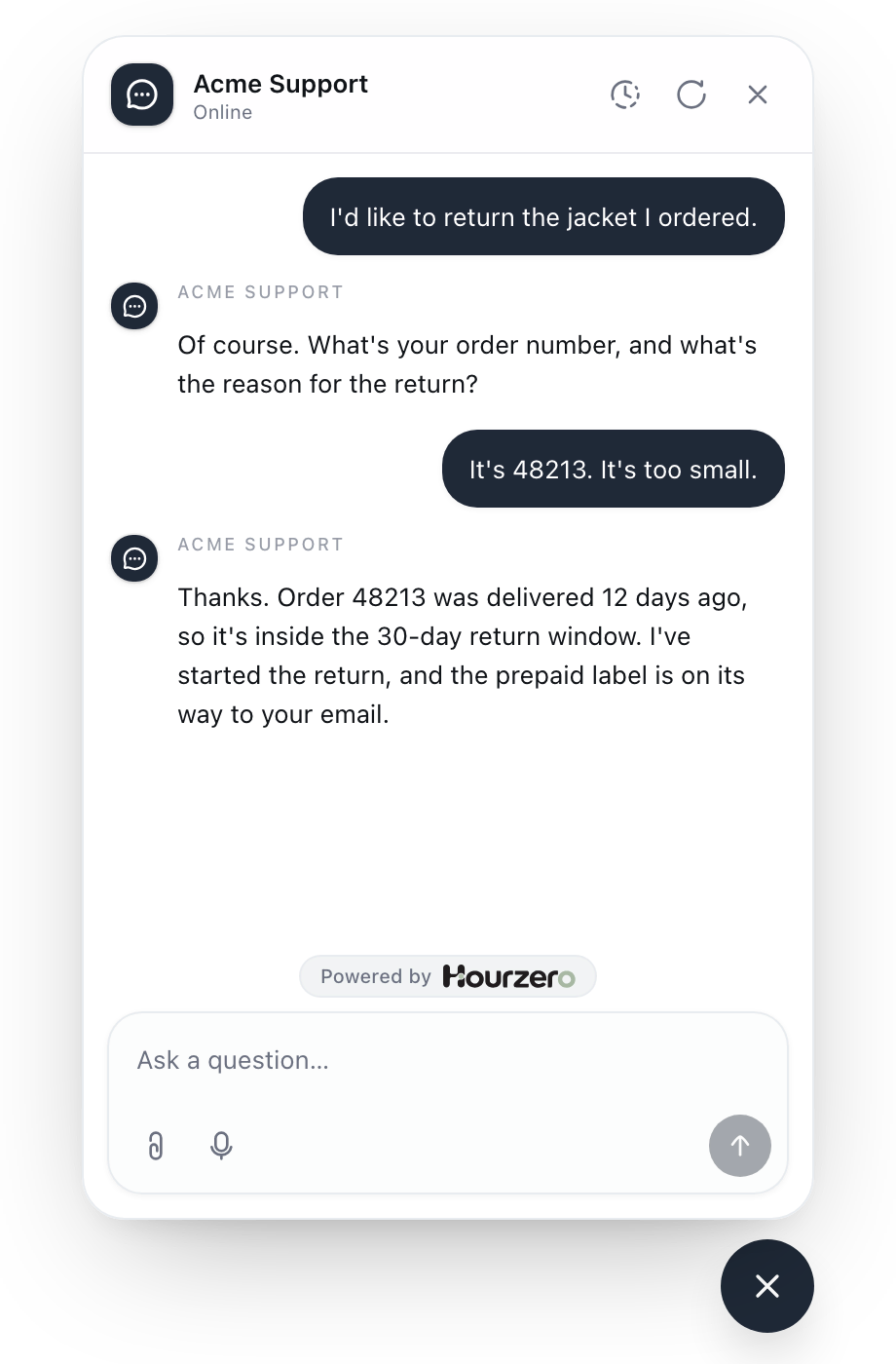
Here's what a procedure looks like from the customer's side. The agent asks for what it needs, checks the rule, and only then acts.
Procedure, instructions, or action?
| Use | For | Acme example |
|---|---|---|
| Instructions | General rules for every conversation | "Be friendly and keep answers short." |
| Procedure | Fixed steps for one situation, with decisions along the way | Ask for the order number, check if it shipped, then update it or offer a carrier redirect. |
| Action | One task in another system, or a form or button | Look up order 51027. |
Procedures and actions work as a team. The procedure decides when and in what order. The action does the actual task. Use a procedure when the order of steps matters, when a business rule decides the outcome (like a 30-day return window), or when a mistake would be costly.
The parts of a procedure
- When to use: the situation that starts the procedure, such as "The customer wants to change the delivery address on an order." The agent reads this to decide whether the procedure applies.
- Summary (optional): a short note about what the procedure is for.
- Steps: each step is either an Instruction (one thing to do) or a Decision (an if / else if / else choice between paths).
- Active or Inactive: only active procedures are used in conversations.
Worked example: change a delivery address
Acme Support gets a lot of "can I change my address?" messages. The answer depends on one thing: has the order shipped yet? This is a perfect fit for a procedure.
1. Describe the process
- Go to Build → Procedures and select Add procedure. The editor opens on the Describe tab.
- Under What should your agent do?, write the process the way you'd explain it to a new teammate:
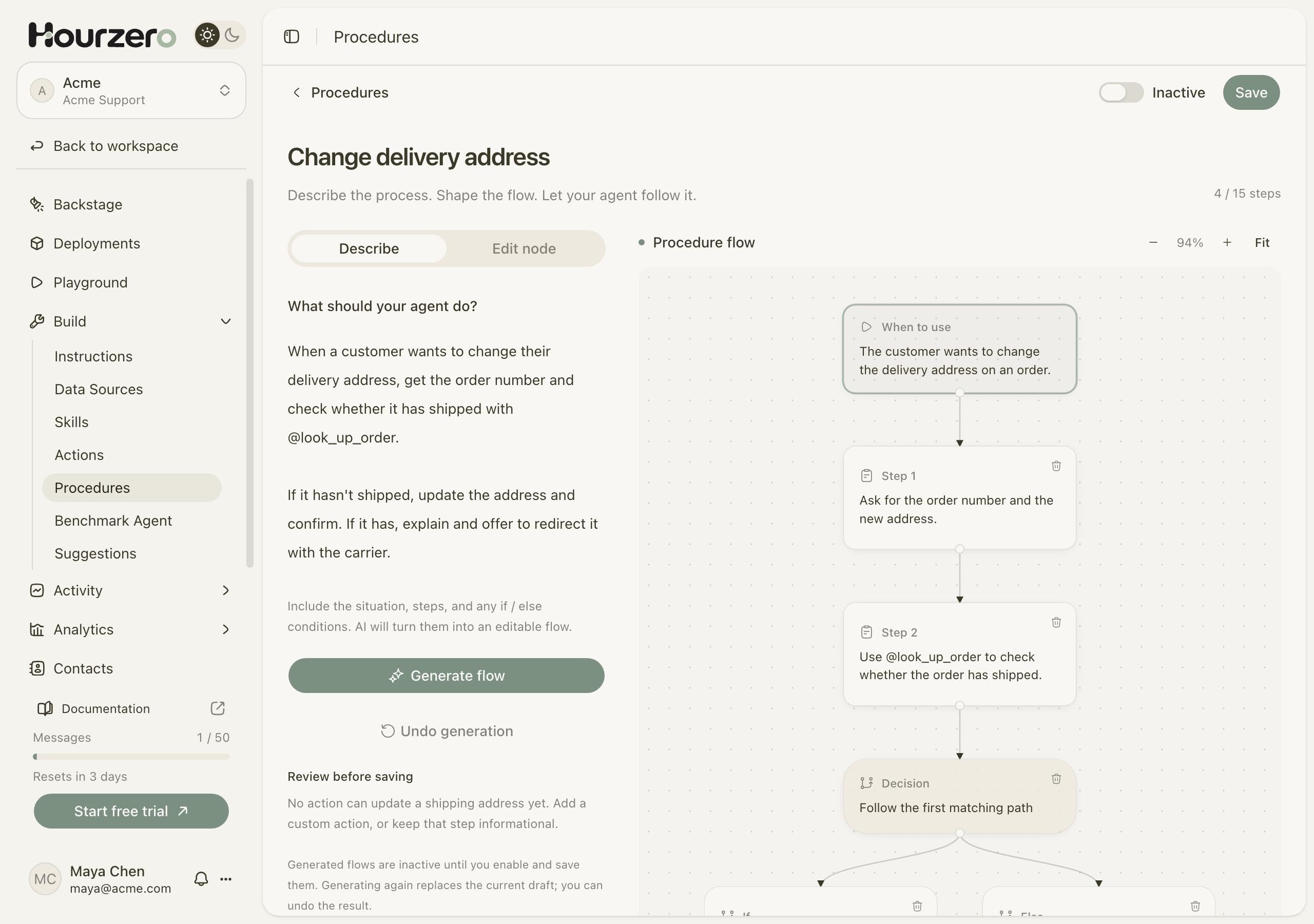
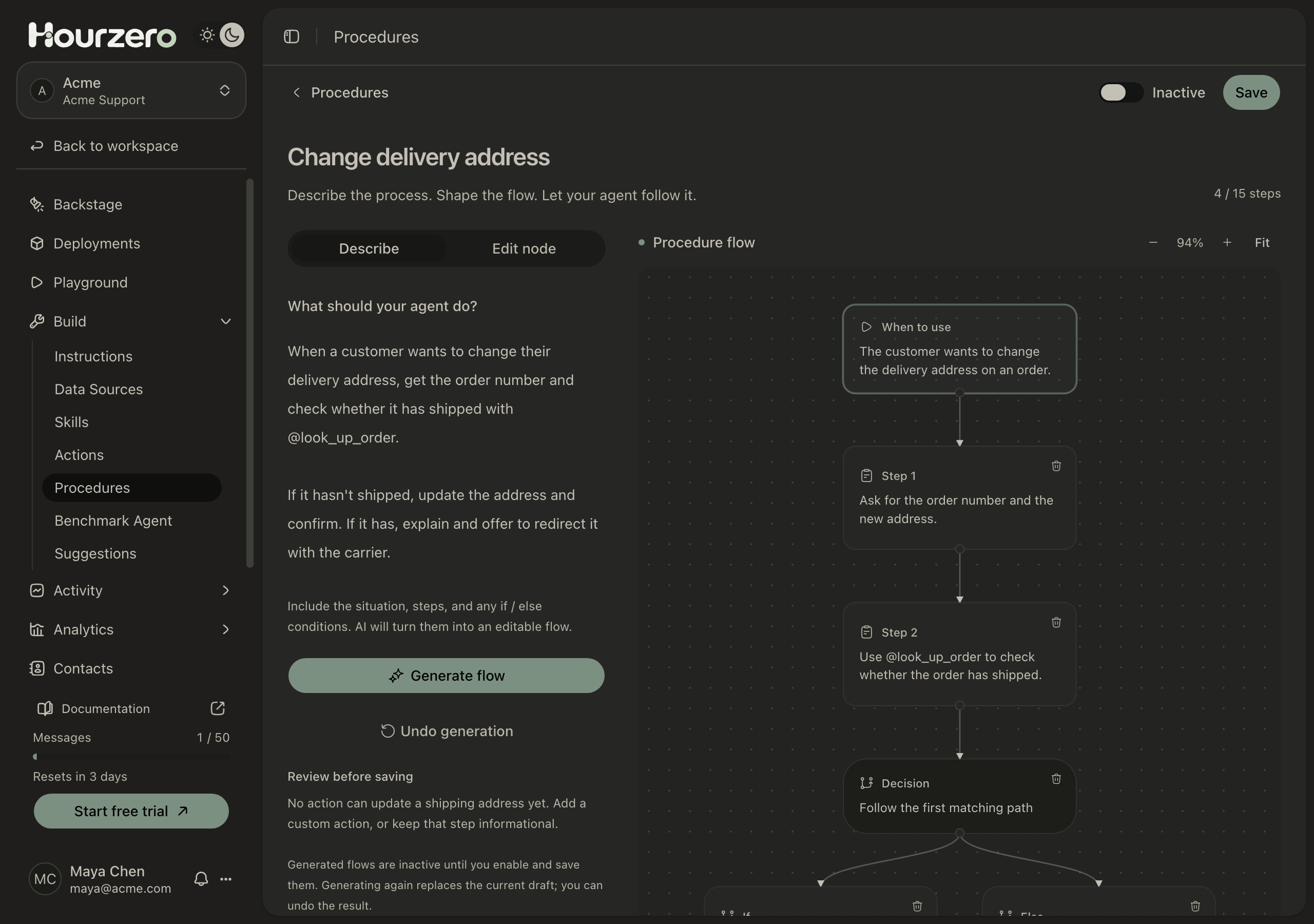
When a customer wants to change their delivery address, get the order number and check whether it has shipped with @look_up_order.

If it hasn't shipped, update the address and confirm. If it has, explain and offer to redirect it with the carrier.
- Select Generate flow. After a moment, the flow appears on the right.
2. Review the generated flow
Hourzero turned the description into this flow:
- When to use: The customer wants to change the delivery address on an order.
- Step 1: Ask for the order number and the new address.
- Step 2: Use @look_up_order to check whether the order has shipped.
- Decision:
- If the order hasn't shipped yet: update the address and confirm the change.
- Else: explain it has shipped and offer to redirect it with the carrier.
Under Review before saving, Hourzero lists anything you need to fix. Here it says: "No action can update a shipping address yet. Add a custom action, or keep that step informational."
That note matters. Acme has an action that looks up orders, but none that changes them. Without one, the agent would promise an address change it can't make. You have two good options:
- add a custom action that updates the address in your order system, then reference it in the step; or
- reword the step so the agent explains what will happen next instead, for example by handing over to a person.
3. Edit the steps
Select any box in the flow to open the Edit node tab. There you can:
- rewrite the text of a step or condition;
- type
@to pick an action, or{{to insert a detail the agent knows (see below); - use the arrows to move a step up or down, or the trash icon to remove it;
- add more with Add next step, Add decision, Add else if, or Add branch step.
For example, if you added an action called "Update address", the first path could read:
Use @update_address to change the address, then repeat the new address back to the customer. Only say it's changed after @update_address confirms it.
4. Turn it on and save
- At the top right, switch Inactive to Active.
- Select Save. The procedure now shows Active in the list.
If "Fix references before enabling" appears, one of your @ references points to an action that's missing or switched off. Fix it, or save the procedure as Inactive and come back later.
5. Test it
In the Playground, try both paths. Ask about an order that hasn't shipped and one that has. Check that the agent asks for the order number first and never claims a change it didn't make.
Note
Generated flows always start Inactive. Generating again replaces the current flow, and Undo generation brings back the one you had before.
Start from a template
Select Templates on the Procedures page to start from a ready-made flow: Refund request, Escalation, or Customer onboarding. Adapt the steps to your business, then switch it to Active and save.
Use actions in a step
Type @ in an instruction and pick an action from the list. Action names become short tags, so "Look up order" becomes @look_up_order. If the list is empty, create the action first in Build → Actions.
Before you can turn a procedure on, every action it mentions must exist and be switched on for at least one channel. On a channel where one of those actions is off, the agent skips the whole procedure. How procedures run explains this in more detail.
Use details the agent knows
Type {{ in an instruction to insert a detail. When the detail isn't known, the agent asks for it or leaves it out. It never guesses.
| Detail | What it means |
|---|---|
{{contact.name}} | The customer's name, if known. |
{{contact.email}} | The customer's email, if known. |
{{user.email}} | Also the customer's email. It's never your own email. |
{{agentAvailable}} | Whether a person is available. This is always unknown for now, so don't use it to promise a handoff. |
Tips for good procedures
Make "When to use" specific
"The customer asks for a refund or wants to return a purchase" works. "Help with orders" is too broad, and the agent may start the procedure at the wrong time.
- Give each step one clear job, such as "Ask for the order number and the new address."
- Put checks before actions, so the agent confirms the order hasn't shipped before it changes anything.
- Never let the agent claim success early. Add a line like "Only say a return was created after @create_return confirms it."
- Say what to do when something is missing: "If the customer doesn't have their order number, ask for the email used at checkout."
Limits
- Up to 15 instruction steps per procedure, counting the steps inside every path. The editor shows your count, for example 4 / 15 steps.
- A decision has 2 to 5 paths. The last path is always Else, which runs when nothing above it matches.
- Decisions can't be placed inside other decisions.
Choose channels, publish, and tidy up
Channels: in the Playground, open the Capabilities tab and use the switches under Procedures to choose where each one runs. An active procedure is switched on for a channel unless you've already changed that channel's procedure switches.
Publish: saved procedures work in the Playground right away. Live channels keep the procedures they were published with until you publish them again. If you restore an older version of a channel in Deployments, its procedures from that time come back too.
Archive and delete: select Archive to stop using a procedure without losing it, and Restore to bring it back. Archived procedures show a trash icon for deleting.
Deleting can't be undone
Deleting a procedure also ends it in any conversation where it's running. You can't delete a procedure that a live channel still uses; publish that channel without it first.
Improve a procedure with Backstage
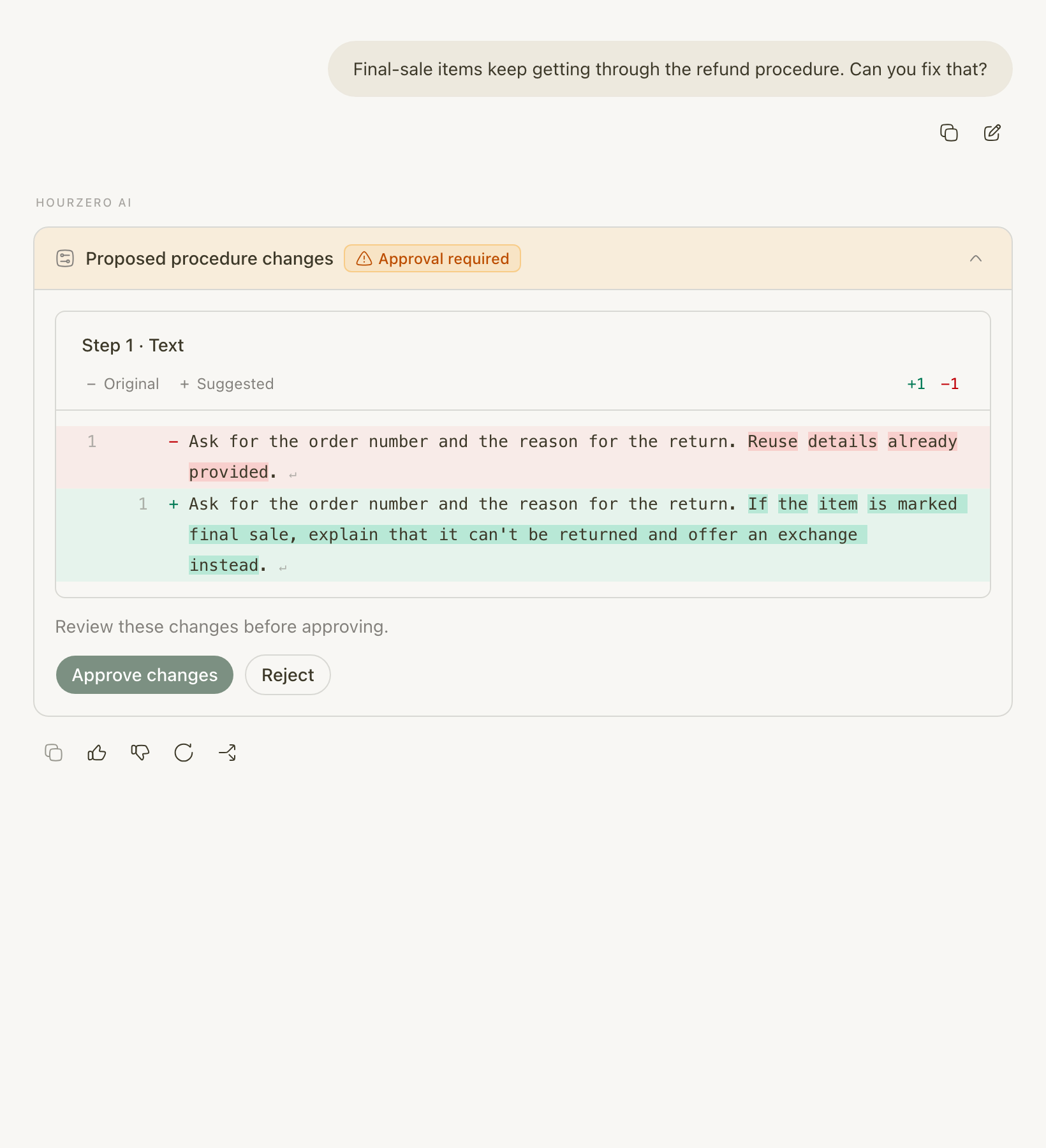
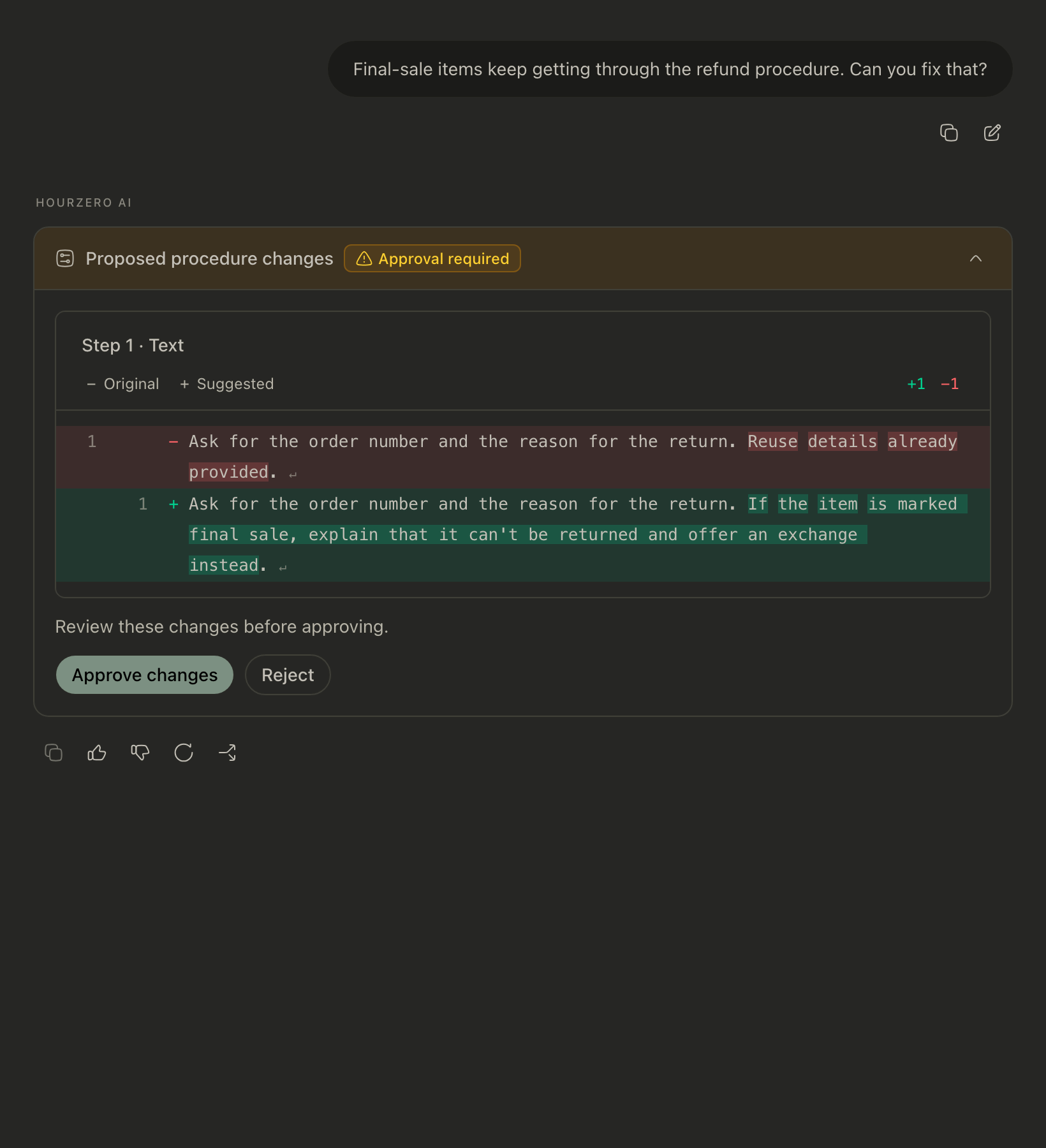
If a procedure isn't working as planned, you can describe the problem to Backstage. It proposes the exact edit and waits for you to approve it.