

Widgets
Show what your actions return as cards, lists, and forms in the website chat. Design them with Backstage or start from a template.
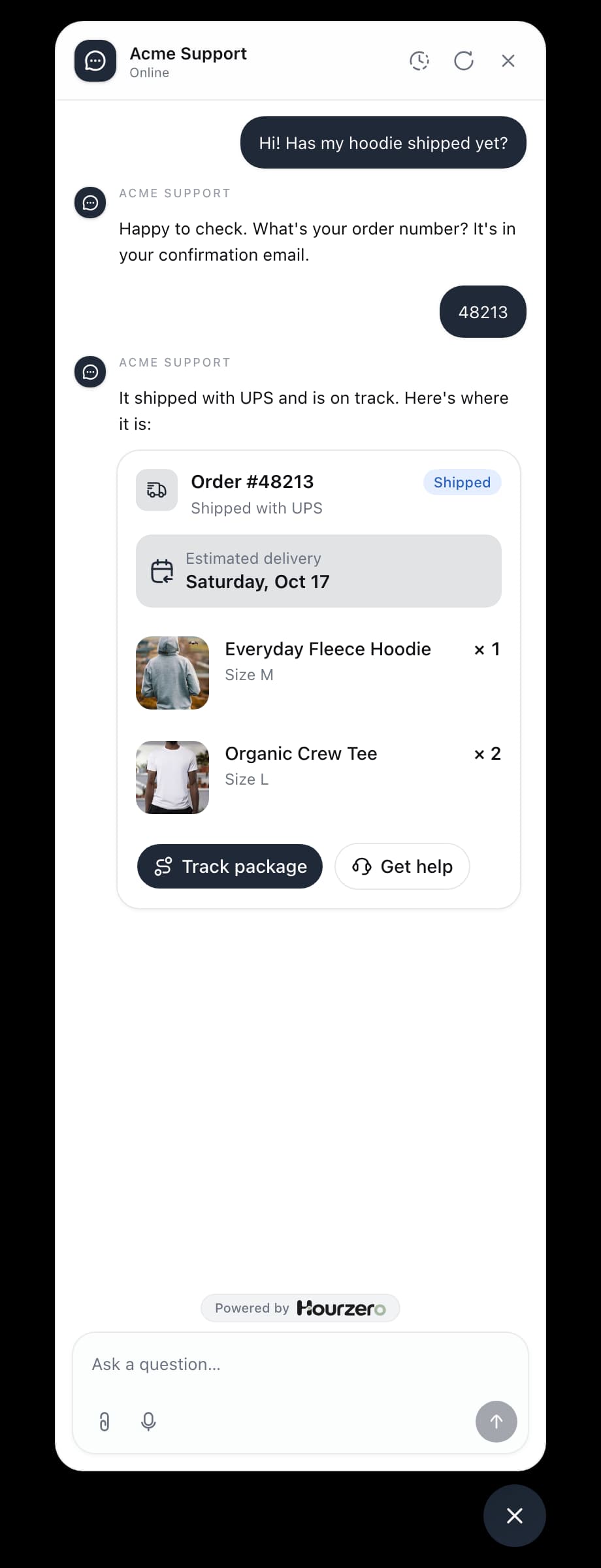
When a custom action looks something up, the agent normally explains the result in a sentence. A widget shows it as something customers can use instead: an order card with a Track package button, a carousel of products, a calendar with free time slots, or a short survey. Customers tap, pick, and fill it in without leaving the chat.
You don't need to code or design anything. Paste a sample of what your action returns into Backstage, say what customers should see, and it builds the widget with you.
Where to find it: open your agent and go to Build → Widgets.
Widgets aren't the website widget
On this page, a widget is a card inside a conversation. The chat window you add to your website is called the website widget.
How it works
- 1DescribePaste a sample of what your action returns into Backstage and say what customers should see.
- 2RefineAsk for changes until the preview looks right, then approve the save.
- 3AttachChoose the widget in a custom action's settings.
- 4Test and publishTry it in the Playground, then publish the channel.
Every time the action runs, its widget is filled with the data your system returned. The agent still writes a short reply to go with it.
Before you start, you need:
- The Standard, Pro, or Enterprise plan. See Plans.
- A custom action, or at least a sample of what it will return. Ask your developer for a real response from your system with test data.
- Chat Bubble or Center Stage. Widgets only show in your website chat. See Where widgets show.
Design a widget with Backstage
This example designs an order card for the Look up order action from the custom action guide.
Draft it:
-
Open Build → Widgets and select Design a widget. Backstage opens with the start of a message already typed for you.
-
Paste a sample of what your action returns, and say what customers should see. For example:
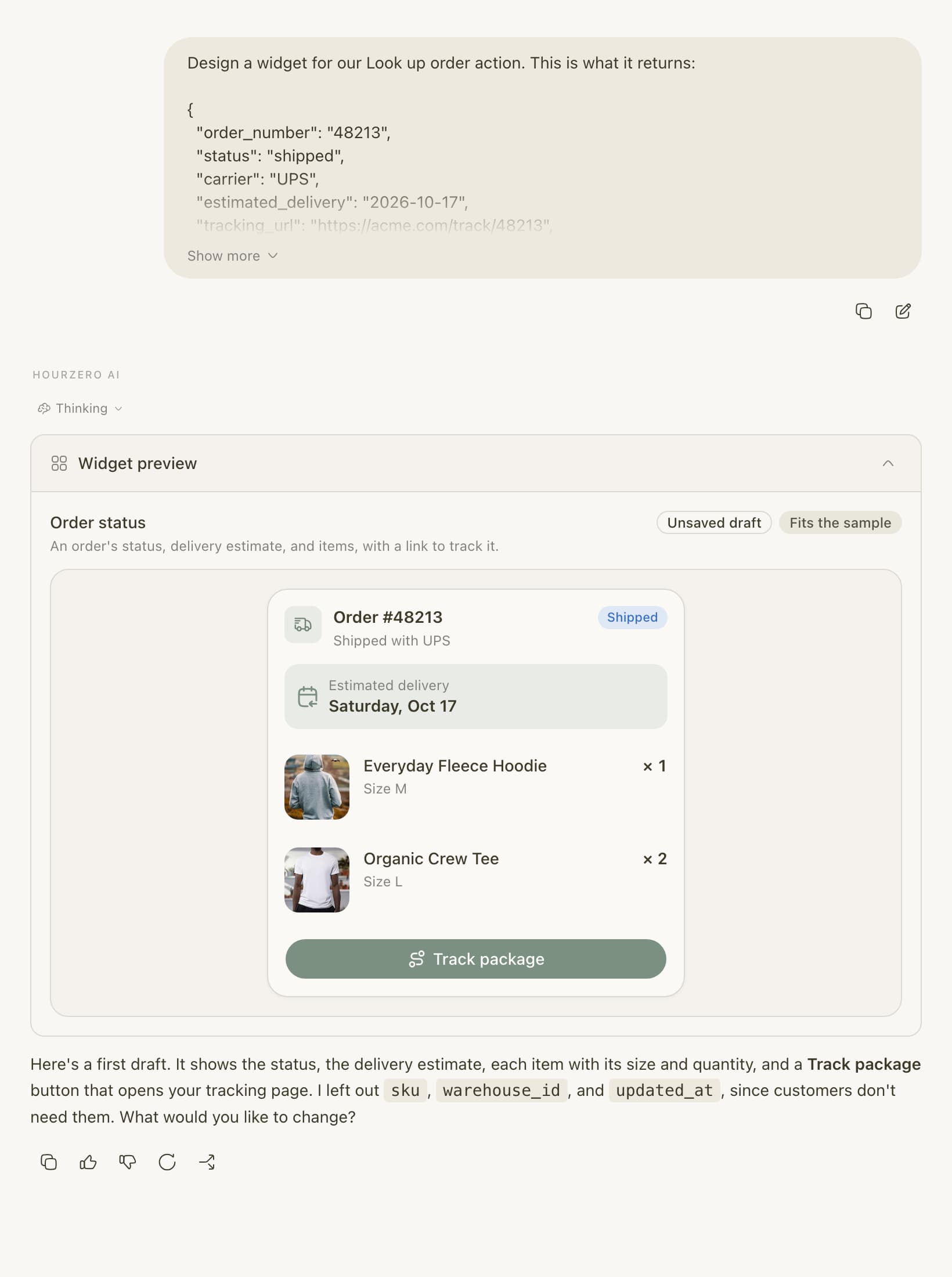
Design a widget for our Look up order action. This is what it returns: { "order_number": "48213", "status": "shipped", "carrier": "UPS", "estimated_delivery": "2026-10-17", "tracking_url": "https://acme.com/track/48213", "warehouse_id": "RNO-2", "items": [ { "sku": "HD-FLC-M", "name": "Everyday Fleece Hoodie", "size": "M", "qty": 1, "image_url": "https://acme.com/img/hoodie.jpg" }, { "sku": "TE-ORG-L", "name": "Organic Crew Tee", "size": "L", "qty": 2, "image_url": "https://acme.com/img/tee.jpg" } ] } -
Press Enter. Backstage drafts a widget and shows it in a Widget preview, filled with your sample. The Fits the sample badge means everything the widget needs is in your sample.
Refine and save it:
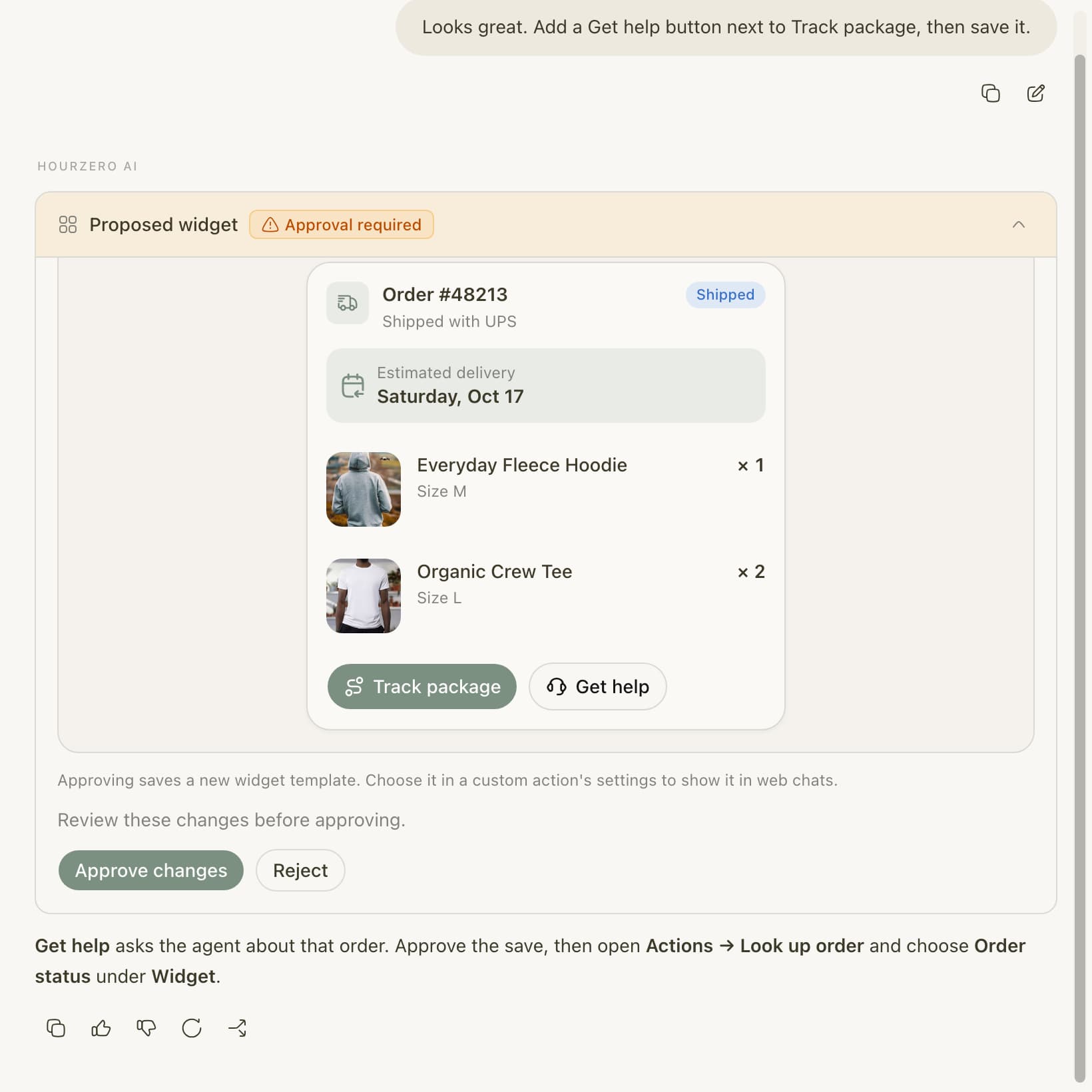
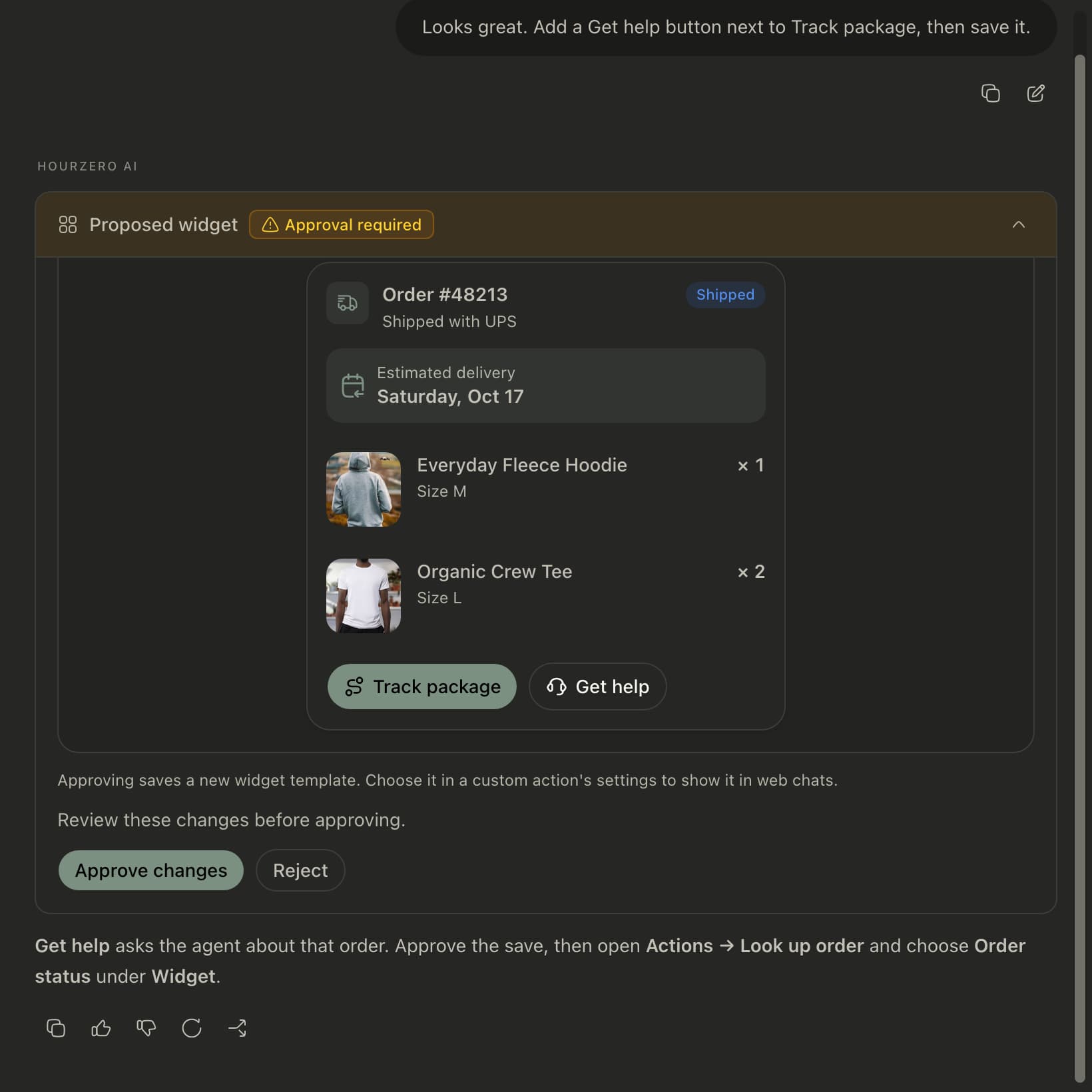
- Ask for changes in plain words, for example "Add a Get help button next to Track package" or "Show the delivery date bigger". Backstage previews every change.
- When you're happy, ask Backstage to save it. It shows a Proposed widget card marked Approval required.
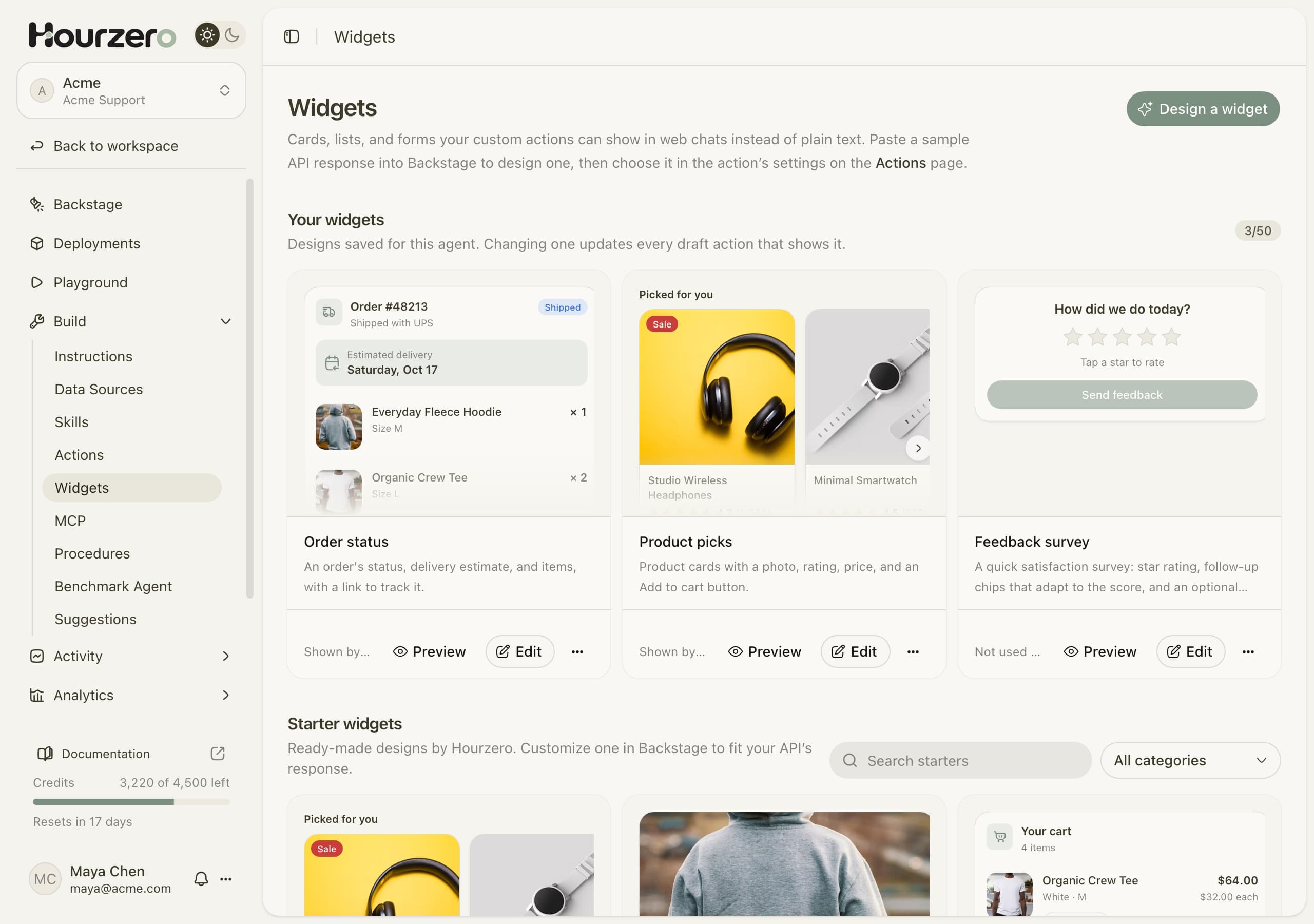
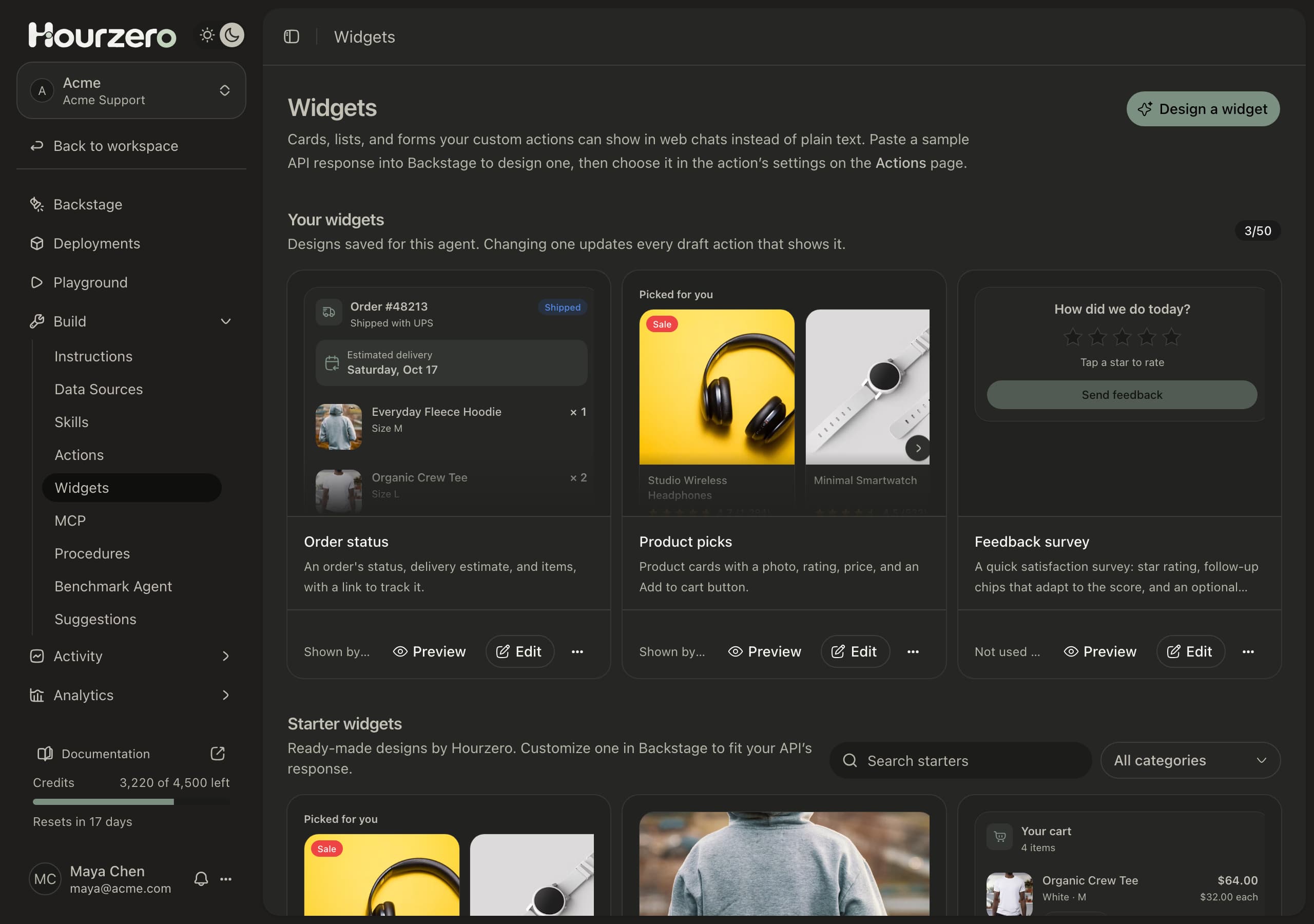
- Select Approve changes. The widget appears under Your widgets on the Widgets page.
Use a realistic sample
Backstage can only use fields that are in your sample. If a field is sometimes missing, like a tracking link for orders that haven't shipped, say so, and Backstage makes that part optional. Remove API keys and real customers' details before you paste a sample.
Saving a widget doesn't show it to anyone
A saved widget does nothing until you choose it in an action and publish the channel. See Show a widget in an action.
Start from a starter widget
Hourzero includes ready-made widgets for commerce, bookings, travel, food and drink, sales and leads, support, finance, real estate, insights, productivity, and media and sports: product cards, carts, booking calendars, invoices, flight status, surveys, and more.
- Open Build → Widgets and scroll to Starter widgets. Use Search starters or the category menu to narrow the list.
- Select a starter to preview it larger with its sample data.
- Select Customize. Backstage opens with a message that names the starter.
- Paste a sample of what your action returns and press Enter. Backstage fits the design to your fields and shows a preview.
- Refine it and approve the save, as in Design a widget with Backstage.
You can't choose a starter in an action directly. It becomes one of your widgets once Backstage fits it to your fields and you approve the save.
Show a widget in an action
- Open Build → Actions and select Configure next to your custom action, for example Look up order.
- Scroll down to Widget and open the menu. It says No widget until you choose one.
- Under This agent's widgets, choose your widget, for example Order status. A preview appears, filled with the sample the widget was designed for.
- Select Save changes.
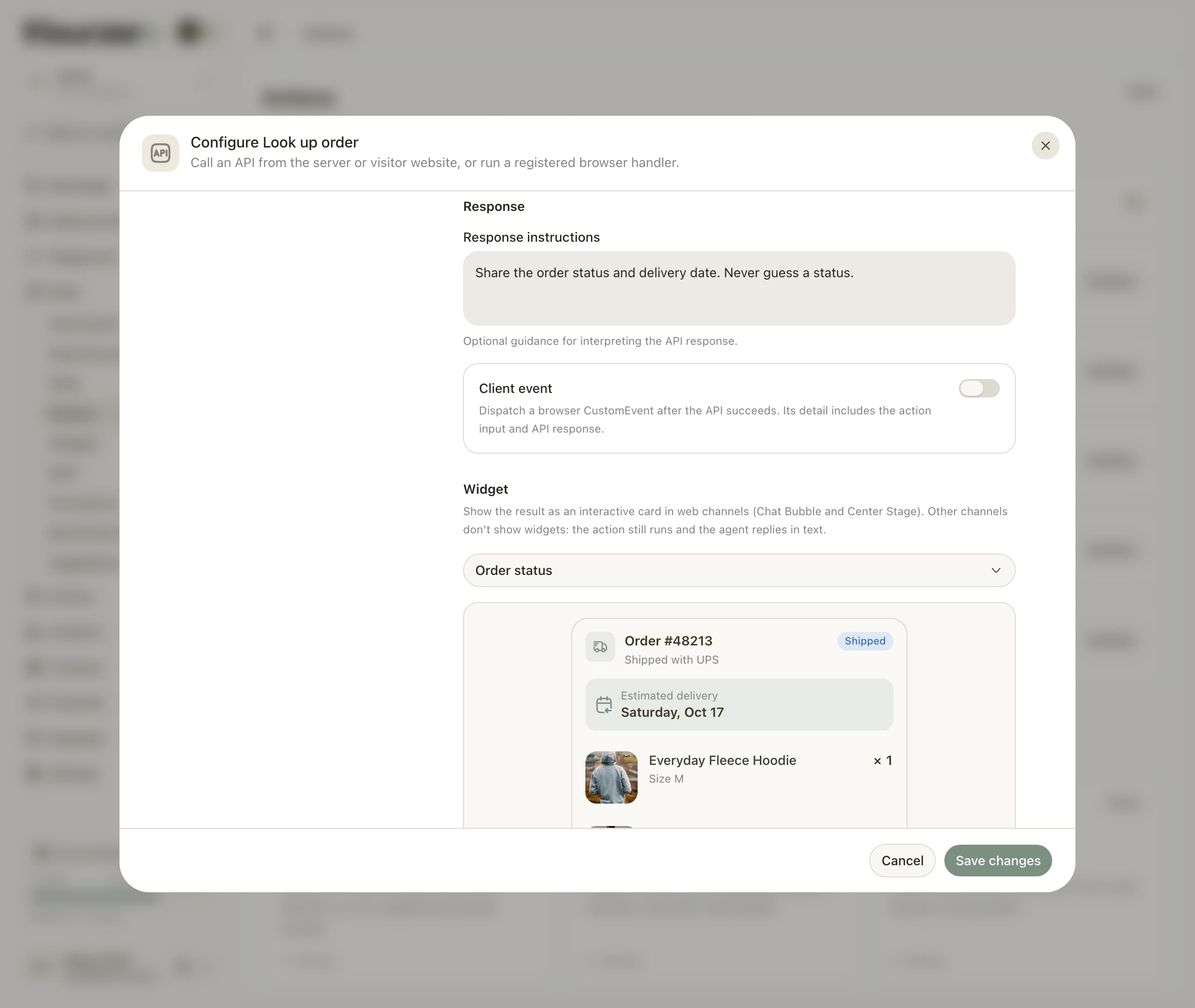
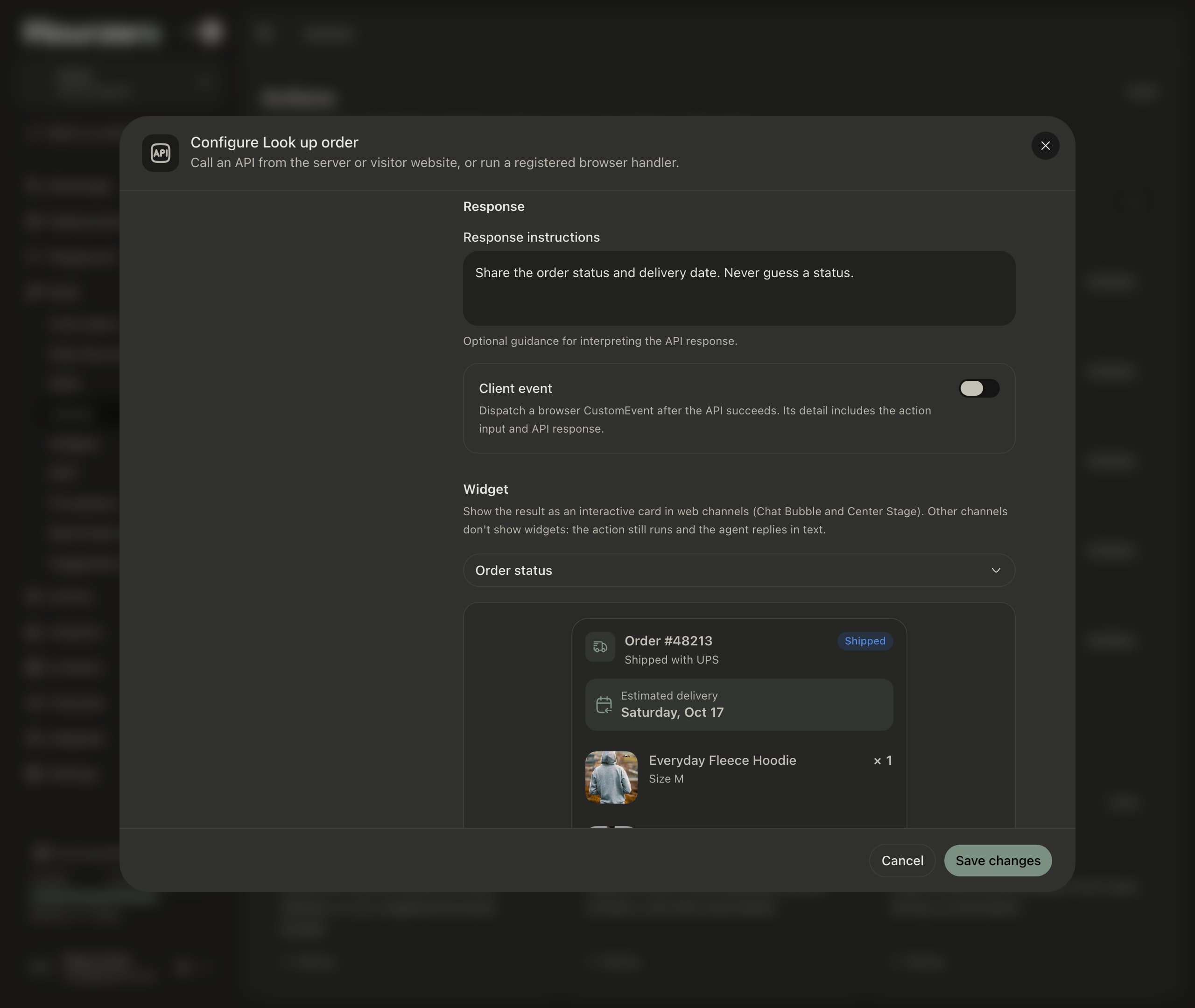
The menu also has Design a new widget in Backstage, and the preview has Edit in Backstage. Both open Backstage in a new tab.
Each action shows one widget, and you can use the same widget in several actions. To stop showing a widget, choose No widget.
Test and publish
- Open Playground and pick Chat Bubble or Center Stage under Preview channel.
- In the Capabilities tab, check that the action is switched on, and select Save draft if you changed anything.
- In the preview, ask something that runs the action, for example "Has my order 48213 shipped?". The agent replies with a short message and the widget.
- Try every button and field in the widget.
- Try a lookup that returns something different, like an order number that doesn't exist. The agent should answer in text. See When a result doesn't fit.
- Open the chat in Activity → Conversations. The widget appears in the thread as the customer saw it, above the details of the action.
- When everything works, publish the channel.
Note
Actions that run on your website (Website API request or Website JavaScript handler) don't run in the Playground, so test their widgets on your live site. See Run actions on your website.
What a widget can do
Widgets are made of the same building blocks as an app, so customers can read, choose, and act in the chat.
- Show: cards, lists, tables, carousels, tabs, charts, stats, images, badges, ratings, progress bars, steps, and countdowns.
- Ask: text fields, dropdowns, date pickers, time slots, star ratings, quick picks, sliders, quantities, checkboxes, and switches.
Buttons and forms can:
- Send a message to the agent as if the customer typed it. Acme's Get help button sends "I need help with order #48213".
- Open a link, like a checkout or tracking page. Links must start with
https://. - Copy a code or reference number.
- Run an action straight away, like booking a time slot or saving feedback, and show whether it worked. A widget can run custom actions that use Server API request, and Collect leads, Collect data, and Custom form actions.
What a customer picks or types in a widget is saved with the conversation, and the agent reads it, along with the result of any action the widget ran, before its next reply.
Important
A widget can only run the actions it was designed to run, and only if they're switched on for that channel. Each widget in a chat can run actions up to 20 times.
Where widgets show
Widgets show in your website chat: Chat Bubble and Center Stage.
On every other channel, such as WhatsApp, Slack, or email, the action still runs and the agent answers in text. You don't need to turn the action off on those channels.
When a result doesn't fit
A widget only shows what your action returned. Prices, dates, and order details come from your system, not from the AI.
Before showing a widget, Hourzero checks that the result has everything the widget needs. If it doesn't, for example because your system returned an error or left out a field, the widget is skipped and the agent answers in text. Customers never see a half-empty card.
Change or delete a widget
Select a widget on the Widgets page to preview it larger, see which actions show it under Shown by, and see the sample it was designed with.
To change a widget:
- Select Edit on its card, or Edit in Backstage in an action's widget preview.
- Tell Backstage what to change. It previews the change first.
- Check the Current design and Proposed design in the proposal card, and select Approve changes.
Approving updates the draft of every action that shows the widget. Published channels keep the design they were published with until you publish them again.
To delete a widget, select ⋯ on its card, then Delete, then Delete widget. You can't delete a widget that an action still shows: choose another widget for that action first. Published channels and archived actions keep their copy.
Each agent can save up to 50 widgets. The count is next to Your widgets, for example 3/50. At 50, Design a widget and Customize are switched off until you delete one.
Plans
Widgets are included on the Standard, Pro, and Enterprise plans. See Plans, billing, and invoices.
On other plans, the Widgets page says your plan doesn't include widgets, and the Widget section of a custom action shows View plans. If you move to a plan without widgets, your actions keep running and the agent answers in text instead of showing their widgets.
Troubleshooting
The widget doesn't show in the chat
Check these in order:
- The chat is in Chat Bubble or Center Stage.
- The widget is chosen under Widget in the action's settings, and you selected Save changes.
- You saved the draft, and for live chats, published the channel.
- The action worked. Open the chat in Activity → Conversations and expand the action to see what came back.
- The result fits the widget. Compare what came back with the widget's sample on the Widgets page. If a field is sometimes missing, ask Backstage to make that part of the widget optional, for example: "Sometimes there's no tracking_url. Hide Track package when it's missing."
A widget button doesn't work
If the button runs an action, check that the action is switched on for the channel and that you published the channel. Then open the chat in Activity → Conversations to see what the action returned.
Backstage can't save the widget
Backstage only proposes a save once the preview fits the sample. If it says the widget doesn't fit yet, ask it to fix the design and preview it again. Each widget also needs a name the agent's other widgets don't use.